No items found.
7 Best AI Video Editing Apps for Beginners in 2026

OpusClip is the pick among these AI video editing apps for a first-time editor who starts with a long recording and wants short, captioned clips without building a timeline. Descript is the pick for editing by deleting words, Canva and CapCut for template-led editing, VEED for a browser editor, Movavi for a desktop editor and iMovie for a free start on Apple devices. Here, beginner means a first-time editor, not a low price or a phone. Items 2 to 7 follow one yardstick: how much of a first edit each vendor's own pages say the app does for the user, read November 11, 2026.
Key takeaways
- Best for a first-time editor with a long recording: OpusClip. Its help center describes importing a long video and getting clips, and its AI video editor page says its editing tools need no experience.
- Best for editing by deleting words: Descript. Its FAQ says most people make their first cuts within minutes and that a whole video can be made without touching the timeline.
- Best for a template-led editor with AI helpers: Canva. Its video editor page lists a drag-and-drop timeline, hook templates and AI tools such as Highlights and Magic Video.
- Best for free templates and auto captions on every device: CapCut. Its App Store listing says beginners can get started in a matter of seconds, and its pages list auto subtitles and background removal.
- Best for a browser editor with automatic clean-up: VEED. Its editor page says automatic edits add subtitles, clean up audio and insert B-roll, and that no download is required.
- Best for a guided desktop editor: Movavi. Its FAQ says a first-time editor will master its editor in less than 20 minutes, a vendor claim, and its free version adds a watermark.
- Best for a free first movie on Apple devices: iMovie. Its listings offer Magic Movie, Storyboards and trailer templates but name no AI features.
What counts as an AI video editing app for beginners
A beginner here is a first-time editor: someone with footage and a destination who has not learned a timeline editor. The seven apps cover three ways to start. A clipper takes a long recording and returns short clips (OpusClip). A transcript editor turns the recording into text, so cutting means deleting words (Descript, and the text-based modes in VEED and in OpusClip's editor). A template editor starts from a ready-made layout or a drag-and-drop timeline and adds AI helpers for captions and clean-up (Canva, CapCut, Movavi, and iMovie with its automatic Magic Movie).
Every claim in this guide that an app is easy to learn is the vendor's own, and the pages we read print no independent test of how quickly a beginner learns any of them. For the editing basics before choosing an app, see our step-by-step guide on how to edit a video.
How to choose
- A long recording, podcast or interview that should become short clips: OpusClip, which starts from the recording and finds the clips.
- A talking recording that should be cut like a document: Descript, VEED or OpusClip's own text-based editor, where deleting words cuts the video.
- A first video built from templates or a drag-and-drop timeline: Canva, CapCut or Movavi.
- Nothing to install: VEED runs in a browser, and Canva and CapCut have online editors.
- A free start on an iPhone, iPad or Mac: iMovie, with the caveat that its listings name no AI features.
- A phone-first editor: our guide to AI video editing apps for mobile compares phone apps.
- The lowest price: our guide to budget AI video editing software compares prices; this guide compares how easy each app is to start.
Which AI video editing app is easiest for a first-time editor?
Each vendor makes its own beginner claim, and the claims are not comparable. OpusClip's AI video editor page says its tools to trim, add text overlays and edit clips need no experience. Descript's FAQ says most people make their first cuts within minutes because cutting means deleting words in a transcript. VEED's FAQ calls its editor easy to use, Canva's page promises video editing without the complexity, and CapCut's online editor page says its free editor requires no learning curve. Movavi's FAQ says a first-time editor will master its editor in less than 20 minutes, and Apple's iMovie listing says Magic Movie makes a video with no video editing required.
The practical difference is the starting point. OpusClip, Descript, VEED and iMovie do part of the first edit for the user, while Canva, CapCut and Movavi start from templates and a timeline the user fills in, with AI helpers for captions, cutouts and clean-up.
At a glance
- OpusClip: best for a first-time editor with a long recording who wants short, captioned clips; Starter $15 a month (monthly billing only), Pro $29 a month or $14.50 a month billed annually; free plan yes (clips carry a watermark).
- Descript: best for editing by deleting words from a transcript; Hobbyist $16 per person a month billed annually ($24 billed monthly); free plan yes (720p export, with watermark-free export starting on Hobbyist).
- Canva: best for a template-led editor with AI helpers; Pro US$144 a year for one person on the pricing page's yearly view; free plan yes (no watermark unless paid elements are used).
- CapCut: best for free templates and auto captions on phone, desktop and browser; the pricing page shows local currency and says prices are for reference only, and the US App Store lists Standard Monthly at $9.99, Pro Monthly at $19.99 and a Yearly Subscription at $89.99; free plan yes.
- VEED: best for a browser editor with automatic clean-up; Creator $12 per user a month billed yearly; free plan yes (720p with a watermark).
- Movavi: best for a guided desktop editor; the pricing page shows prices in local currency, so see the pricing page, and its FAQ lists an annual subscription or a lifetime license; free version yes (watermark, 60-second cap, 7 days).
- iMovie: best for a free first movie on Apple devices; free, with a US App Store price of $0.
Where each app runs, how a first edit starts and what its free version limits
The At a glance list carries best-for, price and free plan; this table compares where each app runs, how a first edit starts, what the vendor says is automated, the learning help it lists and what its free version adds to an export, as listed on each vendor's own pages on November 11, 2026.
| App | Runs on | How a first edit starts | What the vendor says is automated | Learning help the vendor lists | Free plan and watermark |
|---|---|---|---|---|---|
| OpusClip | Web browser, iPhone app with streamlined editing, Android app with no editor | Import a long video by link or file, then the AI finds the clips | Finds clips, adds animated captions, resizes clips for TikTok, Shorts and Reels | Learning center tutorials, a quick-start section and a bi-weekly webinar | Free plan exists; the pricing page lists a watermark on free clips |
| Descript | Mac and Windows 11 apps plus a web editor; the vendor says it does not work on mobile | Drag in a recording; it is transcribed, then cuts are made by deleting words | Underlord AI co-editor, Remove Filler Words and Studio Sound audio clean-up | Help center sections: Edit your first project, Edit like a doc and Descript tour | Free plan exports at 720p; watermark-free export starts on the Hobbyist plan |
| Canva | Browser, Windows and Mac apps, and a free mobile app on the App Store and Google Play | Drag clips onto a multi-layer timeline or start from a trending hook template | Auto captions and Magic Video; Highlights and Auto-trim are listed in the Pro column | Design School, with lessons tagged Beginner | No watermark on free exports unless paid elements are added |
| CapCut | Desktop app, online editor, iPad app and mobile app | Drag clips onto an editing timeline, or start from free templates | Auto subtitles, text-to-speech, background removal and long-to-short conversion | Help Center with FAQs, video tutorials and troubleshooting articles | Online FAQ says no watermark; the help center says template exports can carry one |
| VEED | A web browser on Mac, Windows, Linux, iPhone, iPad and Android; no download | Upload a file or paste a link, then trim on a timeline or edit the transcript | Automatic edits add subtitles, clean audio and insert B-roll; filler-word cutting | A Learn Center of tutorials and a walkthrough video on editing by text | Free exports are 720p with a watermark; AI tools are one-time trials |
| Movavi | Desktop software for Windows and Mac | Start from customizable templates built from Blocks, or cut and join clips | Auto subtitles, silence removal, noise removal and auto-tracked cropping | How-to guides, including a Movavi Video Editor tutorial for beginners | Free version adds a watermark and caps saved videos at 60 seconds |
| iMovie | iPhone, iPad and Mac apps; the iPhone listing requires iOS 27.0 or later | Pick clips for a Magic Movie, a Storyboard or a trailer template | Magic Movie adds titles, transitions and music; one-click Enhance on Mac | iMovie User Guides for Mac, iPhone and iPad | Free app (US listing price $0); the listings name no watermark |
1. OpusClip: Best for a first-time editor who starts with a long recording and wants short clips

OpusClip's start screen for pasting a video link. Source: OpusClip web app
OpusClip's help center introduction calls it a video clipping tool that turns long videos into shorts. A first project starts by importing an original long video from online platforms or local files, and the help center says a click on "Get clips with one click!" produces the clips on a results page. OpusClip's AI video editor page says its AI finds the most engaging moments and turns them into short clips, adds animated captions and auto-resizes clips for TikTok, YouTube Shorts and Instagram Reels, and that its tools to trim, add text overlays and edit clips need no experience.
For fixes, the help center describes an in-app editor for minor tweaks, with text-based and timeline-based editing, and the AI video editor page says editing can feel like editing a document. The Learning center lists tutorials, a quick-start section, lessons on text-based and timeline-based editing and a bi-weekly webinar. OpusClip runs in a browser and as iPhone and Android apps; per the help center, the iPhone app offers a streamlined set of editing features and the Android app has no editor.
Pricing: OpusClip's pricing page lists Free at $0 (clips carry a watermark), Starter at $15 a month (monthly billing only) and Pro at $29 a month, or $14.50 a month billed annually; Business is custom. Each plan lists its credits on the pricing page.
Considerations: The starting point is a recording to clip, not a blank timeline. The help center calls OpusClip a video clipping tool and describes its editor as the place for minor tweaks to the clips it makes, so a beginner who wants to build a video by hand from separate clips, music and titles is better served by Canva, CapCut or Movavi. The AI video editor page also describes a second path, AI Producer, which it says starts from raw talking-head footage; this guide covers the clip path. Free clips carry a watermark, and the phone apps edit less than the browser.
- Choose it if the job is a long talk, podcast or interview that should become short captioned clips and the first-time editor wants the AI to find them.
- Skip it if the plan is to assemble a video by hand from separate clips, music and titles.
2. Descript: Best for editing by deleting words from a transcript
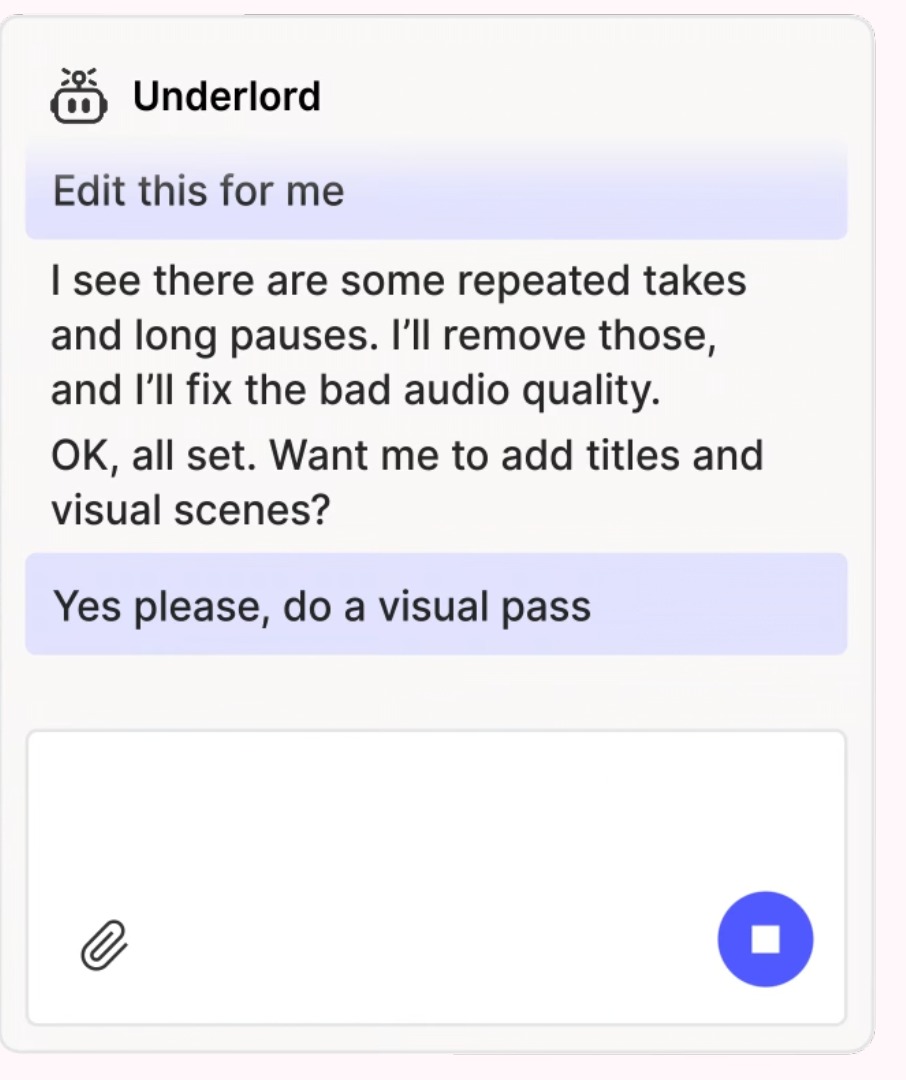
Descript's Underlord chat panel. Source: Descript website
Descript's FAQ describes an AI video and audio editor that lets users edit by editing text: a recording is transcribed, and deleting a word deletes that moment of video. Its FAQ answers the beginner question directly, saying most people make their first cuts within minutes and that a whole video can be made without touching the timeline, which is the vendor's claim, not an independent result. The page also lists Underlord, an AI co-editor that it says can turn a raw recording into a tight cut, plus Studio Sound and filler-word removal.
Descript runs as a Mac app (macOS 14 or later), a Windows app (Windows 11 or later) and a web editor in Chrome, Edge or Opera, and its download page says it does not work on mobile. Its help center has an Edit your first project section, an Edit like a doc article and a Descript tour.
Pricing: Descript's pricing page lists Free at $0, Hobbyist at $16 per person a month billed annually ($24 billed monthly) and Creator at $24 per person a month billed annually ($35 billed monthly). Its comparison table lists 60 minutes of media a month and 720p export on Free, and Hobbyist is the first plan marked watermark-free.
Considerations: It needs a computer, because the vendor says it does not work on mobile. On Free, the comparison table lists Underlord as limited and 100 one-time AI credits, so the AI that makes the first edit easier is mostly a paid feature. A beginner who prefers templates and ready-made designs to editing a transcript will find it narrower than Canva or CapCut.
- Choose it if the footage is a talking recording and deleting words is an easier way to cut than scrubbing a timeline.
- Skip it if editing will happen on a phone, or a free plan with 720p exports that carry a watermark is not acceptable.
3. Canva: Best for a template-led editor with AI helpers for highlights and captions
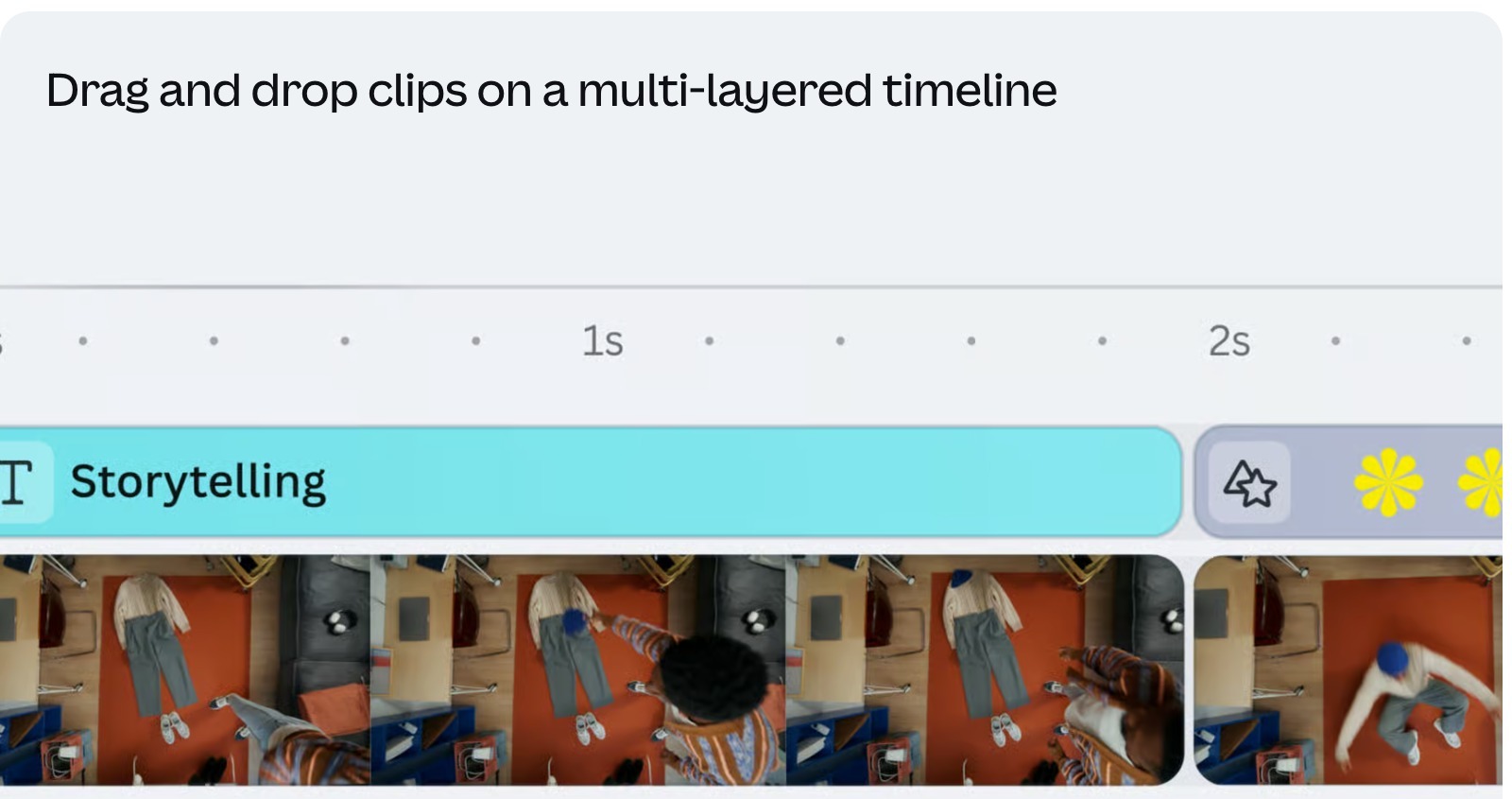
Canva's video editor timeline. Source: Canva website
Canva's video editor page promises powerful video editing without the complexity, with a drag-and-drop timeline over multiple layers, trending hook templates for social media and one-click captions. Its FAQ names the AI tools: Highlights, which identifies a video's best moments, Enhance Voice, which removes background noise, Magic Video, which it says creates social-ready clips by styling, cutting and sequencing clips, and a text prompt for generating clips.
The page's Free and Pro columns list manual clipping on the timeline for Free and AI-powered clipping (Highlights) with trimming (Auto-trim) for Pro. Canva's FAQ says a free account can export videos without a watermark as long as only free elements, images, footage and music are used. It runs in a browser, in Windows and Mac apps and in a free mobile app, and its Design School lists lessons, many tagged Beginner.
Pricing: Canva's pricing page lists Free at US$0 and Pro at US$144 a year for one person on its yearly view. Its AI tools draw on a monthly AI allowance, and Free is listed as limited access to Standard and Premium AI.
Considerations: Canva is a design suite with a video editor, so the video tools sit beside posters and presentations, and the AI clipping tools are listed in the Pro column of the video editor page. Its FAQ also marks Magic Resize as Pro.
- Choose it if the first video should start from a template or a drag-and-drop timeline, with AI helpers for highlights and captions.
- Skip it if the Free plan has to do the AI clipping, or a long recording should be cut into many clips automatically.
4. CapCut: Best for free templates and auto captions on phone, desktop and browser
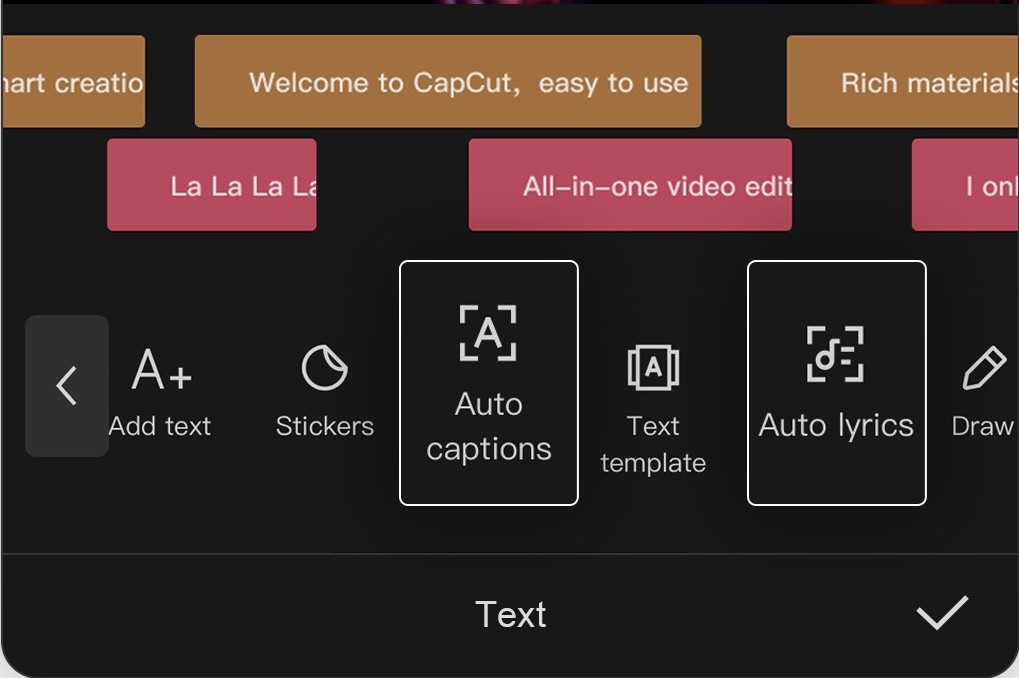
CapCut's text and auto captions tools on mobile. Source: CapCut App Store listing
CapCut's App Store listing says beginners can get started in a matter of seconds while advanced users get every function they need, and it names auto captions, text-to-speech, background removal and a multi-track timeline. Its online editor page says its free editor requires no learning curve, lists auto subtitles, text-to-speech and background removal, and mentions long-to-short-form video conversion. CapCut's pricing page lists Free with free templates to start fast and basic editing tools.
CapCut lists a desktop app, an online editor, an iPad app and a mobile app, and its Help Center offers FAQs, video tutorials and troubleshooting articles.
Pricing: CapCut's pricing page shows prices in the visitor's local currency, says they are for reference only, and its FAQ lists a 7-day free trial of Pro that may vary by region. The US App Store lists Standard Monthly at $9.99, Pro Monthly at $19.99 and a Yearly Subscription at $89.99 without saying which features each unlocks.
Considerations: The online editor FAQ says videos can be made without a watermark, but CapCut's help center says template exports can carry a watermark from a default ending clip or built-in template element, which matters because templates are the usual beginner route. Plan names and prices differ between the store and the web.
- Choose it if free templates, auto captions and a timeline on phone, desktop and browser fit the first project.
- Skip it if the AI should pick clips from a long recording, or one clear price is needed before starting.
5. VEED: Best for a browser editor with automatic clean-up and text-based editing
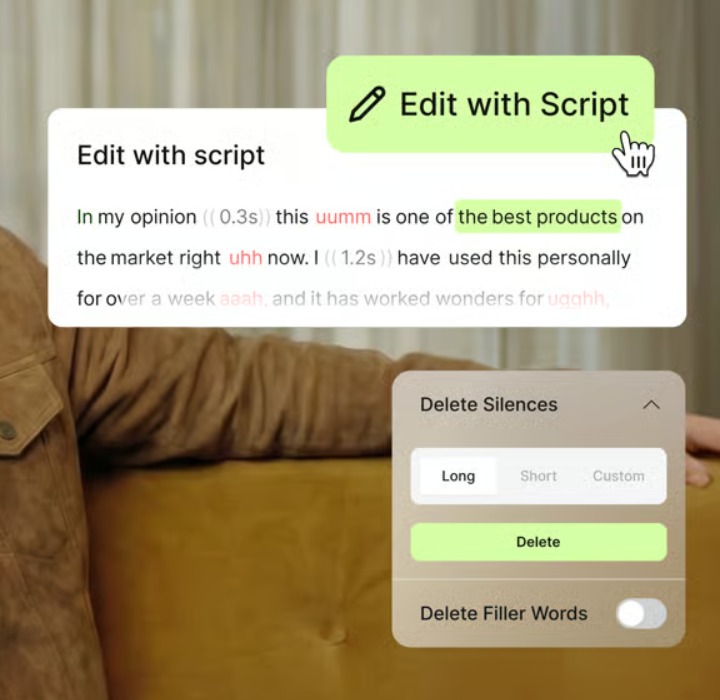
VEED's Edit with script panel, with the background footage cropped to remove the speaker. Source: VEED website
VEED's video editor page says to make pro videos in minutes with AI, listing auto-cutting filler words, captions and audio clean-up. It describes drag-and-drop trimming and cropping, and text-based editing that trims clips like editing a document. The page says its automatic edits add subtitles, clean up audio and insert B-roll, and that no software download is required. Its FAQ answers the beginner question by calling the editor easy to use.
VEED's FAQ says the editor works in the major browsers on Mac, iPhone, iPad, Windows, Android and Linux. Its Learn Center lists tutorials, and the editor page embeds a walkthrough on editing by text. VEED's home page now leads with AI video creation for social, so the editor is reached through the Tools menu or the editor page.
Pricing: VEED's pricing page lists Creator at $12 per user a month billed yearly, with no watermark and unlimited auto subtitles, and Pro at $22 per user a month billed yearly. The editor page's FAQ lists plans from $9 a month billed yearly, which does not match the pricing page, so this guide prints the pricing page figure. The same FAQ says free exports are 720p and include a watermark.
Considerations: On the free plan, the AI tools are one-time trials, per the editor page's FAQ (its automatic edits, AI B-roll and audio cleanup), and exports carry a watermark, so the clean-up that makes a first edit easier needs a paid plan to use repeatedly. Its paid plans also list AI credits for generation tools.
- Choose it if a browser editor with text-based editing and one-click clean-up suits the first edit, and a watermark-free export is worth a paid plan.
- Skip it if the free plan has to do repeated AI edits without a watermark, or the job is turning a long recording into many clips.
6. Movavi: Best for a guided desktop editor with templates and automatic subtitles
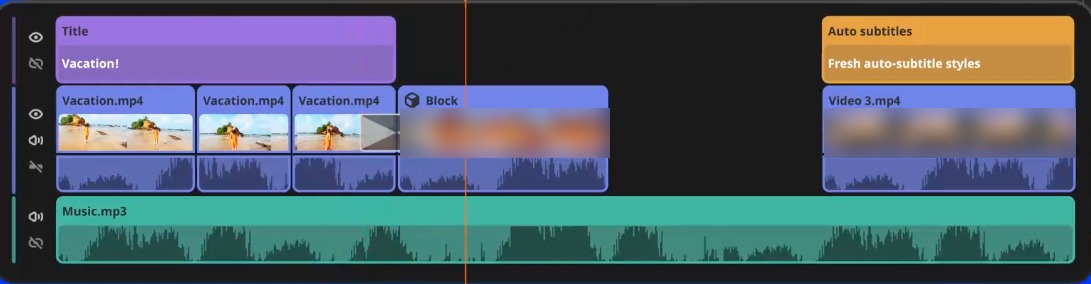
Movavi Video Editor's timeline, with clip thumbnails blurred. Source: Movavi website
Movavi's FAQ says it works to make Movavi Video Editor as easy and intuitive as possible and that even a first-time editor will master it in less than 20 minutes, which is the vendor's claim. Its product page lists adjustable video templates made of Blocks (pre-edited video segments), fast editing (cut, join, add auto-subtitles, remove silence) and noise removal, and its pricing page lists one-click AI tools and auto-tracked cropping.
Movavi Video Editor is desktop software for Windows and Mac, and its how-to library includes a Movavi Video Editor tutorial for beginners.
Pricing: Movavi's pricing page shows prices in local currency (the page read for this guide showed yen), so see the pricing page for the amount. Its FAQ says the full version can be bought as an annual subscription or a lifetime license, with no watermark and 4K export. The free version adds a watermark and caps saved videos at 60 seconds, and the FAQ says the free download works for 7 days before the full version must be bought.
Considerations: It is an installed program rather than a browser or phone app, its free version is a time-limited trial with a watermark and a 60-second cap, and the pages we read name its AI tools as one-click features without describing a clip finder.
- Choose it if a classic desktop editor with templates, a beginner tutorial and automatic subtitles is the goal and a paid license is acceptable.
- Skip it if a free export without a watermark is needed, or editing will happen on a phone or in a browser.
7. iMovie: Best for a free first movie on an iPhone, iPad or Mac

iMovie's trailer picker on Mac. Source: Apple iMovie User Guide
Apple's App Store listing for iPhone and iPad describes Magic Movie, in which selecting an album or a group of clips makes iMovie create a video with titles, transitions and music, and Storyboards, 20 templates that help a beginner start popular video types. It also lists 14 trailer templates and 8 themes. The Mac listing adds one-click Enhance, stabilization and 29 trailer templates, and says movies started on an iPhone or iPad can be finished on a Mac.
Neither listing uses the word AI. The automation it names is Magic Movie, Enhance and an automatic zoom on faces, so this is the least AI-led app in the list. Apple's iMovie User Guide covers Mac, iPhone and iPad.
Pricing: free: the US App Store listings show a price of $0. The iPhone and iPad listing requires iOS 27.0 or later, and the Mac listing lists its own macOS minimum.
Considerations: The listings we read name no AI features and no automatic captions, and there is no Windows or Android version in them. The iOS 27.0 requirement means older iPhones and iPads may not run the current version.
- Choose it if the first movie is a family or travel video on an iPhone, iPad or Mac and Magic Movie or a Storyboard is the starting point.
- Skip it if AI features or automatic captions are needed, or editing will happen on Windows or Android.
How we compared these tools
We compared each app on six points: how a first edit starts, what the vendor says the app automates (captions, cuts, clips, templates, music and clean-up), the learning help it lists, whether it has a free plan and what a free export carries, where it runs, and how clearly the vendor's own pages document all of it. The guide is organised around the job in the title, an AI video editing app a first-time editor can use, and OpusClip comes first because starting from a long recording and getting clips is the job its help center and AI video editor page describe. Its limits are stated in its entry: its help center calls it a clipping tool whose editor is for tweaks, and its phone apps edit less than the browser.
Items 2 to 7 follow one yardstick: how much of a first edit each vendor's own pages say the app does for the user without a hand-built timeline. Descript is second because its pages say a whole video can be made by editing text. Canva lists AI helpers and templates but places its AI clipping in the Pro column, VEED lists automatic edits and text editing but offers only one-time AI trials on its free plan, and CapCut pairs templates and auto captions with a manual timeline. Movavi is a desktop editor with templates and automatic subtitles but a time-limited free version, and iMovie is last because its listings name no AI features. Positions 3 to 7 are close calls, not a scored formula.
All facts come from each vendor's own pricing page, product page, App Store listing or help center, read on November 11, 2026, and every price is printed with its billing basis; store and web prices can differ. We did not run hands-on tests of any app, and this guide prints no accuracy or learning-time figure unless a vendor's own page prints one, in which case it is attributed. We also read pages for Clipchamp, Flixier, Google Vids and Adobe Express and left them out to keep the list to seven; Clipchamp appears in our budget guide, and Adobe's own site returns a 403 error to scripts, so only its App Store listing was readable.
Red flags to watch for
- Beginner claims are the vendor's own. Descript, VEED, CapCut, Movavi and OpusClip each say their app is easy to start, and the pages we read print no independent test of how long a first edit takes.
- Watermarks on free exports. OpusClip's pricing page lists one on Free clips, VEED says free exports include one, Movavi's free version adds one and caps videos at 60 seconds, Descript lists watermark-free export from Hobbyist, Canva adds one when paid elements are used, and CapCut's help center says template exports can carry one from a default ending clip.
- AI behind paid plans or trials. Canva lists Highlights and Auto-trim in its Pro column, VEED's free plan offers one-time trials of its AI tools, and Descript lists Underlord as limited on Free with 100 one-time AI credits.
- A clipper is not a blank timeline. OpusClip's help center calls it a clipping tool whose editor is for tweaks, and its iPhone app edits less than the browser while the Android app has no editor.
- Device and system limits. Descript says it does not work on mobile, Movavi is desktop software, and the iMovie iPhone listing requires iOS 27.0 or later.
- Prices that differ by page or region. CapCut and Movavi show prices in local currency, CapCut's page says its prices are for reference only, and VEED's editor page and pricing page list different starting prices.
- Little or no AI. iMovie's listings name no AI features or automatic captions, so a beginner who wants AI help should check the feature list first.
Frequently asked questions
What are the best AI video editing apps for beginners?
It depends on where the first edit starts. For a long recording that should become short captioned clips, OpusClip comes first in this guide. Descript is the pick for editing by deleting words, Canva and CapCut for template-led editing with AI captions and clean-up, VEED for a browser editor, Movavi for a desktop editor with a beginner tutorial and iMovie for a free start on Apple devices. See OpusClip's AI video editor page for what it does.
What is the easiest AI video editor for a first-time editor?
No page we read prints an independent test, so the answer rests on each vendor's own claim. Descript says most people make their first cuts within minutes, Movavi says a first-time editor will master its editor in less than 20 minutes, CapCut's online editor page says its free editor requires no learning curve, and OpusClip's AI video editor page says its editing tools need no experience. Trying the free plans or free apps first costs nothing and shows which starting point fits the footage.
Is there a free AI video editor for beginners with no watermark?
Some free options say so, with conditions. Canva's FAQ says a free account exports without a watermark as long as only free elements are used, CapCut's online editor FAQ says exports can be made without a watermark though its help center says template exports can carry one, and iMovie is a free app whose listings name no watermark. OpusClip's pricing page lists a watermark on Free clips, Descript lists watermark-free export from its Hobbyist plan, VEED says free exports include a watermark, and Movavi's free version adds one and caps videos at 60 seconds. For lower-priced paid plans, see our guide to budget AI video editing software.
Can a beginner edit a video without learning a timeline?
Yes, in three ways. OpusClip imports a long video and returns clips, Descript and VEED let a user cut by deleting words from a transcript, and iMovie's Magic Movie builds a video from selected clips. Descript's FAQ says a whole video can be made without touching its timeline. Each of these apps also has a timeline for finer control, so the timeline is optional rather than absent.
Is OpusClip a video editor or a clip tool?
OpusClip's help center introduction calls it a video clipping tool that turns long videos into shorts, and describes the in-app editor as a way to make minor tweaks to the clips with text-based and timeline-based editing. Its AI video editor page calls it an AI video editor and describes a second path, AI Producer, that starts from raw talking-head footage. On phones, the iPhone app offers a streamlined set of editing features and the Android app has no editor. The Learning center lists the tutorials.
Which beginner-friendly AI video editing apps work on a phone?
CapCut has a mobile app, Canva has a free mobile app, iMovie runs on iPhone and iPad, and OpusClip has iPhone and Android apps with the editing limits above. VEED says its editor works in the browsers on iPhone, iPad and Android. Descript says it does not work on mobile, and Movavi is desktop software. Our guide to AI video editing apps for mobile compares phone apps in depth.
How much should a beginner pay for an AI video editing app?
The pages we read show a range, so starting with a free plan and paying only for the limit that blocks the first project is the safer path. OpusClip Starter is $15 a month on monthly billing only, Descript Hobbyist is $16 per person a month billed annually, VEED Creator is $12 per user a month billed yearly and Canva Pro is US$144 a year for one person, while CapCut and Movavi show prices in local currency. These plans carry different limits, so they are not a like-for-like price ranking. See OpusClip's pricing page for its plans.