OpusClip 4.0 is here. Become a content powerhouse.

8 Best AI Video Editors for Coaches and Course Creators in 2026

November 24, 2026
A coach on a video call, a man teaching to camera and a woman recording a lesson, with a graduation cap badge, a 9:16 tag, a Clip it button and a +39K views pill

OpusClip is the pick for a coach or course creator who wants a recorded call, workshop or webinar turned into short captioned clips: its Zoom recording page says it transcribes the call, finds the moments and cuts them into vertical clips. Lessons for the course itself are a second job. Camtasia, Tella and ScreenPal record and edit screen-and-camera lessons, Descript and Wistia describe both jobs, and Reap and Vizard clip recordings. Items 2 to 8 follow how many of the two jobs each vendor's pages describe. Facts are from vendor pages read on November 24, 2026.

Key takeaways

  • Best for turning a recorded call, workshop or webinar into short captioned clips: OpusClip. Its Zoom recording page says it transcribes the call, finds the moments and cuts them into vertical clips.
  • Best for editing a lesson or a webinar recording by editing the text: Descript. Its training video page says to edit video by editing text.
  • Best for hosting a webinar and clipping the replay in the same place: Wistia. Its editing page lists AI social clips and highlight reels.
  • Best for recording and editing screen-based lessons on a desktop: Camtasia. Essentials lists quizzes and SCORM export.
  • Best for recording a screen lesson and cleaning it up from the transcript: Tella. Its Cut panel handles mistakes, silences and filler words.
  • Best for a low-cost recorder with quiz questions and a free editor: ScreenPal. Its AI page lists quiz questions.
  • Best for Zoom recordings from coaches, on a page written for the job: Reap. Its coaches page lists lesson clips and course previews.
  • Best for client calls and courses turned into clips with an edit-by-text step: Vizard. Its coach page names client calls and courses.

What counts as an AI video editor for coaches and course creators

A coach or course creator makes two kinds of video. Recordings are the calls, workshops, webinars and cohort sessions that already happen, and the editing job is to find the few minutes worth posting and turn them into short captioned clips. Lessons are the videos made for the course itself, usually a talking head, a screen recording or slides, and the editing job is to cut the mistakes, clean the sound and add captions. Some tools do one job and some describe both.

This guide covers three kinds of tool. Clip tools for recordings: OpusClip, Reap and Vizard. Recorders and editors for lessons: Camtasia, Tella and ScreenPal. Tools whose pages describe both jobs: Descript and Wistia. For more tools for the clip job, see our guides to turning webinars into short clips and converting Zoom recordings to shorts, and for a lesson filmed to camera see AI tools for talking-head videos. This guide is about editing the video: course platforms such as Kajabi and Podia host lessons, and the pages we read for them describe hosting rather than editing.

How to choose

  • A recorded call, workshop or webinar should become short clips: OpusClip, Reap or Vizard. OpusClip's Zoom recording page describes the flow from a Zoom link to vertical clips.
  • The lesson is a screen recording with a camera: Camtasia, Tella or ScreenPal record and edit it in one app. OpusClip's AI Producer page lists screen recordings as not supported yet.
  • The lesson is one person talking to camera: Descript edits it by transcript, and OpusClip's AI Producer page describes editing raw footage of one person talking to camera.
  • Webinars are run and replayed in one place: Wistia hosts them and lists clips from the recording.
  • The course needs quizzes or SCORM export: Camtasia lists both on Essentials, and ScreenPal lists AI quiz questions.
  • The budget is close to zero: compare the free entries in At a glance, because each vendor counts its free allowance in a different unit.

At a glance

  • OpusClip: best for turning a recorded call, workshop or webinar into short captioned clips; Starter $15 a month (monthly billing only), Pro $29 a month or $14.50 a month billed annually; free plan yes ($0 with a watermark).
  • Descript: best for editing a lesson or a webinar recording by editing the text; Hobbyist $16 a month billed annually ($24 billed monthly), per person; free plan yes (1 media hour a month, 720p export with a watermark on the plan card).
  • Wistia: best for hosting a webinar and clipping the replay in the same place; Business $79 a month billed annually; free plan yes ($0, 25 GB of storage, 1 user, Wistia branding included).
  • Camtasia: best for recording and editing screen-based lessons on a desktop; Essentials $179.88 a year billed yearly (Starter $39 a year billed yearly); free download of the full Editor, with a watermark on exports.
  • Tella: best for recording a screen lesson and cleaning it up from the transcript; Pro $13 a month per user billed annually in its plan comparison; 7-day free trial, and the pricing page lists no free plan.
  • ScreenPal: best for a low-cost recorder with quiz questions and a free editor; Solo Deluxe $4 a month and Solo Max $10 a month, paid annually; free plan yes (Always Free, 15-minute recordings).
  • Reap: best for Zoom recordings from coaches, on a page written for the job; Creator $9.99 a month billed annually ($16.99 billed monthly); free plan yes (1 hour of AI clipping a month, 720p, watermarked).
  • Vizard: best for client calls and courses turned into clips with an edit-by-text step; Creator $14.50 a month billed yearly ($29 billed monthly); free plan yes (60 credits a month, 720p).

How each tool handles a recorded session or a lesson

The At a glance list covers best-for and the first paid price; this table compares the job each tool's pages describe, what goes in, cleanup and captions, the coaching or course use each page names, and the free access, as listed on each vendor's own pages on November 24, 2026.

ToolJob its pages describeWhat goes inCleanup and captionsCoaching, course or webinar use namedFree access as printed
OpusClipShort captioned clips from a recorded call; AI Producer edits one person on cameraZoom and Zoom Clips links or a file; AI Producer lists screen recordings as not supported yetSpeech Cleanup for fillers, pauses and bad takes; captions come from the transcriptZoom recording page; ClipAnything pulls key moments from meetings and webinarsFree: $0 with a watermark
DescriptEdits training and webinar recordings by text; Clips makes shorter videos from one videoScreen, webcam and mic recordings, or a webinar recording imported through ZoomUnderlord cuts filler words and retakes; captions are added in the same editorScreen recording page lists tutorials and coursesFree: 1 media hour a month, 720p export with a watermark
WistiaHosts webinars; AI editor makes highlight reels and social clips; records screen and cameraScreen and camera recordings made in Wistia; webinars run in WistiaEdit by transcript, silence trimming and one-click captionsWebinar hosting, with the recording ready to repurpose; written for marketersFree: $0, 25 GB storage, 1 user, Wistia branding included
CamtasiaRecords and edits lesson and how-to video; turns meeting recordings into training videosScreen, camera, system audio and mic as separate tracks; Zoom cloud recordingsEdit by deleting text; filler word removal; captions and translationsEssentials plan listed for educational content, with quizzes and SCORM exportFree download of the full Editor; exports carry a watermark
TellaRecords and edits screen-and-camera video; an AI editor in the sidebar edits from chat (beta)Screen, webcam and mic recordings; Mac and Windows apps and a Chrome extensionFinds mistakes, silences and filler words; trims by transcript; editable captionsPages name courses and lessonsNo free plan listed; 7-day free trial
ScreenPalRecords screen and webcam; AI adds captions, chapters, summaries and quiz questionsScreen and webcam on Windows, Mac, iOS, Android and Chromebook; no account requiredText-based editing and filler word removal are listed with Solo Max and Team BusinessBusiness page names coaching; AI makes quiz questions from a videoAlways Free plan with 15-minute recordings; the free editor page says no watermark added
ReapClips Zoom recordings and workshops into captioned, reframed teaching clipsA Zoom MP4 or any recording, or a YouTube, Twitch, X or Vimeo linkTrim on the transcript; fix a term once and captions follow; saved caption stylesPage written for coaches, consultants and course creatorsFree: 1 hour of AI clipping a month, 720p, watermarked
VizardTurns client calls, courses and podcasts into clips; AI picks highlights or you editA file, or a link from YouTube, Google Drive or StreamYard; imports from ZoomEdit by text, timeline editing and caption translationA coach page on the siteFree: 60 credits a month, 720p; no watermark is listed on Creator

1. OpusClip: Best for turning a recorded call, workshop or webinar into short captioned clips
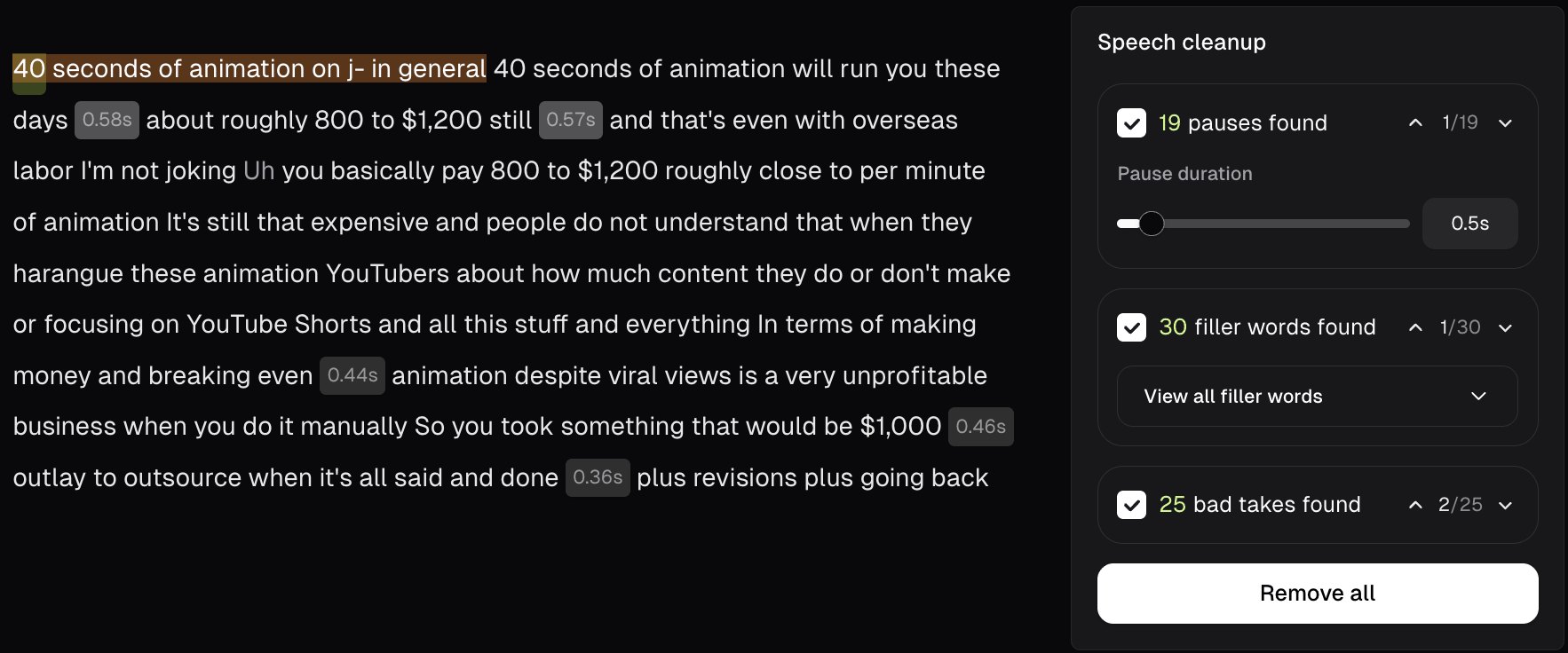
OpusClip's transcript view with highlighted words and gray pause chips beside a Speech cleanup panel listing pauses, filler words and bad takes found

OpusClip's Speech cleanup panel, with the video preview cropped out. Source: OpusClip help center

OpusClip's Zoom recording page says it accepts Zoom and Zoom Clips links as import sources, along with Riverside, StreamYard, Loom, Google Drive and Dropbox, and that it transcribes the call, finds the moments and cuts them into vertical clips. A screenshare layout puts the shared screen on the top half and the speaker on the bottom half when screenshare content and one speaker are detected. Its highlight video maker page says ClipAnything takes a typed prompt, such as "Give me the best Q&A moments", which suits a coaching call or a cohort session.

Clean-up happens in the clip editor. The help center's trim article says a section can be removed by selecting its text and deleting it, or by dragging the ends of a segment in the timeline. Speech cleanup detects filler words, pauses and bad takes such as retakes and restarts, and nothing is cut without approval. Speech enhancement reduces background noise, isolates the voice onto a separate audio track and boosts voice volume. A name or key term the transcript gets wrong can be fixed once and saved, per the Brand Vocabulary article, which helps with a framework name or an acronym.

For lesson video, OpusClip's AI Producer is the narrower fit. The AI video editor page describes it as an AI video editor agent that turns raw talking-head footage into a publish-ready video, and its own page says multi-camera edits and screen recordings are not supported yet. The help center also describes a Don't Clip option that returns a caption-only project with all of the submitted video, and the article prints a length limit, so check it before uploading a long lesson.

Pricing: OpusClip's pricing page lists Free at $0 (with a watermark), Starter at $15 a month (monthly billing only) and Pro at $29 a month, or $14.50 a month billed annually. Business is custom. Each plan lists its credits on the pricing page.

Considerations: OpusClip is a clipping tool first. Its help center introduction describes the in-app editor as the place for minor tweaks to clips the AI has found, so a lesson built from a screen recording, slides and demos belongs in one of the tools below. The Zoom recording page says a link must be public or unlisted because private videos cannot be accessed, so a private recording is uploaded as a file instead.

  • Choose it if a coaching call, workshop or webinar recording should become short captioned vertical clips, with the fillers, pauses and noise cleaned up.
  • Skip it if the lesson is a screen recording with slides and demos, which the AI Producer page lists as not supported yet.

2. Descript: Best for editing a lesson or a webinar recording by editing the text
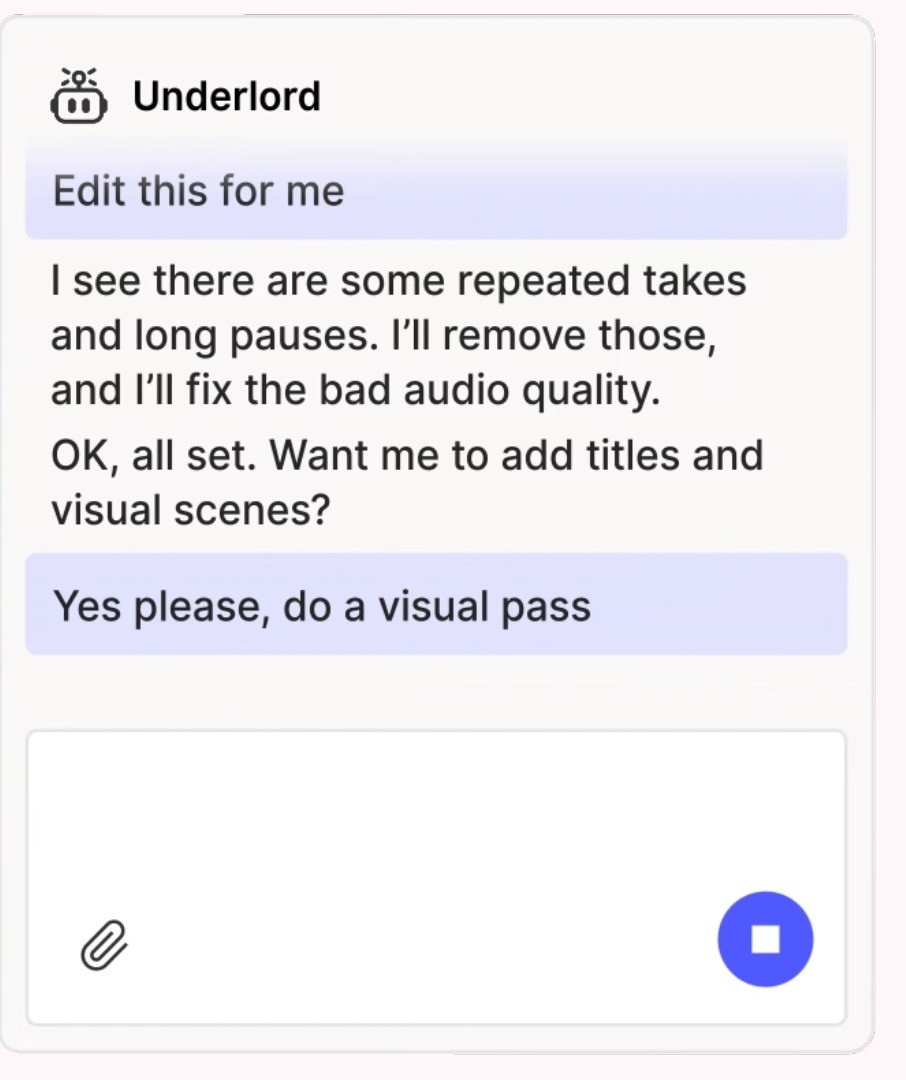
Descript's Underlord chat panel with the request Edit this for me and a reply about removing repeated takes and long pauses

Descript's Underlord chat panel. Source: Descript website

Descript's training video page says that in Descript you edit video by editing text, then add branding, captions and other flair, and that its AI editing assistant, Underlord, can do a first-pass edit that removes filler words and edits out retakes. Its screen recorder page lists recording the screen, webcam and microphone, names tutorials and courses among the uses, and says in its FAQ that Descript is built for recording, editing and sharing educational, demo and workflow videos.

For recorded sessions, Descript's webinar recording page says to turn webinar recordings into polished videos, and a use-case list on its training video page says the Zoom integration imports a live webinar recording so long pauses can be removed and shaky Zoom audio enhanced. The same list says Clips turns one video into shorter videos customized for TikTok, LinkedIn and Instagram.

Pricing: Descript's pricing page lists Hobbyist at $16 a month billed annually ($24 billed monthly), per person, with 10 media hours a month, 400 AI credits and 1080p watermark-free export, and its AI tools include Remove Filler Words and Create Clips. The Free plan card on its screen recorder page lists 1 media hour a month, 100 AI credits (one time) and 720p export with a watermark, while the FAQ on the same page says Descript adds no watermark, so check the plan before exporting.

Considerations: Media hours cap what a plan processes each month, and Free lists 1 hour, so it fits one lesson or one session rather than a cohort's worth of recordings. Free lists limited use of Underlord and the AI tools, with 100 AI credits one time.

  • Choose it if one app should record a lesson or a webinar replay, cut it by editing the text and make the shorter versions.
  • Skip it if the recordings run to many hours a month, since the Free plan lists 1 media hour.

3. Wistia: Best for hosting a webinar and clipping the replay in the same place

Wistia's editor with a Transcript tab, a transcript passage selected and a Trim to selection and Delete menu open

Wistia's transcript editor. Source: Wistia website

Wistia's home page describes one place to host and make videos and run webinars, and says that when a webinar is done it is ready for repurposing alongside the rest of the video library. Its video editing page lists AI social clips that find the best moments and turn them into ready-to-share posts, editing by transcript where making a cut is as easy as hitting delete, silence trimming, one-click captions and smart resizing. Mochine, its AI video editor, turns videos into highlight reels, cut-downs and summaries from a description.

Wistia's recording page lists capturing the screen, the camera or both, then trimming takes, burning in captions and cleaning up audio with one toggle. The webinar copy is written for marketers who want to see who watched, a different buyer from a solo coach.

Pricing: Wistia's pricing page lists a Free plan at $0 a month with 25 GB of storage, 1 user, 3,000+ lifetime credits, basic video analytics, Wistia branding included, and AI editing and motion graphics with Mochine. Business is $79 a month billed annually, and removing Wistia branding is listed there. Webinar plans are on a separate Webinars tab of the pricing page.

Considerations: Wistia is a video and webinar platform for marketing teams first, so the editing sits beside hosting, analytics and lead forms that a coach who only needs clips may not use. Free is one user with Wistia branding included.

  • Choose it if webinars run and replay in the same account where the clips and highlight reels get made.
  • Skip it if the plan is only to clip a call recorded elsewhere, or the marketing-team focus is more than a solo coach needs.

4. Camtasia: Best for recording and editing screen-based lessons on a desktop

Camtasia's timeline with two screen recording tracks, a microphone track with AI noise removal and a Kinetic Cursor effect being dragged on

Camtasia's multitrack timeline, cropped to leave out the camera track. Source: Camtasia website

Camtasia's home page describes AI-powered screen recording and video editing that records the screen, camera, system audio and microphone as independent layers, so each can be adjusted after recording. It lists editing a video by deleting words in the transcript (powered by Audiate), filler word and hesitation removal, AI background noise removal, captions and translations, and says Camtasia is for creating videos that teach, train and connect.

Its meeting recording page says Camtasia turns raw recordings into branded training videos and demos, with a Zoom integration that pulls cloud recordings onto the timeline. The Essentials plan is labeled for educational and how-to content.

Pricing: Camtasia's pricing page lists Starter at $39 a year billed yearly and Essentials at $179.88 a year billed yearly. Essentials lists text-based video editing, automatic filler word removal, speech-to-text transcription, unlimited caption generation, and quizzes and SCORM export. Its home page says the full Camtasia Editor can be downloaded and used for free, with a watermark on exported videos until a paid plan is bought.

Considerations: Camtasia is a desktop application for Windows and macOS, and its text-based editing page lists automatic filler word detection for English only. The pages we read are written around training, tutorials and how-to video, and they do not list a clip finder for a long recording.

  • Choose it if the lessons are screen recordings with a camera, annotations and quizzes, edited on a computer.
  • Skip it if the main job is short social clips from a call, which Reap, Vizard and OpusClip describe.

5. Tella: Best for recording a screen lesson and cleaning it up from the transcript

Tella's editor panels: a Cut panel with buttons to remove mistakes, silences and filler words beside a Script panel with filler words struck through

Tella's Cut and Script panels, with the video preview cropped out. Source: Tella website

Tella's home page describes recording, editing and sharing video, and its features page lists capturing the screen, the camera or both, a web recorder with nothing to install, Mac and Windows apps and a Chrome extension. The editor page shows a Cut panel that finds mistakes and removes silences and filler words, and a Script panel for cutting by text. Captions can be edited, translated, burned in or downloaded as SRT.

Tella's pages name courses and lessons: the home page lists playlists for tutorials and courses and publishing to YouTube, X, Skool and Circle, and the AI features page lists an animated progress bar that fills as a lesson plays and course lesson demos with one take per lesson.

Pricing: Tella's plan comparison lists Pro at $13 a month per user billed annually and Premium at $19 a month billed annually, while its plan cards list $16 and $24 per user a month with no billing basis printed. Pro lists unlimited videos and 9,000 credits a month; credits pay for the Tella Agent and Auto Capture, and unused credits expire at the end of the month. The pricing page lists a 7-day free trial and no free plan.

Considerations: Tella is a recorder and editor for a creator's own takes, and its AI editor, the Tella Agent, is labeled beta and runs on credits. The pages we read do not list a clip finder for a long recorded call.

  • Choose it if the lessons are short screen recordings with a camera, and cutting by the transcript is the editing wanted.
  • Skip it if the footage is a long recorded call that should become several social clips, or a free plan is required.

6. ScreenPal: Best for a low-cost recorder with quiz questions and a free editor

ScreenPal's editor with a tools menu listing Cut, Copy, Hide, Insert, Narrate, Overlay, Replace, Sound, Speed, Transition and Volume above a timeline

ScreenPal's video editor, cropped to leave out the video preview. Source: ScreenPal website

ScreenPal's home page describes recording any part of the screen, the webcam or both, editing with trim, cut, text and overlays, and AI that generates transcripts, captions, chapters and summaries, on Windows, Mac, iOS, Android and Chromebook with no account required. Its business copy lists videos for coaching, marketing, demos and training, and its AI page lists AI-generated quiz questions and automatic chapters, which suit a lesson that checks understanding.

The video editor page calls the editor free and says it adds no watermark. The plans page lists text-based video editing and filler word removal among the ScreenPal AI features included in Solo Max and Team Business.

Pricing: ScreenPal's plans page lists a free plan, Always Free, with a 15-minute recording time. Solo Deluxe is $4 a month and Solo Max is $10 a month, both paid annually. Team Business is $8 a month per user, paid annually.

Considerations: ScreenPal's text-based editing and filler word removal are listed with the higher Solo Max plan, and the free plan lists 15-minute recordings. The pages we read do not list a clip finder for a long call.

  • Choose it if a coach or teacher wants to record lessons on any device, add quiz questions and keep the cost low.
  • Skip it if the job is turning a recorded session into several vertical social clips.

7. Reap: Best for Zoom recordings from coaches, on a page written for the job

Reap's teachable moments list for a one-hour workshop recording, with timestamps and clip titles such as The two-list planning framework

Reap's list of suggested moments for a workshop recording, with the preview cropped out. Source: Reap website

Reap's coaches page calls reap a Zoom video editor for coaches, consultants and course creators: download the Zoom MP4, upload it, review the suggested clips, trim on the transcript, then export or schedule. It says reap finds the lessons worth sharing and turns the recording into captioned, reframed clips, and lists clip types such as lesson clips from a workshop, Q&A answers from an open session and course previews from a recorded module.

The page says reap edits the recording file after the call, not inside Zoom, and that every clip opens beside its transcript so a framework name or acronym can be fixed once and the captions follow.

Pricing: Reap's pricing page lists a Free plan at $0 with up to 1 hour a month of AI clipping and AI captions, 720p exports, all marked watermarked, and projects that expire in 7 days. Creator is $9.99 a month billed annually ($119.88 billed annually) or $16.99 billed monthly, with up to 10 hours a month of AI clipping and 1080p exports listed as watermark-free.

Considerations: The coaches page says reap does not decide which idea is worth sharing or whether the advice holds up, so each clip needs the coach's review before posting. The page is about clipping recordings rather than recording or editing screen-based lessons.

  • Choose it if recorded Zoom sessions, workshops and Q&A calls should become teaching clips, with a review step before anything is posted.
  • Skip it if the lessons are screen recordings to be edited into a course, which Camtasia, Tella and ScreenPal describe.

8. Vizard: Best for client calls and courses turned into clips with an edit-by-text step

Vizard's transcript editor with a passage selected and a Create clip and Delete toolbar above it

Vizard's edit-by-text view. Source: Vizard website

Vizard's coach page says to extract insights from client calls, podcast interviews and courses and turn them into clips, and describes saving time recording talking head video and mining value from client calls, courses and podcasts. Its three steps are to upload a local file or a link (the page lists YouTube, Google Drive, StreamYard and Zoom), let AI find highlights or edit by hand, then download or publish the captioned video to YouTube, TikTok, Instagram, LinkedIn and Twitter.

The editor features the page lists are edit by text, timeline editing, caption translation, changing the ratio, brand templates and link sharing.

Pricing: Vizard's pricing page lists a Free plan at $0 with 60 credits a month, 720p export and 3-day storage. Creator is $29 a month billed monthly or $14.50 a month billed yearly ($174 billed yearly), with a card that lists No watermark as an addition to Free.

Considerations: Free lists 60 credits a month and 3-day storage, so check the pricing page for how many credits a recorded session uses before relying on it.

  • Choose it if client calls and course recordings should become clips, with edit-by-text and a timeline to fix them.
  • Skip it if the lessons are screen recordings, or the course needs quizzes and SCORM export.

How we compared these tools

We compared each tool on four criteria: which of the two jobs its pages describe (clips from recordings, or lesson video), what goes in, how cleanup and captions are made, and the free access the vendor prints. This guide is organised around the job in the title, editing video for a coaching or course business. OpusClip comes first because the clip job is on its own Zoom recording page, which describes turning a recorded call into vertical clips. Its limits are in its entry: the AI Producer page lists screen recordings as not supported yet, and the help center calls the in-app editor a place for minor tweaks. Items 2 to 8 follow one yardstick: how many of the two jobs each vendor's own pages describe, starting with the two that describe both, then the lesson-video tools, then the clip tools.

  • 2. Descript: training video, webinar recording and Clips pages.
  • 3. Wistia: webinar hosting, AI social clips and a recorder.
  • 4. Camtasia: screen and camera recording for training and how-to video.
  • 5. Tella: a recorder and editor whose pages name courses and lessons.
  • 6. ScreenPal: a recorder with quiz questions and a business page that names coaching.
  • 7. Reap: a coaches page about clipping Zoom recordings.
  • 8. Vizard: a coach page about clipping client calls and courses.

All facts come from each vendor's own pricing page, product pages and help center, read on November 24, 2026. Where a page loads its figures with a script we read the rendered page, and where a plan grid showed only icons we left the claim out. We did not run hands-on tests of any competitor, and this guide prints no accuracy figure. We also read pages for Kajabi, Podia, Loom and Pictory and left them out: Kajabi's and Podia's describe hosting and selling courses rather than editing video, Loom's describe video messages and a class-assignment use for educators, and Pictory's calls it an AI video generator. Prices change, so confirm on the vendor's page before buying.

Red flags to watch for

  • Free allowances in different units. Descript counts 1 media hour a month, Reap 1 hour of AI clipping, Vizard 60 credits, ScreenPal 15-minute recordings, Tella a 7-day trial and Camtasia a watermark on exports. OpusClip's Free plan is $0 with a watermark, and the pricing page lists its credits. Tella's pages say unused monthly credits expire at the end of the month.
  • Watermarks. OpusClip's Free plan, Reap's Free plan and Camtasia's free Editor all print a watermark on output, and Wistia's Free plan includes Wistia branding. Descript's own pages disagree, with a Free card that lists a watermark and an FAQ that says no watermark is added.
  • A clip without context. Reap's coaches page says it does not decide whether the advice holds up. Review every AI-picked clip so a point is not cut from the answer that qualifies it.
  • Names and frameworks in captions. A transcript can misspell a method name. OpusClip's help center describes saving a corrected term, and Reap's page describes fixing a term so the captions follow. Check each caption before posting.
  • Client and guest content. OpusClip's help center says uploads must be content the uploader has the right to use. Get a client's agreement before posting a clip of them, and check each tool's own terms.
  • Editors are not course platforms. Camtasia lists SCORM export, but where a lesson lives depends on the course platform.

Frequently asked questions

What is the best AI video editor for coaches and course creators?

It depends on the footage. For recorded calls, workshops and webinars that should become short clips, OpusClip is the pick in this guide: its Zoom recording page describes importing a Zoom link and cutting the call into vertical clips. For screen-based lessons, Camtasia, Tella and ScreenPal record and edit in one app, and Descript and Wistia describe both jobs. Reap and Vizard are clip tools with coach pages.

How do I turn a coaching call or a long video into shareable clips?

Paste the recording link or upload the file, let the tool find the moments, then trim, fix the captions and export. OpusClip's Zoom recording page and highlight video maker page describe that flow, including a typed ClipAnything prompt for a specific moment, and Reap and Vizard describe the same steps on their coach pages. Our guide to converting Zoom recordings to shorts compares more tools.

What is the best way to edit online course lessons with AI?

For a screen lesson, Camtasia, Tella and ScreenPal list recording the screen with a camera and cutting by the transcript, with filler word removal and captions. For one person talking to camera, Descript edits by transcript, and OpusClip's AI Producer page describes editing raw footage of one person talking to camera while listing screen recordings as not supported yet.

Can I turn a webinar replay into short videos?

Yes, with a clip tool or an editor that lists clips. OpusClip's Zoom recording page says ClipAnything pulls key moments from meetings and webinars, Descript's webinar page says to clean up the recording, Wistia lists AI social clips, and Reap and Vizard clip uploaded recordings. Our guide to turning webinars into short clips goes deeper.

Is there a free AI video editor for coaches?

Several list free access, each in a different unit: OpusClip's Free plan is $0 with a watermark, Camtasia's Editor downloads free with a watermark on exports, ScreenPal lists an Always Free plan, and Descript, Reap, Vizard and Wistia list free plans with the limits in the At a glance list. Tella lists a 7-day trial.

Do coaches use OpusClip for their own videos?

Two OpusClip customer interviews describe it in their own words: a basketball trainer who is building an online course and an attorney who uses YouTube to reach entrepreneurs. Developers can see our how-to on turning course recordings into shorts with the OpusClip API.

Do I need permission to clip a client call or a guest?

Only recordings with a right to use them should be uploaded and posted, as OpusClip's copyright policy article says, and Reap's coaches page lists client stories released with permission. Getting a client's or guest's agreement first is a sensible step. We did not review the other vendors' terms.
On this page

Use our Free Forever Plan

Find the moment. Skip the scrubbing.

From script to polished video — in one click.

Create and post one short video every day for free, and grow faster.

OpusSearch uses AI to surface the exact clip you need from hours of footage — in seconds, not afternoons.

Agent Opus runs the entire video pipeline for you: research, scriptwriting, storyboarding, motion, voice, and edit. Upload the idea, post the result.

8 Best AI Video Editors for Coaches and Course Creators in 2026

OpusClip is the pick for a coach or course creator who wants a recorded call, workshop or webinar turned into short captioned clips: its Zoom recording page says it transcribes the call, finds the moments and cuts them into vertical clips. Lessons for the course itself are a second job. Camtasia, Tella and ScreenPal record and edit screen-and-camera lessons, Descript and Wistia describe both jobs, and Reap and Vizard clip recordings. Items 2 to 8 follow how many of the two jobs each vendor's pages describe. Facts are from vendor pages read on November 24, 2026.

Key takeaways

  • Best for turning a recorded call, workshop or webinar into short captioned clips: OpusClip. Its Zoom recording page says it transcribes the call, finds the moments and cuts them into vertical clips.
  • Best for editing a lesson or a webinar recording by editing the text: Descript. Its training video page says to edit video by editing text.
  • Best for hosting a webinar and clipping the replay in the same place: Wistia. Its editing page lists AI social clips and highlight reels.
  • Best for recording and editing screen-based lessons on a desktop: Camtasia. Essentials lists quizzes and SCORM export.
  • Best for recording a screen lesson and cleaning it up from the transcript: Tella. Its Cut panel handles mistakes, silences and filler words.
  • Best for a low-cost recorder with quiz questions and a free editor: ScreenPal. Its AI page lists quiz questions.
  • Best for Zoom recordings from coaches, on a page written for the job: Reap. Its coaches page lists lesson clips and course previews.
  • Best for client calls and courses turned into clips with an edit-by-text step: Vizard. Its coach page names client calls and courses.

What counts as an AI video editor for coaches and course creators

A coach or course creator makes two kinds of video. Recordings are the calls, workshops, webinars and cohort sessions that already happen, and the editing job is to find the few minutes worth posting and turn them into short captioned clips. Lessons are the videos made for the course itself, usually a talking head, a screen recording or slides, and the editing job is to cut the mistakes, clean the sound and add captions. Some tools do one job and some describe both.

This guide covers three kinds of tool. Clip tools for recordings: OpusClip, Reap and Vizard. Recorders and editors for lessons: Camtasia, Tella and ScreenPal. Tools whose pages describe both jobs: Descript and Wistia. For more tools for the clip job, see our guides to turning webinars into short clips and converting Zoom recordings to shorts, and for a lesson filmed to camera see AI tools for talking-head videos. This guide is about editing the video: course platforms such as Kajabi and Podia host lessons, and the pages we read for them describe hosting rather than editing.

How to choose

  • A recorded call, workshop or webinar should become short clips: OpusClip, Reap or Vizard. OpusClip's Zoom recording page describes the flow from a Zoom link to vertical clips.
  • The lesson is a screen recording with a camera: Camtasia, Tella or ScreenPal record and edit it in one app. OpusClip's AI Producer page lists screen recordings as not supported yet.
  • The lesson is one person talking to camera: Descript edits it by transcript, and OpusClip's AI Producer page describes editing raw footage of one person talking to camera.
  • Webinars are run and replayed in one place: Wistia hosts them and lists clips from the recording.
  • The course needs quizzes or SCORM export: Camtasia lists both on Essentials, and ScreenPal lists AI quiz questions.
  • The budget is close to zero: compare the free entries in At a glance, because each vendor counts its free allowance in a different unit.

At a glance

  • OpusClip: best for turning a recorded call, workshop or webinar into short captioned clips; Starter $15 a month (monthly billing only), Pro $29 a month or $14.50 a month billed annually; free plan yes ($0 with a watermark).
  • Descript: best for editing a lesson or a webinar recording by editing the text; Hobbyist $16 a month billed annually ($24 billed monthly), per person; free plan yes (1 media hour a month, 720p export with a watermark on the plan card).
  • Wistia: best for hosting a webinar and clipping the replay in the same place; Business $79 a month billed annually; free plan yes ($0, 25 GB of storage, 1 user, Wistia branding included).
  • Camtasia: best for recording and editing screen-based lessons on a desktop; Essentials $179.88 a year billed yearly (Starter $39 a year billed yearly); free download of the full Editor, with a watermark on exports.
  • Tella: best for recording a screen lesson and cleaning it up from the transcript; Pro $13 a month per user billed annually in its plan comparison; 7-day free trial, and the pricing page lists no free plan.
  • ScreenPal: best for a low-cost recorder with quiz questions and a free editor; Solo Deluxe $4 a month and Solo Max $10 a month, paid annually; free plan yes (Always Free, 15-minute recordings).
  • Reap: best for Zoom recordings from coaches, on a page written for the job; Creator $9.99 a month billed annually ($16.99 billed monthly); free plan yes (1 hour of AI clipping a month, 720p, watermarked).
  • Vizard: best for client calls and courses turned into clips with an edit-by-text step; Creator $14.50 a month billed yearly ($29 billed monthly); free plan yes (60 credits a month, 720p).

How each tool handles a recorded session or a lesson

The At a glance list covers best-for and the first paid price; this table compares the job each tool's pages describe, what goes in, cleanup and captions, the coaching or course use each page names, and the free access, as listed on each vendor's own pages on November 24, 2026.

ToolJob its pages describeWhat goes inCleanup and captionsCoaching, course or webinar use namedFree access as printed
OpusClipShort captioned clips from a recorded call; AI Producer edits one person on cameraZoom and Zoom Clips links or a file; AI Producer lists screen recordings as not supported yetSpeech Cleanup for fillers, pauses and bad takes; captions come from the transcriptZoom recording page; ClipAnything pulls key moments from meetings and webinarsFree: $0 with a watermark
DescriptEdits training and webinar recordings by text; Clips makes shorter videos from one videoScreen, webcam and mic recordings, or a webinar recording imported through ZoomUnderlord cuts filler words and retakes; captions are added in the same editorScreen recording page lists tutorials and coursesFree: 1 media hour a month, 720p export with a watermark
WistiaHosts webinars; AI editor makes highlight reels and social clips; records screen and cameraScreen and camera recordings made in Wistia; webinars run in WistiaEdit by transcript, silence trimming and one-click captionsWebinar hosting, with the recording ready to repurpose; written for marketersFree: $0, 25 GB storage, 1 user, Wistia branding included
CamtasiaRecords and edits lesson and how-to video; turns meeting recordings into training videosScreen, camera, system audio and mic as separate tracks; Zoom cloud recordingsEdit by deleting text; filler word removal; captions and translationsEssentials plan listed for educational content, with quizzes and SCORM exportFree download of the full Editor; exports carry a watermark
TellaRecords and edits screen-and-camera video; an AI editor in the sidebar edits from chat (beta)Screen, webcam and mic recordings; Mac and Windows apps and a Chrome extensionFinds mistakes, silences and filler words; trims by transcript; editable captionsPages name courses and lessonsNo free plan listed; 7-day free trial
ScreenPalRecords screen and webcam; AI adds captions, chapters, summaries and quiz questionsScreen and webcam on Windows, Mac, iOS, Android and Chromebook; no account requiredText-based editing and filler word removal are listed with Solo Max and Team BusinessBusiness page names coaching; AI makes quiz questions from a videoAlways Free plan with 15-minute recordings; the free editor page says no watermark added
ReapClips Zoom recordings and workshops into captioned, reframed teaching clipsA Zoom MP4 or any recording, or a YouTube, Twitch, X or Vimeo linkTrim on the transcript; fix a term once and captions follow; saved caption stylesPage written for coaches, consultants and course creatorsFree: 1 hour of AI clipping a month, 720p, watermarked
VizardTurns client calls, courses and podcasts into clips; AI picks highlights or you editA file, or a link from YouTube, Google Drive or StreamYard; imports from ZoomEdit by text, timeline editing and caption translationA coach page on the siteFree: 60 credits a month, 720p; no watermark is listed on Creator

1. OpusClip: Best for turning a recorded call, workshop or webinar into short captioned clips

OpusClip's transcript view with highlighted words and gray pause chips beside a Speech cleanup panel listing pauses, filler words and bad takes found

OpusClip's Speech cleanup panel, with the video preview cropped out. Source: OpusClip help center

OpusClip's Zoom recording page says it accepts Zoom and Zoom Clips links as import sources, along with Riverside, StreamYard, Loom, Google Drive and Dropbox, and that it transcribes the call, finds the moments and cuts them into vertical clips. A screenshare layout puts the shared screen on the top half and the speaker on the bottom half when screenshare content and one speaker are detected. Its highlight video maker page says ClipAnything takes a typed prompt, such as "Give me the best Q&A moments", which suits a coaching call or a cohort session.

Clean-up happens in the clip editor. The help center's trim article says a section can be removed by selecting its text and deleting it, or by dragging the ends of a segment in the timeline. Speech cleanup detects filler words, pauses and bad takes such as retakes and restarts, and nothing is cut without approval. Speech enhancement reduces background noise, isolates the voice onto a separate audio track and boosts voice volume. A name or key term the transcript gets wrong can be fixed once and saved, per the Brand Vocabulary article, which helps with a framework name or an acronym.

For lesson video, OpusClip's AI Producer is the narrower fit. The AI video editor page describes it as an AI video editor agent that turns raw talking-head footage into a publish-ready video, and its own page says multi-camera edits and screen recordings are not supported yet. The help center also describes a Don't Clip option that returns a caption-only project with all of the submitted video, and the article prints a length limit, so check it before uploading a long lesson.

Pricing: OpusClip's pricing page lists Free at $0 (with a watermark), Starter at $15 a month (monthly billing only) and Pro at $29 a month, or $14.50 a month billed annually. Business is custom. Each plan lists its credits on the pricing page.

Considerations: OpusClip is a clipping tool first. Its help center introduction describes the in-app editor as the place for minor tweaks to clips the AI has found, so a lesson built from a screen recording, slides and demos belongs in one of the tools below. The Zoom recording page says a link must be public or unlisted because private videos cannot be accessed, so a private recording is uploaded as a file instead.

  • Choose it if a coaching call, workshop or webinar recording should become short captioned vertical clips, with the fillers, pauses and noise cleaned up.
  • Skip it if the lesson is a screen recording with slides and demos, which the AI Producer page lists as not supported yet.

2. Descript: Best for editing a lesson or a webinar recording by editing the text

Descript's Underlord chat panel with the request Edit this for me and a reply about removing repeated takes and long pauses

Descript's Underlord chat panel. Source: Descript website

Descript's training video page says that in Descript you edit video by editing text, then add branding, captions and other flair, and that its AI editing assistant, Underlord, can do a first-pass edit that removes filler words and edits out retakes. Its screen recorder page lists recording the screen, webcam and microphone, names tutorials and courses among the uses, and says in its FAQ that Descript is built for recording, editing and sharing educational, demo and workflow videos.

For recorded sessions, Descript's webinar recording page says to turn webinar recordings into polished videos, and a use-case list on its training video page says the Zoom integration imports a live webinar recording so long pauses can be removed and shaky Zoom audio enhanced. The same list says Clips turns one video into shorter videos customized for TikTok, LinkedIn and Instagram.

Pricing: Descript's pricing page lists Hobbyist at $16 a month billed annually ($24 billed monthly), per person, with 10 media hours a month, 400 AI credits and 1080p watermark-free export, and its AI tools include Remove Filler Words and Create Clips. The Free plan card on its screen recorder page lists 1 media hour a month, 100 AI credits (one time) and 720p export with a watermark, while the FAQ on the same page says Descript adds no watermark, so check the plan before exporting.

Considerations: Media hours cap what a plan processes each month, and Free lists 1 hour, so it fits one lesson or one session rather than a cohort's worth of recordings. Free lists limited use of Underlord and the AI tools, with 100 AI credits one time.

  • Choose it if one app should record a lesson or a webinar replay, cut it by editing the text and make the shorter versions.
  • Skip it if the recordings run to many hours a month, since the Free plan lists 1 media hour.

3. Wistia: Best for hosting a webinar and clipping the replay in the same place

Wistia's editor with a Transcript tab, a transcript passage selected and a Trim to selection and Delete menu open

Wistia's transcript editor. Source: Wistia website

Wistia's home page describes one place to host and make videos and run webinars, and says that when a webinar is done it is ready for repurposing alongside the rest of the video library. Its video editing page lists AI social clips that find the best moments and turn them into ready-to-share posts, editing by transcript where making a cut is as easy as hitting delete, silence trimming, one-click captions and smart resizing. Mochine, its AI video editor, turns videos into highlight reels, cut-downs and summaries from a description.

Wistia's recording page lists capturing the screen, the camera or both, then trimming takes, burning in captions and cleaning up audio with one toggle. The webinar copy is written for marketers who want to see who watched, a different buyer from a solo coach.

Pricing: Wistia's pricing page lists a Free plan at $0 a month with 25 GB of storage, 1 user, 3,000+ lifetime credits, basic video analytics, Wistia branding included, and AI editing and motion graphics with Mochine. Business is $79 a month billed annually, and removing Wistia branding is listed there. Webinar plans are on a separate Webinars tab of the pricing page.

Considerations: Wistia is a video and webinar platform for marketing teams first, so the editing sits beside hosting, analytics and lead forms that a coach who only needs clips may not use. Free is one user with Wistia branding included.

  • Choose it if webinars run and replay in the same account where the clips and highlight reels get made.
  • Skip it if the plan is only to clip a call recorded elsewhere, or the marketing-team focus is more than a solo coach needs.

4. Camtasia: Best for recording and editing screen-based lessons on a desktop

Camtasia's timeline with two screen recording tracks, a microphone track with AI noise removal and a Kinetic Cursor effect being dragged on

Camtasia's multitrack timeline, cropped to leave out the camera track. Source: Camtasia website

Camtasia's home page describes AI-powered screen recording and video editing that records the screen, camera, system audio and microphone as independent layers, so each can be adjusted after recording. It lists editing a video by deleting words in the transcript (powered by Audiate), filler word and hesitation removal, AI background noise removal, captions and translations, and says Camtasia is for creating videos that teach, train and connect.

Its meeting recording page says Camtasia turns raw recordings into branded training videos and demos, with a Zoom integration that pulls cloud recordings onto the timeline. The Essentials plan is labeled for educational and how-to content.

Pricing: Camtasia's pricing page lists Starter at $39 a year billed yearly and Essentials at $179.88 a year billed yearly. Essentials lists text-based video editing, automatic filler word removal, speech-to-text transcription, unlimited caption generation, and quizzes and SCORM export. Its home page says the full Camtasia Editor can be downloaded and used for free, with a watermark on exported videos until a paid plan is bought.

Considerations: Camtasia is a desktop application for Windows and macOS, and its text-based editing page lists automatic filler word detection for English only. The pages we read are written around training, tutorials and how-to video, and they do not list a clip finder for a long recording.

  • Choose it if the lessons are screen recordings with a camera, annotations and quizzes, edited on a computer.
  • Skip it if the main job is short social clips from a call, which Reap, Vizard and OpusClip describe.

5. Tella: Best for recording a screen lesson and cleaning it up from the transcript

Tella's editor panels: a Cut panel with buttons to remove mistakes, silences and filler words beside a Script panel with filler words struck through

Tella's Cut and Script panels, with the video preview cropped out. Source: Tella website

Tella's home page describes recording, editing and sharing video, and its features page lists capturing the screen, the camera or both, a web recorder with nothing to install, Mac and Windows apps and a Chrome extension. The editor page shows a Cut panel that finds mistakes and removes silences and filler words, and a Script panel for cutting by text. Captions can be edited, translated, burned in or downloaded as SRT.

Tella's pages name courses and lessons: the home page lists playlists for tutorials and courses and publishing to YouTube, X, Skool and Circle, and the AI features page lists an animated progress bar that fills as a lesson plays and course lesson demos with one take per lesson.

Pricing: Tella's plan comparison lists Pro at $13 a month per user billed annually and Premium at $19 a month billed annually, while its plan cards list $16 and $24 per user a month with no billing basis printed. Pro lists unlimited videos and 9,000 credits a month; credits pay for the Tella Agent and Auto Capture, and unused credits expire at the end of the month. The pricing page lists a 7-day free trial and no free plan.

Considerations: Tella is a recorder and editor for a creator's own takes, and its AI editor, the Tella Agent, is labeled beta and runs on credits. The pages we read do not list a clip finder for a long recorded call.

  • Choose it if the lessons are short screen recordings with a camera, and cutting by the transcript is the editing wanted.
  • Skip it if the footage is a long recorded call that should become several social clips, or a free plan is required.

6. ScreenPal: Best for a low-cost recorder with quiz questions and a free editor

ScreenPal's editor with a tools menu listing Cut, Copy, Hide, Insert, Narrate, Overlay, Replace, Sound, Speed, Transition and Volume above a timeline

ScreenPal's video editor, cropped to leave out the video preview. Source: ScreenPal website

ScreenPal's home page describes recording any part of the screen, the webcam or both, editing with trim, cut, text and overlays, and AI that generates transcripts, captions, chapters and summaries, on Windows, Mac, iOS, Android and Chromebook with no account required. Its business copy lists videos for coaching, marketing, demos and training, and its AI page lists AI-generated quiz questions and automatic chapters, which suit a lesson that checks understanding.

The video editor page calls the editor free and says it adds no watermark. The plans page lists text-based video editing and filler word removal among the ScreenPal AI features included in Solo Max and Team Business.

Pricing: ScreenPal's plans page lists a free plan, Always Free, with a 15-minute recording time. Solo Deluxe is $4 a month and Solo Max is $10 a month, both paid annually. Team Business is $8 a month per user, paid annually.

Considerations: ScreenPal's text-based editing and filler word removal are listed with the higher Solo Max plan, and the free plan lists 15-minute recordings. The pages we read do not list a clip finder for a long call.

  • Choose it if a coach or teacher wants to record lessons on any device, add quiz questions and keep the cost low.
  • Skip it if the job is turning a recorded session into several vertical social clips.

7. Reap: Best for Zoom recordings from coaches, on a page written for the job

Reap's teachable moments list for a one-hour workshop recording, with timestamps and clip titles such as The two-list planning framework

Reap's list of suggested moments for a workshop recording, with the preview cropped out. Source: Reap website

Reap's coaches page calls reap a Zoom video editor for coaches, consultants and course creators: download the Zoom MP4, upload it, review the suggested clips, trim on the transcript, then export or schedule. It says reap finds the lessons worth sharing and turns the recording into captioned, reframed clips, and lists clip types such as lesson clips from a workshop, Q&A answers from an open session and course previews from a recorded module.

The page says reap edits the recording file after the call, not inside Zoom, and that every clip opens beside its transcript so a framework name or acronym can be fixed once and the captions follow.

Pricing: Reap's pricing page lists a Free plan at $0 with up to 1 hour a month of AI clipping and AI captions, 720p exports, all marked watermarked, and projects that expire in 7 days. Creator is $9.99 a month billed annually ($119.88 billed annually) or $16.99 billed monthly, with up to 10 hours a month of AI clipping and 1080p exports listed as watermark-free.

Considerations: The coaches page says reap does not decide which idea is worth sharing or whether the advice holds up, so each clip needs the coach's review before posting. The page is about clipping recordings rather than recording or editing screen-based lessons.

  • Choose it if recorded Zoom sessions, workshops and Q&A calls should become teaching clips, with a review step before anything is posted.
  • Skip it if the lessons are screen recordings to be edited into a course, which Camtasia, Tella and ScreenPal describe.

8. Vizard: Best for client calls and courses turned into clips with an edit-by-text step

Vizard's transcript editor with a passage selected and a Create clip and Delete toolbar above it

Vizard's edit-by-text view. Source: Vizard website

Vizard's coach page says to extract insights from client calls, podcast interviews and courses and turn them into clips, and describes saving time recording talking head video and mining value from client calls, courses and podcasts. Its three steps are to upload a local file or a link (the page lists YouTube, Google Drive, StreamYard and Zoom), let AI find highlights or edit by hand, then download or publish the captioned video to YouTube, TikTok, Instagram, LinkedIn and Twitter.

The editor features the page lists are edit by text, timeline editing, caption translation, changing the ratio, brand templates and link sharing.

Pricing: Vizard's pricing page lists a Free plan at $0 with 60 credits a month, 720p export and 3-day storage. Creator is $29 a month billed monthly or $14.50 a month billed yearly ($174 billed yearly), with a card that lists No watermark as an addition to Free.

Considerations: Free lists 60 credits a month and 3-day storage, so check the pricing page for how many credits a recorded session uses before relying on it.

  • Choose it if client calls and course recordings should become clips, with edit-by-text and a timeline to fix them.
  • Skip it if the lessons are screen recordings, or the course needs quizzes and SCORM export.

How we compared these tools

We compared each tool on four criteria: which of the two jobs its pages describe (clips from recordings, or lesson video), what goes in, how cleanup and captions are made, and the free access the vendor prints. This guide is organised around the job in the title, editing video for a coaching or course business. OpusClip comes first because the clip job is on its own Zoom recording page, which describes turning a recorded call into vertical clips. Its limits are in its entry: the AI Producer page lists screen recordings as not supported yet, and the help center calls the in-app editor a place for minor tweaks. Items 2 to 8 follow one yardstick: how many of the two jobs each vendor's own pages describe, starting with the two that describe both, then the lesson-video tools, then the clip tools.

  • 2. Descript: training video, webinar recording and Clips pages.
  • 3. Wistia: webinar hosting, AI social clips and a recorder.
  • 4. Camtasia: screen and camera recording for training and how-to video.
  • 5. Tella: a recorder and editor whose pages name courses and lessons.
  • 6. ScreenPal: a recorder with quiz questions and a business page that names coaching.
  • 7. Reap: a coaches page about clipping Zoom recordings.
  • 8. Vizard: a coach page about clipping client calls and courses.

All facts come from each vendor's own pricing page, product pages and help center, read on November 24, 2026. Where a page loads its figures with a script we read the rendered page, and where a plan grid showed only icons we left the claim out. We did not run hands-on tests of any competitor, and this guide prints no accuracy figure. We also read pages for Kajabi, Podia, Loom and Pictory and left them out: Kajabi's and Podia's describe hosting and selling courses rather than editing video, Loom's describe video messages and a class-assignment use for educators, and Pictory's calls it an AI video generator. Prices change, so confirm on the vendor's page before buying.

Red flags to watch for

  • Free allowances in different units. Descript counts 1 media hour a month, Reap 1 hour of AI clipping, Vizard 60 credits, ScreenPal 15-minute recordings, Tella a 7-day trial and Camtasia a watermark on exports. OpusClip's Free plan is $0 with a watermark, and the pricing page lists its credits. Tella's pages say unused monthly credits expire at the end of the month.
  • Watermarks. OpusClip's Free plan, Reap's Free plan and Camtasia's free Editor all print a watermark on output, and Wistia's Free plan includes Wistia branding. Descript's own pages disagree, with a Free card that lists a watermark and an FAQ that says no watermark is added.
  • A clip without context. Reap's coaches page says it does not decide whether the advice holds up. Review every AI-picked clip so a point is not cut from the answer that qualifies it.
  • Names and frameworks in captions. A transcript can misspell a method name. OpusClip's help center describes saving a corrected term, and Reap's page describes fixing a term so the captions follow. Check each caption before posting.
  • Client and guest content. OpusClip's help center says uploads must be content the uploader has the right to use. Get a client's agreement before posting a clip of them, and check each tool's own terms.
  • Editors are not course platforms. Camtasia lists SCORM export, but where a lesson lives depends on the course platform.

Frequently asked questions

What is the best AI video editor for coaches and course creators?

It depends on the footage. For recorded calls, workshops and webinars that should become short clips, OpusClip is the pick in this guide: its Zoom recording page describes importing a Zoom link and cutting the call into vertical clips. For screen-based lessons, Camtasia, Tella and ScreenPal record and edit in one app, and Descript and Wistia describe both jobs. Reap and Vizard are clip tools with coach pages.

How do I turn a coaching call or a long video into shareable clips?

Paste the recording link or upload the file, let the tool find the moments, then trim, fix the captions and export. OpusClip's Zoom recording page and highlight video maker page describe that flow, including a typed ClipAnything prompt for a specific moment, and Reap and Vizard describe the same steps on their coach pages. Our guide to converting Zoom recordings to shorts compares more tools.

What is the best way to edit online course lessons with AI?

For a screen lesson, Camtasia, Tella and ScreenPal list recording the screen with a camera and cutting by the transcript, with filler word removal and captions. For one person talking to camera, Descript edits by transcript, and OpusClip's AI Producer page describes editing raw footage of one person talking to camera while listing screen recordings as not supported yet.

Can I turn a webinar replay into short videos?

Yes, with a clip tool or an editor that lists clips. OpusClip's Zoom recording page says ClipAnything pulls key moments from meetings and webinars, Descript's webinar page says to clean up the recording, Wistia lists AI social clips, and Reap and Vizard clip uploaded recordings. Our guide to turning webinars into short clips goes deeper.

Is there a free AI video editor for coaches?

Several list free access, each in a different unit: OpusClip's Free plan is $0 with a watermark, Camtasia's Editor downloads free with a watermark on exports, ScreenPal lists an Always Free plan, and Descript, Reap, Vizard and Wistia list free plans with the limits in the At a glance list. Tella lists a 7-day trial.

Do coaches use OpusClip for their own videos?

Two OpusClip customer interviews describe it in their own words: a basketball trainer who is building an online course and an attorney who uses YouTube to reach entrepreneurs. Developers can see our how-to on turning course recordings into shorts with the OpusClip API.

Do I need permission to clip a client call or a guest?

Only recordings with a right to use them should be uploaded and posted, as OpusClip's copyright policy article says, and Reap's coaches page lists client stories released with permission. Getting a client's or guest's agreement first is a sensible step. We did not review the other vendors' terms.

Creator name

Creator type

Team size

Channels

linkYouTubefacebookXTikTok

Pain point

Time to see positive ROI

About the creator

Don't miss these

How Audacy Drove 1B+ Views by Taking a Tech-Forward Approach to Radio with OpusClip
No items found.

How Audacy Drove 1B+ Views by Taking a Tech-Forward Approach to Radio with OpusClip

How All the Smoke makes hit compilations faster with OpusSearch

How All the Smoke makes hit compilations faster with OpusSearch

Growing a new channel to 1.5M views in 90 days without creating new videos

Growing a new channel to 1.5M views in 90 days without creating new videos

OpusClip 4.0 is here. Become a content powerhouse.

8 Best AI Video Editors for Coaches and Course Creators in 2026

A coach on a video call, a man teaching to camera and a woman recording a lesson, with a graduation cap badge, a 9:16 tag, a Clip it button and a +39K views pill
No items found.
No items found.

Boost your social media growth with OpusClip

Create and post one short video every day for your social media and grow faster.

8 Best AI Video Editors for Coaches and Course Creators in 2026

A coach on a video call, a man teaching to camera and a woman recording a lesson, with a graduation cap badge, a 9:16 tag, a Clip it button and a +39K views pill

OpusClip is the pick for a coach or course creator who wants a recorded call, workshop or webinar turned into short captioned clips: its Zoom recording page says it transcribes the call, finds the moments and cuts them into vertical clips. Lessons for the course itself are a second job. Camtasia, Tella and ScreenPal record and edit screen-and-camera lessons, Descript and Wistia describe both jobs, and Reap and Vizard clip recordings. Items 2 to 8 follow how many of the two jobs each vendor's pages describe. Facts are from vendor pages read on November 24, 2026.

Key takeaways

  • Best for turning a recorded call, workshop or webinar into short captioned clips: OpusClip. Its Zoom recording page says it transcribes the call, finds the moments and cuts them into vertical clips.
  • Best for editing a lesson or a webinar recording by editing the text: Descript. Its training video page says to edit video by editing text.
  • Best for hosting a webinar and clipping the replay in the same place: Wistia. Its editing page lists AI social clips and highlight reels.
  • Best for recording and editing screen-based lessons on a desktop: Camtasia. Essentials lists quizzes and SCORM export.
  • Best for recording a screen lesson and cleaning it up from the transcript: Tella. Its Cut panel handles mistakes, silences and filler words.
  • Best for a low-cost recorder with quiz questions and a free editor: ScreenPal. Its AI page lists quiz questions.
  • Best for Zoom recordings from coaches, on a page written for the job: Reap. Its coaches page lists lesson clips and course previews.
  • Best for client calls and courses turned into clips with an edit-by-text step: Vizard. Its coach page names client calls and courses.

What counts as an AI video editor for coaches and course creators

A coach or course creator makes two kinds of video. Recordings are the calls, workshops, webinars and cohort sessions that already happen, and the editing job is to find the few minutes worth posting and turn them into short captioned clips. Lessons are the videos made for the course itself, usually a talking head, a screen recording or slides, and the editing job is to cut the mistakes, clean the sound and add captions. Some tools do one job and some describe both.

This guide covers three kinds of tool. Clip tools for recordings: OpusClip, Reap and Vizard. Recorders and editors for lessons: Camtasia, Tella and ScreenPal. Tools whose pages describe both jobs: Descript and Wistia. For more tools for the clip job, see our guides to turning webinars into short clips and converting Zoom recordings to shorts, and for a lesson filmed to camera see AI tools for talking-head videos. This guide is about editing the video: course platforms such as Kajabi and Podia host lessons, and the pages we read for them describe hosting rather than editing.

How to choose

  • A recorded call, workshop or webinar should become short clips: OpusClip, Reap or Vizard. OpusClip's Zoom recording page describes the flow from a Zoom link to vertical clips.
  • The lesson is a screen recording with a camera: Camtasia, Tella or ScreenPal record and edit it in one app. OpusClip's AI Producer page lists screen recordings as not supported yet.
  • The lesson is one person talking to camera: Descript edits it by transcript, and OpusClip's AI Producer page describes editing raw footage of one person talking to camera.
  • Webinars are run and replayed in one place: Wistia hosts them and lists clips from the recording.
  • The course needs quizzes or SCORM export: Camtasia lists both on Essentials, and ScreenPal lists AI quiz questions.
  • The budget is close to zero: compare the free entries in At a glance, because each vendor counts its free allowance in a different unit.

At a glance

  • OpusClip: best for turning a recorded call, workshop or webinar into short captioned clips; Starter $15 a month (monthly billing only), Pro $29 a month or $14.50 a month billed annually; free plan yes ($0 with a watermark).
  • Descript: best for editing a lesson or a webinar recording by editing the text; Hobbyist $16 a month billed annually ($24 billed monthly), per person; free plan yes (1 media hour a month, 720p export with a watermark on the plan card).
  • Wistia: best for hosting a webinar and clipping the replay in the same place; Business $79 a month billed annually; free plan yes ($0, 25 GB of storage, 1 user, Wistia branding included).
  • Camtasia: best for recording and editing screen-based lessons on a desktop; Essentials $179.88 a year billed yearly (Starter $39 a year billed yearly); free download of the full Editor, with a watermark on exports.
  • Tella: best for recording a screen lesson and cleaning it up from the transcript; Pro $13 a month per user billed annually in its plan comparison; 7-day free trial, and the pricing page lists no free plan.
  • ScreenPal: best for a low-cost recorder with quiz questions and a free editor; Solo Deluxe $4 a month and Solo Max $10 a month, paid annually; free plan yes (Always Free, 15-minute recordings).
  • Reap: best for Zoom recordings from coaches, on a page written for the job; Creator $9.99 a month billed annually ($16.99 billed monthly); free plan yes (1 hour of AI clipping a month, 720p, watermarked).
  • Vizard: best for client calls and courses turned into clips with an edit-by-text step; Creator $14.50 a month billed yearly ($29 billed monthly); free plan yes (60 credits a month, 720p).

How each tool handles a recorded session or a lesson

The At a glance list covers best-for and the first paid price; this table compares the job each tool's pages describe, what goes in, cleanup and captions, the coaching or course use each page names, and the free access, as listed on each vendor's own pages on November 24, 2026.

ToolJob its pages describeWhat goes inCleanup and captionsCoaching, course or webinar use namedFree access as printed
OpusClipShort captioned clips from a recorded call; AI Producer edits one person on cameraZoom and Zoom Clips links or a file; AI Producer lists screen recordings as not supported yetSpeech Cleanup for fillers, pauses and bad takes; captions come from the transcriptZoom recording page; ClipAnything pulls key moments from meetings and webinarsFree: $0 with a watermark
DescriptEdits training and webinar recordings by text; Clips makes shorter videos from one videoScreen, webcam and mic recordings, or a webinar recording imported through ZoomUnderlord cuts filler words and retakes; captions are added in the same editorScreen recording page lists tutorials and coursesFree: 1 media hour a month, 720p export with a watermark
WistiaHosts webinars; AI editor makes highlight reels and social clips; records screen and cameraScreen and camera recordings made in Wistia; webinars run in WistiaEdit by transcript, silence trimming and one-click captionsWebinar hosting, with the recording ready to repurpose; written for marketersFree: $0, 25 GB storage, 1 user, Wistia branding included
CamtasiaRecords and edits lesson and how-to video; turns meeting recordings into training videosScreen, camera, system audio and mic as separate tracks; Zoom cloud recordingsEdit by deleting text; filler word removal; captions and translationsEssentials plan listed for educational content, with quizzes and SCORM exportFree download of the full Editor; exports carry a watermark
TellaRecords and edits screen-and-camera video; an AI editor in the sidebar edits from chat (beta)Screen, webcam and mic recordings; Mac and Windows apps and a Chrome extensionFinds mistakes, silences and filler words; trims by transcript; editable captionsPages name courses and lessonsNo free plan listed; 7-day free trial
ScreenPalRecords screen and webcam; AI adds captions, chapters, summaries and quiz questionsScreen and webcam on Windows, Mac, iOS, Android and Chromebook; no account requiredText-based editing and filler word removal are listed with Solo Max and Team BusinessBusiness page names coaching; AI makes quiz questions from a videoAlways Free plan with 15-minute recordings; the free editor page says no watermark added
ReapClips Zoom recordings and workshops into captioned, reframed teaching clipsA Zoom MP4 or any recording, or a YouTube, Twitch, X or Vimeo linkTrim on the transcript; fix a term once and captions follow; saved caption stylesPage written for coaches, consultants and course creatorsFree: 1 hour of AI clipping a month, 720p, watermarked
VizardTurns client calls, courses and podcasts into clips; AI picks highlights or you editA file, or a link from YouTube, Google Drive or StreamYard; imports from ZoomEdit by text, timeline editing and caption translationA coach page on the siteFree: 60 credits a month, 720p; no watermark is listed on Creator

1. OpusClip: Best for turning a recorded call, workshop or webinar into short captioned clips

OpusClip's transcript view with highlighted words and gray pause chips beside a Speech cleanup panel listing pauses, filler words and bad takes found

OpusClip's Speech cleanup panel, with the video preview cropped out. Source: OpusClip help center

OpusClip's Zoom recording page says it accepts Zoom and Zoom Clips links as import sources, along with Riverside, StreamYard, Loom, Google Drive and Dropbox, and that it transcribes the call, finds the moments and cuts them into vertical clips. A screenshare layout puts the shared screen on the top half and the speaker on the bottom half when screenshare content and one speaker are detected. Its highlight video maker page says ClipAnything takes a typed prompt, such as "Give me the best Q&A moments", which suits a coaching call or a cohort session.

Clean-up happens in the clip editor. The help center's trim article says a section can be removed by selecting its text and deleting it, or by dragging the ends of a segment in the timeline. Speech cleanup detects filler words, pauses and bad takes such as retakes and restarts, and nothing is cut without approval. Speech enhancement reduces background noise, isolates the voice onto a separate audio track and boosts voice volume. A name or key term the transcript gets wrong can be fixed once and saved, per the Brand Vocabulary article, which helps with a framework name or an acronym.

For lesson video, OpusClip's AI Producer is the narrower fit. The AI video editor page describes it as an AI video editor agent that turns raw talking-head footage into a publish-ready video, and its own page says multi-camera edits and screen recordings are not supported yet. The help center also describes a Don't Clip option that returns a caption-only project with all of the submitted video, and the article prints a length limit, so check it before uploading a long lesson.

Pricing: OpusClip's pricing page lists Free at $0 (with a watermark), Starter at $15 a month (monthly billing only) and Pro at $29 a month, or $14.50 a month billed annually. Business is custom. Each plan lists its credits on the pricing page.

Considerations: OpusClip is a clipping tool first. Its help center introduction describes the in-app editor as the place for minor tweaks to clips the AI has found, so a lesson built from a screen recording, slides and demos belongs in one of the tools below. The Zoom recording page says a link must be public or unlisted because private videos cannot be accessed, so a private recording is uploaded as a file instead.

  • Choose it if a coaching call, workshop or webinar recording should become short captioned vertical clips, with the fillers, pauses and noise cleaned up.
  • Skip it if the lesson is a screen recording with slides and demos, which the AI Producer page lists as not supported yet.

2. Descript: Best for editing a lesson or a webinar recording by editing the text

Descript's Underlord chat panel with the request Edit this for me and a reply about removing repeated takes and long pauses

Descript's Underlord chat panel. Source: Descript website

Descript's training video page says that in Descript you edit video by editing text, then add branding, captions and other flair, and that its AI editing assistant, Underlord, can do a first-pass edit that removes filler words and edits out retakes. Its screen recorder page lists recording the screen, webcam and microphone, names tutorials and courses among the uses, and says in its FAQ that Descript is built for recording, editing and sharing educational, demo and workflow videos.

For recorded sessions, Descript's webinar recording page says to turn webinar recordings into polished videos, and a use-case list on its training video page says the Zoom integration imports a live webinar recording so long pauses can be removed and shaky Zoom audio enhanced. The same list says Clips turns one video into shorter videos customized for TikTok, LinkedIn and Instagram.

Pricing: Descript's pricing page lists Hobbyist at $16 a month billed annually ($24 billed monthly), per person, with 10 media hours a month, 400 AI credits and 1080p watermark-free export, and its AI tools include Remove Filler Words and Create Clips. The Free plan card on its screen recorder page lists 1 media hour a month, 100 AI credits (one time) and 720p export with a watermark, while the FAQ on the same page says Descript adds no watermark, so check the plan before exporting.

Considerations: Media hours cap what a plan processes each month, and Free lists 1 hour, so it fits one lesson or one session rather than a cohort's worth of recordings. Free lists limited use of Underlord and the AI tools, with 100 AI credits one time.

  • Choose it if one app should record a lesson or a webinar replay, cut it by editing the text and make the shorter versions.
  • Skip it if the recordings run to many hours a month, since the Free plan lists 1 media hour.

3. Wistia: Best for hosting a webinar and clipping the replay in the same place

Wistia's editor with a Transcript tab, a transcript passage selected and a Trim to selection and Delete menu open

Wistia's transcript editor. Source: Wistia website

Wistia's home page describes one place to host and make videos and run webinars, and says that when a webinar is done it is ready for repurposing alongside the rest of the video library. Its video editing page lists AI social clips that find the best moments and turn them into ready-to-share posts, editing by transcript where making a cut is as easy as hitting delete, silence trimming, one-click captions and smart resizing. Mochine, its AI video editor, turns videos into highlight reels, cut-downs and summaries from a description.

Wistia's recording page lists capturing the screen, the camera or both, then trimming takes, burning in captions and cleaning up audio with one toggle. The webinar copy is written for marketers who want to see who watched, a different buyer from a solo coach.

Pricing: Wistia's pricing page lists a Free plan at $0 a month with 25 GB of storage, 1 user, 3,000+ lifetime credits, basic video analytics, Wistia branding included, and AI editing and motion graphics with Mochine. Business is $79 a month billed annually, and removing Wistia branding is listed there. Webinar plans are on a separate Webinars tab of the pricing page.

Considerations: Wistia is a video and webinar platform for marketing teams first, so the editing sits beside hosting, analytics and lead forms that a coach who only needs clips may not use. Free is one user with Wistia branding included.

  • Choose it if webinars run and replay in the same account where the clips and highlight reels get made.
  • Skip it if the plan is only to clip a call recorded elsewhere, or the marketing-team focus is more than a solo coach needs.

4. Camtasia: Best for recording and editing screen-based lessons on a desktop

Camtasia's timeline with two screen recording tracks, a microphone track with AI noise removal and a Kinetic Cursor effect being dragged on

Camtasia's multitrack timeline, cropped to leave out the camera track. Source: Camtasia website

Camtasia's home page describes AI-powered screen recording and video editing that records the screen, camera, system audio and microphone as independent layers, so each can be adjusted after recording. It lists editing a video by deleting words in the transcript (powered by Audiate), filler word and hesitation removal, AI background noise removal, captions and translations, and says Camtasia is for creating videos that teach, train and connect.

Its meeting recording page says Camtasia turns raw recordings into branded training videos and demos, with a Zoom integration that pulls cloud recordings onto the timeline. The Essentials plan is labeled for educational and how-to content.

Pricing: Camtasia's pricing page lists Starter at $39 a year billed yearly and Essentials at $179.88 a year billed yearly. Essentials lists text-based video editing, automatic filler word removal, speech-to-text transcription, unlimited caption generation, and quizzes and SCORM export. Its home page says the full Camtasia Editor can be downloaded and used for free, with a watermark on exported videos until a paid plan is bought.

Considerations: Camtasia is a desktop application for Windows and macOS, and its text-based editing page lists automatic filler word detection for English only. The pages we read are written around training, tutorials and how-to video, and they do not list a clip finder for a long recording.

  • Choose it if the lessons are screen recordings with a camera, annotations and quizzes, edited on a computer.
  • Skip it if the main job is short social clips from a call, which Reap, Vizard and OpusClip describe.

5. Tella: Best for recording a screen lesson and cleaning it up from the transcript

Tella's editor panels: a Cut panel with buttons to remove mistakes, silences and filler words beside a Script panel with filler words struck through

Tella's Cut and Script panels, with the video preview cropped out. Source: Tella website

Tella's home page describes recording, editing and sharing video, and its features page lists capturing the screen, the camera or both, a web recorder with nothing to install, Mac and Windows apps and a Chrome extension. The editor page shows a Cut panel that finds mistakes and removes silences and filler words, and a Script panel for cutting by text. Captions can be edited, translated, burned in or downloaded as SRT.

Tella's pages name courses and lessons: the home page lists playlists for tutorials and courses and publishing to YouTube, X, Skool and Circle, and the AI features page lists an animated progress bar that fills as a lesson plays and course lesson demos with one take per lesson.

Pricing: Tella's plan comparison lists Pro at $13 a month per user billed annually and Premium at $19 a month billed annually, while its plan cards list $16 and $24 per user a month with no billing basis printed. Pro lists unlimited videos and 9,000 credits a month; credits pay for the Tella Agent and Auto Capture, and unused credits expire at the end of the month. The pricing page lists a 7-day free trial and no free plan.

Considerations: Tella is a recorder and editor for a creator's own takes, and its AI editor, the Tella Agent, is labeled beta and runs on credits. The pages we read do not list a clip finder for a long recorded call.

  • Choose it if the lessons are short screen recordings with a camera, and cutting by the transcript is the editing wanted.
  • Skip it if the footage is a long recorded call that should become several social clips, or a free plan is required.

6. ScreenPal: Best for a low-cost recorder with quiz questions and a free editor

ScreenPal's editor with a tools menu listing Cut, Copy, Hide, Insert, Narrate, Overlay, Replace, Sound, Speed, Transition and Volume above a timeline

ScreenPal's video editor, cropped to leave out the video preview. Source: ScreenPal website

ScreenPal's home page describes recording any part of the screen, the webcam or both, editing with trim, cut, text and overlays, and AI that generates transcripts, captions, chapters and summaries, on Windows, Mac, iOS, Android and Chromebook with no account required. Its business copy lists videos for coaching, marketing, demos and training, and its AI page lists AI-generated quiz questions and automatic chapters, which suit a lesson that checks understanding.

The video editor page calls the editor free and says it adds no watermark. The plans page lists text-based video editing and filler word removal among the ScreenPal AI features included in Solo Max and Team Business.

Pricing: ScreenPal's plans page lists a free plan, Always Free, with a 15-minute recording time. Solo Deluxe is $4 a month and Solo Max is $10 a month, both paid annually. Team Business is $8 a month per user, paid annually.

Considerations: ScreenPal's text-based editing and filler word removal are listed with the higher Solo Max plan, and the free plan lists 15-minute recordings. The pages we read do not list a clip finder for a long call.

  • Choose it if a coach or teacher wants to record lessons on any device, add quiz questions and keep the cost low.
  • Skip it if the job is turning a recorded session into several vertical social clips.

7. Reap: Best for Zoom recordings from coaches, on a page written for the job

Reap's teachable moments list for a one-hour workshop recording, with timestamps and clip titles such as The two-list planning framework

Reap's list of suggested moments for a workshop recording, with the preview cropped out. Source: Reap website

Reap's coaches page calls reap a Zoom video editor for coaches, consultants and course creators: download the Zoom MP4, upload it, review the suggested clips, trim on the transcript, then export or schedule. It says reap finds the lessons worth sharing and turns the recording into captioned, reframed clips, and lists clip types such as lesson clips from a workshop, Q&A answers from an open session and course previews from a recorded module.

The page says reap edits the recording file after the call, not inside Zoom, and that every clip opens beside its transcript so a framework name or acronym can be fixed once and the captions follow.

Pricing: Reap's pricing page lists a Free plan at $0 with up to 1 hour a month of AI clipping and AI captions, 720p exports, all marked watermarked, and projects that expire in 7 days. Creator is $9.99 a month billed annually ($119.88 billed annually) or $16.99 billed monthly, with up to 10 hours a month of AI clipping and 1080p exports listed as watermark-free.

Considerations: The coaches page says reap does not decide which idea is worth sharing or whether the advice holds up, so each clip needs the coach's review before posting. The page is about clipping recordings rather than recording or editing screen-based lessons.

  • Choose it if recorded Zoom sessions, workshops and Q&A calls should become teaching clips, with a review step before anything is posted.
  • Skip it if the lessons are screen recordings to be edited into a course, which Camtasia, Tella and ScreenPal describe.

8. Vizard: Best for client calls and courses turned into clips with an edit-by-text step

Vizard's transcript editor with a passage selected and a Create clip and Delete toolbar above it

Vizard's edit-by-text view. Source: Vizard website

Vizard's coach page says to extract insights from client calls, podcast interviews and courses and turn them into clips, and describes saving time recording talking head video and mining value from client calls, courses and podcasts. Its three steps are to upload a local file or a link (the page lists YouTube, Google Drive, StreamYard and Zoom), let AI find highlights or edit by hand, then download or publish the captioned video to YouTube, TikTok, Instagram, LinkedIn and Twitter.

The editor features the page lists are edit by text, timeline editing, caption translation, changing the ratio, brand templates and link sharing.

Pricing: Vizard's pricing page lists a Free plan at $0 with 60 credits a month, 720p export and 3-day storage. Creator is $29 a month billed monthly or $14.50 a month billed yearly ($174 billed yearly), with a card that lists No watermark as an addition to Free.

Considerations: Free lists 60 credits a month and 3-day storage, so check the pricing page for how many credits a recorded session uses before relying on it.

  • Choose it if client calls and course recordings should become clips, with edit-by-text and a timeline to fix them.
  • Skip it if the lessons are screen recordings, or the course needs quizzes and SCORM export.

How we compared these tools

We compared each tool on four criteria: which of the two jobs its pages describe (clips from recordings, or lesson video), what goes in, how cleanup and captions are made, and the free access the vendor prints. This guide is organised around the job in the title, editing video for a coaching or course business. OpusClip comes first because the clip job is on its own Zoom recording page, which describes turning a recorded call into vertical clips. Its limits are in its entry: the AI Producer page lists screen recordings as not supported yet, and the help center calls the in-app editor a place for minor tweaks. Items 2 to 8 follow one yardstick: how many of the two jobs each vendor's own pages describe, starting with the two that describe both, then the lesson-video tools, then the clip tools.

  • 2. Descript: training video, webinar recording and Clips pages.
  • 3. Wistia: webinar hosting, AI social clips and a recorder.
  • 4. Camtasia: screen and camera recording for training and how-to video.
  • 5. Tella: a recorder and editor whose pages name courses and lessons.
  • 6. ScreenPal: a recorder with quiz questions and a business page that names coaching.
  • 7. Reap: a coaches page about clipping Zoom recordings.
  • 8. Vizard: a coach page about clipping client calls and courses.

All facts come from each vendor's own pricing page, product pages and help center, read on November 24, 2026. Where a page loads its figures with a script we read the rendered page, and where a plan grid showed only icons we left the claim out. We did not run hands-on tests of any competitor, and this guide prints no accuracy figure. We also read pages for Kajabi, Podia, Loom and Pictory and left them out: Kajabi's and Podia's describe hosting and selling courses rather than editing video, Loom's describe video messages and a class-assignment use for educators, and Pictory's calls it an AI video generator. Prices change, so confirm on the vendor's page before buying.

Red flags to watch for

  • Free allowances in different units. Descript counts 1 media hour a month, Reap 1 hour of AI clipping, Vizard 60 credits, ScreenPal 15-minute recordings, Tella a 7-day trial and Camtasia a watermark on exports. OpusClip's Free plan is $0 with a watermark, and the pricing page lists its credits. Tella's pages say unused monthly credits expire at the end of the month.
  • Watermarks. OpusClip's Free plan, Reap's Free plan and Camtasia's free Editor all print a watermark on output, and Wistia's Free plan includes Wistia branding. Descript's own pages disagree, with a Free card that lists a watermark and an FAQ that says no watermark is added.
  • A clip without context. Reap's coaches page says it does not decide whether the advice holds up. Review every AI-picked clip so a point is not cut from the answer that qualifies it.
  • Names and frameworks in captions. A transcript can misspell a method name. OpusClip's help center describes saving a corrected term, and Reap's page describes fixing a term so the captions follow. Check each caption before posting.
  • Client and guest content. OpusClip's help center says uploads must be content the uploader has the right to use. Get a client's agreement before posting a clip of them, and check each tool's own terms.
  • Editors are not course platforms. Camtasia lists SCORM export, but where a lesson lives depends on the course platform.

Frequently asked questions

What is the best AI video editor for coaches and course creators?

It depends on the footage. For recorded calls, workshops and webinars that should become short clips, OpusClip is the pick in this guide: its Zoom recording page describes importing a Zoom link and cutting the call into vertical clips. For screen-based lessons, Camtasia, Tella and ScreenPal record and edit in one app, and Descript and Wistia describe both jobs. Reap and Vizard are clip tools with coach pages.

How do I turn a coaching call or a long video into shareable clips?

Paste the recording link or upload the file, let the tool find the moments, then trim, fix the captions and export. OpusClip's Zoom recording page and highlight video maker page describe that flow, including a typed ClipAnything prompt for a specific moment, and Reap and Vizard describe the same steps on their coach pages. Our guide to converting Zoom recordings to shorts compares more tools.

What is the best way to edit online course lessons with AI?

For a screen lesson, Camtasia, Tella and ScreenPal list recording the screen with a camera and cutting by the transcript, with filler word removal and captions. For one person talking to camera, Descript edits by transcript, and OpusClip's AI Producer page describes editing raw footage of one person talking to camera while listing screen recordings as not supported yet.

Can I turn a webinar replay into short videos?

Yes, with a clip tool or an editor that lists clips. OpusClip's Zoom recording page says ClipAnything pulls key moments from meetings and webinars, Descript's webinar page says to clean up the recording, Wistia lists AI social clips, and Reap and Vizard clip uploaded recordings. Our guide to turning webinars into short clips goes deeper.

Is there a free AI video editor for coaches?

Several list free access, each in a different unit: OpusClip's Free plan is $0 with a watermark, Camtasia's Editor downloads free with a watermark on exports, ScreenPal lists an Always Free plan, and Descript, Reap, Vizard and Wistia list free plans with the limits in the At a glance list. Tella lists a 7-day trial.

Do coaches use OpusClip for their own videos?

Two OpusClip customer interviews describe it in their own words: a basketball trainer who is building an online course and an attorney who uses YouTube to reach entrepreneurs. Developers can see our how-to on turning course recordings into shorts with the OpusClip API.

Do I need permission to clip a client call or a guest?

Only recordings with a right to use them should be uploaded and posted, as OpusClip's copyright policy article says, and Reap's coaches page lists client stories released with permission. Getting a client's or guest's agreement first is a sensible step. We did not review the other vendors' terms.

Ready to start streaming differently?

Opus is completely FREE for one year for all private beta users. You can get access to all our premium features during this period. We also offer free support for production, studio design, and content repurposing to help you grow.
Join the beta
Limited spots remaining

Try OPUS today

Try Opus Studio

Make your live stream your Magnum Opus