OpusClip 4.0 is here. Become a content powerhouse.

8 Best AI Video Summarizers in 2026

November 10, 2026
Creators watching a long video, holding a tablet and working on a laptop, with a Summarize button, a video length tag, a key points badge and a list icon

OpusClip is the pick for a free summary of a public YouTube video: its AI Video Summarizer tool page takes a pasted link and returns a paragraph, bullet-point, key-highlights or FAQ summary at a short, medium or long length, and its FAQ says no registration is required. Here, summarize means get the gist of a video as text, not cut clips from it. Items 2 to 8 follow one yardstick: how few setup steps the vendor's own pages describe between a video and its summary. Facts come from each vendor's own pages, read on November 10, 2026.

Key takeaways

  • Best for a free text summary of a pasted public YouTube link: OpusClip. Its tool page offers four summary formats and three lengths, and its FAQ says the basic tool is free with no registration.
  • Best for summarizing a batch of YouTube links: NoteGPT. Its page says up to 20 videos at once, though its pricing page ties batch size to the plan.
  • Best for a summary that links back to the video, with chat: Video Highlight. Every summary point links to a second in the video, and the free plan prints its limits.
  • Best for summaries beside the YouTube player: Glasp. Its extension shows a clickable-timestamp summary and a Chat tab, and its free plan allows 3 on-page summaries every 7 days.
  • Best for summaries inside the YouTube page on desktop and mobile: Eightify, with a 7-day free trial and focus, format and length settings.
  • Best for summarizing several videos and documents together: Gemini Notebook, formerly NotebookLM, where a public YouTube video with captions is added as a source.
  • Best for videos already hosted on Vimeo: Vimeo, whose help center says a generated title, description and tags are available on all plans.
  • Best for summaries of recorded and uploaded videos in a workspace: Loom, where auto summaries and chapters sit on Business + AI and Enterprise.

What counts as an AI video summarizer

A video summarizer reads a video's transcript, or transcribes the audio first, and returns a shorter text: a paragraph, bullet points, key highlights or chapters. That is different from a clip maker, which cuts short videos out of a long one. For clips, see our guide to the best auto highlight generators for long videos. For summaries inside your own software, see our guide to the video summarization API.

The tools here fall into three kinds:

  • Paste-a-link summarizers: a web page takes a video link and returns a summary. OpusClip, NoteGPT and Video Highlight work this way.
  • Chat-with-video and on-page tools: the summary is a starting point for questions or sits beside the player. Video Highlight, Glasp and Gemini Notebook add chat, and Glasp and Eightify put the summary in the YouTube page.
  • Summaries built into a video host or recorder: the video lives in the product first. Vimeo and Loom summarize videos uploaded or recorded there.

How to choose

  • A free text summary of a public YouTube link: OpusClip, NoteGPT or Video Highlight. OpusClip's page prints no usage limit, NoteGPT calls its tool free, and Video Highlight prints a free plan of 10 videos and 2 hr 30 min each.
  • A summary that can be checked against the video: Video Highlight, Glasp or Eightify, whose pages describe timestamps that jump to the moment in the video.
  • Questions about the video, or several sources at once: Video Highlight and Glasp for one video with chat, Gemini Notebook for several videos and documents in one notebook.
  • Summaries of your own recordings or hosted videos: Vimeo for videos on Vimeo, Loom for recordings and uploads in a Loom workspace.
  • A long video that needs clips rather than text: see our guide to YouTube clip makers, or AI video search tools for searching a footage library.

At a glance

  • OpusClip: best for a free text summary of a pasted public YouTube link; free, with no registration per its FAQ; the page prints no usage limit and no price for its premium plans.
  • NoteGPT: best for summarizing a batch of YouTube links; the page calls the tool free; Pro $9 a month ($108 a year) and Unlimited $19.92 a month ($239 a year) on the pricing page's annual view, which carries a limited-time promotion banner.
  • Video Highlight: best for a timestamped summary with chat; Free $0 (10 videos, 3 a day, up to 2 hr 30 min each); Plus $8 a month billed yearly.
  • Glasp: best for summaries beside the YouTube player; free plan yes (3 on-page summaries every 7 days); Pro $12.50 a month billed yearly, or $15 monthly.
  • Eightify: best for summaries inside the YouTube page on desktop and mobile; a 7-day free trial per its Chrome Web Store listing; the pages read print no price.
  • Gemini Notebook: best for summarizing several videos and documents together; a free tier with standard usage limits and up to 50 sources per notebook; higher limits come with Google AI plans, so see Google for prices.
  • Vimeo: best for videos already hosted on Vimeo; generating a title, description and tags is available on all plans per its help center; see the pricing page for plan prices.
  • Loom: best for summaries of recorded and uploaded videos in a workspace; Business + AI $24 per user a month billed monthly, with a 14-day free trial; Starter is free but does not list summaries.

How each tool takes a video, what it returns and the limits it states

The At a glance list covers best-for, price and free limits; this table compares what goes in, what comes out, timestamps and chat, the video length each vendor states and the summary languages each vendor lists, as listed on each vendor's own pages on November 10, 2026.

ToolWhat goes inWhat comes outTimestamps and chatVideo length the vendor statesLanguages the vendor lists
OpusClipA pasted video link; the page and FAQ name public YouTube videosParagraph, bullet points, key highlights or FAQ format, in short, medium or long lengthNeither is mentioned; the page describes a text summary built from the transcriptNo limit printed; the page cites a 3-hour podcast as an example it handlesMenu lists English plus eight others; no count printed
NoteGPTYouTube video or playlist links, up to 20 at once; file, audio and webpage tabs tooA summary; length and a custom prompt for format and style can be setTimestamps not mentioned on the page; AI Chat with basic models is a plan featureSays no limit; videos without subtitles up to 150 minutes (pricing lists 120 to 210)Over 40 per the FAQ; the features text says over 60 for subtitle translation
Video HighlightAny YouTube URL (video, playlist or channel); MP4, MOV, MKV and AVI uploadsA timestamped summary and key points, plus the full transcriptEvery summary point links to a second in the video; chat answers carry timestampsFree plan 2 hr 30 min per video; Plus 5 hr; Pro 10 hr37 languages; the summary can be read in a different language than the video's
GlaspA pasted YouTube link (free Glasp account) or the extension on the YouTube pageA summary from ChatGPT, Claude, Gemini or Mistral, with length and key points setClickable timestamps; Chat answers cite transcript timestampsNo cap printed; a 2-hour video is the page's exampleSummary language chosen separately from the spoken one; no count printed
EightifyThe extension button on a YouTube page; iOS and Android apps and a mobile siteKey insights; focus, list or question-and-answer format, length and grouping can be setTimestamped summaries; chat is not mentioned in the text readSite says any length; the Chrome Web Store listing says up to 10 hoursSummaries and translations in 40+ languages
Gemini NotebookA public YouTube URL with captions, added as a notebook source; transcript onlyThe Source Guide's auto-generated summary, or a summary requested in chatChat answers cite sources in-line; timestamps are not mentionedNo limit unless the caption file passes 500,000 wordsOutput language can be changed; import fails if the video language is unsupported
VimeoA video uploaded to Vimeo; a YouTube video must be downloaded and uploaded firstA title, description and tags; the page also lists chapters, transcript and highlightsAsk AI gives timestamped answers; the help center limits it to select Enterprise plansWorks best at 2+ minutes, 100+ spoken words and no musicAuto-captions in 99 languages on paid uploads; summary language not stated
LoomA video recorded in Loom, or one uploaded from another tool or a deviceA summary in the description under the video, plus chaptersChapters link to timestamps; no chat with the video is listedNo maximum stated; summaries are skipped under 30 secondsTitles and summaries in 50+ languages

1. OpusClip: Best for a free text summary of a pasted public YouTube link
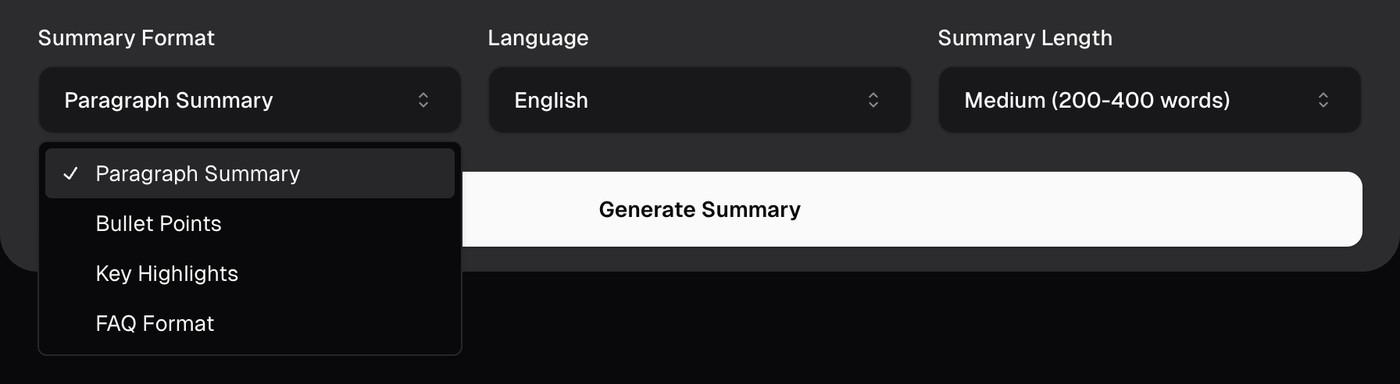
OpusClip's AI Video Summarizer controls with the Summary Format menu open, listing Paragraph Summary, Bullet Points, Key Highlights and FAQ Format

OpusClip's summary format, language and length menus. Source: OpusClip website

OpusClip's AI Video Summarizer tool page says its free tool condenses YouTube lectures, webinars and tutorials into concise summaries: paste a video link, choose a summary format, a language and a length, then select Generate Summary. The format menu lists Paragraph Summary, Bullet Points, Key Highlights and FAQ Format, the length menu lists Short (100-200 words), Medium (200-400 words) and Long (400-600 words), and the language menu lists English, Spanish, French, German, Italian, Portuguese, Chinese (Simplified), Japanese and Korean.

The page says the tool analyzes the video's transcript to find main topics, key arguments and important information, and its FAQ says it works with a wide range of public YouTube videos such as lectures, tutorials, interviews and webinars.

Pricing: the FAQ says the basic tool is free with no registration required, and that premium plans are available for advanced features or higher usage limits. The page prints no usage limit and no price for those premium plans.

Considerations: This is a free tool page, not the full OpusClip product, and it returns text. The page does not mention timestamps that link back to the video, chat with the video, batch input or a limit on video length (it names a 3-hour podcast as an example it handles), so a summary cannot be checked against moments in the video from the page alone. The FAQ names public YouTube videos only. Cutting short clips out of a long video is a different job.

  • Choose it if a free, no-registration text summary of a public YouTube video is the goal, in a format and length picked from menus.
  • Skip it if the summary must link back to timestamps, answer follow-up questions or run on a list of links at once.

2. NoteGPT: Best for summarizing a batch of YouTube links
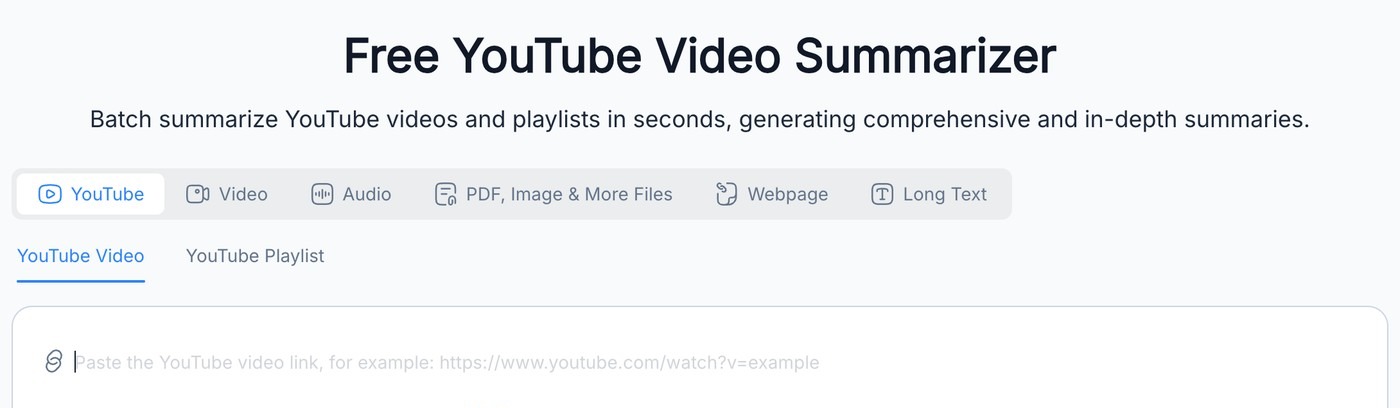
NoteGPT's Free YouTube Video Summarizer with source tabs and a field for pasting a YouTube link

NoteGPT's YouTube summarizer input. Source: NoteGPT website

NoteGPT's YouTube Video Summarizer page says to paste a YouTube link, select Generate Summary and read the result. It has a YouTube Playlist tab and an Add More Link control, and says up to 20 videos can be summarized at once. The same tool has tabs for video, audio, PDF and image files, webpages and long text, and the page says YouTube summaries work with no login.

The FAQ says the summary length can be customized and that a user can enter their own prompt to get the format and style wanted. It also says NoteGPT does not store data unless notes are saved.

Pricing: NoteGPT's pricing page lists Pro at $9 a month ($108 a year), Unlimited at $19.92 a month ($239 a year) and Max at $69 a month ($829 a year) on its annual view, with "Save 30% Limited Time" labels on Unlimited and Max, so confirm the current price and billing term. The page ties processing 5, 10 and 20 YouTube videos at once to Pro, Unlimited and Max. The summarizer page calls the tool free and prints no free-plan limits.

Considerations: NoteGPT's own pages disagree on limits. The summarizer page says there is no limit on video length and also that videos without subtitles are handled up to 150 minutes, while the pricing page caps YouTube videos without subtitles at 120 minutes on Pro and 210 minutes on Unlimited and Max. The FAQ says over 40 languages and the features text says over 60. The pages read do not mention timestamps in the summary.

  • Choose it if a stack of YouTube links needs summaries in one pass and the plan's batch size is checked first.
  • Skip it if a summary with timestamps back to the video is needed, or the conflicting limits on its pages would cause problems.

3. Video Highlight: Best for a timestamped summary with chat

Video Highlight's summary view with Summary, Key Points, Transcript and Chat tabs above a summary split into sections with timestamps

Video Highlight's timestamped summary view, with the video frame cropped out. Source: Video Highlight website

Video Highlight's YouTube summarizer page says to paste any YouTube URL (a video, playlist or channel) and get a timestamped summary, key points, the full transcript and an AI that can answer questions. The page says every summary point links to the exact second in the video, that chat answers carry timestamps, and that no extension is required. It also says videos without captions are transcribed by speech recognition first, in 37 languages.

The product page adds private file uploads (MP4, MOV, MKV and AVI), audio uploads, playlist and channel import, notes and highlights, and export of summaries to Notion and Readwise.

Pricing: Video Highlight's pricing page lists Free at $0, with YouTube videos, 7 hr 30 min of online video time, 10 videos, 3 videos a day and a maximum length of 2 hr 30 min, including summaries, transcripts and chat; its FAQ says no credit card is required. Plus is $8 a month billed yearly ($96) with a 5 hr maximum length and private file uploads, Pro is $15 a month billed yearly ($180) with 10 hr, and Business is $35 a month billed yearly ($420).

Considerations: The free plan stops at 2 hr 30 min per video and counts 10 videos in total, which a heavy user will reach; longer videos need Plus or Pro, and private file uploads start at Plus. It returns text and timestamps, not clips, and the pages read print only yearly billing prices.

  • Choose it if each summary point should link to a moment in the video and the video should be open to questions on a free plan.
  • Skip it if a very long video must be summarized for free, or monthly billing prices are needed.

4. Glasp: Best for summaries beside the YouTube player
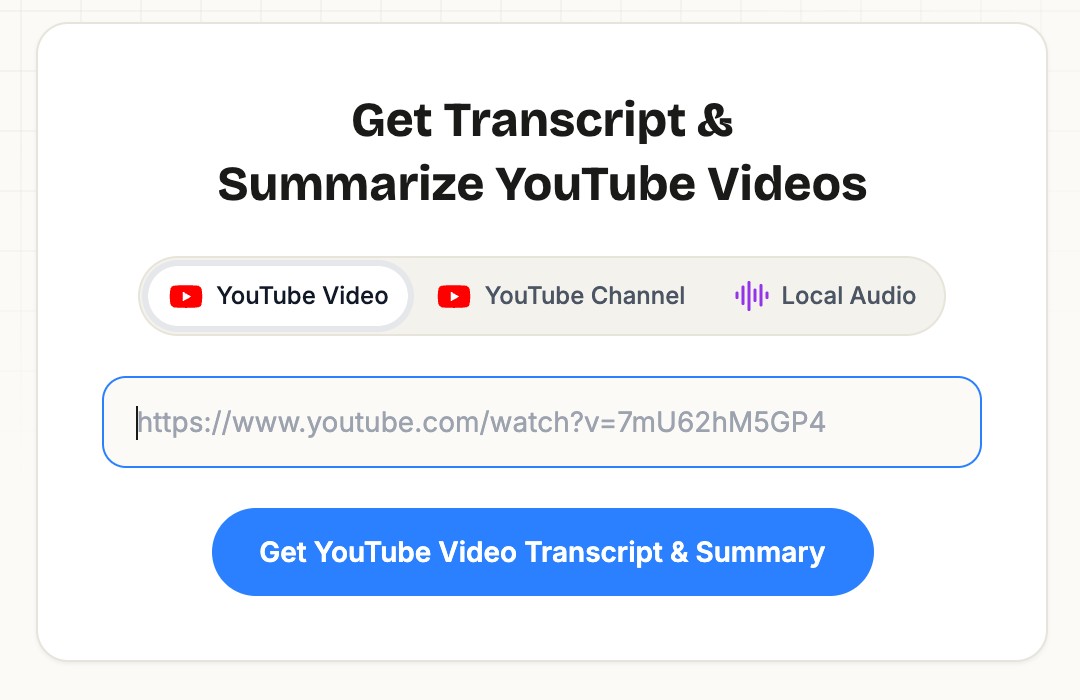
Glasp's Get Transcript and Summarize YouTube Videos box with YouTube Video, YouTube Channel and Local Audio tabs above a link field

Glasp's paste-a-link box. Source: Glasp website

Glasp's YouTube summary page describes a browser extension for Chrome, Edge, Firefox and Safari that puts a summary and the full transcript beside the YouTube video. A model is picked from ChatGPT, Claude, Gemini or Mistral, with a custom prompt, a summary length and a number of key points, and the on-page summary has timestamps that jump the player to that moment. A Chat tab answers questions about the video with timestamps from the transcript, and the summary language can differ from the spoken language.

The page also has a paste-a-link box for a video, channel or local audio file, which the page says needs a free Glasp account. Transcripts can be highlighted and exported to Notion, Obsidian, Roam Research and mem.ai, or downloaded as Markdown, HTML, CSV or JSON.

Pricing: Glasp's pricing page lists Free at $0 with no credit card, including 3 basic YouTube summaries a day, 3 advanced on-page summaries per 7 days and 20 chat credits a month. Pro is $12.50 a month billed yearly ($150), or $15 monthly, with 1,000 on-page summaries a month, and Unlimited is $30 a month billed yearly ($360) with 5,000 per 30 days.

Considerations: The free on-page allowance is small: 3 summaries every 7 days, shared with article and PDF summaries. Without a Glasp account the extension sends only 2 videos a day to ChatGPT, Claude or Gemini for a summary in a new tab. The page gives a 2-hour video as an example and prints no length cap.

  • Choose it if the summary should sit beside the player with clickable timestamps, chat and exports to a notes app.
  • Skip it if a summary is needed in a browser without the extension, or more than a few summaries a week on the free plan.

5. Eightify: Best for summaries inside the YouTube page on desktop and mobile

Eightify's summary panel with focus, format and length menus above a Business Fundamentals heading and two key insights with highlighted terms

Eightify's summary panel with its settings menus, cropped from the YouTube page view. Source: Eightify website

Eightify's site says to install the Chrome extension, open any YouTube video and click the summarize button, and that iOS and Android apps and a mobile-friendly site are also available. It lists key insights, timestamped summaries for jumping to topics, a top-comment overview, transcripts, shareable articles, and summaries and translations in 40+ languages.

Eightify's Chrome Web Store listing adds that the focus (insightful, actionable, controversial or funny), format (list or question-and-answer), length and grouping can be customized, and that it summarizes videos of any length up to 10 hours.

Pricing: the Chrome Web Store listing says there is a 7-day free trial with unlimited summaries, that the subscription can be cancelled anytime, and that one account works on Chrome, iOS and Android. The pages read print no subscription price, so see the pricing screen in the extension or app.

Considerations: Eightify's site says it summarizes YouTube videos of any length, while its Chrome Web Store listing says up to 10 hours. The pages read name only YouTube videos, print no price, and do not list chat with the video in their text.

  • Choose it if summaries should appear in the YouTube page on a laptop and a phone, with settings for focus, format and length.
  • Skip it if a price must be known before starting a trial, or videos outside YouTube need summarizing.

6. Gemini Notebook: Best for summarizing several videos and documents together
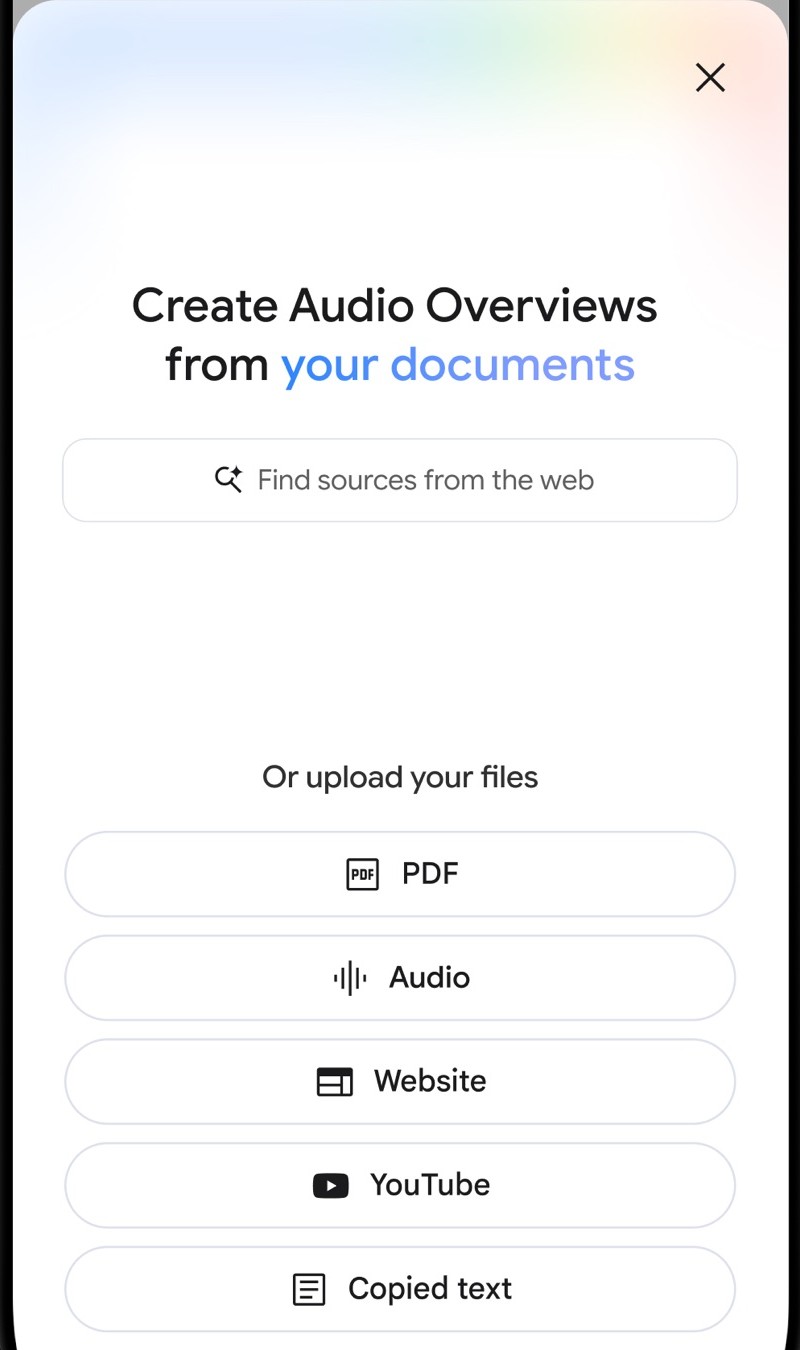
Gemini Notebook's iPhone add-sources sheet with a web search box and upload options for PDF, Audio, Website, YouTube and Copied text

Gemini Notebook's add-sources sheet in its iPhone app. Source: Gemini Notebook App Store listing

Gemini Notebook is the new name for NotebookLM; its site says the product was renamed in July 2026. Its help center lists YouTube URLs of public videos as a source type next to PDFs, Google Docs, web URLs and audio files. Only public videos with captions work, only the text transcript is imported, and videos without speech are not supported.

Gemini Notebook offers two ways to summarize a source: ask for a summary of specific topics in chat, or read the auto-generated summary of the whole source in the Source Guide. The help center says there is no limit on a video's length unless its caption file has over 500,000 words, and that videos uploaded less than 72 hours earlier may not be available to import. Its App Store listing says answers cite sources in-line.

Pricing: Gemini Notebook's plans page lists a free tier for personal projects with standard usage limits and up to 50 sources per notebook. Google AI Plus, Pro and Ultra raise that to 100, 300 and 600 sources per notebook and raise the usage limits, with prices on Google's own pages. The help center says usage quotas refresh every 5 hours until a weekly limit is reached.

Considerations: It is a research workspace, not a one-step summarizer: a video is added to a notebook first, an import fails if the video has no captions file or its language is unsupported, and only the transcript, not the visuals, becomes the source. The pages read do not mention timestamps in summaries, and the mobile app may have limits on adding sources.

  • Choose it if one summary should cover several videos and documents, with questions answered from those sources.
  • Skip it if a single pasted link should return a summary with timestamps, or the video has no captions.

7. Vimeo: Best for videos already hosted on Vimeo
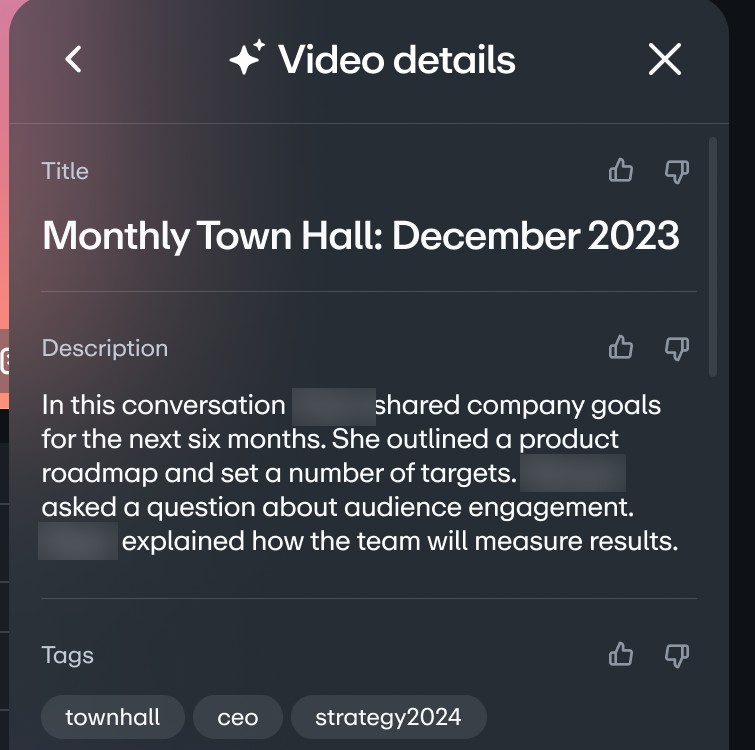
Vimeo AI's Video details panel with a generated title, a description summarizing the video and tags, with sample names blurred

Vimeo AI's Video details panel, with sample first names blurred. Source: Vimeo help center

Vimeo's help center says Vimeo AI can generate a title, description and tags for a video: select it in the Library, open the Vimeo AI button on the video settings page and choose Generate Video Details. Vimeo's page on summarizing YouTube videos says Vimeo AI drafts a summary of the uploaded video automatically and also lists a searchable transcript, automatic chapter markers and highlight reels.

That page says Vimeo AI runs on videos uploaded to a Vimeo workspace, so a YouTube video has to be downloaded and uploaded first, for videos owned or with rights to use. It also lists question-and-answer on a video, with a timestamped answer that links to the moment.

Pricing: the help center says generating video details is available on all Vimeo plans, that some Vimeo AI features are on the Free plan and others need a paid plan, that Ask AI is for select Enterprise plans, and that the highlight video feature is Enterprise only. See Vimeo's pricing page for plan prices.

Considerations: The video has to be in Vimeo first. The help center says videos work best when they are at least 2 minutes long, contain at least 100 words of spoken English or a supported language, and have no accompanying music. Vimeo's YouTube page lists in-video question-and-answer as a feature while its help center limits Ask AI to select Enterprise plans.

  • Choose it if the videos already live on Vimeo and a title, description and tags should come back with a transcript and chapters.
  • Skip it if a pasted link to someone else's video should return a summary, or the video has background music throughout.

8. Loom: Best for summaries of recorded and uploaded videos in a workspace

Loom's AI page lists auto titles, summaries and chapters among its AI features, and its support article says an auto summary is generated from the video transcript and shown in the description field below the video. Chapters appear below the video and on the player timeline with links to the timestamp where each begins. Loom's support page says Loom AI also works on externally uploaded videos, so a video from another tool or a device can be uploaded and summarized.

Loom's AI page says auto-enhancement features such as titles and summaries are generated in 50+ languages. Its support FAQ says OpenAI receives transcript data as text files to generate titles, summaries and chapters, and does not receive video or audio.

Pricing: Loom's pricing page, on its monthly view, lists Starter at $0 (25 videos and 5-minute screen recordings), Business at $18 per user a month, Business + AI at $24 per user a month and Enterprise on request, with annual billing saving up to 17%. Loom's support article says auto summaries and chapters are on Business + AI and Enterprise, while auto titles are on all plans, and the AI page says Business + AI has a 14-day free trial.

Considerations: Summaries need a paid Business + AI or Enterprise workspace, and the support FAQ says they apply only to videos recorded after purchase. A summary is skipped when a video has no speech or is under 30 seconds. The pages read list no chat with the video and describe recordings and uploaded files, not pasted links.

  • Choose it if recordings and uploaded videos belong in one workspace, with a summary, chapters and a title added to each.
  • Skip it if a link to a public video must be summarized, or the budget has no room for a paid per-user plan.

How we compared these tools

We compared each tool on six criteria: what goes in (a link, a file or a recording), what comes out (summary form), whether the summary links to timestamps or supports chat, the video length the vendor states, the languages the vendor lists, and the free-tier limits as the vendor prints them. The guide is organised around the job in the title, summarizing a video as text. OpusClip comes first because its AI Video Summarizer tool page is a dedicated summarizer, with its limits stated in its entry: it returns text, prints no timestamps, chat or length limit, and is a free tool page rather than the full OpusClip product. Items 2 to 8 follow one yardstick: how few setup steps the vendor's own pages describe between a video and its summary, from pasting a link (NoteGPT, Video Highlight, Glasp) to installing an extension (Eightify), adding the video to a notebook (Gemini Notebook), and uploading or recording the video in the vendor's own product (Vimeo, Loom).

All facts come from each vendor's own pricing page, product page, help center or app store listing, read on November 10, 2026, and the OpusClip menus were read from the tool page in headless Chrome. We did not run hands-on tests of any tool. We also read the Notta YouTube summarizer page and left it out: it lists one free summary per user and sits inside a meeting and transcription product. Summarize.tech returned a service error when we read its site, so it is not covered. Prices change, so confirm on the vendor page before buying.

Red flags to watch for

  • Limits that differ on one vendor's own pages. NoteGPT says no limit on video length, 150 minutes without subtitles and 120 to 210 minutes by plan, and its batch size of 20 videos is a Max plan figure on its pricing page. Eightify says any length on its site and up to 10 hours on its Chrome Web Store listing.
  • Captions required. Gemini Notebook imports a YouTube video only if it has captions, while Video Highlight says it transcribes videos without captions first. A summary built from captions inherits their mistakes.
  • Small free allowances counted differently. Glasp allows 3 on-page summaries every 7 days, Video Highlight 10 videos in total, and Eightify offers a 7-day trial. OpusClip's tool page prints no usage limit and NoteGPT's FAQ says there are no restrictions, so confirm what happens at volume.
  • Where the transcript goes. Loom's support FAQ says OpenAI receives transcript text, Vimeo's page says it does not train AI models on uploaded videos, and Gemini Notebook says it does not use content for model training unless feedback is shared. Read the data statement before uploading a private recording.
  • Promotional prices. NoteGPT's pricing page carries "Limited Time" labels, so the price shown may not be the price at checkout.
  • Videos that are not yours. Vimeo's page says to download and upload YouTube videos only when they are owned or the rights are held, and Gemini Notebook's help says to avoid uploading documents without the rights.
  • Taking a summary on trust. Check any number, name or quote against the video. Tools that link each point to a timestamp make that quick.

Frequently asked questions

What is the best AI video summarizer?

For a free text summary of a public YouTube link, OpusClip fits best in this guide: its AI Video Summarizer offers four formats and three lengths, and its FAQ says no registration is required. Video Highlight is the pick when each point should link back to a second in the video and the video should be open to questions, and Gemini Notebook is the pick for several sources at once.

How do I summarize a YouTube video with AI?

Paste the video's link into a summarizer, choose the format and length, and read the result. With OpusClip, open the AI Video Summarizer, paste the link of a public YouTube video, pick a summary format, language and length, and select Generate Summary. Glasp and Eightify work from a browser extension on the YouTube page instead, and Gemini Notebook starts from a notebook where the video is added as a source.

Is there a free AI video summarizer?

Yes, with different limits. OpusClip's FAQ says its basic tool is free with no registration, NoteGPT's page calls its tool free, Video Highlight's free plan covers 10 videos of up to 2 hr 30 min each, Glasp's free plan allows 3 on-page summaries every 7 days, and Gemini Notebook has a free tier with standard usage limits. Eightify lists a 7-day free trial. Loom's free Starter plan does not list summaries.

Can AI summarize a video that has no captions?

Some tools can. Video Highlight says speech recognition transcribes a video without captions first, and NoteGPT says it handles videos up to 150 minutes without subtitles. Gemini Notebook imports a YouTube video only when it has captions, and Loom skips summaries for videos with no speech.

Can I chat with a video instead of reading a summary?

Yes. Video Highlight's chat answers carry timestamps, Glasp's Chat tab cites transcript timestamps, and Gemini Notebook answers questions from the sources in a notebook. Vimeo's Ask AI is limited to select Enterprise plans, per its help center.

How long a video can an AI summarizer handle?

It depends on the vendor, and some vendors state more than one number. Video Highlight's free plan allows up to 2 hr 30 min per video, Gemini Notebook allows any length until the caption file passes 500,000 words, Eightify's Chrome Web Store listing says up to 10 hours, and OpusClip's page prints no limit. Check the vendor's pricing page for the plan being used.

What is the difference between summarizing a video and clipping it?

A summary is text that tells what a video covers. Clipping cuts short videos out of a long one. For clips, see our guide to auto highlight generators, and for pulling the transcript itself, our guide to YouTube transcript extractors.

On this page

Use our Free Forever Plan

Find the moment. Skip the scrubbing.

From script to polished video — in one click.

Create and post one short video every day for free, and grow faster.

OpusSearch uses AI to surface the exact clip you need from hours of footage — in seconds, not afternoons.

Agent Opus runs the entire video pipeline for you: research, scriptwriting, storyboarding, motion, voice, and edit. Upload the idea, post the result.

8 Best AI Video Summarizers in 2026

OpusClip is the pick for a free summary of a public YouTube video: its AI Video Summarizer tool page takes a pasted link and returns a paragraph, bullet-point, key-highlights or FAQ summary at a short, medium or long length, and its FAQ says no registration is required. Here, summarize means get the gist of a video as text, not cut clips from it. Items 2 to 8 follow one yardstick: how few setup steps the vendor's own pages describe between a video and its summary. Facts come from each vendor's own pages, read on November 10, 2026.

Key takeaways

  • Best for a free text summary of a pasted public YouTube link: OpusClip. Its tool page offers four summary formats and three lengths, and its FAQ says the basic tool is free with no registration.
  • Best for summarizing a batch of YouTube links: NoteGPT. Its page says up to 20 videos at once, though its pricing page ties batch size to the plan.
  • Best for a summary that links back to the video, with chat: Video Highlight. Every summary point links to a second in the video, and the free plan prints its limits.
  • Best for summaries beside the YouTube player: Glasp. Its extension shows a clickable-timestamp summary and a Chat tab, and its free plan allows 3 on-page summaries every 7 days.
  • Best for summaries inside the YouTube page on desktop and mobile: Eightify, with a 7-day free trial and focus, format and length settings.
  • Best for summarizing several videos and documents together: Gemini Notebook, formerly NotebookLM, where a public YouTube video with captions is added as a source.
  • Best for videos already hosted on Vimeo: Vimeo, whose help center says a generated title, description and tags are available on all plans.
  • Best for summaries of recorded and uploaded videos in a workspace: Loom, where auto summaries and chapters sit on Business + AI and Enterprise.

What counts as an AI video summarizer

A video summarizer reads a video's transcript, or transcribes the audio first, and returns a shorter text: a paragraph, bullet points, key highlights or chapters. That is different from a clip maker, which cuts short videos out of a long one. For clips, see our guide to the best auto highlight generators for long videos. For summaries inside your own software, see our guide to the video summarization API.

The tools here fall into three kinds:

  • Paste-a-link summarizers: a web page takes a video link and returns a summary. OpusClip, NoteGPT and Video Highlight work this way.
  • Chat-with-video and on-page tools: the summary is a starting point for questions or sits beside the player. Video Highlight, Glasp and Gemini Notebook add chat, and Glasp and Eightify put the summary in the YouTube page.
  • Summaries built into a video host or recorder: the video lives in the product first. Vimeo and Loom summarize videos uploaded or recorded there.

How to choose

  • A free text summary of a public YouTube link: OpusClip, NoteGPT or Video Highlight. OpusClip's page prints no usage limit, NoteGPT calls its tool free, and Video Highlight prints a free plan of 10 videos and 2 hr 30 min each.
  • A summary that can be checked against the video: Video Highlight, Glasp or Eightify, whose pages describe timestamps that jump to the moment in the video.
  • Questions about the video, or several sources at once: Video Highlight and Glasp for one video with chat, Gemini Notebook for several videos and documents in one notebook.
  • Summaries of your own recordings or hosted videos: Vimeo for videos on Vimeo, Loom for recordings and uploads in a Loom workspace.
  • A long video that needs clips rather than text: see our guide to YouTube clip makers, or AI video search tools for searching a footage library.

At a glance

  • OpusClip: best for a free text summary of a pasted public YouTube link; free, with no registration per its FAQ; the page prints no usage limit and no price for its premium plans.
  • NoteGPT: best for summarizing a batch of YouTube links; the page calls the tool free; Pro $9 a month ($108 a year) and Unlimited $19.92 a month ($239 a year) on the pricing page's annual view, which carries a limited-time promotion banner.
  • Video Highlight: best for a timestamped summary with chat; Free $0 (10 videos, 3 a day, up to 2 hr 30 min each); Plus $8 a month billed yearly.
  • Glasp: best for summaries beside the YouTube player; free plan yes (3 on-page summaries every 7 days); Pro $12.50 a month billed yearly, or $15 monthly.
  • Eightify: best for summaries inside the YouTube page on desktop and mobile; a 7-day free trial per its Chrome Web Store listing; the pages read print no price.
  • Gemini Notebook: best for summarizing several videos and documents together; a free tier with standard usage limits and up to 50 sources per notebook; higher limits come with Google AI plans, so see Google for prices.
  • Vimeo: best for videos already hosted on Vimeo; generating a title, description and tags is available on all plans per its help center; see the pricing page for plan prices.
  • Loom: best for summaries of recorded and uploaded videos in a workspace; Business + AI $24 per user a month billed monthly, with a 14-day free trial; Starter is free but does not list summaries.

How each tool takes a video, what it returns and the limits it states

The At a glance list covers best-for, price and free limits; this table compares what goes in, what comes out, timestamps and chat, the video length each vendor states and the summary languages each vendor lists, as listed on each vendor's own pages on November 10, 2026.

ToolWhat goes inWhat comes outTimestamps and chatVideo length the vendor statesLanguages the vendor lists
OpusClipA pasted video link; the page and FAQ name public YouTube videosParagraph, bullet points, key highlights or FAQ format, in short, medium or long lengthNeither is mentioned; the page describes a text summary built from the transcriptNo limit printed; the page cites a 3-hour podcast as an example it handlesMenu lists English plus eight others; no count printed
NoteGPTYouTube video or playlist links, up to 20 at once; file, audio and webpage tabs tooA summary; length and a custom prompt for format and style can be setTimestamps not mentioned on the page; AI Chat with basic models is a plan featureSays no limit; videos without subtitles up to 150 minutes (pricing lists 120 to 210)Over 40 per the FAQ; the features text says over 60 for subtitle translation
Video HighlightAny YouTube URL (video, playlist or channel); MP4, MOV, MKV and AVI uploadsA timestamped summary and key points, plus the full transcriptEvery summary point links to a second in the video; chat answers carry timestampsFree plan 2 hr 30 min per video; Plus 5 hr; Pro 10 hr37 languages; the summary can be read in a different language than the video's
GlaspA pasted YouTube link (free Glasp account) or the extension on the YouTube pageA summary from ChatGPT, Claude, Gemini or Mistral, with length and key points setClickable timestamps; Chat answers cite transcript timestampsNo cap printed; a 2-hour video is the page's exampleSummary language chosen separately from the spoken one; no count printed
EightifyThe extension button on a YouTube page; iOS and Android apps and a mobile siteKey insights; focus, list or question-and-answer format, length and grouping can be setTimestamped summaries; chat is not mentioned in the text readSite says any length; the Chrome Web Store listing says up to 10 hoursSummaries and translations in 40+ languages
Gemini NotebookA public YouTube URL with captions, added as a notebook source; transcript onlyThe Source Guide's auto-generated summary, or a summary requested in chatChat answers cite sources in-line; timestamps are not mentionedNo limit unless the caption file passes 500,000 wordsOutput language can be changed; import fails if the video language is unsupported
VimeoA video uploaded to Vimeo; a YouTube video must be downloaded and uploaded firstA title, description and tags; the page also lists chapters, transcript and highlightsAsk AI gives timestamped answers; the help center limits it to select Enterprise plansWorks best at 2+ minutes, 100+ spoken words and no musicAuto-captions in 99 languages on paid uploads; summary language not stated
LoomA video recorded in Loom, or one uploaded from another tool or a deviceA summary in the description under the video, plus chaptersChapters link to timestamps; no chat with the video is listedNo maximum stated; summaries are skipped under 30 secondsTitles and summaries in 50+ languages

1. OpusClip: Best for a free text summary of a pasted public YouTube link

OpusClip's AI Video Summarizer controls with the Summary Format menu open, listing Paragraph Summary, Bullet Points, Key Highlights and FAQ Format

OpusClip's summary format, language and length menus. Source: OpusClip website

OpusClip's AI Video Summarizer tool page says its free tool condenses YouTube lectures, webinars and tutorials into concise summaries: paste a video link, choose a summary format, a language and a length, then select Generate Summary. The format menu lists Paragraph Summary, Bullet Points, Key Highlights and FAQ Format, the length menu lists Short (100-200 words), Medium (200-400 words) and Long (400-600 words), and the language menu lists English, Spanish, French, German, Italian, Portuguese, Chinese (Simplified), Japanese and Korean.

The page says the tool analyzes the video's transcript to find main topics, key arguments and important information, and its FAQ says it works with a wide range of public YouTube videos such as lectures, tutorials, interviews and webinars.

Pricing: the FAQ says the basic tool is free with no registration required, and that premium plans are available for advanced features or higher usage limits. The page prints no usage limit and no price for those premium plans.

Considerations: This is a free tool page, not the full OpusClip product, and it returns text. The page does not mention timestamps that link back to the video, chat with the video, batch input or a limit on video length (it names a 3-hour podcast as an example it handles), so a summary cannot be checked against moments in the video from the page alone. The FAQ names public YouTube videos only. Cutting short clips out of a long video is a different job.

  • Choose it if a free, no-registration text summary of a public YouTube video is the goal, in a format and length picked from menus.
  • Skip it if the summary must link back to timestamps, answer follow-up questions or run on a list of links at once.

2. NoteGPT: Best for summarizing a batch of YouTube links

NoteGPT's Free YouTube Video Summarizer with source tabs and a field for pasting a YouTube link

NoteGPT's YouTube summarizer input. Source: NoteGPT website

NoteGPT's YouTube Video Summarizer page says to paste a YouTube link, select Generate Summary and read the result. It has a YouTube Playlist tab and an Add More Link control, and says up to 20 videos can be summarized at once. The same tool has tabs for video, audio, PDF and image files, webpages and long text, and the page says YouTube summaries work with no login.

The FAQ says the summary length can be customized and that a user can enter their own prompt to get the format and style wanted. It also says NoteGPT does not store data unless notes are saved.

Pricing: NoteGPT's pricing page lists Pro at $9 a month ($108 a year), Unlimited at $19.92 a month ($239 a year) and Max at $69 a month ($829 a year) on its annual view, with "Save 30% Limited Time" labels on Unlimited and Max, so confirm the current price and billing term. The page ties processing 5, 10 and 20 YouTube videos at once to Pro, Unlimited and Max. The summarizer page calls the tool free and prints no free-plan limits.

Considerations: NoteGPT's own pages disagree on limits. The summarizer page says there is no limit on video length and also that videos without subtitles are handled up to 150 minutes, while the pricing page caps YouTube videos without subtitles at 120 minutes on Pro and 210 minutes on Unlimited and Max. The FAQ says over 40 languages and the features text says over 60. The pages read do not mention timestamps in the summary.

  • Choose it if a stack of YouTube links needs summaries in one pass and the plan's batch size is checked first.
  • Skip it if a summary with timestamps back to the video is needed, or the conflicting limits on its pages would cause problems.

3. Video Highlight: Best for a timestamped summary with chat

Video Highlight's summary view with Summary, Key Points, Transcript and Chat tabs above a summary split into sections with timestamps

Video Highlight's timestamped summary view, with the video frame cropped out. Source: Video Highlight website

Video Highlight's YouTube summarizer page says to paste any YouTube URL (a video, playlist or channel) and get a timestamped summary, key points, the full transcript and an AI that can answer questions. The page says every summary point links to the exact second in the video, that chat answers carry timestamps, and that no extension is required. It also says videos without captions are transcribed by speech recognition first, in 37 languages.

The product page adds private file uploads (MP4, MOV, MKV and AVI), audio uploads, playlist and channel import, notes and highlights, and export of summaries to Notion and Readwise.

Pricing: Video Highlight's pricing page lists Free at $0, with YouTube videos, 7 hr 30 min of online video time, 10 videos, 3 videos a day and a maximum length of 2 hr 30 min, including summaries, transcripts and chat; its FAQ says no credit card is required. Plus is $8 a month billed yearly ($96) with a 5 hr maximum length and private file uploads, Pro is $15 a month billed yearly ($180) with 10 hr, and Business is $35 a month billed yearly ($420).

Considerations: The free plan stops at 2 hr 30 min per video and counts 10 videos in total, which a heavy user will reach; longer videos need Plus or Pro, and private file uploads start at Plus. It returns text and timestamps, not clips, and the pages read print only yearly billing prices.

  • Choose it if each summary point should link to a moment in the video and the video should be open to questions on a free plan.
  • Skip it if a very long video must be summarized for free, or monthly billing prices are needed.

4. Glasp: Best for summaries beside the YouTube player

Glasp's Get Transcript and Summarize YouTube Videos box with YouTube Video, YouTube Channel and Local Audio tabs above a link field

Glasp's paste-a-link box. Source: Glasp website

Glasp's YouTube summary page describes a browser extension for Chrome, Edge, Firefox and Safari that puts a summary and the full transcript beside the YouTube video. A model is picked from ChatGPT, Claude, Gemini or Mistral, with a custom prompt, a summary length and a number of key points, and the on-page summary has timestamps that jump the player to that moment. A Chat tab answers questions about the video with timestamps from the transcript, and the summary language can differ from the spoken language.

The page also has a paste-a-link box for a video, channel or local audio file, which the page says needs a free Glasp account. Transcripts can be highlighted and exported to Notion, Obsidian, Roam Research and mem.ai, or downloaded as Markdown, HTML, CSV or JSON.

Pricing: Glasp's pricing page lists Free at $0 with no credit card, including 3 basic YouTube summaries a day, 3 advanced on-page summaries per 7 days and 20 chat credits a month. Pro is $12.50 a month billed yearly ($150), or $15 monthly, with 1,000 on-page summaries a month, and Unlimited is $30 a month billed yearly ($360) with 5,000 per 30 days.

Considerations: The free on-page allowance is small: 3 summaries every 7 days, shared with article and PDF summaries. Without a Glasp account the extension sends only 2 videos a day to ChatGPT, Claude or Gemini for a summary in a new tab. The page gives a 2-hour video as an example and prints no length cap.

  • Choose it if the summary should sit beside the player with clickable timestamps, chat and exports to a notes app.
  • Skip it if a summary is needed in a browser without the extension, or more than a few summaries a week on the free plan.

5. Eightify: Best for summaries inside the YouTube page on desktop and mobile

Eightify's summary panel with focus, format and length menus above a Business Fundamentals heading and two key insights with highlighted terms

Eightify's summary panel with its settings menus, cropped from the YouTube page view. Source: Eightify website

Eightify's site says to install the Chrome extension, open any YouTube video and click the summarize button, and that iOS and Android apps and a mobile-friendly site are also available. It lists key insights, timestamped summaries for jumping to topics, a top-comment overview, transcripts, shareable articles, and summaries and translations in 40+ languages.

Eightify's Chrome Web Store listing adds that the focus (insightful, actionable, controversial or funny), format (list or question-and-answer), length and grouping can be customized, and that it summarizes videos of any length up to 10 hours.

Pricing: the Chrome Web Store listing says there is a 7-day free trial with unlimited summaries, that the subscription can be cancelled anytime, and that one account works on Chrome, iOS and Android. The pages read print no subscription price, so see the pricing screen in the extension or app.

Considerations: Eightify's site says it summarizes YouTube videos of any length, while its Chrome Web Store listing says up to 10 hours. The pages read name only YouTube videos, print no price, and do not list chat with the video in their text.

  • Choose it if summaries should appear in the YouTube page on a laptop and a phone, with settings for focus, format and length.
  • Skip it if a price must be known before starting a trial, or videos outside YouTube need summarizing.

6. Gemini Notebook: Best for summarizing several videos and documents together

Gemini Notebook's iPhone add-sources sheet with a web search box and upload options for PDF, Audio, Website, YouTube and Copied text

Gemini Notebook's add-sources sheet in its iPhone app. Source: Gemini Notebook App Store listing

Gemini Notebook is the new name for NotebookLM; its site says the product was renamed in July 2026. Its help center lists YouTube URLs of public videos as a source type next to PDFs, Google Docs, web URLs and audio files. Only public videos with captions work, only the text transcript is imported, and videos without speech are not supported.

Gemini Notebook offers two ways to summarize a source: ask for a summary of specific topics in chat, or read the auto-generated summary of the whole source in the Source Guide. The help center says there is no limit on a video's length unless its caption file has over 500,000 words, and that videos uploaded less than 72 hours earlier may not be available to import. Its App Store listing says answers cite sources in-line.

Pricing: Gemini Notebook's plans page lists a free tier for personal projects with standard usage limits and up to 50 sources per notebook. Google AI Plus, Pro and Ultra raise that to 100, 300 and 600 sources per notebook and raise the usage limits, with prices on Google's own pages. The help center says usage quotas refresh every 5 hours until a weekly limit is reached.

Considerations: It is a research workspace, not a one-step summarizer: a video is added to a notebook first, an import fails if the video has no captions file or its language is unsupported, and only the transcript, not the visuals, becomes the source. The pages read do not mention timestamps in summaries, and the mobile app may have limits on adding sources.

  • Choose it if one summary should cover several videos and documents, with questions answered from those sources.
  • Skip it if a single pasted link should return a summary with timestamps, or the video has no captions.

7. Vimeo: Best for videos already hosted on Vimeo

Vimeo AI's Video details panel with a generated title, a description summarizing the video and tags, with sample names blurred

Vimeo AI's Video details panel, with sample first names blurred. Source: Vimeo help center

Vimeo's help center says Vimeo AI can generate a title, description and tags for a video: select it in the Library, open the Vimeo AI button on the video settings page and choose Generate Video Details. Vimeo's page on summarizing YouTube videos says Vimeo AI drafts a summary of the uploaded video automatically and also lists a searchable transcript, automatic chapter markers and highlight reels.

That page says Vimeo AI runs on videos uploaded to a Vimeo workspace, so a YouTube video has to be downloaded and uploaded first, for videos owned or with rights to use. It also lists question-and-answer on a video, with a timestamped answer that links to the moment.

Pricing: the help center says generating video details is available on all Vimeo plans, that some Vimeo AI features are on the Free plan and others need a paid plan, that Ask AI is for select Enterprise plans, and that the highlight video feature is Enterprise only. See Vimeo's pricing page for plan prices.

Considerations: The video has to be in Vimeo first. The help center says videos work best when they are at least 2 minutes long, contain at least 100 words of spoken English or a supported language, and have no accompanying music. Vimeo's YouTube page lists in-video question-and-answer as a feature while its help center limits Ask AI to select Enterprise plans.

  • Choose it if the videos already live on Vimeo and a title, description and tags should come back with a transcript and chapters.
  • Skip it if a pasted link to someone else's video should return a summary, or the video has background music throughout.

8. Loom: Best for summaries of recorded and uploaded videos in a workspace

Loom's AI page lists auto titles, summaries and chapters among its AI features, and its support article says an auto summary is generated from the video transcript and shown in the description field below the video. Chapters appear below the video and on the player timeline with links to the timestamp where each begins. Loom's support page says Loom AI also works on externally uploaded videos, so a video from another tool or a device can be uploaded and summarized.

Loom's AI page says auto-enhancement features such as titles and summaries are generated in 50+ languages. Its support FAQ says OpenAI receives transcript data as text files to generate titles, summaries and chapters, and does not receive video or audio.

Pricing: Loom's pricing page, on its monthly view, lists Starter at $0 (25 videos and 5-minute screen recordings), Business at $18 per user a month, Business + AI at $24 per user a month and Enterprise on request, with annual billing saving up to 17%. Loom's support article says auto summaries and chapters are on Business + AI and Enterprise, while auto titles are on all plans, and the AI page says Business + AI has a 14-day free trial.

Considerations: Summaries need a paid Business + AI or Enterprise workspace, and the support FAQ says they apply only to videos recorded after purchase. A summary is skipped when a video has no speech or is under 30 seconds. The pages read list no chat with the video and describe recordings and uploaded files, not pasted links.

  • Choose it if recordings and uploaded videos belong in one workspace, with a summary, chapters and a title added to each.
  • Skip it if a link to a public video must be summarized, or the budget has no room for a paid per-user plan.

How we compared these tools

We compared each tool on six criteria: what goes in (a link, a file or a recording), what comes out (summary form), whether the summary links to timestamps or supports chat, the video length the vendor states, the languages the vendor lists, and the free-tier limits as the vendor prints them. The guide is organised around the job in the title, summarizing a video as text. OpusClip comes first because its AI Video Summarizer tool page is a dedicated summarizer, with its limits stated in its entry: it returns text, prints no timestamps, chat or length limit, and is a free tool page rather than the full OpusClip product. Items 2 to 8 follow one yardstick: how few setup steps the vendor's own pages describe between a video and its summary, from pasting a link (NoteGPT, Video Highlight, Glasp) to installing an extension (Eightify), adding the video to a notebook (Gemini Notebook), and uploading or recording the video in the vendor's own product (Vimeo, Loom).

All facts come from each vendor's own pricing page, product page, help center or app store listing, read on November 10, 2026, and the OpusClip menus were read from the tool page in headless Chrome. We did not run hands-on tests of any tool. We also read the Notta YouTube summarizer page and left it out: it lists one free summary per user and sits inside a meeting and transcription product. Summarize.tech returned a service error when we read its site, so it is not covered. Prices change, so confirm on the vendor page before buying.

Red flags to watch for

  • Limits that differ on one vendor's own pages. NoteGPT says no limit on video length, 150 minutes without subtitles and 120 to 210 minutes by plan, and its batch size of 20 videos is a Max plan figure on its pricing page. Eightify says any length on its site and up to 10 hours on its Chrome Web Store listing.
  • Captions required. Gemini Notebook imports a YouTube video only if it has captions, while Video Highlight says it transcribes videos without captions first. A summary built from captions inherits their mistakes.
  • Small free allowances counted differently. Glasp allows 3 on-page summaries every 7 days, Video Highlight 10 videos in total, and Eightify offers a 7-day trial. OpusClip's tool page prints no usage limit and NoteGPT's FAQ says there are no restrictions, so confirm what happens at volume.
  • Where the transcript goes. Loom's support FAQ says OpenAI receives transcript text, Vimeo's page says it does not train AI models on uploaded videos, and Gemini Notebook says it does not use content for model training unless feedback is shared. Read the data statement before uploading a private recording.
  • Promotional prices. NoteGPT's pricing page carries "Limited Time" labels, so the price shown may not be the price at checkout.
  • Videos that are not yours. Vimeo's page says to download and upload YouTube videos only when they are owned or the rights are held, and Gemini Notebook's help says to avoid uploading documents without the rights.
  • Taking a summary on trust. Check any number, name or quote against the video. Tools that link each point to a timestamp make that quick.

Frequently asked questions

What is the best AI video summarizer?

For a free text summary of a public YouTube link, OpusClip fits best in this guide: its AI Video Summarizer offers four formats and three lengths, and its FAQ says no registration is required. Video Highlight is the pick when each point should link back to a second in the video and the video should be open to questions, and Gemini Notebook is the pick for several sources at once.

How do I summarize a YouTube video with AI?

Paste the video's link into a summarizer, choose the format and length, and read the result. With OpusClip, open the AI Video Summarizer, paste the link of a public YouTube video, pick a summary format, language and length, and select Generate Summary. Glasp and Eightify work from a browser extension on the YouTube page instead, and Gemini Notebook starts from a notebook where the video is added as a source.

Is there a free AI video summarizer?

Yes, with different limits. OpusClip's FAQ says its basic tool is free with no registration, NoteGPT's page calls its tool free, Video Highlight's free plan covers 10 videos of up to 2 hr 30 min each, Glasp's free plan allows 3 on-page summaries every 7 days, and Gemini Notebook has a free tier with standard usage limits. Eightify lists a 7-day free trial. Loom's free Starter plan does not list summaries.

Can AI summarize a video that has no captions?

Some tools can. Video Highlight says speech recognition transcribes a video without captions first, and NoteGPT says it handles videos up to 150 minutes without subtitles. Gemini Notebook imports a YouTube video only when it has captions, and Loom skips summaries for videos with no speech.

Can I chat with a video instead of reading a summary?

Yes. Video Highlight's chat answers carry timestamps, Glasp's Chat tab cites transcript timestamps, and Gemini Notebook answers questions from the sources in a notebook. Vimeo's Ask AI is limited to select Enterprise plans, per its help center.

How long a video can an AI summarizer handle?

It depends on the vendor, and some vendors state more than one number. Video Highlight's free plan allows up to 2 hr 30 min per video, Gemini Notebook allows any length until the caption file passes 500,000 words, Eightify's Chrome Web Store listing says up to 10 hours, and OpusClip's page prints no limit. Check the vendor's pricing page for the plan being used.

What is the difference between summarizing a video and clipping it?

A summary is text that tells what a video covers. Clipping cuts short videos out of a long one. For clips, see our guide to auto highlight generators, and for pulling the transcript itself, our guide to YouTube transcript extractors.

Creator name

Creator type

Team size

Channels

linkYouTubefacebookXTikTok

Pain point

Time to see positive ROI

About the creator

Don't miss these

How Audacy Drove 1B+ Views by Taking a Tech-Forward Approach to Radio with OpusClip
No items found.

How Audacy Drove 1B+ Views by Taking a Tech-Forward Approach to Radio with OpusClip

How All the Smoke makes hit compilations faster with OpusSearch

How All the Smoke makes hit compilations faster with OpusSearch

Growing a new channel to 1.5M views in 90 days without creating new videos

Growing a new channel to 1.5M views in 90 days without creating new videos

OpusClip 4.0 is here. Become a content powerhouse.

8 Best AI Video Summarizers in 2026

Creators watching a long video, holding a tablet and working on a laptop, with a Summarize button, a video length tag, a key points badge and a list icon
No items found.
No items found.

Boost your social media growth with OpusClip

Create and post one short video every day for your social media and grow faster.

8 Best AI Video Summarizers in 2026

Creators watching a long video, holding a tablet and working on a laptop, with a Summarize button, a video length tag, a key points badge and a list icon

OpusClip is the pick for a free summary of a public YouTube video: its AI Video Summarizer tool page takes a pasted link and returns a paragraph, bullet-point, key-highlights or FAQ summary at a short, medium or long length, and its FAQ says no registration is required. Here, summarize means get the gist of a video as text, not cut clips from it. Items 2 to 8 follow one yardstick: how few setup steps the vendor's own pages describe between a video and its summary. Facts come from each vendor's own pages, read on November 10, 2026.

Key takeaways

  • Best for a free text summary of a pasted public YouTube link: OpusClip. Its tool page offers four summary formats and three lengths, and its FAQ says the basic tool is free with no registration.
  • Best for summarizing a batch of YouTube links: NoteGPT. Its page says up to 20 videos at once, though its pricing page ties batch size to the plan.
  • Best for a summary that links back to the video, with chat: Video Highlight. Every summary point links to a second in the video, and the free plan prints its limits.
  • Best for summaries beside the YouTube player: Glasp. Its extension shows a clickable-timestamp summary and a Chat tab, and its free plan allows 3 on-page summaries every 7 days.
  • Best for summaries inside the YouTube page on desktop and mobile: Eightify, with a 7-day free trial and focus, format and length settings.
  • Best for summarizing several videos and documents together: Gemini Notebook, formerly NotebookLM, where a public YouTube video with captions is added as a source.
  • Best for videos already hosted on Vimeo: Vimeo, whose help center says a generated title, description and tags are available on all plans.
  • Best for summaries of recorded and uploaded videos in a workspace: Loom, where auto summaries and chapters sit on Business + AI and Enterprise.

What counts as an AI video summarizer

A video summarizer reads a video's transcript, or transcribes the audio first, and returns a shorter text: a paragraph, bullet points, key highlights or chapters. That is different from a clip maker, which cuts short videos out of a long one. For clips, see our guide to the best auto highlight generators for long videos. For summaries inside your own software, see our guide to the video summarization API.

The tools here fall into three kinds:

  • Paste-a-link summarizers: a web page takes a video link and returns a summary. OpusClip, NoteGPT and Video Highlight work this way.
  • Chat-with-video and on-page tools: the summary is a starting point for questions or sits beside the player. Video Highlight, Glasp and Gemini Notebook add chat, and Glasp and Eightify put the summary in the YouTube page.
  • Summaries built into a video host or recorder: the video lives in the product first. Vimeo and Loom summarize videos uploaded or recorded there.

How to choose

  • A free text summary of a public YouTube link: OpusClip, NoteGPT or Video Highlight. OpusClip's page prints no usage limit, NoteGPT calls its tool free, and Video Highlight prints a free plan of 10 videos and 2 hr 30 min each.
  • A summary that can be checked against the video: Video Highlight, Glasp or Eightify, whose pages describe timestamps that jump to the moment in the video.
  • Questions about the video, or several sources at once: Video Highlight and Glasp for one video with chat, Gemini Notebook for several videos and documents in one notebook.
  • Summaries of your own recordings or hosted videos: Vimeo for videos on Vimeo, Loom for recordings and uploads in a Loom workspace.
  • A long video that needs clips rather than text: see our guide to YouTube clip makers, or AI video search tools for searching a footage library.

At a glance

  • OpusClip: best for a free text summary of a pasted public YouTube link; free, with no registration per its FAQ; the page prints no usage limit and no price for its premium plans.
  • NoteGPT: best for summarizing a batch of YouTube links; the page calls the tool free; Pro $9 a month ($108 a year) and Unlimited $19.92 a month ($239 a year) on the pricing page's annual view, which carries a limited-time promotion banner.
  • Video Highlight: best for a timestamped summary with chat; Free $0 (10 videos, 3 a day, up to 2 hr 30 min each); Plus $8 a month billed yearly.
  • Glasp: best for summaries beside the YouTube player; free plan yes (3 on-page summaries every 7 days); Pro $12.50 a month billed yearly, or $15 monthly.
  • Eightify: best for summaries inside the YouTube page on desktop and mobile; a 7-day free trial per its Chrome Web Store listing; the pages read print no price.
  • Gemini Notebook: best for summarizing several videos and documents together; a free tier with standard usage limits and up to 50 sources per notebook; higher limits come with Google AI plans, so see Google for prices.
  • Vimeo: best for videos already hosted on Vimeo; generating a title, description and tags is available on all plans per its help center; see the pricing page for plan prices.
  • Loom: best for summaries of recorded and uploaded videos in a workspace; Business + AI $24 per user a month billed monthly, with a 14-day free trial; Starter is free but does not list summaries.

How each tool takes a video, what it returns and the limits it states

The At a glance list covers best-for, price and free limits; this table compares what goes in, what comes out, timestamps and chat, the video length each vendor states and the summary languages each vendor lists, as listed on each vendor's own pages on November 10, 2026.

ToolWhat goes inWhat comes outTimestamps and chatVideo length the vendor statesLanguages the vendor lists
OpusClipA pasted video link; the page and FAQ name public YouTube videosParagraph, bullet points, key highlights or FAQ format, in short, medium or long lengthNeither is mentioned; the page describes a text summary built from the transcriptNo limit printed; the page cites a 3-hour podcast as an example it handlesMenu lists English plus eight others; no count printed
NoteGPTYouTube video or playlist links, up to 20 at once; file, audio and webpage tabs tooA summary; length and a custom prompt for format and style can be setTimestamps not mentioned on the page; AI Chat with basic models is a plan featureSays no limit; videos without subtitles up to 150 minutes (pricing lists 120 to 210)Over 40 per the FAQ; the features text says over 60 for subtitle translation
Video HighlightAny YouTube URL (video, playlist or channel); MP4, MOV, MKV and AVI uploadsA timestamped summary and key points, plus the full transcriptEvery summary point links to a second in the video; chat answers carry timestampsFree plan 2 hr 30 min per video; Plus 5 hr; Pro 10 hr37 languages; the summary can be read in a different language than the video's
GlaspA pasted YouTube link (free Glasp account) or the extension on the YouTube pageA summary from ChatGPT, Claude, Gemini or Mistral, with length and key points setClickable timestamps; Chat answers cite transcript timestampsNo cap printed; a 2-hour video is the page's exampleSummary language chosen separately from the spoken one; no count printed
EightifyThe extension button on a YouTube page; iOS and Android apps and a mobile siteKey insights; focus, list or question-and-answer format, length and grouping can be setTimestamped summaries; chat is not mentioned in the text readSite says any length; the Chrome Web Store listing says up to 10 hoursSummaries and translations in 40+ languages
Gemini NotebookA public YouTube URL with captions, added as a notebook source; transcript onlyThe Source Guide's auto-generated summary, or a summary requested in chatChat answers cite sources in-line; timestamps are not mentionedNo limit unless the caption file passes 500,000 wordsOutput language can be changed; import fails if the video language is unsupported
VimeoA video uploaded to Vimeo; a YouTube video must be downloaded and uploaded firstA title, description and tags; the page also lists chapters, transcript and highlightsAsk AI gives timestamped answers; the help center limits it to select Enterprise plansWorks best at 2+ minutes, 100+ spoken words and no musicAuto-captions in 99 languages on paid uploads; summary language not stated
LoomA video recorded in Loom, or one uploaded from another tool or a deviceA summary in the description under the video, plus chaptersChapters link to timestamps; no chat with the video is listedNo maximum stated; summaries are skipped under 30 secondsTitles and summaries in 50+ languages

1. OpusClip: Best for a free text summary of a pasted public YouTube link

OpusClip's AI Video Summarizer controls with the Summary Format menu open, listing Paragraph Summary, Bullet Points, Key Highlights and FAQ Format

OpusClip's summary format, language and length menus. Source: OpusClip website

OpusClip's AI Video Summarizer tool page says its free tool condenses YouTube lectures, webinars and tutorials into concise summaries: paste a video link, choose a summary format, a language and a length, then select Generate Summary. The format menu lists Paragraph Summary, Bullet Points, Key Highlights and FAQ Format, the length menu lists Short (100-200 words), Medium (200-400 words) and Long (400-600 words), and the language menu lists English, Spanish, French, German, Italian, Portuguese, Chinese (Simplified), Japanese and Korean.

The page says the tool analyzes the video's transcript to find main topics, key arguments and important information, and its FAQ says it works with a wide range of public YouTube videos such as lectures, tutorials, interviews and webinars.

Pricing: the FAQ says the basic tool is free with no registration required, and that premium plans are available for advanced features or higher usage limits. The page prints no usage limit and no price for those premium plans.

Considerations: This is a free tool page, not the full OpusClip product, and it returns text. The page does not mention timestamps that link back to the video, chat with the video, batch input or a limit on video length (it names a 3-hour podcast as an example it handles), so a summary cannot be checked against moments in the video from the page alone. The FAQ names public YouTube videos only. Cutting short clips out of a long video is a different job.

  • Choose it if a free, no-registration text summary of a public YouTube video is the goal, in a format and length picked from menus.
  • Skip it if the summary must link back to timestamps, answer follow-up questions or run on a list of links at once.

2. NoteGPT: Best for summarizing a batch of YouTube links

NoteGPT's Free YouTube Video Summarizer with source tabs and a field for pasting a YouTube link

NoteGPT's YouTube summarizer input. Source: NoteGPT website

NoteGPT's YouTube Video Summarizer page says to paste a YouTube link, select Generate Summary and read the result. It has a YouTube Playlist tab and an Add More Link control, and says up to 20 videos can be summarized at once. The same tool has tabs for video, audio, PDF and image files, webpages and long text, and the page says YouTube summaries work with no login.

The FAQ says the summary length can be customized and that a user can enter their own prompt to get the format and style wanted. It also says NoteGPT does not store data unless notes are saved.

Pricing: NoteGPT's pricing page lists Pro at $9 a month ($108 a year), Unlimited at $19.92 a month ($239 a year) and Max at $69 a month ($829 a year) on its annual view, with "Save 30% Limited Time" labels on Unlimited and Max, so confirm the current price and billing term. The page ties processing 5, 10 and 20 YouTube videos at once to Pro, Unlimited and Max. The summarizer page calls the tool free and prints no free-plan limits.

Considerations: NoteGPT's own pages disagree on limits. The summarizer page says there is no limit on video length and also that videos without subtitles are handled up to 150 minutes, while the pricing page caps YouTube videos without subtitles at 120 minutes on Pro and 210 minutes on Unlimited and Max. The FAQ says over 40 languages and the features text says over 60. The pages read do not mention timestamps in the summary.

  • Choose it if a stack of YouTube links needs summaries in one pass and the plan's batch size is checked first.
  • Skip it if a summary with timestamps back to the video is needed, or the conflicting limits on its pages would cause problems.

3. Video Highlight: Best for a timestamped summary with chat

Video Highlight's summary view with Summary, Key Points, Transcript and Chat tabs above a summary split into sections with timestamps

Video Highlight's timestamped summary view, with the video frame cropped out. Source: Video Highlight website

Video Highlight's YouTube summarizer page says to paste any YouTube URL (a video, playlist or channel) and get a timestamped summary, key points, the full transcript and an AI that can answer questions. The page says every summary point links to the exact second in the video, that chat answers carry timestamps, and that no extension is required. It also says videos without captions are transcribed by speech recognition first, in 37 languages.

The product page adds private file uploads (MP4, MOV, MKV and AVI), audio uploads, playlist and channel import, notes and highlights, and export of summaries to Notion and Readwise.

Pricing: Video Highlight's pricing page lists Free at $0, with YouTube videos, 7 hr 30 min of online video time, 10 videos, 3 videos a day and a maximum length of 2 hr 30 min, including summaries, transcripts and chat; its FAQ says no credit card is required. Plus is $8 a month billed yearly ($96) with a 5 hr maximum length and private file uploads, Pro is $15 a month billed yearly ($180) with 10 hr, and Business is $35 a month billed yearly ($420).

Considerations: The free plan stops at 2 hr 30 min per video and counts 10 videos in total, which a heavy user will reach; longer videos need Plus or Pro, and private file uploads start at Plus. It returns text and timestamps, not clips, and the pages read print only yearly billing prices.

  • Choose it if each summary point should link to a moment in the video and the video should be open to questions on a free plan.
  • Skip it if a very long video must be summarized for free, or monthly billing prices are needed.

4. Glasp: Best for summaries beside the YouTube player

Glasp's Get Transcript and Summarize YouTube Videos box with YouTube Video, YouTube Channel and Local Audio tabs above a link field

Glasp's paste-a-link box. Source: Glasp website

Glasp's YouTube summary page describes a browser extension for Chrome, Edge, Firefox and Safari that puts a summary and the full transcript beside the YouTube video. A model is picked from ChatGPT, Claude, Gemini or Mistral, with a custom prompt, a summary length and a number of key points, and the on-page summary has timestamps that jump the player to that moment. A Chat tab answers questions about the video with timestamps from the transcript, and the summary language can differ from the spoken language.

The page also has a paste-a-link box for a video, channel or local audio file, which the page says needs a free Glasp account. Transcripts can be highlighted and exported to Notion, Obsidian, Roam Research and mem.ai, or downloaded as Markdown, HTML, CSV or JSON.

Pricing: Glasp's pricing page lists Free at $0 with no credit card, including 3 basic YouTube summaries a day, 3 advanced on-page summaries per 7 days and 20 chat credits a month. Pro is $12.50 a month billed yearly ($150), or $15 monthly, with 1,000 on-page summaries a month, and Unlimited is $30 a month billed yearly ($360) with 5,000 per 30 days.

Considerations: The free on-page allowance is small: 3 summaries every 7 days, shared with article and PDF summaries. Without a Glasp account the extension sends only 2 videos a day to ChatGPT, Claude or Gemini for a summary in a new tab. The page gives a 2-hour video as an example and prints no length cap.

  • Choose it if the summary should sit beside the player with clickable timestamps, chat and exports to a notes app.
  • Skip it if a summary is needed in a browser without the extension, or more than a few summaries a week on the free plan.

5. Eightify: Best for summaries inside the YouTube page on desktop and mobile

Eightify's summary panel with focus, format and length menus above a Business Fundamentals heading and two key insights with highlighted terms

Eightify's summary panel with its settings menus, cropped from the YouTube page view. Source: Eightify website

Eightify's site says to install the Chrome extension, open any YouTube video and click the summarize button, and that iOS and Android apps and a mobile-friendly site are also available. It lists key insights, timestamped summaries for jumping to topics, a top-comment overview, transcripts, shareable articles, and summaries and translations in 40+ languages.

Eightify's Chrome Web Store listing adds that the focus (insightful, actionable, controversial or funny), format (list or question-and-answer), length and grouping can be customized, and that it summarizes videos of any length up to 10 hours.

Pricing: the Chrome Web Store listing says there is a 7-day free trial with unlimited summaries, that the subscription can be cancelled anytime, and that one account works on Chrome, iOS and Android. The pages read print no subscription price, so see the pricing screen in the extension or app.

Considerations: Eightify's site says it summarizes YouTube videos of any length, while its Chrome Web Store listing says up to 10 hours. The pages read name only YouTube videos, print no price, and do not list chat with the video in their text.

  • Choose it if summaries should appear in the YouTube page on a laptop and a phone, with settings for focus, format and length.
  • Skip it if a price must be known before starting a trial, or videos outside YouTube need summarizing.

6. Gemini Notebook: Best for summarizing several videos and documents together

Gemini Notebook's iPhone add-sources sheet with a web search box and upload options for PDF, Audio, Website, YouTube and Copied text

Gemini Notebook's add-sources sheet in its iPhone app. Source: Gemini Notebook App Store listing

Gemini Notebook is the new name for NotebookLM; its site says the product was renamed in July 2026. Its help center lists YouTube URLs of public videos as a source type next to PDFs, Google Docs, web URLs and audio files. Only public videos with captions work, only the text transcript is imported, and videos without speech are not supported.

Gemini Notebook offers two ways to summarize a source: ask for a summary of specific topics in chat, or read the auto-generated summary of the whole source in the Source Guide. The help center says there is no limit on a video's length unless its caption file has over 500,000 words, and that videos uploaded less than 72 hours earlier may not be available to import. Its App Store listing says answers cite sources in-line.

Pricing: Gemini Notebook's plans page lists a free tier for personal projects with standard usage limits and up to 50 sources per notebook. Google AI Plus, Pro and Ultra raise that to 100, 300 and 600 sources per notebook and raise the usage limits, with prices on Google's own pages. The help center says usage quotas refresh every 5 hours until a weekly limit is reached.

Considerations: It is a research workspace, not a one-step summarizer: a video is added to a notebook first, an import fails if the video has no captions file or its language is unsupported, and only the transcript, not the visuals, becomes the source. The pages read do not mention timestamps in summaries, and the mobile app may have limits on adding sources.

  • Choose it if one summary should cover several videos and documents, with questions answered from those sources.
  • Skip it if a single pasted link should return a summary with timestamps, or the video has no captions.

7. Vimeo: Best for videos already hosted on Vimeo

Vimeo AI's Video details panel with a generated title, a description summarizing the video and tags, with sample names blurred

Vimeo AI's Video details panel, with sample first names blurred. Source: Vimeo help center

Vimeo's help center says Vimeo AI can generate a title, description and tags for a video: select it in the Library, open the Vimeo AI button on the video settings page and choose Generate Video Details. Vimeo's page on summarizing YouTube videos says Vimeo AI drafts a summary of the uploaded video automatically and also lists a searchable transcript, automatic chapter markers and highlight reels.

That page says Vimeo AI runs on videos uploaded to a Vimeo workspace, so a YouTube video has to be downloaded and uploaded first, for videos owned or with rights to use. It also lists question-and-answer on a video, with a timestamped answer that links to the moment.

Pricing: the help center says generating video details is available on all Vimeo plans, that some Vimeo AI features are on the Free plan and others need a paid plan, that Ask AI is for select Enterprise plans, and that the highlight video feature is Enterprise only. See Vimeo's pricing page for plan prices.

Considerations: The video has to be in Vimeo first. The help center says videos work best when they are at least 2 minutes long, contain at least 100 words of spoken English or a supported language, and have no accompanying music. Vimeo's YouTube page lists in-video question-and-answer as a feature while its help center limits Ask AI to select Enterprise plans.

  • Choose it if the videos already live on Vimeo and a title, description and tags should come back with a transcript and chapters.
  • Skip it if a pasted link to someone else's video should return a summary, or the video has background music throughout.

8. Loom: Best for summaries of recorded and uploaded videos in a workspace

Loom's AI page lists auto titles, summaries and chapters among its AI features, and its support article says an auto summary is generated from the video transcript and shown in the description field below the video. Chapters appear below the video and on the player timeline with links to the timestamp where each begins. Loom's support page says Loom AI also works on externally uploaded videos, so a video from another tool or a device can be uploaded and summarized.

Loom's AI page says auto-enhancement features such as titles and summaries are generated in 50+ languages. Its support FAQ says OpenAI receives transcript data as text files to generate titles, summaries and chapters, and does not receive video or audio.

Pricing: Loom's pricing page, on its monthly view, lists Starter at $0 (25 videos and 5-minute screen recordings), Business at $18 per user a month, Business + AI at $24 per user a month and Enterprise on request, with annual billing saving up to 17%. Loom's support article says auto summaries and chapters are on Business + AI and Enterprise, while auto titles are on all plans, and the AI page says Business + AI has a 14-day free trial.

Considerations: Summaries need a paid Business + AI or Enterprise workspace, and the support FAQ says they apply only to videos recorded after purchase. A summary is skipped when a video has no speech or is under 30 seconds. The pages read list no chat with the video and describe recordings and uploaded files, not pasted links.

  • Choose it if recordings and uploaded videos belong in one workspace, with a summary, chapters and a title added to each.
  • Skip it if a link to a public video must be summarized, or the budget has no room for a paid per-user plan.

How we compared these tools

We compared each tool on six criteria: what goes in (a link, a file or a recording), what comes out (summary form), whether the summary links to timestamps or supports chat, the video length the vendor states, the languages the vendor lists, and the free-tier limits as the vendor prints them. The guide is organised around the job in the title, summarizing a video as text. OpusClip comes first because its AI Video Summarizer tool page is a dedicated summarizer, with its limits stated in its entry: it returns text, prints no timestamps, chat or length limit, and is a free tool page rather than the full OpusClip product. Items 2 to 8 follow one yardstick: how few setup steps the vendor's own pages describe between a video and its summary, from pasting a link (NoteGPT, Video Highlight, Glasp) to installing an extension (Eightify), adding the video to a notebook (Gemini Notebook), and uploading or recording the video in the vendor's own product (Vimeo, Loom).

All facts come from each vendor's own pricing page, product page, help center or app store listing, read on November 10, 2026, and the OpusClip menus were read from the tool page in headless Chrome. We did not run hands-on tests of any tool. We also read the Notta YouTube summarizer page and left it out: it lists one free summary per user and sits inside a meeting and transcription product. Summarize.tech returned a service error when we read its site, so it is not covered. Prices change, so confirm on the vendor page before buying.

Red flags to watch for

  • Limits that differ on one vendor's own pages. NoteGPT says no limit on video length, 150 minutes without subtitles and 120 to 210 minutes by plan, and its batch size of 20 videos is a Max plan figure on its pricing page. Eightify says any length on its site and up to 10 hours on its Chrome Web Store listing.
  • Captions required. Gemini Notebook imports a YouTube video only if it has captions, while Video Highlight says it transcribes videos without captions first. A summary built from captions inherits their mistakes.
  • Small free allowances counted differently. Glasp allows 3 on-page summaries every 7 days, Video Highlight 10 videos in total, and Eightify offers a 7-day trial. OpusClip's tool page prints no usage limit and NoteGPT's FAQ says there are no restrictions, so confirm what happens at volume.
  • Where the transcript goes. Loom's support FAQ says OpenAI receives transcript text, Vimeo's page says it does not train AI models on uploaded videos, and Gemini Notebook says it does not use content for model training unless feedback is shared. Read the data statement before uploading a private recording.
  • Promotional prices. NoteGPT's pricing page carries "Limited Time" labels, so the price shown may not be the price at checkout.
  • Videos that are not yours. Vimeo's page says to download and upload YouTube videos only when they are owned or the rights are held, and Gemini Notebook's help says to avoid uploading documents without the rights.
  • Taking a summary on trust. Check any number, name or quote against the video. Tools that link each point to a timestamp make that quick.

Frequently asked questions

What is the best AI video summarizer?

For a free text summary of a public YouTube link, OpusClip fits best in this guide: its AI Video Summarizer offers four formats and three lengths, and its FAQ says no registration is required. Video Highlight is the pick when each point should link back to a second in the video and the video should be open to questions, and Gemini Notebook is the pick for several sources at once.

How do I summarize a YouTube video with AI?

Paste the video's link into a summarizer, choose the format and length, and read the result. With OpusClip, open the AI Video Summarizer, paste the link of a public YouTube video, pick a summary format, language and length, and select Generate Summary. Glasp and Eightify work from a browser extension on the YouTube page instead, and Gemini Notebook starts from a notebook where the video is added as a source.

Is there a free AI video summarizer?

Yes, with different limits. OpusClip's FAQ says its basic tool is free with no registration, NoteGPT's page calls its tool free, Video Highlight's free plan covers 10 videos of up to 2 hr 30 min each, Glasp's free plan allows 3 on-page summaries every 7 days, and Gemini Notebook has a free tier with standard usage limits. Eightify lists a 7-day free trial. Loom's free Starter plan does not list summaries.

Can AI summarize a video that has no captions?

Some tools can. Video Highlight says speech recognition transcribes a video without captions first, and NoteGPT says it handles videos up to 150 minutes without subtitles. Gemini Notebook imports a YouTube video only when it has captions, and Loom skips summaries for videos with no speech.

Can I chat with a video instead of reading a summary?

Yes. Video Highlight's chat answers carry timestamps, Glasp's Chat tab cites transcript timestamps, and Gemini Notebook answers questions from the sources in a notebook. Vimeo's Ask AI is limited to select Enterprise plans, per its help center.

How long a video can an AI summarizer handle?

It depends on the vendor, and some vendors state more than one number. Video Highlight's free plan allows up to 2 hr 30 min per video, Gemini Notebook allows any length until the caption file passes 500,000 words, Eightify's Chrome Web Store listing says up to 10 hours, and OpusClip's page prints no limit. Check the vendor's pricing page for the plan being used.

What is the difference between summarizing a video and clipping it?

A summary is text that tells what a video covers. Clipping cuts short videos out of a long one. For clips, see our guide to auto highlight generators, and for pulling the transcript itself, our guide to YouTube transcript extractors.

Ready to start streaming differently?

Opus is completely FREE for one year for all private beta users. You can get access to all our premium features during this period. We also offer free support for production, studio design, and content repurposing to help you grow.
Join the beta
Limited spots remaining

Try OPUS today

Try Opus Studio

Make your live stream your Magnum Opus