OpusClip 4.0 is here. Become a content powerhouse.

7 Best AI Vlog Editors in 2026

November 23, 2026
Three creators vlogging with phones on tripods in a city street, a living room and a cafe, with a heart badge, a caption pill, a 9:16 tag and a music badge

OpusClip is the pick among these AI vlog editors for a vlog of one person talking to camera: its AI Producer can cut filler words and pauses and add captions, b-roll and music, and clips a long vlog into short videos. A vlog needs dead air cut, captions, music under the voice and a vertical cut. Wisecut is the pick for cleaning a talking recording, YouCam Video for building a vlog from clips on an iPhone, and VN, InShot, CapCut and GoPro Quik for phone and camera footage. Items 2 to 7 follow one yardstick: how many vlog edit steps each vendor's pages say it automates, read November 23, 2026.

Key takeaways

  • Best for a talking-to-camera vlog and for clipping a long vlog: OpusClip. Its AI Producer page says it cuts filler words and pauses and adds captions, b-roll, music and sound effects, and its help center says ClipAnything can find the best scene of a travel vlog from a typed prompt.
  • Best for cleaning a talking recording: Wisecut. Its pages list silence cutting, a Clean Edit preset for false starts and repeats, music that ducks under speech, captions and auto reframe.
  • Best for building a vlog from raw clips on an iPhone: YouCam Video. Its App Store listing says to pick a style, add a prompt and let the app edit, add background music and layer a voiceover.
  • Best for a free, watermark-free phone editor with a teleprompter: VN. Its listing says free with no watermark and lists a teleprompter and filler-word and silence removal.
  • Best for daily vlogs on a phone with automatic silence cuts: InShot. Its App Store listing names daily vlogs and an AI Cut tool that removes silence, filler words and breath sounds.
  • Best for a free all-device editor with templates and auto captions: CapCut. Its App Store screenshots show an AutoCut panel with an AI vlog tab, and its own guides cover vlog and travel editing.
  • Best for GoPro and action-camera footage: GoPro Quik. Its listing says it finds your best shots, syncs them to music and creates a shareable video, with a Premium or Premium+ subscription required.

What counts as an AI vlog editor

A vlog here is a video of one person talking to camera, or a trip or a day shot on a phone or action camera. A tool counts as an AI vlog editor when its own pages describe automated steps a vlog needs: cutting dead air and retakes, assembling clips, adding music and b-roll, captioning for viewers with the sound off, and framing for a vertical feed. The seven tools sit in three groups. Talking-to-camera editors clean one long recording (OpusClip's AI Producer, Wisecut, VN and InShot). Clip assemblers build a video from many shots (YouCam Video, CapCut and GoPro Quik). Clippers cut a long vlog into short videos (OpusClip and Wisecut's highlights).

For the broader talking-head job, see our guide to AI tools to edit talking-head videos.

How to choose

  • A vlog of one person talking to camera, to finish with captions and b-roll: OpusClip's AI Producer, or Wisecut for silence, retake and music clean-up.
  • A long vlog, trip recap or stream to cut into short vertical videos: OpusClip, or Wisecut's Highlights.
  • A trip vlog built from many clips and photos on an iPhone: YouCam Video, with CapCut's AutoCut and GoPro Quik as other ways to start from clips.
  • A free phone editor for daily vlogs: VN, InShot or CapCut. Our guide to AI video editing apps for mobile compares phone apps beyond vlogs.
  • GoPro or other action-camera footage: GoPro Quik, which imports from any camera.

At a glance

  • OpusClip: best for a talking-to-camera vlog and for clipping a long vlog; Starter $15 a month (monthly billing only), Pro $29 a month or $14.50 a month billed annually; free plan yes (clips carry a watermark).
  • Wisecut: best for cleaning a talking recording; Free at US$0 (30 minutes a month, 480p, exports up to 3 minutes; the Free card crosses out No watermark), Starter+ and Professional+ list no watermark, and the page read showed Black Friday offers, so see the pricing page for current prices; free plan yes.
  • YouCam Video: best for building a vlog from raw clips on an iPhone; free app with in-app purchases, and the US App Store lists Premium Version (Monthly) at $5.99 and Premium Version (Yearly) prices from $23.99 to $49.99.
  • VN: best for a free phone editor with a teleprompter; free with no watermark per its site and listing, VN Pro at $7.99 and $69.99 on the US App Store (billing periods not labelled).
  • InShot: best for daily vlogs on a phone with automatic silence cuts; free with ads, and the US App Store lists InShot Pro at $4.99 monthly, $19.99 yearly and $49.99 lifetime.
  • CapCut: best for a free all-device editor with templates and auto captions; free plan yes, the pricing page shows Pro at USD 19.99 a month for reference only, and the US App Store lists Standard Monthly at $9.99, Pro Monthly at $19.99 and a Yearly Subscription at $89.99.
  • GoPro Quik: best for GoPro and action-camera footage; free app, with automatic edits needing a Premium or Premium+ subscription, and the US App Store lists Subscribe to Quik at $1.99 and Subscribe to Quik - 1-Year at $9.99.

Vlog footage, dead air, music, captions and free limits compared

The At a glance list carries best-for, price and free plan; this table compares the footage each tool starts from, what the vendor says it does about dead air and retakes, music and sound, captions and framing, and what its free version limits, as listed on each vendor's own pages on November 23, 2026.

ToolFootage it starts fromDead air and retakesB-roll, music and soundCaptions and framingFree limit and watermark
OpusClipA long vlog to clip, or one person talking to camera in AI ProducerAI Producer cuts filler words and pauses; the editor page lists filler-word and pause removalAI Producer adds b-roll, music and sound effects; the editor page lists AI B-RollAnimated captions; subject tracking follows one moving speakerFree plan exists; the pricing page lists a watermark on free clips
WisecutA raw recording, uploaded as a file or pasted as a linkAutocut Silence cuts silences and dead air; Clean Edit removes false starts, repeats and fillerBackground music that ducks under speech; Studio Voice cleans up the voiceAutomatic captions; auto reframe to vertical, square or horizontal tracks the speakerFree: 480p exports up to 3 minutes; the Free card crosses out No watermark
YouCam VideoRaw clips and photos mixed into a vlog; the App Store listing is iPhone onlyIts blog lists removing awkward pauses; the listing says the app edits from a style and promptAdds background music and a voiceover matched to the pace of the editAuto captions for talking videos, with custom fonts and stylesFree app with in-app purchases; the listing prints no watermark policy
VNClips and talking-head recordings; apps for iOS, Android, Mac and WindowsAuto captions also detect and remove filler words and silent segmentsBeatsClips sync cuts to music beats; the site lists 1000+ tracks and a Denoise toolAuto captions in multiple languages; Crop reframes for any aspect ratioFree with no watermark, per the site and the listing
InShotPhone clips on iPhone, iPad or Android; both store listings name vlogsAI Cut removes silence, filler words and breath sounds automaticallyMusic, sound effects and voice-overs; Voice Enhance reduces background noiseAuto Captions and Bilingual Subtitles from AI speech-to-textFree with ads and in-app purchases; the listings we read print no watermark policy
CapCutPhone, desktop, iPad or browser; CapCut's own guides cover vlog and travel footageManual trim and split; the AI list in the listing names no silence or filler removalFree music library and effects; the vlog guide says its AI video generator can make b-rollAuto captions and background removal; the travel guide lists dynamic reframingFree plan lists free templates and basic tools; template exports can carry a watermark
GoPro QuikFootage from a GoPro, phone or any camera; apps for iPhone, iPad and MacNone named; the listing covers highlights, music, themes and filtersAutomatic edits sync your best shots to music; Beat Sync and Themes need PremiumText overlays and emojis; Frame Adjust changes the aspect ratioFree app; automatic edits need a Premium or Premium+ subscription

1. OpusClip: Best for a talking-to-camera vlog and for clipping a long vlog

OpusClip AI Producer's start panel with an Add raw footage box, an optional reference box and Claude Connector and ChatGPT Plugin buttons

OpusClip AI Producer's start panel for raw talking-head footage. Source: OpusClip AI Producer page

OpusClip's AI Producer page describes an AI video editing agent that turns raw footage of you talking to camera into a finished video: it can cut filler words and pauses, and add captions, motion graphics, b-roll, music and sound effects. The page lists one person talking to camera (an MP4, MOV or WebM file with audible speech) as the footage that works best, says a reference is optional, either a style preset or a link to a video on Instagram, TikTok or YouTube, and lists vlog looks among its style presets, such as Neon Outdoor Vlog and Film Morning Vlog. Edits are requested in plain language in Claude or ChatGPT, and the page also lists a desktop app for Mac and Windows. OpusClip's AI video editor page describes the same agent and says an edit log explains what changed and why. See what an AI Producer is for the longer explanation.

For a long vlog, the AI video editor page says OpusClip's AI finds the most engaging moments and turns them into short clips, adds animated captions, auto-resizes clips for TikTok, YouTube Shorts and Instagram Reels, removes fillers such as "um" and "uh" and pauses, and adds contextually relevant B-roll. OpusClip's Auto Video Editor page says it handles cropping, resizing and captions for TikToks, promos or vlogs. The help center says ClipAnything takes a typed prompt, for example to highlight the best scene from a travel vlog, and that Subject Tracking follows one moving speaker, such as a person gesturing in a vlog.

Pricing: OpusClip's pricing page lists Free at $0 (clips carry a watermark), Starter at $15 a month (monthly billing only) and Pro at $29 a month, or $14.50 a month billed annually; Business is custom.

Considerations: AI Producer works on footage of one person talking to camera, and its page lists multi-camera edits and screen recordings as not supported yet. A vlog assembled from many separate scenic clips, with music chosen around the shots, starts from a different kind of tool: YouCam Video, CapCut or GoPro Quik. The clip path starts from one long recording and finds clips in it. Free clips carry a watermark.

  • Choose it if the vlog is one person talking to camera, or a long recording that should become short captioned vertical clips.
  • Skip it if the vlog is a montage of many short scenic clips that should be assembled around a music track.

2. Wisecut: Best for cleaning a talking recording and ducking music under the voice
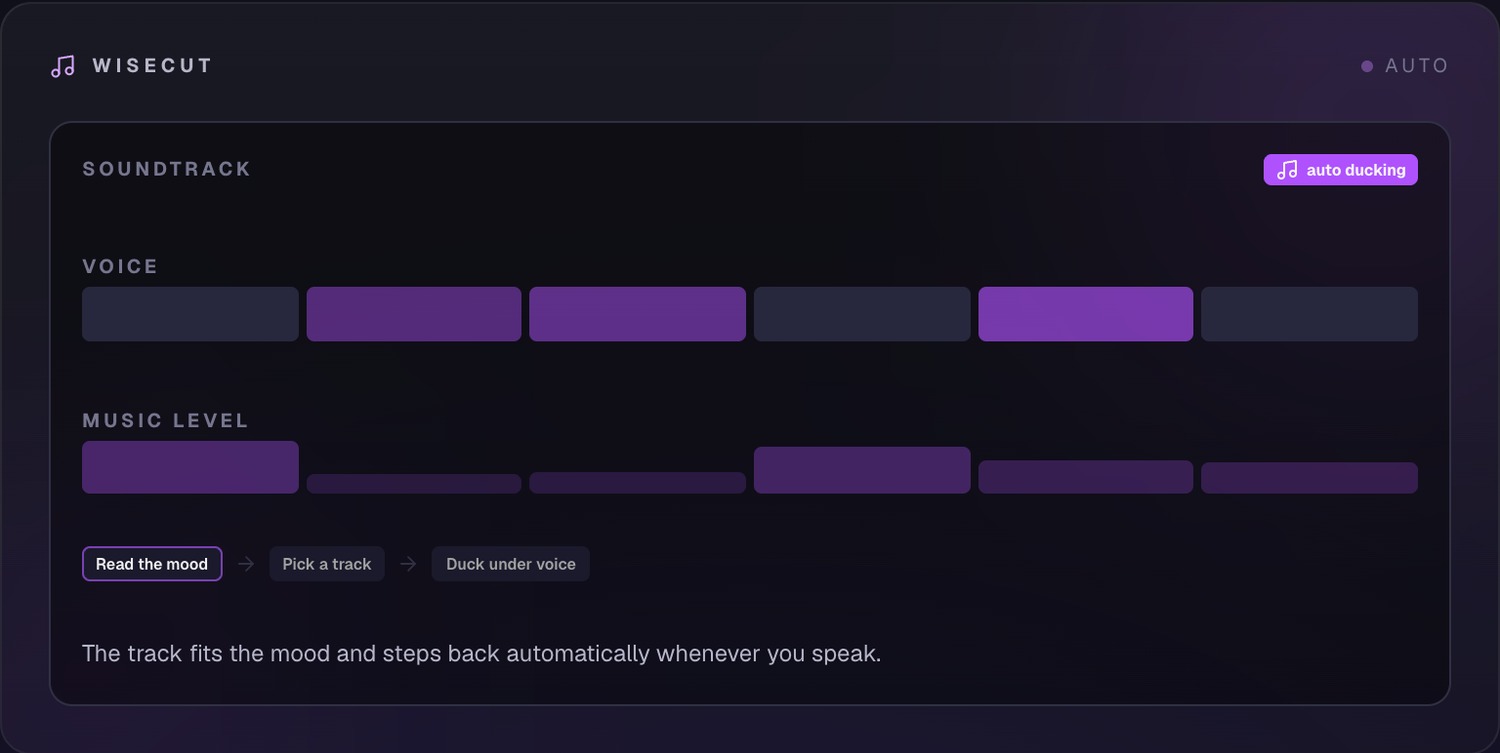
Wisecut's auto ducking mock-up with a Voice row of blocks above a Music Level row that drops when the voice is present

Wisecut's auto ducking mock-up from its Smart Background Music page. Source: Wisecut website

Wisecut's Autocut Silence page says it analyses the audio track and cuts silences, hesitations and dead air, with one slider for how aggressive the cut is and an option to restore a pause worth keeping. Its Clean Edit page describes a preset inside its Wish prompt: false starts, repeated takes, long pauses and filler are removed while the story order and tone stay as recorded. The home page says to paste a video link or upload a file, then ask Wish for changes or edit in the video transcript.

For the finish, its Smart Background Music page says it adds background music, from its library or your own file, and ducks it automatically whenever there is speech, and its home page lists a Studio Voice tool that cleans up audio so the voice sounds studio recorded. Its Captions page says it transcribes a video and generates timed captions, its Auto Reframe page says it reframes to vertical, square and horizontal while keeping the speaker in frame, and a Highlights tool finds the best moments and turns each into a short video.

Pricing: Wisecut's pricing page lists Free at US$0 for the Editor and Wish with limited usage: 30 minutes a month, 480p and exports and downloads up to 3 minutes; the Free card crosses out No watermark, while the Starter+ and Professional+ cards list it. The page read also showed Black Friday offers, so see the pricing page for current prices.

Considerations: The free plan caps exports at 3 minutes and 480p, so a full-length vlog needs a paid plan. Wish usage varies by task, and the pricing page says Wisecut shows an estimated credit cost for review before it runs. The feature pages we read list no b-roll tool, and the pages describe long videos and recordings rather than trip footage assembled from many clips.

  • Choose it if a recorded talking vlog needs silences, retakes and fillers cut and music ducked under the voice.
  • Skip it if a full-length vlog must be exported on the free plan, or the vlog is a montage that needs b-roll.

3. YouCam Video: Best for building a vlog from raw clips and photos on an iPhone

YouCam Video's Select Style chips for Destination Guide, Must-Visit and Travel Memo above a Describe your media row with blurred clip thumbnails

YouCam Video's style and media panel, with the clip thumbnails blurred. Source: YouCam Video App Store listing

YouCam Video's App Store listing says it can turn raw footage into polished vlogs, mixing up to 30 minutes of source video, 60 clips and 300 photos. The listing says to pick a video style and add a prompt, and the app edits, adds background music and layers a voiceover that matches the pace. Its App Store screenshot for the feature shows style choices named Destination Guide, Must-Visit and Travel Memo above a Describe your media row. Perfect Corp's travel-vlog blog describes an AI Auto Clips feature that selects highlight moments, removes awkward pauses and matches clips to music.

The listing also names Auto Captions for talking videos with custom fonts and styles, a video timeline for splitting, trimming and merging clips, AI color enhance and a video enhancer. Beyond editing, it lists face reshape, makeup, a body editor and AI video generation, so it is a broader AI app than a vlog editor.

Pricing: The App Store listing reads Free with in-app purchases. The US listing shows Premium Version (Monthly) at $5.99 and Premium Version (Yearly) at several prices from $23.99 to $49.99, plus Monthly Premium No Trial at $7.99.

Considerations: The App Store listing reads Only for iPhone. The listing counts the input as up to 30 minutes of source video, 60 clips and 300 photos, so a long recording is a different job. The listing prints no watermark policy for the free app. Because the app also lists face and body retouching and AI generation, keep trip footage real if viewers expect the real place.

  • Choose it if a trip or day vlog should be assembled from many clips and photos on an iPhone with a style and a prompt.
  • Skip it if editing happens on Android or a computer, or the vlog is one long talking recording.

4. VN: Best for a free phone editor with a teleprompter and silence removal

VN's speech cleanup panel with Filler Words Removed and Silences Trimmed chips above a waveform and a yellow caption track

VN's speech cleanup panel, cropped from an App Store screenshot. Source: VN App Store listing

VN's App Store listing opens with free video and photo editing with no watermark, and VN's own site says no watermarks, all for free. Under its Smart Tools, the listing says Auto Captions generate subtitles from audio in multiple languages with templates and animated text styles, and also detect and remove filler words and silent segments for tighter, faster talking-head edits. Its Quick Create section lists a Teleprompter that shows a script while recording talking-head videos, and AutoCut, which turns footage into a finished edit by syncing clips to a BeatsClip template.

The listing adds a multi-track timeline, one-tap video cutout, text-to-speech, speed curves and export up to 4K at 60fps. VN's site lists a Denoise tool, 1000+ music tracks and sound effects, and download buttons for iOS, Android, Mac and Windows.

Pricing: The US App Store lists VN Pro at $7.99 and $69.99 without naming the billing periods, and credit packs from $1.00 to $100.00. The listing does not say what VN Pro adds on top of the free editor.

Considerations: AutoCut syncs clips to beat templates; it does not choose moments from a long recording or cut dead air by itself, and the filler-word and silence removal is part of Auto Captions. The listing names no b-roll tool.

  • Choose it if a free, watermark-free phone editor with a teleprompter and automatic caption and silence clean-up fits the vlog.
  • Skip it if an AI should find the moments in a long recording, or generate b-roll for the vlog.

5. InShot: Best for daily vlogs on a phone with automatic silence and filler-word cuts
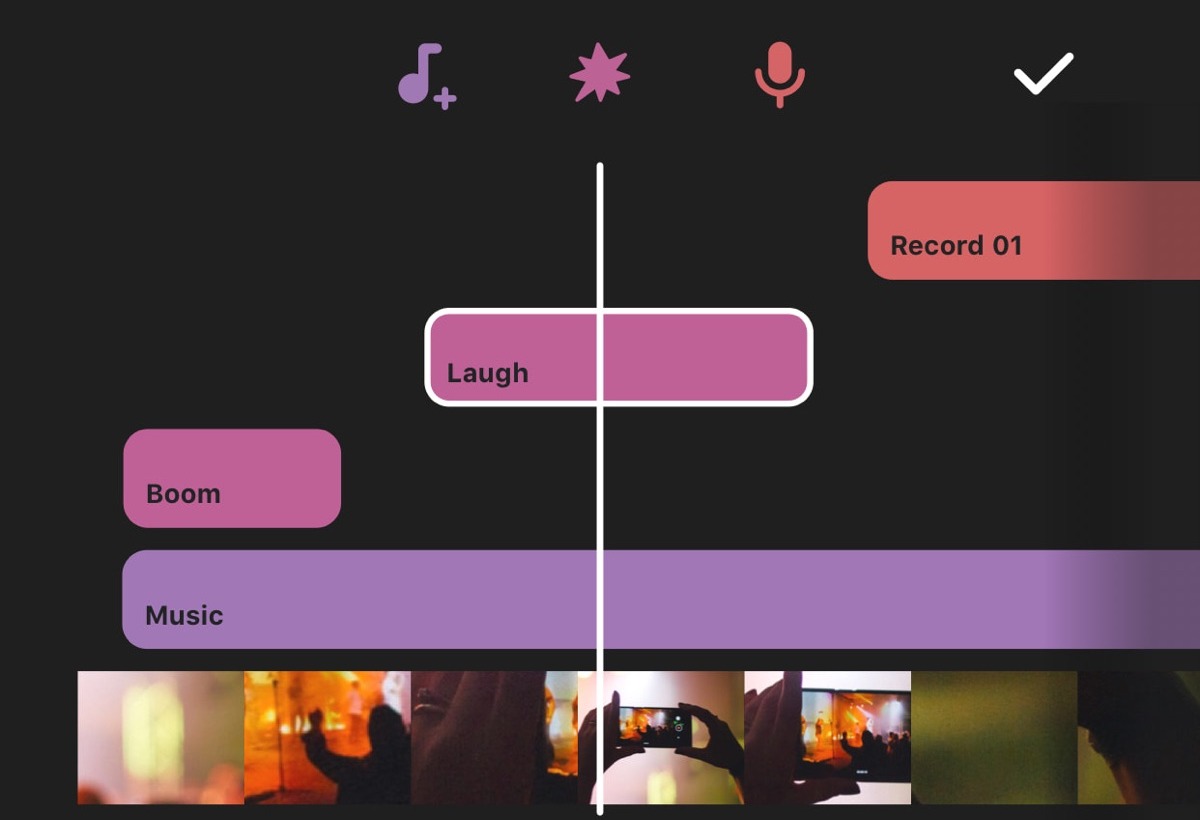
InShot's timeline with a Record 01 voice-over track, Laugh and Boom sound effect blocks and a Music track above a strip of clips

InShot's music, effects and voice-over tracks, cropped from an App Store screenshot. Source: InShot App Store listing

InShot's App Store listing says it is for making daily vlogs, birthday videos and social content, and its Google Play listing says it makes creating vlogs a breeze. The listing's AI tools include AI Cut, which automatically removes silence, filler words and breath sounds, Auto Captions from AI speech-to-text, Bilingual Subtitles, AI Speech text-to-speech and Voice Enhance, which improves voice clarity and reduces background noise.

For the edit itself, the listing names trim, split and merge, speed control from 0.1x to 100x, a stabilizer for shaky footage, music, sound effects and voice-overs, and saving in 4K at 60fps. It runs on iPhone and iPad per the App Store listing and on Android per Google Play.

Pricing: The US App Store lists InShot Pro at $4.99 monthly, $19.99 yearly and $49.99 lifetime, and a Remove ads purchase at $3.99. The App Store listing reads Free with in-app purchases, and Google Play labels the app as containing ads.

Considerations: InShot runs on phones and tablets only. The listings we read print no watermark policy for the free version, and the AI tools help with one recording at a time rather than finding moments in a long vlog or generating b-roll.

  • Choose it if a low-priced phone editor with AI Cut, auto captions and a stabilizer fits daily vlogs.
  • Skip it if the edit happens on a computer, or an AI should assemble a vlog from many clips.

6. CapCut: Best for a free all-device editor with templates and automatic captions
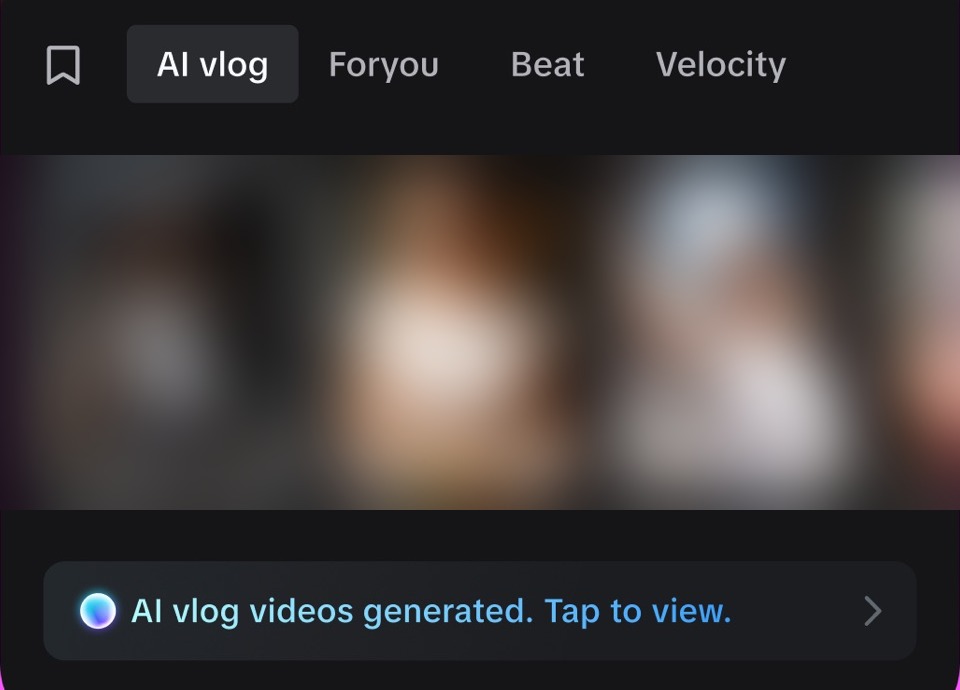
CapCut's AutoCut panel with AI vlog, Foryou, Beat and Velocity tabs above blurred result thumbnails and an AI vlog videos generated notice

CapCut's AutoCut panel with an AI vlog tab, with the result thumbnails blurred. Source: CapCut App Store listing

CapCut's App Store listing says its intelligent features include auto captions, text-to-speech and background removal, and lists stabilizing, keyframes and a multi-track timeline. The App Store screenshots show an AutoCut panel with an AI vlog tab beside For you, Beat and Velocity tabs and an AI vlog videos generated notice. CapCut's own guide to AI video tools for vlog editing calls it the most practical tool for daily vlog editing, which is the vendor's claim, and says its AI video generator can create videos from text prompts or images, suited to b-roll or intros.

CapCut's travel-vlogger guide says CapCut AI can support dynamic reframing, caption placement, templates and fast exports for several formats, and advises using AI to clarify the story, not fabricate the trip. CapCut lists a desktop app, an online editor, an iPad app and a mobile app.

Pricing: CapCut's pricing page lists Free with free templates and basic editing tools, and Pro at USD 19.99 a month, and says displayed pricing is for reference only. The US App Store lists Standard Monthly at $9.99, Pro Monthly at $19.99 and a Yearly Subscription at $89.99.

Considerations: CapCut's help center says videos made in CapCut can usually be exported without a watermark and that a watermark in a template export comes from a default ending clip or built-in template element, while its vlog guide calls exports watermark-free; this guide prints the help-center version. The AI features named in the App Store listing do not include silence or filler-word removal.

  • Choose it if a free editor on phone, desktop and browser with templates, auto captions and an AutoCut AI vlog tab fits the vlog.
  • Skip it if an AI should clean up a long talking recording, or one clear price is needed before starting.

7. GoPro Quik: Best for turning GoPro and action-camera footage into a beat-synced highlight video
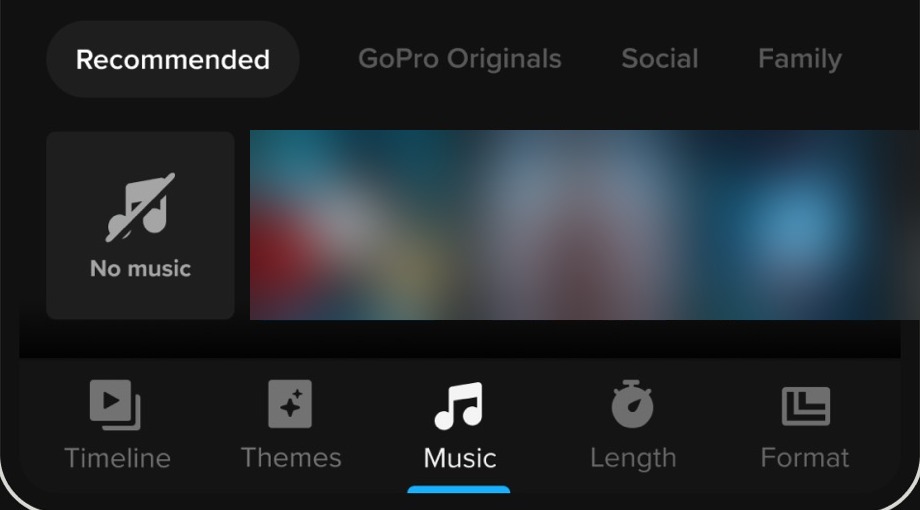
GoPro Quik's music picker with Recommended, GoPro Originals, Social and Family tabs, a No music tile and Timeline, Themes, Music, Length and Format tabs

GoPro Quik's music and themes controls, with the album art blurred. Source: GoPro Quik App Store listing

GoPro Quik's App Store listing says the app finds your best shots, syncs them to music, adds transitions and automatically creates a shareable video, and lists Beat Sync, Themes, filters for snow and water, text overlays with emojis and an aspect-ratio adjustment. GoPro's Quik page says to import from your GoPro, phone or any camera, and describes automatic highlight videos sent after a GoPro charges, with cloud-based editing and a feature that analyses footage and matches the beat of the music to key moments.

The listing shows iPhone, iPad and Mac. Its Reframe tool is described for turning 360 footage into a traditional video.

Pricing: Quik is free to download, and the listing's footnote says a Premium or Premium+ subscription is required for the automatic edits, Beat Sync and Themes. The US App Store lists Subscribe to Quik at $1.99 and Subscribe to Quik - 1-Year at $9.99, Subscribe to GoPro at $5.99 and $59.99 for one year, and GoPro Premium+ at $99.99, without saying which tier each belongs to.

Considerations: The listing names no captions, silence or filler-word tools, so it suits scenic and action footage better than a talking vlog. The automatic edits need a subscription, and the App Store listing is for Apple devices.

  • Choose it if the vlog is travel or action footage from a GoPro, phone or other camera and a music-synced highlight video is the goal.
  • Skip it if the vlog is mostly talking to camera and needs captions or silence cuts.

How we compared these tools

We compared each tool on six points: the footage it starts from, what the vendor says it does about dead air and retakes, what it does for b-roll, music and sound, captions and framing, what its free version limits, and where it runs. The guide is organised around the job in the title, an AI vlog editor, and OpusClip comes first because its AI Producer page describes cutting filler words and pauses and adding captions, b-roll and music to raw talking-to-camera footage, and its AI video editor page describes clipping a long video. Its limits are stated in its entry: AI Producer works on one person talking to camera and does not yet support multi-camera edits.

Items 2 to 7 follow one yardstick: how many vlog edit steps each vendor's own pages say the tool automates without a hand-built timeline. Wisecut is second because its pages list silence cutting, retake removal, music ducking, voice clean-up, captions and reframing. YouCam Video is third because its listing describes a whole vlog assembled from a style and a prompt. VN and InShot list silence and filler-word removal with captions, CapCut lists captions and background removal in its listing, and GoPro Quik is last because its listing names no captions, silence or filler-word tools. Positions 4 to 7 are close calls, not a scored formula.

All facts come from each vendor's own pricing page, product page, App Store listing or help center, read on November 23, 2026, and every price is printed with its billing basis; store and web prices can differ. We did not run hands-on tests of any tool, and this guide prints no accuracy figure. We also read DJI's LightCut page, which says updates and feature maintenance officially ended in September 2026, so LightCut is not listed. Descript, Gling, Submagic, Kapwing and VEED appear in our talking-head guide, so this guide looks for other tools.

Red flags to watch for

  • Vlog-edit quality is the vendor's claim. The pages we read print no independent test of how well any tool cuts or captions a vlog, so check the result on your own footage before posting.
  • Free plans with limits. Wisecut's Free plan exports up to 3 minutes at 480p and its card crosses out No watermark, OpusClip's pricing page lists a watermark on free clips, and CapCut's help center says template exports can carry a watermark.
  • Subscriptions behind the automatic edit. GoPro Quik's listing says automatic edits need a Premium or Premium+ subscription, and YouCam Video and VN sell their premium tiers in-app.
  • Captions need a read-through. Place names, food names and local phrases are easy to mishear, and CapCut's own travel guide tells vloggers to check spelling for neighborhoods, restaurants and local terms.
  • AI that changes the footage. YouCam Video lists face reshape, makeup and body editing, and CapCut's travel guide says to use AI to clarify the story, not fabricate the trip. Say so when generated or altered footage could change what a viewer believes about a real place.
  • Edits that cut too much. Silence and retake removal can take out a pause that carries a joke or an explanation; Wisecut's Autocut Silence page lists a slider and a way to restore a pause, so look for that control.
  • Music terms. A track from a tool's music library or an automatic soundtrack may carry its own licence terms, so check the tool's terms before posting a vlog to a monetized channel.

Frequently asked questions

What is the best AI vlog editor?

It depends on the vlog. OpusClip comes first in this guide for a vlog of one person talking to camera and for cutting a long vlog into short captioned clips. Wisecut is the pick for cleaning a talking recording, YouCam Video for assembling a vlog from clips on an iPhone, VN for a free phone editor with a teleprompter, InShot for daily vlogs on a phone, CapCut for a free all-device editor and GoPro Quik for action-camera footage. See OpusClip's AI video editor page for what OpusClip does.

Is there an AI that edits a vlog automatically?

Several tools describe an automatic edit, with different starting points. YouCam Video's listing says to pick a style and add a prompt and the app edits, adds background music and layers a voiceover. GoPro Quik's listing says it finds your best shots, syncs them to music and creates a video. CapCut's App Store screenshots show an AutoCut panel with an AI vlog tab. For talking-to-camera footage, OpusClip's AI Producer page says it can cut filler words and pauses and add captions, b-roll and music, and Wisecut's Clean Edit page describes removing false starts, repeated takes and long pauses.

What is the best AI video editor for vlogs on a phone?

VN, InShot, CapCut, YouCam Video and GoPro Quik all list phone apps. VN's listing says free with no watermark and lists a teleprompter and filler-word and silence removal, InShot lists AI Cut and auto captions, CapCut lists auto captions and an AutoCut panel with an AI vlog tab in its screenshots, YouCam Video's listing is iPhone only, and GoPro Quik lists iPhone, iPad and Mac. Our guide to AI video editing apps for mobile compares phone apps beyond vlogs.

How do I edit a talking-head vlog with AI?

Cut the dead air first, then add captions and music. OpusClip's AI Producer page says it can cut filler words and pauses and add captions, motion graphics, b-roll, music and sound effects to raw footage of one person talking to camera. Wisecut's pages list silence cutting, a Clean Edit preset and music ducking, and VN's listing lists filler-word and silence removal with a teleprompter for recording. Our guide to editing talking-head videos compares ten tools for that job.

Can AI remove pauses and filler words from a vlog?

Yes, according to each vendor's own pages. OpusClip's AI video editor page lists removing fillers such as "um" and "uh" and pauses, Wisecut's Autocut Silence page says it cuts silences, hesitations and dead air, VN's listing says its auto captions detect and remove filler words and silent segments, and InShot's listing says AI Cut removes silence, filler words and breath sounds. Each page makes its own claim, and none of the pages we read prints an independent test.

Is there a free AI vlog editor with no watermark?

Some say so, with conditions. VN's site and listing say free with no watermark. Wisecut's Free card crosses out No watermark and limits exports to 3 minutes at 480p, so its watermark-free exports start on a paid plan. OpusClip's pricing page lists a watermark on free clips. CapCut's help center says videos can usually be exported without a watermark but that template exports can carry one, and the InShot and YouCam Video listings we read print no watermark policy.

Can OpusClip edit a vlog?

Yes, for two jobs. Its AI Producer page says it turns raw footage of you talking to camera into a finished video, and its AI video editor page and help center describe clipping a long video into short captioned clips, with ClipAnything prompts that can find the best scene of a travel vlog. AI Producer works on footage of one person talking to camera; for a montage built from many scenic clips around a music track, YouCam Video, CapCut and GoPro Quik describe that kind of start. See OpusClip's Auto Video Editor page for what it prints about vlogs.

On this page

Use our Free Forever Plan

Find the moment. Skip the scrubbing.

From script to polished video — in one click.

Create and post one short video every day for free, and grow faster.

OpusSearch uses AI to surface the exact clip you need from hours of footage — in seconds, not afternoons.

Agent Opus runs the entire video pipeline for you: research, scriptwriting, storyboarding, motion, voice, and edit. Upload the idea, post the result.

7 Best AI Vlog Editors in 2026

OpusClip is the pick among these AI vlog editors for a vlog of one person talking to camera: its AI Producer can cut filler words and pauses and add captions, b-roll and music, and clips a long vlog into short videos. A vlog needs dead air cut, captions, music under the voice and a vertical cut. Wisecut is the pick for cleaning a talking recording, YouCam Video for building a vlog from clips on an iPhone, and VN, InShot, CapCut and GoPro Quik for phone and camera footage. Items 2 to 7 follow one yardstick: how many vlog edit steps each vendor's pages say it automates, read November 23, 2026.

Key takeaways

  • Best for a talking-to-camera vlog and for clipping a long vlog: OpusClip. Its AI Producer page says it cuts filler words and pauses and adds captions, b-roll, music and sound effects, and its help center says ClipAnything can find the best scene of a travel vlog from a typed prompt.
  • Best for cleaning a talking recording: Wisecut. Its pages list silence cutting, a Clean Edit preset for false starts and repeats, music that ducks under speech, captions and auto reframe.
  • Best for building a vlog from raw clips on an iPhone: YouCam Video. Its App Store listing says to pick a style, add a prompt and let the app edit, add background music and layer a voiceover.
  • Best for a free, watermark-free phone editor with a teleprompter: VN. Its listing says free with no watermark and lists a teleprompter and filler-word and silence removal.
  • Best for daily vlogs on a phone with automatic silence cuts: InShot. Its App Store listing names daily vlogs and an AI Cut tool that removes silence, filler words and breath sounds.
  • Best for a free all-device editor with templates and auto captions: CapCut. Its App Store screenshots show an AutoCut panel with an AI vlog tab, and its own guides cover vlog and travel editing.
  • Best for GoPro and action-camera footage: GoPro Quik. Its listing says it finds your best shots, syncs them to music and creates a shareable video, with a Premium or Premium+ subscription required.

What counts as an AI vlog editor

A vlog here is a video of one person talking to camera, or a trip or a day shot on a phone or action camera. A tool counts as an AI vlog editor when its own pages describe automated steps a vlog needs: cutting dead air and retakes, assembling clips, adding music and b-roll, captioning for viewers with the sound off, and framing for a vertical feed. The seven tools sit in three groups. Talking-to-camera editors clean one long recording (OpusClip's AI Producer, Wisecut, VN and InShot). Clip assemblers build a video from many shots (YouCam Video, CapCut and GoPro Quik). Clippers cut a long vlog into short videos (OpusClip and Wisecut's highlights).

For the broader talking-head job, see our guide to AI tools to edit talking-head videos.

How to choose

  • A vlog of one person talking to camera, to finish with captions and b-roll: OpusClip's AI Producer, or Wisecut for silence, retake and music clean-up.
  • A long vlog, trip recap or stream to cut into short vertical videos: OpusClip, or Wisecut's Highlights.
  • A trip vlog built from many clips and photos on an iPhone: YouCam Video, with CapCut's AutoCut and GoPro Quik as other ways to start from clips.
  • A free phone editor for daily vlogs: VN, InShot or CapCut. Our guide to AI video editing apps for mobile compares phone apps beyond vlogs.
  • GoPro or other action-camera footage: GoPro Quik, which imports from any camera.

At a glance

  • OpusClip: best for a talking-to-camera vlog and for clipping a long vlog; Starter $15 a month (monthly billing only), Pro $29 a month or $14.50 a month billed annually; free plan yes (clips carry a watermark).
  • Wisecut: best for cleaning a talking recording; Free at US$0 (30 minutes a month, 480p, exports up to 3 minutes; the Free card crosses out No watermark), Starter+ and Professional+ list no watermark, and the page read showed Black Friday offers, so see the pricing page for current prices; free plan yes.
  • YouCam Video: best for building a vlog from raw clips on an iPhone; free app with in-app purchases, and the US App Store lists Premium Version (Monthly) at $5.99 and Premium Version (Yearly) prices from $23.99 to $49.99.
  • VN: best for a free phone editor with a teleprompter; free with no watermark per its site and listing, VN Pro at $7.99 and $69.99 on the US App Store (billing periods not labelled).
  • InShot: best for daily vlogs on a phone with automatic silence cuts; free with ads, and the US App Store lists InShot Pro at $4.99 monthly, $19.99 yearly and $49.99 lifetime.
  • CapCut: best for a free all-device editor with templates and auto captions; free plan yes, the pricing page shows Pro at USD 19.99 a month for reference only, and the US App Store lists Standard Monthly at $9.99, Pro Monthly at $19.99 and a Yearly Subscription at $89.99.
  • GoPro Quik: best for GoPro and action-camera footage; free app, with automatic edits needing a Premium or Premium+ subscription, and the US App Store lists Subscribe to Quik at $1.99 and Subscribe to Quik - 1-Year at $9.99.

Vlog footage, dead air, music, captions and free limits compared

The At a glance list carries best-for, price and free plan; this table compares the footage each tool starts from, what the vendor says it does about dead air and retakes, music and sound, captions and framing, and what its free version limits, as listed on each vendor's own pages on November 23, 2026.

ToolFootage it starts fromDead air and retakesB-roll, music and soundCaptions and framingFree limit and watermark
OpusClipA long vlog to clip, or one person talking to camera in AI ProducerAI Producer cuts filler words and pauses; the editor page lists filler-word and pause removalAI Producer adds b-roll, music and sound effects; the editor page lists AI B-RollAnimated captions; subject tracking follows one moving speakerFree plan exists; the pricing page lists a watermark on free clips
WisecutA raw recording, uploaded as a file or pasted as a linkAutocut Silence cuts silences and dead air; Clean Edit removes false starts, repeats and fillerBackground music that ducks under speech; Studio Voice cleans up the voiceAutomatic captions; auto reframe to vertical, square or horizontal tracks the speakerFree: 480p exports up to 3 minutes; the Free card crosses out No watermark
YouCam VideoRaw clips and photos mixed into a vlog; the App Store listing is iPhone onlyIts blog lists removing awkward pauses; the listing says the app edits from a style and promptAdds background music and a voiceover matched to the pace of the editAuto captions for talking videos, with custom fonts and stylesFree app with in-app purchases; the listing prints no watermark policy
VNClips and talking-head recordings; apps for iOS, Android, Mac and WindowsAuto captions also detect and remove filler words and silent segmentsBeatsClips sync cuts to music beats; the site lists 1000+ tracks and a Denoise toolAuto captions in multiple languages; Crop reframes for any aspect ratioFree with no watermark, per the site and the listing
InShotPhone clips on iPhone, iPad or Android; both store listings name vlogsAI Cut removes silence, filler words and breath sounds automaticallyMusic, sound effects and voice-overs; Voice Enhance reduces background noiseAuto Captions and Bilingual Subtitles from AI speech-to-textFree with ads and in-app purchases; the listings we read print no watermark policy
CapCutPhone, desktop, iPad or browser; CapCut's own guides cover vlog and travel footageManual trim and split; the AI list in the listing names no silence or filler removalFree music library and effects; the vlog guide says its AI video generator can make b-rollAuto captions and background removal; the travel guide lists dynamic reframingFree plan lists free templates and basic tools; template exports can carry a watermark
GoPro QuikFootage from a GoPro, phone or any camera; apps for iPhone, iPad and MacNone named; the listing covers highlights, music, themes and filtersAutomatic edits sync your best shots to music; Beat Sync and Themes need PremiumText overlays and emojis; Frame Adjust changes the aspect ratioFree app; automatic edits need a Premium or Premium+ subscription

1. OpusClip: Best for a talking-to-camera vlog and for clipping a long vlog

OpusClip AI Producer's start panel with an Add raw footage box, an optional reference box and Claude Connector and ChatGPT Plugin buttons

OpusClip AI Producer's start panel for raw talking-head footage. Source: OpusClip AI Producer page

OpusClip's AI Producer page describes an AI video editing agent that turns raw footage of you talking to camera into a finished video: it can cut filler words and pauses, and add captions, motion graphics, b-roll, music and sound effects. The page lists one person talking to camera (an MP4, MOV or WebM file with audible speech) as the footage that works best, says a reference is optional, either a style preset or a link to a video on Instagram, TikTok or YouTube, and lists vlog looks among its style presets, such as Neon Outdoor Vlog and Film Morning Vlog. Edits are requested in plain language in Claude or ChatGPT, and the page also lists a desktop app for Mac and Windows. OpusClip's AI video editor page describes the same agent and says an edit log explains what changed and why. See what an AI Producer is for the longer explanation.

For a long vlog, the AI video editor page says OpusClip's AI finds the most engaging moments and turns them into short clips, adds animated captions, auto-resizes clips for TikTok, YouTube Shorts and Instagram Reels, removes fillers such as "um" and "uh" and pauses, and adds contextually relevant B-roll. OpusClip's Auto Video Editor page says it handles cropping, resizing and captions for TikToks, promos or vlogs. The help center says ClipAnything takes a typed prompt, for example to highlight the best scene from a travel vlog, and that Subject Tracking follows one moving speaker, such as a person gesturing in a vlog.

Pricing: OpusClip's pricing page lists Free at $0 (clips carry a watermark), Starter at $15 a month (monthly billing only) and Pro at $29 a month, or $14.50 a month billed annually; Business is custom.

Considerations: AI Producer works on footage of one person talking to camera, and its page lists multi-camera edits and screen recordings as not supported yet. A vlog assembled from many separate scenic clips, with music chosen around the shots, starts from a different kind of tool: YouCam Video, CapCut or GoPro Quik. The clip path starts from one long recording and finds clips in it. Free clips carry a watermark.

  • Choose it if the vlog is one person talking to camera, or a long recording that should become short captioned vertical clips.
  • Skip it if the vlog is a montage of many short scenic clips that should be assembled around a music track.

2. Wisecut: Best for cleaning a talking recording and ducking music under the voice

Wisecut's auto ducking mock-up with a Voice row of blocks above a Music Level row that drops when the voice is present

Wisecut's auto ducking mock-up from its Smart Background Music page. Source: Wisecut website

Wisecut's Autocut Silence page says it analyses the audio track and cuts silences, hesitations and dead air, with one slider for how aggressive the cut is and an option to restore a pause worth keeping. Its Clean Edit page describes a preset inside its Wish prompt: false starts, repeated takes, long pauses and filler are removed while the story order and tone stay as recorded. The home page says to paste a video link or upload a file, then ask Wish for changes or edit in the video transcript.

For the finish, its Smart Background Music page says it adds background music, from its library or your own file, and ducks it automatically whenever there is speech, and its home page lists a Studio Voice tool that cleans up audio so the voice sounds studio recorded. Its Captions page says it transcribes a video and generates timed captions, its Auto Reframe page says it reframes to vertical, square and horizontal while keeping the speaker in frame, and a Highlights tool finds the best moments and turns each into a short video.

Pricing: Wisecut's pricing page lists Free at US$0 for the Editor and Wish with limited usage: 30 minutes a month, 480p and exports and downloads up to 3 minutes; the Free card crosses out No watermark, while the Starter+ and Professional+ cards list it. The page read also showed Black Friday offers, so see the pricing page for current prices.

Considerations: The free plan caps exports at 3 minutes and 480p, so a full-length vlog needs a paid plan. Wish usage varies by task, and the pricing page says Wisecut shows an estimated credit cost for review before it runs. The feature pages we read list no b-roll tool, and the pages describe long videos and recordings rather than trip footage assembled from many clips.

  • Choose it if a recorded talking vlog needs silences, retakes and fillers cut and music ducked under the voice.
  • Skip it if a full-length vlog must be exported on the free plan, or the vlog is a montage that needs b-roll.

3. YouCam Video: Best for building a vlog from raw clips and photos on an iPhone

YouCam Video's Select Style chips for Destination Guide, Must-Visit and Travel Memo above a Describe your media row with blurred clip thumbnails

YouCam Video's style and media panel, with the clip thumbnails blurred. Source: YouCam Video App Store listing

YouCam Video's App Store listing says it can turn raw footage into polished vlogs, mixing up to 30 minutes of source video, 60 clips and 300 photos. The listing says to pick a video style and add a prompt, and the app edits, adds background music and layers a voiceover that matches the pace. Its App Store screenshot for the feature shows style choices named Destination Guide, Must-Visit and Travel Memo above a Describe your media row. Perfect Corp's travel-vlog blog describes an AI Auto Clips feature that selects highlight moments, removes awkward pauses and matches clips to music.

The listing also names Auto Captions for talking videos with custom fonts and styles, a video timeline for splitting, trimming and merging clips, AI color enhance and a video enhancer. Beyond editing, it lists face reshape, makeup, a body editor and AI video generation, so it is a broader AI app than a vlog editor.

Pricing: The App Store listing reads Free with in-app purchases. The US listing shows Premium Version (Monthly) at $5.99 and Premium Version (Yearly) at several prices from $23.99 to $49.99, plus Monthly Premium No Trial at $7.99.

Considerations: The App Store listing reads Only for iPhone. The listing counts the input as up to 30 minutes of source video, 60 clips and 300 photos, so a long recording is a different job. The listing prints no watermark policy for the free app. Because the app also lists face and body retouching and AI generation, keep trip footage real if viewers expect the real place.

  • Choose it if a trip or day vlog should be assembled from many clips and photos on an iPhone with a style and a prompt.
  • Skip it if editing happens on Android or a computer, or the vlog is one long talking recording.

4. VN: Best for a free phone editor with a teleprompter and silence removal

VN's speech cleanup panel with Filler Words Removed and Silences Trimmed chips above a waveform and a yellow caption track

VN's speech cleanup panel, cropped from an App Store screenshot. Source: VN App Store listing

VN's App Store listing opens with free video and photo editing with no watermark, and VN's own site says no watermarks, all for free. Under its Smart Tools, the listing says Auto Captions generate subtitles from audio in multiple languages with templates and animated text styles, and also detect and remove filler words and silent segments for tighter, faster talking-head edits. Its Quick Create section lists a Teleprompter that shows a script while recording talking-head videos, and AutoCut, which turns footage into a finished edit by syncing clips to a BeatsClip template.

The listing adds a multi-track timeline, one-tap video cutout, text-to-speech, speed curves and export up to 4K at 60fps. VN's site lists a Denoise tool, 1000+ music tracks and sound effects, and download buttons for iOS, Android, Mac and Windows.

Pricing: The US App Store lists VN Pro at $7.99 and $69.99 without naming the billing periods, and credit packs from $1.00 to $100.00. The listing does not say what VN Pro adds on top of the free editor.

Considerations: AutoCut syncs clips to beat templates; it does not choose moments from a long recording or cut dead air by itself, and the filler-word and silence removal is part of Auto Captions. The listing names no b-roll tool.

  • Choose it if a free, watermark-free phone editor with a teleprompter and automatic caption and silence clean-up fits the vlog.
  • Skip it if an AI should find the moments in a long recording, or generate b-roll for the vlog.

5. InShot: Best for daily vlogs on a phone with automatic silence and filler-word cuts

InShot's timeline with a Record 01 voice-over track, Laugh and Boom sound effect blocks and a Music track above a strip of clips

InShot's music, effects and voice-over tracks, cropped from an App Store screenshot. Source: InShot App Store listing

InShot's App Store listing says it is for making daily vlogs, birthday videos and social content, and its Google Play listing says it makes creating vlogs a breeze. The listing's AI tools include AI Cut, which automatically removes silence, filler words and breath sounds, Auto Captions from AI speech-to-text, Bilingual Subtitles, AI Speech text-to-speech and Voice Enhance, which improves voice clarity and reduces background noise.

For the edit itself, the listing names trim, split and merge, speed control from 0.1x to 100x, a stabilizer for shaky footage, music, sound effects and voice-overs, and saving in 4K at 60fps. It runs on iPhone and iPad per the App Store listing and on Android per Google Play.

Pricing: The US App Store lists InShot Pro at $4.99 monthly, $19.99 yearly and $49.99 lifetime, and a Remove ads purchase at $3.99. The App Store listing reads Free with in-app purchases, and Google Play labels the app as containing ads.

Considerations: InShot runs on phones and tablets only. The listings we read print no watermark policy for the free version, and the AI tools help with one recording at a time rather than finding moments in a long vlog or generating b-roll.

  • Choose it if a low-priced phone editor with AI Cut, auto captions and a stabilizer fits daily vlogs.
  • Skip it if the edit happens on a computer, or an AI should assemble a vlog from many clips.

6. CapCut: Best for a free all-device editor with templates and automatic captions

CapCut's AutoCut panel with AI vlog, Foryou, Beat and Velocity tabs above blurred result thumbnails and an AI vlog videos generated notice

CapCut's AutoCut panel with an AI vlog tab, with the result thumbnails blurred. Source: CapCut App Store listing

CapCut's App Store listing says its intelligent features include auto captions, text-to-speech and background removal, and lists stabilizing, keyframes and a multi-track timeline. The App Store screenshots show an AutoCut panel with an AI vlog tab beside For you, Beat and Velocity tabs and an AI vlog videos generated notice. CapCut's own guide to AI video tools for vlog editing calls it the most practical tool for daily vlog editing, which is the vendor's claim, and says its AI video generator can create videos from text prompts or images, suited to b-roll or intros.

CapCut's travel-vlogger guide says CapCut AI can support dynamic reframing, caption placement, templates and fast exports for several formats, and advises using AI to clarify the story, not fabricate the trip. CapCut lists a desktop app, an online editor, an iPad app and a mobile app.

Pricing: CapCut's pricing page lists Free with free templates and basic editing tools, and Pro at USD 19.99 a month, and says displayed pricing is for reference only. The US App Store lists Standard Monthly at $9.99, Pro Monthly at $19.99 and a Yearly Subscription at $89.99.

Considerations: CapCut's help center says videos made in CapCut can usually be exported without a watermark and that a watermark in a template export comes from a default ending clip or built-in template element, while its vlog guide calls exports watermark-free; this guide prints the help-center version. The AI features named in the App Store listing do not include silence or filler-word removal.

  • Choose it if a free editor on phone, desktop and browser with templates, auto captions and an AutoCut AI vlog tab fits the vlog.
  • Skip it if an AI should clean up a long talking recording, or one clear price is needed before starting.

7. GoPro Quik: Best for turning GoPro and action-camera footage into a beat-synced highlight video

GoPro Quik's music picker with Recommended, GoPro Originals, Social and Family tabs, a No music tile and Timeline, Themes, Music, Length and Format tabs

GoPro Quik's music and themes controls, with the album art blurred. Source: GoPro Quik App Store listing

GoPro Quik's App Store listing says the app finds your best shots, syncs them to music, adds transitions and automatically creates a shareable video, and lists Beat Sync, Themes, filters for snow and water, text overlays with emojis and an aspect-ratio adjustment. GoPro's Quik page says to import from your GoPro, phone or any camera, and describes automatic highlight videos sent after a GoPro charges, with cloud-based editing and a feature that analyses footage and matches the beat of the music to key moments.

The listing shows iPhone, iPad and Mac. Its Reframe tool is described for turning 360 footage into a traditional video.

Pricing: Quik is free to download, and the listing's footnote says a Premium or Premium+ subscription is required for the automatic edits, Beat Sync and Themes. The US App Store lists Subscribe to Quik at $1.99 and Subscribe to Quik - 1-Year at $9.99, Subscribe to GoPro at $5.99 and $59.99 for one year, and GoPro Premium+ at $99.99, without saying which tier each belongs to.

Considerations: The listing names no captions, silence or filler-word tools, so it suits scenic and action footage better than a talking vlog. The automatic edits need a subscription, and the App Store listing is for Apple devices.

  • Choose it if the vlog is travel or action footage from a GoPro, phone or other camera and a music-synced highlight video is the goal.
  • Skip it if the vlog is mostly talking to camera and needs captions or silence cuts.

How we compared these tools

We compared each tool on six points: the footage it starts from, what the vendor says it does about dead air and retakes, what it does for b-roll, music and sound, captions and framing, what its free version limits, and where it runs. The guide is organised around the job in the title, an AI vlog editor, and OpusClip comes first because its AI Producer page describes cutting filler words and pauses and adding captions, b-roll and music to raw talking-to-camera footage, and its AI video editor page describes clipping a long video. Its limits are stated in its entry: AI Producer works on one person talking to camera and does not yet support multi-camera edits.

Items 2 to 7 follow one yardstick: how many vlog edit steps each vendor's own pages say the tool automates without a hand-built timeline. Wisecut is second because its pages list silence cutting, retake removal, music ducking, voice clean-up, captions and reframing. YouCam Video is third because its listing describes a whole vlog assembled from a style and a prompt. VN and InShot list silence and filler-word removal with captions, CapCut lists captions and background removal in its listing, and GoPro Quik is last because its listing names no captions, silence or filler-word tools. Positions 4 to 7 are close calls, not a scored formula.

All facts come from each vendor's own pricing page, product page, App Store listing or help center, read on November 23, 2026, and every price is printed with its billing basis; store and web prices can differ. We did not run hands-on tests of any tool, and this guide prints no accuracy figure. We also read DJI's LightCut page, which says updates and feature maintenance officially ended in September 2026, so LightCut is not listed. Descript, Gling, Submagic, Kapwing and VEED appear in our talking-head guide, so this guide looks for other tools.

Red flags to watch for

  • Vlog-edit quality is the vendor's claim. The pages we read print no independent test of how well any tool cuts or captions a vlog, so check the result on your own footage before posting.
  • Free plans with limits. Wisecut's Free plan exports up to 3 minutes at 480p and its card crosses out No watermark, OpusClip's pricing page lists a watermark on free clips, and CapCut's help center says template exports can carry a watermark.
  • Subscriptions behind the automatic edit. GoPro Quik's listing says automatic edits need a Premium or Premium+ subscription, and YouCam Video and VN sell their premium tiers in-app.
  • Captions need a read-through. Place names, food names and local phrases are easy to mishear, and CapCut's own travel guide tells vloggers to check spelling for neighborhoods, restaurants and local terms.
  • AI that changes the footage. YouCam Video lists face reshape, makeup and body editing, and CapCut's travel guide says to use AI to clarify the story, not fabricate the trip. Say so when generated or altered footage could change what a viewer believes about a real place.
  • Edits that cut too much. Silence and retake removal can take out a pause that carries a joke or an explanation; Wisecut's Autocut Silence page lists a slider and a way to restore a pause, so look for that control.
  • Music terms. A track from a tool's music library or an automatic soundtrack may carry its own licence terms, so check the tool's terms before posting a vlog to a monetized channel.

Frequently asked questions

What is the best AI vlog editor?

It depends on the vlog. OpusClip comes first in this guide for a vlog of one person talking to camera and for cutting a long vlog into short captioned clips. Wisecut is the pick for cleaning a talking recording, YouCam Video for assembling a vlog from clips on an iPhone, VN for a free phone editor with a teleprompter, InShot for daily vlogs on a phone, CapCut for a free all-device editor and GoPro Quik for action-camera footage. See OpusClip's AI video editor page for what OpusClip does.

Is there an AI that edits a vlog automatically?

Several tools describe an automatic edit, with different starting points. YouCam Video's listing says to pick a style and add a prompt and the app edits, adds background music and layers a voiceover. GoPro Quik's listing says it finds your best shots, syncs them to music and creates a video. CapCut's App Store screenshots show an AutoCut panel with an AI vlog tab. For talking-to-camera footage, OpusClip's AI Producer page says it can cut filler words and pauses and add captions, b-roll and music, and Wisecut's Clean Edit page describes removing false starts, repeated takes and long pauses.

What is the best AI video editor for vlogs on a phone?

VN, InShot, CapCut, YouCam Video and GoPro Quik all list phone apps. VN's listing says free with no watermark and lists a teleprompter and filler-word and silence removal, InShot lists AI Cut and auto captions, CapCut lists auto captions and an AutoCut panel with an AI vlog tab in its screenshots, YouCam Video's listing is iPhone only, and GoPro Quik lists iPhone, iPad and Mac. Our guide to AI video editing apps for mobile compares phone apps beyond vlogs.

How do I edit a talking-head vlog with AI?

Cut the dead air first, then add captions and music. OpusClip's AI Producer page says it can cut filler words and pauses and add captions, motion graphics, b-roll, music and sound effects to raw footage of one person talking to camera. Wisecut's pages list silence cutting, a Clean Edit preset and music ducking, and VN's listing lists filler-word and silence removal with a teleprompter for recording. Our guide to editing talking-head videos compares ten tools for that job.

Can AI remove pauses and filler words from a vlog?

Yes, according to each vendor's own pages. OpusClip's AI video editor page lists removing fillers such as "um" and "uh" and pauses, Wisecut's Autocut Silence page says it cuts silences, hesitations and dead air, VN's listing says its auto captions detect and remove filler words and silent segments, and InShot's listing says AI Cut removes silence, filler words and breath sounds. Each page makes its own claim, and none of the pages we read prints an independent test.

Is there a free AI vlog editor with no watermark?

Some say so, with conditions. VN's site and listing say free with no watermark. Wisecut's Free card crosses out No watermark and limits exports to 3 minutes at 480p, so its watermark-free exports start on a paid plan. OpusClip's pricing page lists a watermark on free clips. CapCut's help center says videos can usually be exported without a watermark but that template exports can carry one, and the InShot and YouCam Video listings we read print no watermark policy.

Can OpusClip edit a vlog?

Yes, for two jobs. Its AI Producer page says it turns raw footage of you talking to camera into a finished video, and its AI video editor page and help center describe clipping a long video into short captioned clips, with ClipAnything prompts that can find the best scene of a travel vlog. AI Producer works on footage of one person talking to camera; for a montage built from many scenic clips around a music track, YouCam Video, CapCut and GoPro Quik describe that kind of start. See OpusClip's Auto Video Editor page for what it prints about vlogs.

Creator name

Creator type

Team size

Channels

linkYouTubefacebookXTikTok

Pain point

Time to see positive ROI

About the creator

Don't miss these

How Audacy Drove 1B+ Views by Taking a Tech-Forward Approach to Radio with OpusClip
No items found.

How Audacy Drove 1B+ Views by Taking a Tech-Forward Approach to Radio with OpusClip

How All the Smoke makes hit compilations faster with OpusSearch

How All the Smoke makes hit compilations faster with OpusSearch

Growing a new channel to 1.5M views in 90 days without creating new videos

Growing a new channel to 1.5M views in 90 days without creating new videos

OpusClip 4.0 is here. Become a content powerhouse.

7 Best AI Vlog Editors in 2026

Three creators vlogging with phones on tripods in a city street, a living room and a cafe, with a heart badge, a caption pill, a 9:16 tag and a music badge
No items found.
No items found.

Boost your social media growth with OpusClip

Create and post one short video every day for your social media and grow faster.

7 Best AI Vlog Editors in 2026

Three creators vlogging with phones on tripods in a city street, a living room and a cafe, with a heart badge, a caption pill, a 9:16 tag and a music badge

OpusClip is the pick among these AI vlog editors for a vlog of one person talking to camera: its AI Producer can cut filler words and pauses and add captions, b-roll and music, and clips a long vlog into short videos. A vlog needs dead air cut, captions, music under the voice and a vertical cut. Wisecut is the pick for cleaning a talking recording, YouCam Video for building a vlog from clips on an iPhone, and VN, InShot, CapCut and GoPro Quik for phone and camera footage. Items 2 to 7 follow one yardstick: how many vlog edit steps each vendor's pages say it automates, read November 23, 2026.

Key takeaways

  • Best for a talking-to-camera vlog and for clipping a long vlog: OpusClip. Its AI Producer page says it cuts filler words and pauses and adds captions, b-roll, music and sound effects, and its help center says ClipAnything can find the best scene of a travel vlog from a typed prompt.
  • Best for cleaning a talking recording: Wisecut. Its pages list silence cutting, a Clean Edit preset for false starts and repeats, music that ducks under speech, captions and auto reframe.
  • Best for building a vlog from raw clips on an iPhone: YouCam Video. Its App Store listing says to pick a style, add a prompt and let the app edit, add background music and layer a voiceover.
  • Best for a free, watermark-free phone editor with a teleprompter: VN. Its listing says free with no watermark and lists a teleprompter and filler-word and silence removal.
  • Best for daily vlogs on a phone with automatic silence cuts: InShot. Its App Store listing names daily vlogs and an AI Cut tool that removes silence, filler words and breath sounds.
  • Best for a free all-device editor with templates and auto captions: CapCut. Its App Store screenshots show an AutoCut panel with an AI vlog tab, and its own guides cover vlog and travel editing.
  • Best for GoPro and action-camera footage: GoPro Quik. Its listing says it finds your best shots, syncs them to music and creates a shareable video, with a Premium or Premium+ subscription required.

What counts as an AI vlog editor

A vlog here is a video of one person talking to camera, or a trip or a day shot on a phone or action camera. A tool counts as an AI vlog editor when its own pages describe automated steps a vlog needs: cutting dead air and retakes, assembling clips, adding music and b-roll, captioning for viewers with the sound off, and framing for a vertical feed. The seven tools sit in three groups. Talking-to-camera editors clean one long recording (OpusClip's AI Producer, Wisecut, VN and InShot). Clip assemblers build a video from many shots (YouCam Video, CapCut and GoPro Quik). Clippers cut a long vlog into short videos (OpusClip and Wisecut's highlights).

For the broader talking-head job, see our guide to AI tools to edit talking-head videos.

How to choose

  • A vlog of one person talking to camera, to finish with captions and b-roll: OpusClip's AI Producer, or Wisecut for silence, retake and music clean-up.
  • A long vlog, trip recap or stream to cut into short vertical videos: OpusClip, or Wisecut's Highlights.
  • A trip vlog built from many clips and photos on an iPhone: YouCam Video, with CapCut's AutoCut and GoPro Quik as other ways to start from clips.
  • A free phone editor for daily vlogs: VN, InShot or CapCut. Our guide to AI video editing apps for mobile compares phone apps beyond vlogs.
  • GoPro or other action-camera footage: GoPro Quik, which imports from any camera.

At a glance

  • OpusClip: best for a talking-to-camera vlog and for clipping a long vlog; Starter $15 a month (monthly billing only), Pro $29 a month or $14.50 a month billed annually; free plan yes (clips carry a watermark).
  • Wisecut: best for cleaning a talking recording; Free at US$0 (30 minutes a month, 480p, exports up to 3 minutes; the Free card crosses out No watermark), Starter+ and Professional+ list no watermark, and the page read showed Black Friday offers, so see the pricing page for current prices; free plan yes.
  • YouCam Video: best for building a vlog from raw clips on an iPhone; free app with in-app purchases, and the US App Store lists Premium Version (Monthly) at $5.99 and Premium Version (Yearly) prices from $23.99 to $49.99.
  • VN: best for a free phone editor with a teleprompter; free with no watermark per its site and listing, VN Pro at $7.99 and $69.99 on the US App Store (billing periods not labelled).
  • InShot: best for daily vlogs on a phone with automatic silence cuts; free with ads, and the US App Store lists InShot Pro at $4.99 monthly, $19.99 yearly and $49.99 lifetime.
  • CapCut: best for a free all-device editor with templates and auto captions; free plan yes, the pricing page shows Pro at USD 19.99 a month for reference only, and the US App Store lists Standard Monthly at $9.99, Pro Monthly at $19.99 and a Yearly Subscription at $89.99.
  • GoPro Quik: best for GoPro and action-camera footage; free app, with automatic edits needing a Premium or Premium+ subscription, and the US App Store lists Subscribe to Quik at $1.99 and Subscribe to Quik - 1-Year at $9.99.

Vlog footage, dead air, music, captions and free limits compared

The At a glance list carries best-for, price and free plan; this table compares the footage each tool starts from, what the vendor says it does about dead air and retakes, music and sound, captions and framing, and what its free version limits, as listed on each vendor's own pages on November 23, 2026.

ToolFootage it starts fromDead air and retakesB-roll, music and soundCaptions and framingFree limit and watermark
OpusClipA long vlog to clip, or one person talking to camera in AI ProducerAI Producer cuts filler words and pauses; the editor page lists filler-word and pause removalAI Producer adds b-roll, music and sound effects; the editor page lists AI B-RollAnimated captions; subject tracking follows one moving speakerFree plan exists; the pricing page lists a watermark on free clips
WisecutA raw recording, uploaded as a file or pasted as a linkAutocut Silence cuts silences and dead air; Clean Edit removes false starts, repeats and fillerBackground music that ducks under speech; Studio Voice cleans up the voiceAutomatic captions; auto reframe to vertical, square or horizontal tracks the speakerFree: 480p exports up to 3 minutes; the Free card crosses out No watermark
YouCam VideoRaw clips and photos mixed into a vlog; the App Store listing is iPhone onlyIts blog lists removing awkward pauses; the listing says the app edits from a style and promptAdds background music and a voiceover matched to the pace of the editAuto captions for talking videos, with custom fonts and stylesFree app with in-app purchases; the listing prints no watermark policy
VNClips and talking-head recordings; apps for iOS, Android, Mac and WindowsAuto captions also detect and remove filler words and silent segmentsBeatsClips sync cuts to music beats; the site lists 1000+ tracks and a Denoise toolAuto captions in multiple languages; Crop reframes for any aspect ratioFree with no watermark, per the site and the listing
InShotPhone clips on iPhone, iPad or Android; both store listings name vlogsAI Cut removes silence, filler words and breath sounds automaticallyMusic, sound effects and voice-overs; Voice Enhance reduces background noiseAuto Captions and Bilingual Subtitles from AI speech-to-textFree with ads and in-app purchases; the listings we read print no watermark policy
CapCutPhone, desktop, iPad or browser; CapCut's own guides cover vlog and travel footageManual trim and split; the AI list in the listing names no silence or filler removalFree music library and effects; the vlog guide says its AI video generator can make b-rollAuto captions and background removal; the travel guide lists dynamic reframingFree plan lists free templates and basic tools; template exports can carry a watermark
GoPro QuikFootage from a GoPro, phone or any camera; apps for iPhone, iPad and MacNone named; the listing covers highlights, music, themes and filtersAutomatic edits sync your best shots to music; Beat Sync and Themes need PremiumText overlays and emojis; Frame Adjust changes the aspect ratioFree app; automatic edits need a Premium or Premium+ subscription

1. OpusClip: Best for a talking-to-camera vlog and for clipping a long vlog

OpusClip AI Producer's start panel with an Add raw footage box, an optional reference box and Claude Connector and ChatGPT Plugin buttons

OpusClip AI Producer's start panel for raw talking-head footage. Source: OpusClip AI Producer page

OpusClip's AI Producer page describes an AI video editing agent that turns raw footage of you talking to camera into a finished video: it can cut filler words and pauses, and add captions, motion graphics, b-roll, music and sound effects. The page lists one person talking to camera (an MP4, MOV or WebM file with audible speech) as the footage that works best, says a reference is optional, either a style preset or a link to a video on Instagram, TikTok or YouTube, and lists vlog looks among its style presets, such as Neon Outdoor Vlog and Film Morning Vlog. Edits are requested in plain language in Claude or ChatGPT, and the page also lists a desktop app for Mac and Windows. OpusClip's AI video editor page describes the same agent and says an edit log explains what changed and why. See what an AI Producer is for the longer explanation.

For a long vlog, the AI video editor page says OpusClip's AI finds the most engaging moments and turns them into short clips, adds animated captions, auto-resizes clips for TikTok, YouTube Shorts and Instagram Reels, removes fillers such as "um" and "uh" and pauses, and adds contextually relevant B-roll. OpusClip's Auto Video Editor page says it handles cropping, resizing and captions for TikToks, promos or vlogs. The help center says ClipAnything takes a typed prompt, for example to highlight the best scene from a travel vlog, and that Subject Tracking follows one moving speaker, such as a person gesturing in a vlog.

Pricing: OpusClip's pricing page lists Free at $0 (clips carry a watermark), Starter at $15 a month (monthly billing only) and Pro at $29 a month, or $14.50 a month billed annually; Business is custom.

Considerations: AI Producer works on footage of one person talking to camera, and its page lists multi-camera edits and screen recordings as not supported yet. A vlog assembled from many separate scenic clips, with music chosen around the shots, starts from a different kind of tool: YouCam Video, CapCut or GoPro Quik. The clip path starts from one long recording and finds clips in it. Free clips carry a watermark.

  • Choose it if the vlog is one person talking to camera, or a long recording that should become short captioned vertical clips.
  • Skip it if the vlog is a montage of many short scenic clips that should be assembled around a music track.

2. Wisecut: Best for cleaning a talking recording and ducking music under the voice

Wisecut's auto ducking mock-up with a Voice row of blocks above a Music Level row that drops when the voice is present

Wisecut's auto ducking mock-up from its Smart Background Music page. Source: Wisecut website

Wisecut's Autocut Silence page says it analyses the audio track and cuts silences, hesitations and dead air, with one slider for how aggressive the cut is and an option to restore a pause worth keeping. Its Clean Edit page describes a preset inside its Wish prompt: false starts, repeated takes, long pauses and filler are removed while the story order and tone stay as recorded. The home page says to paste a video link or upload a file, then ask Wish for changes or edit in the video transcript.

For the finish, its Smart Background Music page says it adds background music, from its library or your own file, and ducks it automatically whenever there is speech, and its home page lists a Studio Voice tool that cleans up audio so the voice sounds studio recorded. Its Captions page says it transcribes a video and generates timed captions, its Auto Reframe page says it reframes to vertical, square and horizontal while keeping the speaker in frame, and a Highlights tool finds the best moments and turns each into a short video.

Pricing: Wisecut's pricing page lists Free at US$0 for the Editor and Wish with limited usage: 30 minutes a month, 480p and exports and downloads up to 3 minutes; the Free card crosses out No watermark, while the Starter+ and Professional+ cards list it. The page read also showed Black Friday offers, so see the pricing page for current prices.

Considerations: The free plan caps exports at 3 minutes and 480p, so a full-length vlog needs a paid plan. Wish usage varies by task, and the pricing page says Wisecut shows an estimated credit cost for review before it runs. The feature pages we read list no b-roll tool, and the pages describe long videos and recordings rather than trip footage assembled from many clips.

  • Choose it if a recorded talking vlog needs silences, retakes and fillers cut and music ducked under the voice.
  • Skip it if a full-length vlog must be exported on the free plan, or the vlog is a montage that needs b-roll.

3. YouCam Video: Best for building a vlog from raw clips and photos on an iPhone

YouCam Video's Select Style chips for Destination Guide, Must-Visit and Travel Memo above a Describe your media row with blurred clip thumbnails

YouCam Video's style and media panel, with the clip thumbnails blurred. Source: YouCam Video App Store listing

YouCam Video's App Store listing says it can turn raw footage into polished vlogs, mixing up to 30 minutes of source video, 60 clips and 300 photos. The listing says to pick a video style and add a prompt, and the app edits, adds background music and layers a voiceover that matches the pace. Its App Store screenshot for the feature shows style choices named Destination Guide, Must-Visit and Travel Memo above a Describe your media row. Perfect Corp's travel-vlog blog describes an AI Auto Clips feature that selects highlight moments, removes awkward pauses and matches clips to music.

The listing also names Auto Captions for talking videos with custom fonts and styles, a video timeline for splitting, trimming and merging clips, AI color enhance and a video enhancer. Beyond editing, it lists face reshape, makeup, a body editor and AI video generation, so it is a broader AI app than a vlog editor.

Pricing: The App Store listing reads Free with in-app purchases. The US listing shows Premium Version (Monthly) at $5.99 and Premium Version (Yearly) at several prices from $23.99 to $49.99, plus Monthly Premium No Trial at $7.99.

Considerations: The App Store listing reads Only for iPhone. The listing counts the input as up to 30 minutes of source video, 60 clips and 300 photos, so a long recording is a different job. The listing prints no watermark policy for the free app. Because the app also lists face and body retouching and AI generation, keep trip footage real if viewers expect the real place.

  • Choose it if a trip or day vlog should be assembled from many clips and photos on an iPhone with a style and a prompt.
  • Skip it if editing happens on Android or a computer, or the vlog is one long talking recording.

4. VN: Best for a free phone editor with a teleprompter and silence removal

VN's speech cleanup panel with Filler Words Removed and Silences Trimmed chips above a waveform and a yellow caption track

VN's speech cleanup panel, cropped from an App Store screenshot. Source: VN App Store listing

VN's App Store listing opens with free video and photo editing with no watermark, and VN's own site says no watermarks, all for free. Under its Smart Tools, the listing says Auto Captions generate subtitles from audio in multiple languages with templates and animated text styles, and also detect and remove filler words and silent segments for tighter, faster talking-head edits. Its Quick Create section lists a Teleprompter that shows a script while recording talking-head videos, and AutoCut, which turns footage into a finished edit by syncing clips to a BeatsClip template.

The listing adds a multi-track timeline, one-tap video cutout, text-to-speech, speed curves and export up to 4K at 60fps. VN's site lists a Denoise tool, 1000+ music tracks and sound effects, and download buttons for iOS, Android, Mac and Windows.

Pricing: The US App Store lists VN Pro at $7.99 and $69.99 without naming the billing periods, and credit packs from $1.00 to $100.00. The listing does not say what VN Pro adds on top of the free editor.

Considerations: AutoCut syncs clips to beat templates; it does not choose moments from a long recording or cut dead air by itself, and the filler-word and silence removal is part of Auto Captions. The listing names no b-roll tool.

  • Choose it if a free, watermark-free phone editor with a teleprompter and automatic caption and silence clean-up fits the vlog.
  • Skip it if an AI should find the moments in a long recording, or generate b-roll for the vlog.

5. InShot: Best for daily vlogs on a phone with automatic silence and filler-word cuts

InShot's timeline with a Record 01 voice-over track, Laugh and Boom sound effect blocks and a Music track above a strip of clips

InShot's music, effects and voice-over tracks, cropped from an App Store screenshot. Source: InShot App Store listing

InShot's App Store listing says it is for making daily vlogs, birthday videos and social content, and its Google Play listing says it makes creating vlogs a breeze. The listing's AI tools include AI Cut, which automatically removes silence, filler words and breath sounds, Auto Captions from AI speech-to-text, Bilingual Subtitles, AI Speech text-to-speech and Voice Enhance, which improves voice clarity and reduces background noise.

For the edit itself, the listing names trim, split and merge, speed control from 0.1x to 100x, a stabilizer for shaky footage, music, sound effects and voice-overs, and saving in 4K at 60fps. It runs on iPhone and iPad per the App Store listing and on Android per Google Play.

Pricing: The US App Store lists InShot Pro at $4.99 monthly, $19.99 yearly and $49.99 lifetime, and a Remove ads purchase at $3.99. The App Store listing reads Free with in-app purchases, and Google Play labels the app as containing ads.

Considerations: InShot runs on phones and tablets only. The listings we read print no watermark policy for the free version, and the AI tools help with one recording at a time rather than finding moments in a long vlog or generating b-roll.

  • Choose it if a low-priced phone editor with AI Cut, auto captions and a stabilizer fits daily vlogs.
  • Skip it if the edit happens on a computer, or an AI should assemble a vlog from many clips.

6. CapCut: Best for a free all-device editor with templates and automatic captions

CapCut's AutoCut panel with AI vlog, Foryou, Beat and Velocity tabs above blurred result thumbnails and an AI vlog videos generated notice

CapCut's AutoCut panel with an AI vlog tab, with the result thumbnails blurred. Source: CapCut App Store listing

CapCut's App Store listing says its intelligent features include auto captions, text-to-speech and background removal, and lists stabilizing, keyframes and a multi-track timeline. The App Store screenshots show an AutoCut panel with an AI vlog tab beside For you, Beat and Velocity tabs and an AI vlog videos generated notice. CapCut's own guide to AI video tools for vlog editing calls it the most practical tool for daily vlog editing, which is the vendor's claim, and says its AI video generator can create videos from text prompts or images, suited to b-roll or intros.

CapCut's travel-vlogger guide says CapCut AI can support dynamic reframing, caption placement, templates and fast exports for several formats, and advises using AI to clarify the story, not fabricate the trip. CapCut lists a desktop app, an online editor, an iPad app and a mobile app.

Pricing: CapCut's pricing page lists Free with free templates and basic editing tools, and Pro at USD 19.99 a month, and says displayed pricing is for reference only. The US App Store lists Standard Monthly at $9.99, Pro Monthly at $19.99 and a Yearly Subscription at $89.99.

Considerations: CapCut's help center says videos made in CapCut can usually be exported without a watermark and that a watermark in a template export comes from a default ending clip or built-in template element, while its vlog guide calls exports watermark-free; this guide prints the help-center version. The AI features named in the App Store listing do not include silence or filler-word removal.

  • Choose it if a free editor on phone, desktop and browser with templates, auto captions and an AutoCut AI vlog tab fits the vlog.
  • Skip it if an AI should clean up a long talking recording, or one clear price is needed before starting.

7. GoPro Quik: Best for turning GoPro and action-camera footage into a beat-synced highlight video

GoPro Quik's music picker with Recommended, GoPro Originals, Social and Family tabs, a No music tile and Timeline, Themes, Music, Length and Format tabs

GoPro Quik's music and themes controls, with the album art blurred. Source: GoPro Quik App Store listing

GoPro Quik's App Store listing says the app finds your best shots, syncs them to music, adds transitions and automatically creates a shareable video, and lists Beat Sync, Themes, filters for snow and water, text overlays with emojis and an aspect-ratio adjustment. GoPro's Quik page says to import from your GoPro, phone or any camera, and describes automatic highlight videos sent after a GoPro charges, with cloud-based editing and a feature that analyses footage and matches the beat of the music to key moments.

The listing shows iPhone, iPad and Mac. Its Reframe tool is described for turning 360 footage into a traditional video.

Pricing: Quik is free to download, and the listing's footnote says a Premium or Premium+ subscription is required for the automatic edits, Beat Sync and Themes. The US App Store lists Subscribe to Quik at $1.99 and Subscribe to Quik - 1-Year at $9.99, Subscribe to GoPro at $5.99 and $59.99 for one year, and GoPro Premium+ at $99.99, without saying which tier each belongs to.

Considerations: The listing names no captions, silence or filler-word tools, so it suits scenic and action footage better than a talking vlog. The automatic edits need a subscription, and the App Store listing is for Apple devices.

  • Choose it if the vlog is travel or action footage from a GoPro, phone or other camera and a music-synced highlight video is the goal.
  • Skip it if the vlog is mostly talking to camera and needs captions or silence cuts.

How we compared these tools

We compared each tool on six points: the footage it starts from, what the vendor says it does about dead air and retakes, what it does for b-roll, music and sound, captions and framing, what its free version limits, and where it runs. The guide is organised around the job in the title, an AI vlog editor, and OpusClip comes first because its AI Producer page describes cutting filler words and pauses and adding captions, b-roll and music to raw talking-to-camera footage, and its AI video editor page describes clipping a long video. Its limits are stated in its entry: AI Producer works on one person talking to camera and does not yet support multi-camera edits.

Items 2 to 7 follow one yardstick: how many vlog edit steps each vendor's own pages say the tool automates without a hand-built timeline. Wisecut is second because its pages list silence cutting, retake removal, music ducking, voice clean-up, captions and reframing. YouCam Video is third because its listing describes a whole vlog assembled from a style and a prompt. VN and InShot list silence and filler-word removal with captions, CapCut lists captions and background removal in its listing, and GoPro Quik is last because its listing names no captions, silence or filler-word tools. Positions 4 to 7 are close calls, not a scored formula.

All facts come from each vendor's own pricing page, product page, App Store listing or help center, read on November 23, 2026, and every price is printed with its billing basis; store and web prices can differ. We did not run hands-on tests of any tool, and this guide prints no accuracy figure. We also read DJI's LightCut page, which says updates and feature maintenance officially ended in September 2026, so LightCut is not listed. Descript, Gling, Submagic, Kapwing and VEED appear in our talking-head guide, so this guide looks for other tools.

Red flags to watch for

  • Vlog-edit quality is the vendor's claim. The pages we read print no independent test of how well any tool cuts or captions a vlog, so check the result on your own footage before posting.
  • Free plans with limits. Wisecut's Free plan exports up to 3 minutes at 480p and its card crosses out No watermark, OpusClip's pricing page lists a watermark on free clips, and CapCut's help center says template exports can carry a watermark.
  • Subscriptions behind the automatic edit. GoPro Quik's listing says automatic edits need a Premium or Premium+ subscription, and YouCam Video and VN sell their premium tiers in-app.
  • Captions need a read-through. Place names, food names and local phrases are easy to mishear, and CapCut's own travel guide tells vloggers to check spelling for neighborhoods, restaurants and local terms.
  • AI that changes the footage. YouCam Video lists face reshape, makeup and body editing, and CapCut's travel guide says to use AI to clarify the story, not fabricate the trip. Say so when generated or altered footage could change what a viewer believes about a real place.
  • Edits that cut too much. Silence and retake removal can take out a pause that carries a joke or an explanation; Wisecut's Autocut Silence page lists a slider and a way to restore a pause, so look for that control.
  • Music terms. A track from a tool's music library or an automatic soundtrack may carry its own licence terms, so check the tool's terms before posting a vlog to a monetized channel.

Frequently asked questions

What is the best AI vlog editor?

It depends on the vlog. OpusClip comes first in this guide for a vlog of one person talking to camera and for cutting a long vlog into short captioned clips. Wisecut is the pick for cleaning a talking recording, YouCam Video for assembling a vlog from clips on an iPhone, VN for a free phone editor with a teleprompter, InShot for daily vlogs on a phone, CapCut for a free all-device editor and GoPro Quik for action-camera footage. See OpusClip's AI video editor page for what OpusClip does.

Is there an AI that edits a vlog automatically?

Several tools describe an automatic edit, with different starting points. YouCam Video's listing says to pick a style and add a prompt and the app edits, adds background music and layers a voiceover. GoPro Quik's listing says it finds your best shots, syncs them to music and creates a video. CapCut's App Store screenshots show an AutoCut panel with an AI vlog tab. For talking-to-camera footage, OpusClip's AI Producer page says it can cut filler words and pauses and add captions, b-roll and music, and Wisecut's Clean Edit page describes removing false starts, repeated takes and long pauses.

What is the best AI video editor for vlogs on a phone?

VN, InShot, CapCut, YouCam Video and GoPro Quik all list phone apps. VN's listing says free with no watermark and lists a teleprompter and filler-word and silence removal, InShot lists AI Cut and auto captions, CapCut lists auto captions and an AutoCut panel with an AI vlog tab in its screenshots, YouCam Video's listing is iPhone only, and GoPro Quik lists iPhone, iPad and Mac. Our guide to AI video editing apps for mobile compares phone apps beyond vlogs.

How do I edit a talking-head vlog with AI?

Cut the dead air first, then add captions and music. OpusClip's AI Producer page says it can cut filler words and pauses and add captions, motion graphics, b-roll, music and sound effects to raw footage of one person talking to camera. Wisecut's pages list silence cutting, a Clean Edit preset and music ducking, and VN's listing lists filler-word and silence removal with a teleprompter for recording. Our guide to editing talking-head videos compares ten tools for that job.

Can AI remove pauses and filler words from a vlog?

Yes, according to each vendor's own pages. OpusClip's AI video editor page lists removing fillers such as "um" and "uh" and pauses, Wisecut's Autocut Silence page says it cuts silences, hesitations and dead air, VN's listing says its auto captions detect and remove filler words and silent segments, and InShot's listing says AI Cut removes silence, filler words and breath sounds. Each page makes its own claim, and none of the pages we read prints an independent test.

Is there a free AI vlog editor with no watermark?

Some say so, with conditions. VN's site and listing say free with no watermark. Wisecut's Free card crosses out No watermark and limits exports to 3 minutes at 480p, so its watermark-free exports start on a paid plan. OpusClip's pricing page lists a watermark on free clips. CapCut's help center says videos can usually be exported without a watermark but that template exports can carry one, and the InShot and YouCam Video listings we read print no watermark policy.

Can OpusClip edit a vlog?

Yes, for two jobs. Its AI Producer page says it turns raw footage of you talking to camera into a finished video, and its AI video editor page and help center describe clipping a long video into short captioned clips, with ClipAnything prompts that can find the best scene of a travel vlog. AI Producer works on footage of one person talking to camera; for a montage built from many scenic clips around a music track, YouCam Video, CapCut and GoPro Quik describe that kind of start. See OpusClip's Auto Video Editor page for what it prints about vlogs.

Ready to start streaming differently?

Opus is completely FREE for one year for all private beta users. You can get access to all our premium features during this period. We also offer free support for production, studio design, and content repurposing to help you grow.
Join the beta
Limited spots remaining

Try OPUS today

Try Opus Studio

Make your live stream your Magnum Opus