OpusClip 4.0 is here. Become a content powerhouse.

8 Best CapCut Alternatives in 2026

November 25, 2026
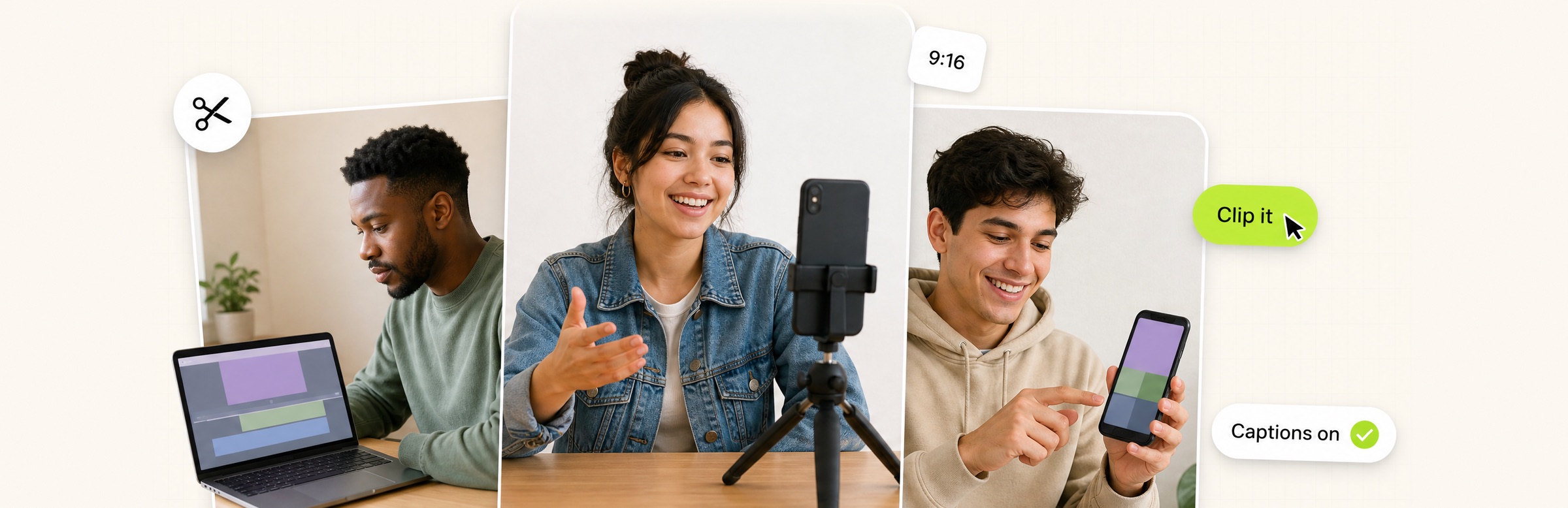
Three creators smiling at their work, one editing on a laptop, one filming with a phone on a tripod and one holding a phone, with a scissors badge, a 9:16 tag, a Clip it button and a Captions on pill

OpusClip is the best CapCut alternative when the part of CapCut the work used was cutting a long recording into short, captioned, vertical clips: it chooses the clips and reframes them, and the right alternative depends on which part of CapCut the work used. CapCut's own pages list a long-video-to-short tool too, and OpusClip's help center calls its editor the place for minor tweaks, so OpusClip does not replace hand-editing. For that, InShot, VN and Videoleap run on a phone, Clipchamp and Canva in a browser, Filmora and DaVinci Resolve on a desktop. Facts are from vendor pages read on November 25, 2026.

Key takeaways

  • Best for cutting a long recording into short, captioned, vertical clips: OpusClip. Its long-video page says it picks the most shareable moments, trims them, reframes them to vertical 9:16 and adds captions.
  • Best for editing on a phone with AI captions and silence cuts: InShot. Its App Store listing lists Auto Captions, AI Cut, keyframe animation and smart tracking.
  • Best for free editing with no watermark on phone and desktop: VN. Its site says no watermarks, all for free, and lists iOS, Android, Mac and Windows.
  • Best for template-led edits on a phone or in a browser: Videoleap. Its site lists premade templates and says the editor is available online and as an iPhone and Android app.
  • Best for a free browser editor with no watermark and AI subtitles: Clipchamp. Its pricing page lists watermark-free exports up to 1080p on the Free plan.
  • Best for templates and captions inside a design suite: Canva. Its video editor page lists Hook templates, one-click captions and Highlights.
  • Best for a desktop timeline editor with AI captions and short clips: Filmora. Its pricing page describes Smart Short Clips, and its auto-caption page describes styled captions.
  • Best for a free, professional timeline editor on a desktop: DaVinci Resolve. Blackmagic's page lists a free version for Mac, Windows and Linux.

What counts as a CapCut alternative

CapCut's home page calls it an "AI-Powered Photo & Video Editor for Everyone", and its footer lists CapCut Desktop, CapCut Online, CapCut Pad and CapCut Mobile. Its pages list a smart editor, auto captions ("Generate captions, then translate and style them"), text to speech and an AI video generator. Its own tool pages also list a long-video-to-short tool, an auto reframe tool and an AI caption generator. CapCut's pricing page lists a Free plan with "Free templates to start fast" and "Basic editing tools", plus paid Pro, Ultra and Teams plans, and says displayed pricing is for reference only. For CapCut's own plans, see its pricing page and our CapCut Pro breakdown.

That makes three jobs an alternative can take over. Editing by hand with templates, effects and keyframes, on a phone, in a browser or on a desktop. Captions generated from speech and styled. AI cutting and reframing: picking clips from a long recording and fitting them to a vertical frame. Generating video or images from a prompt is a fourth CapCut job that this guide leaves out. Each tool below is described by which of the three it prints on its own pages.

For a one-to-one view, OpusClip has a CapCut alternative page that argues the case for OpusClip alone, and we have comparisons of VEED and CapCut and Descript and CapCut. This guide is the multi-tool view.

How to choose

  • The CapCut job was cutting a long recording into clips: OpusClip. CapCut's pages list a long-video-to-short tool too, and Filmora lists Smart Short Clips, so compare how each picks and edits the clips. Our guide to free AI clipping tools compares more.
  • The editing happens on a phone: InShot, VN and Videoleap. Our guide to AI video editing apps for mobile covers more apps.
  • The editing happens in a browser: Clipchamp and Canva, and Videoleap lists an online editor.
  • The editing needs a desktop timeline: Filmora and DaVinci Resolve, and VN lists Mac and Windows apps.
  • The budget is zero: VN's pages say free with no watermark, Clipchamp's Free plan lists watermark-free exports up to 1080p, and DaVinci Resolve has a free version. Our guide to free AI video editors for Reels compares more.
  • Templates are the reason to use CapCut: VN, Videoleap and Canva list templates on their pages.
  • Captions are the priority: every tool here lists captions or subtitles, but the surface differs, for example Videoleap's AI subtitles are listed as iOS only. Our guide to auto caption generators compares caption-first tools.

At a glance

  • OpusClip: best for cutting a long recording into captioned vertical clips; Starter $15 a month (monthly billing only), Pro $29 a month or $14.50 a month billed annually; free plan yes ($0 with a watermark).
  • InShot: best for editing on a phone with AI captions and silence cuts; free to download with in-app purchases, and Pro is a yearly subscription with a free trial; the listing prints no price.
  • VN: best for free editing with no watermark on phone and desktop; its pages say free with no watermark, and the App Store listing shows in-app purchases without a price.
  • Videoleap: best for template-led edits on a phone or in a browser; free to download with in-app purchases, and the site offers a 7-day free trial; no price is printed on the pages read.
  • Clipchamp: best for a free browser editor with no watermark and AI subtitles; free plan yes (1080p, watermark-free), and Premium features come with Microsoft 365 Personal and Family.
  • Canva: best for templates and captions inside a design suite; Pro US$18 a month for one person on the monthly view (a promotion was showing, so see the pricing page); free plan yes (US$0).
  • Filmora: best for a desktop timeline editor with AI captions and short clips; Basic US$4.17 a month billed yearly as US$49.99; a Free plan is listed, and watermark-free export is checked on paid plans only.
  • DaVinci Resolve: best for a free, professional timeline editor on a desktop; free version yes; Studio $295 as listed (billing basis not stated on the page).

How each alternative covers CapCut's jobs

The At a glance list covers best-for and prices; this table compares where each tool runs, hand-editing controls, captions, AI cutting and reframing and the free access, as listed on each vendor's own pages on November 25, 2026.

ToolRuns onEdit by handCaptionsAI cutting and reframingFree access as printed
OpusClipWeb app and iOS app, per its tool pageIn-app editor for minor tweaks, text-based and timeline-basedEdit words in the transcript; set font, size, color, stroke and shadowPicks clips from a long video, trims, reframes to vertical 9:16 and adds captionsFree: $0 with a watermark
InShotiPhone and iPad on the App Store, and Android on Google PlayTrim, merge, speed 0.1x to 100x, keyframe animation, chroma keyAuto Captions from AI speech-to-text, plus bilingual subtitlesAI Cut removes silence and filler words; ratio fits any aspect ratioFree to download with in-app purchases; Pro is a yearly subscription with a free trial
VNiOS, Android, Mac and WindowsMulti-track timeline, keyframe animations, curve-based speed rampsAuto subtitles in multiple languages, with subtitle templates and animated textCrop and reframe for any aspect ratio; detects filler words and silent segmentsFree with no watermark per its pages; in-app purchases are listed
VideoleapOnline, plus iPhone and Android appsLayer-based timeline with keyframes, masking and blending modesAI subtitle generator, listed as iOS only on its subtitles pageChanges aspect ratio and fits clips automatically; a video resizer is listedFree download with in-app purchases; the site offers a 7-day free trial
ClipchampBrowser, plus a Windows appLayer overlays, trim and rotate, green screen, animated textAI subtitles in over 80 languages, with style, font and color editingResize and crop to an aspect ratio; AI silence removerFree: watermark-free exports up to 1080p with a personal Microsoft account
CanvaBrowser, as an online video editorMulti-layered drag-and-drop timeline; trim, split, splice and layerGenerate and style captions in one clickHighlights surfaces the best bits of your footage; resize for every feedFree plan: $0 a month for one person; the video editor page calls it a free online editor
FilmoraWindows and Mac desktop, plus iOS and Android appsKeyframing, motion tracking, speed ramping, split screenAI captions from speech with styles, highlights, templates and animationsSmart Short Clips turns key moments into vertical videos; Auto ReframeFree plan listed; watermark-free export is checked on paid plans only
DaVinci ResolveDesktop: Mac, Windows and LinuxEdit and Cut pages with drag and drop editing and automatic trimmingEdit page lists Subtitles and Closed CaptioningStudio adds the DaVinci Neural Engine, which lists smart reframingFree version; Studio is $295 (Buy Online Now)

1. OpusClip: Best for cutting a long recording into short, captioned, vertical clips

OpusClip's transcript editor with a word correction popover offering Apply and Apply to everywhere, and keywords highlighted in yellow and green

OpusClip's transcript editor, with the video preview cropped out. Source: OpusClip help center

OpusClip's long-video page says its Long Video to Short Video AI picks the most shareable moments, trims them, reframes them to vertical 9:16 and adds captions. The input is a video that already exists: the page says to drag in a file or paste a link. Its ClipAnything page describes typing a prompt to find a moment, with example prompts such as "Find the most social-worthy Q&A", and the help center has a ClipAnything prompt manual.

Captions are part of the cut. The help center's change captions article says to select a word or sentence and click Edit, and lists font style, size, color, stroke and shadow. The help center introduction describes the in-app editor as the place for minor tweaks to the clips the AI finds, with text-based and timeline-based editing, and the trim article says to select text and click Delete or drag the ends of a segment on the timeline.

Against CapCut, this is the clip, caption and reframe part of the work. CapCut's own pages list those jobs as well, including a long-video-to-short tool, so the case for OpusClip is a clip-first workflow rather than a missing feature. It does not stand in for CapCut's templates, effects or hand-built edits.

Pricing: OpusClip's pricing page lists Free at $0 (with a watermark), Starter at $15 a month (monthly billing only) and Pro at $29 a month, or $14.50 a month billed annually. Business is custom. Each plan lists its credits on the pricing page.

Considerations: OpusClip starts from a video that already exists, so a video built clip by clip from phone footage, templates and effects fits the editors below. The help center describes the in-app editor as the place for minor tweaks. OpusClip's copyright policy article says uploads must be content the uploader has the right to use.

  • Choose it if the CapCut job was cutting a long recording or a livestream replay into several captioned vertical clips, and the clips should be picked for the editor to review.
  • Skip it if the job is building a video clip by clip with templates, effects and keyframes, which items 2 to 8 list.

2. InShot: Best for editing on a phone with AI captions and silence cuts

InShot's site calls it a powerful all-in-one video editor and video maker. Its App Store listing groups the AI tools as Auto Captions, Bilingual Subtitles, AI Speech, AI Cut, Video and Photo Enhance, Auto Background Removal and Voice Enhance, and says AI Cut automatically removes silence, filler words and breath sounds. The video tools it lists are trim and merge, speed control from 0.1x to 100x with curves and ramping, keyframe animation, chroma key, picture-in-picture, a stabilizer and smart tracking, and the listing says it saves in 4K at 60 fps.

InShot covers CapCut's phone editing with captions and keyframes. It does not pick clips from a long recording: its pages list AI Cut for silence and filler words, and its Google Play listing lists an aspect-ratio control to fit a video to any ratio.

Pricing: InShot's App Store listing shows the app as free with in-app purchases and lists InShot Pro as a yearly subscription with a free trial, described as access to all pro content and tools. The listing prints no price, so check the listing before buying.

Considerations: The pages are written for phones: the App Store listing requires iOS 15.0 or later, and the site links the App Store and Google Play. The listing does not say which features sit behind Pro, so the app itself shows what the free version covers.

  • Choose it if the editing happens on a phone and the app should offer captions, keyframes and tracking with a free download.
  • Skip it if the editing happens on a laptop, or the clips should be picked from a long recording.

3. VN: Best for free editing with no watermark on phone and desktop

VN's site says it delivers pro-level editing with powerful tools, stunning templates and no watermarks, all for free, and its download page lists iOS, Android, Mac and Windows. The App Store listing lists a multi-track timeline, keyframe editing with 19 built-in effects, curve-based speed ramps, and Auto Captions that generate subtitles from audio with subtitle templates and animated text styles and can detect and remove filler words and silent segments. It also lists AutoCut, which turns footage into a finished edit by syncing clips to a beat template, and the site counts 150+ free templates.

VN covers CapCut's hand-editing and caption jobs on a phone or a computer. It does not pick clips from a long recording; its site lists crop and reframe for any aspect ratio.

Pricing: VN's pages say free with no watermark. The App Store listing shows in-app purchases but does not say what they unlock or what they cost, so check the in-app prompts before building around a feature.

Considerations: The listing says VN exports up to 4K at 60 fps. The pages read print no limits for the free version, so the app is where a limit would show.

  • Choose it if the editing should be free with no watermark, on a phone and on a Mac or Windows computer.
  • Skip it if the clips should be picked from a long recording, or the free version needs limits printed in advance.

4. Videoleap: Best for template-led edits on a phone or in a browser

Videoleap's site describes an editor available online and as an iPhone and Android app, with thousands of premade templates for social media and AI tools such as AI video effects and object removal. Its App Store listing lists a timeline with zoom for frame by frame precision, keyframe animations, layer-based editing with masking and blending modes, and automatic aspect-ratio changes. Its subtitles page describes an AI subtitle generator and says it is currently available on iOS only.

Videoleap covers CapCut's template and hand-editing jobs. It does not pick clips from a long recording; its pages list a video resizer that fits a video to any frame.

Pricing: Videoleap's site leads with a 7-day free trial, and the App Store listing shows the app as free with in-app purchases. The pages read print no plan price, so check the listing or the site before buying.

Considerations: A trial is not a free plan, and the pages read print no free-version limits. Its AI subtitles are listed for iOS only, so check them before relying on Android.

  • Choose it if templates and layers matter, and a free trial is acceptable.
  • Skip it if a free plan with printed limits is needed, or captions are needed on Android.

5. Clipchamp: Best for a free browser editor with no watermark and AI subtitles

Clipchamp's home page describes a video editor that runs from a web browser without a download, and a desktop app found in the Start menu on Windows 11 or from the Microsoft Store on Windows 10. It lists AI subtitles in over 80 languages with editable style, font and color, an AI voiceover generator, AI silence and background noise removers, templates, and a camera, screen and voice recorder. Its features page lists resize and crop to an aspect ratio, overlays, green screen and animated text.

Clipchamp covers CapCut's browser editing, templates and captions. It does not pick clips from a long recording.

Pricing: Clipchamp's pricing page lists a Free plan that starts with a personal Microsoft account, with watermark-free video exports up to 1080p, and Premium features with Microsoft 365 Personal and Family: 4K UHD exports, premium stock assets and a brand kit. It prints no Clipchamp price, so the Microsoft 365 plans carry it.

Considerations: Free needs a personal Microsoft account, and 4K export sits on the Premium side of the pricing page. The pricing page's FAQ has separate questions for Microsoft 365 commercial and education customers.

  • Choose it if the editing should happen in a browser or on Windows with no watermark on the export.
  • Skip it if the video needs 4K export without Microsoft 365, or the clips should be picked from a long recording.

6. Canva: Best for templates and captions inside a design suite

Canva's video editor page describes a free online editor with a multi-layered timeline, trending Hook templates for social media, one-click captions, Highlights to surface the best bits of footage, Magic Video that turns clips and a prompt into a video, background removal and resizing to share everywhere. The same suite holds designs, graphics and brand assets, which suits a video that sits beside social posts.

Canva covers CapCut's template and caption jobs in a browser. Highlights is its nearest feature to clip picking, and the page describes it as instantly surfacing the best bits of footage.

Pricing: Canva's pricing page lists Free at US$0 a month for one person, with 1.6M+ templates and limited access to Standard and Premium AI, and Pro at US$18 a month for one person on the monthly view. A promotional offer was showing, so see the pricing page for the current offer. A footnote says the AI tools share a monthly AI allowance that varies by plan.

Considerations: Canva is a design suite first, and some video features carry a Pro badge on the video editor page, such as the brand tile. The AI allowance differs by plan, so a video that leans on AI needs the allowance checked.

  • Choose it if videos, social graphics and brand assets should live in one tool with templates and one-click captions.
  • Skip it if the editing needs deep keyframe control, or the clips should be picked from a long recording.

7. Filmora: Best for a desktop timeline editor with AI captions and Smart Short Clips

Filmora's pages list desktop editors for Windows and Mac and iOS, Android and iPad apps. Its auto-caption page describes generating captions from speech and customizing them with dynamic styles, highlights, templates and animations, and translating them to 30+ languages. Its feature lists include keyframing, motion tracking, speed ramping and split screen, and its Auto Reframe page says it automatically resizes videos so the focus stays on the action. The pricing page describes Smart Short Clips as AI that identifies key moments from dialogue and visuals and turns them into vertical videos with music, dynamic subtitles and templates.

Filmora covers CapCut's desktop editing, captions and short-clip jobs in one app.

Pricing: Filmora's pricing page lists Basic at US$4.17 a month billed yearly as US$49.99 and Advanced at US$5.00 a month billed yearly as US$59.99, which lists 1,000 Filmora AI Credits a month for 20+ AI features. The plan grid lists a Free plan, with watermark-free export checked on the paid plans only (read in a screenshot). A discount offer was showing, so see the pricing page for current prices.

Considerations: AI features run on Filmora's monthly credits, so the credit allowance matters more than the headline price for AI-heavy work, and the grid's AI Credits row reads None for Free and Basic.

  • Choose it if a desktop timeline plus AI captions and short clips should sit in one app, on a yearly plan.
  • Skip it if the export must be watermark-free for free, or the editing should happen in a browser.

8. DaVinci Resolve: Best for a free, professional timeline editor on a desktop

Blackmagic's page says DaVinci Resolve combines editing, color correction, visual effects, motion graphics and audio post production in one app for Mac, Windows and Linux, and says there is a free version. It describes the Edit page as having drag and drop editing, context sensitive automatic trimming tools and customizable keyboard shortcuts, and the Cut page as built for quick turnarounds. The Edit page lists subtitles and closed captioning. DaVinci Resolve Studio adds the DaVinci Neural Engine, which Blackmagic says powers features such as smart reframing.

DaVinci Resolve covers CapCut's desktop timeline editing, and goes far beyond it into color, effects and audio.

Pricing: Blackmagic's page offers a free download of DaVinci Resolve and lists DaVinci Resolve Studio at $295 with Buy Online Now. The page does not state a billing basis for the Studio price.

Considerations: It is a full post-production suite, which is more than a short vertical post needs. The page's captions line is subtitles and closed captioning, so check that it fits the caption style a short-form post needs.

  • Choose it if a free, professional timeline editor is needed on Mac, Windows or Linux.
  • Skip it if templates and phone editing are the reason to use CapCut, or the clips should be picked from a long recording.

How we compared these tools

We compared each tool on the three CapCut jobs its pages print (editing by hand, captions, AI cutting and reframing), where it runs, and the free access the vendor prints. This guide is organised around the job in the title, replacing CapCut. OpusClip comes first because the clip, caption and reframe job is on its own long-video page. Its limits are in its entry: it starts from a video that already exists, and the help center calls the in-app editor a place for minor tweaks. Items 2 to 8 follow one yardstick: where the editor runs, phone apps first, then browser editors, then desktop editors.

  • 2 to 4. InShot, VN, Videoleap: phone apps (VN also lists Mac and Windows, and Videoleap an online editor).
  • 5 to 6. Clipchamp, Canva: browser editors.
  • 7 to 8. Filmora, DaVinci Resolve: desktop editors (Filmora also lists mobile apps).

All facts come from each vendor's own pricing pages, product pages and App Store listings, plus OpusClip's help center, read on November 25, 2026. CapCut is described from its own pages and is not a numbered item. Where a plan grid showed only check marks, we read it in a screenshot before writing anything from it. We did not run hands-on tests of any competitor, and this guide prints no accuracy or time-saved figure. We also read pages for Kapwing, iMovie and PowerDirector and left them out to hold the list at eight; Kapwing appears in our guides to free Reels editors and video resizers. Prices change, so confirm on the vendor's page before buying.

Red flags to watch for

  • Free allowances in different units, and watermarks. OpusClip's Free plan adds a watermark, Filmora's plan grid checks watermark-free export on paid plans only, VN says no watermarks and Clipchamp lists watermark-free exports up to 1080p. InShot and Videoleap print no free-version limits on the pages read, and Canva Free has limited AI access.
  • Time-limited sales. Canva and Filmora were showing discount offers when read, so this guide prints regular prices with their billing basis. Check the pricing page for the current offer.
  • AI features on a meter. Filmora's AI features run on monthly credits, and Canva's AI tools share a monthly allowance that varies by plan.
  • Captions that need a check. Review every caption before posting, because a transcript can misspell a name. Videoleap's AI subtitles are listed as iOS only.
  • A clip without context. A clip picked from a long recording can lose the explanation around it. Review every AI-picked clip before posting.
  • Rights. OpusClip's help center says uploads must be content the uploader has the right to use. Check each tool's own terms for music, templates and stock assets before publishing.

Frequently asked questions

What is the best CapCut alternative?

It depends on the job. For cutting a long recording into short, captioned, vertical clips, OpusClip is the pick in this guide: its long-video page says it picks the moments, trims them, reframes them to vertical 9:16 and adds captions. For editing by hand, InShot, VN and Videoleap run on a phone, Clipchamp and Canva in a browser, and Filmora and DaVinci Resolve on a desktop.

What is the best free CapCut alternative?

Several print free access in different forms. VN's pages say free with no watermark, Clipchamp's Free plan lists watermark-free exports up to 1080p, DaVinci Resolve has a free version, and Canva has a US$0 plan with limited AI access. OpusClip's Free plan is $0 with a watermark. Our guide to free AI video editors for Reels compares more.

Is there a CapCut alternative that finds the clips in a long video?

OpusClip's long-video page describes picking the moments, trimming them and adding captions, and its ClipAnything page describes finding a moment from a typed prompt. Filmora's pricing page describes Smart Short Clips, and Canva's video editor page lists Highlights. CapCut's own pages list a long-video-to-short tool too, so compare how each tool picks and edits the clips. Our guide to free AI clipping tools compares more.

What is the best CapCut alternative for PC or Mac?

Filmora lists Windows and Mac editors, DaVinci Resolve lists Mac, Windows and Linux, VN lists Mac and Windows apps, and Clipchamp lists a Windows app and a browser editor. DaVinci Resolve has a free version and Filmora's plans are priced yearly.

What is the best CapCut alternative on a phone?

InShot, VN and Videoleap list iPhone and Android apps, and Filmora lists iOS, Android and iPad apps. Our guide to AI video editing apps for mobile compares more.

Which CapCut alternative has auto captions?

Every tool in this guide lists captions or subtitles: OpusClip, InShot, VN, Videoleap, Clipchamp, Canva and Filmora list automatic ones, and DaVinci Resolve lists subtitles and closed captioning on its Edit page. Videoleap's AI subtitles are listed as iOS only. Our guide to auto caption generators compares caption-first tools.

Can OpusClip replace CapCut?

For part of the work. OpusClip covers cutting a long recording into captioned vertical clips, and its help center describes the in-app editor as the place for minor tweaks, with text-based and timeline-based editing. It does not stand in for CapCut's templates, effects or hand-built edits. For a one-brand comparison, see OpusClip's CapCut alternative page.

On this page

Use our Free Forever Plan

Find the moment. Skip the scrubbing.

From script to polished video — in one click.

Create and post one short video every day for free, and grow faster.

OpusSearch uses AI to surface the exact clip you need from hours of footage — in seconds, not afternoons.

Agent Opus runs the entire video pipeline for you: research, scriptwriting, storyboarding, motion, voice, and edit. Upload the idea, post the result.

8 Best CapCut Alternatives in 2026

OpusClip is the best CapCut alternative when the part of CapCut the work used was cutting a long recording into short, captioned, vertical clips: it chooses the clips and reframes them, and the right alternative depends on which part of CapCut the work used. CapCut's own pages list a long-video-to-short tool too, and OpusClip's help center calls its editor the place for minor tweaks, so OpusClip does not replace hand-editing. For that, InShot, VN and Videoleap run on a phone, Clipchamp and Canva in a browser, Filmora and DaVinci Resolve on a desktop. Facts are from vendor pages read on November 25, 2026.

Key takeaways

  • Best for cutting a long recording into short, captioned, vertical clips: OpusClip. Its long-video page says it picks the most shareable moments, trims them, reframes them to vertical 9:16 and adds captions.
  • Best for editing on a phone with AI captions and silence cuts: InShot. Its App Store listing lists Auto Captions, AI Cut, keyframe animation and smart tracking.
  • Best for free editing with no watermark on phone and desktop: VN. Its site says no watermarks, all for free, and lists iOS, Android, Mac and Windows.
  • Best for template-led edits on a phone or in a browser: Videoleap. Its site lists premade templates and says the editor is available online and as an iPhone and Android app.
  • Best for a free browser editor with no watermark and AI subtitles: Clipchamp. Its pricing page lists watermark-free exports up to 1080p on the Free plan.
  • Best for templates and captions inside a design suite: Canva. Its video editor page lists Hook templates, one-click captions and Highlights.
  • Best for a desktop timeline editor with AI captions and short clips: Filmora. Its pricing page describes Smart Short Clips, and its auto-caption page describes styled captions.
  • Best for a free, professional timeline editor on a desktop: DaVinci Resolve. Blackmagic's page lists a free version for Mac, Windows and Linux.

What counts as a CapCut alternative

CapCut's home page calls it an "AI-Powered Photo & Video Editor for Everyone", and its footer lists CapCut Desktop, CapCut Online, CapCut Pad and CapCut Mobile. Its pages list a smart editor, auto captions ("Generate captions, then translate and style them"), text to speech and an AI video generator. Its own tool pages also list a long-video-to-short tool, an auto reframe tool and an AI caption generator. CapCut's pricing page lists a Free plan with "Free templates to start fast" and "Basic editing tools", plus paid Pro, Ultra and Teams plans, and says displayed pricing is for reference only. For CapCut's own plans, see its pricing page and our CapCut Pro breakdown.

That makes three jobs an alternative can take over. Editing by hand with templates, effects and keyframes, on a phone, in a browser or on a desktop. Captions generated from speech and styled. AI cutting and reframing: picking clips from a long recording and fitting them to a vertical frame. Generating video or images from a prompt is a fourth CapCut job that this guide leaves out. Each tool below is described by which of the three it prints on its own pages.

For a one-to-one view, OpusClip has a CapCut alternative page that argues the case for OpusClip alone, and we have comparisons of VEED and CapCut and Descript and CapCut. This guide is the multi-tool view.

How to choose

  • The CapCut job was cutting a long recording into clips: OpusClip. CapCut's pages list a long-video-to-short tool too, and Filmora lists Smart Short Clips, so compare how each picks and edits the clips. Our guide to free AI clipping tools compares more.
  • The editing happens on a phone: InShot, VN and Videoleap. Our guide to AI video editing apps for mobile covers more apps.
  • The editing happens in a browser: Clipchamp and Canva, and Videoleap lists an online editor.
  • The editing needs a desktop timeline: Filmora and DaVinci Resolve, and VN lists Mac and Windows apps.
  • The budget is zero: VN's pages say free with no watermark, Clipchamp's Free plan lists watermark-free exports up to 1080p, and DaVinci Resolve has a free version. Our guide to free AI video editors for Reels compares more.
  • Templates are the reason to use CapCut: VN, Videoleap and Canva list templates on their pages.
  • Captions are the priority: every tool here lists captions or subtitles, but the surface differs, for example Videoleap's AI subtitles are listed as iOS only. Our guide to auto caption generators compares caption-first tools.

At a glance

  • OpusClip: best for cutting a long recording into captioned vertical clips; Starter $15 a month (monthly billing only), Pro $29 a month or $14.50 a month billed annually; free plan yes ($0 with a watermark).
  • InShot: best for editing on a phone with AI captions and silence cuts; free to download with in-app purchases, and Pro is a yearly subscription with a free trial; the listing prints no price.
  • VN: best for free editing with no watermark on phone and desktop; its pages say free with no watermark, and the App Store listing shows in-app purchases without a price.
  • Videoleap: best for template-led edits on a phone or in a browser; free to download with in-app purchases, and the site offers a 7-day free trial; no price is printed on the pages read.
  • Clipchamp: best for a free browser editor with no watermark and AI subtitles; free plan yes (1080p, watermark-free), and Premium features come with Microsoft 365 Personal and Family.
  • Canva: best for templates and captions inside a design suite; Pro US$18 a month for one person on the monthly view (a promotion was showing, so see the pricing page); free plan yes (US$0).
  • Filmora: best for a desktop timeline editor with AI captions and short clips; Basic US$4.17 a month billed yearly as US$49.99; a Free plan is listed, and watermark-free export is checked on paid plans only.
  • DaVinci Resolve: best for a free, professional timeline editor on a desktop; free version yes; Studio $295 as listed (billing basis not stated on the page).

How each alternative covers CapCut's jobs

The At a glance list covers best-for and prices; this table compares where each tool runs, hand-editing controls, captions, AI cutting and reframing and the free access, as listed on each vendor's own pages on November 25, 2026.

ToolRuns onEdit by handCaptionsAI cutting and reframingFree access as printed
OpusClipWeb app and iOS app, per its tool pageIn-app editor for minor tweaks, text-based and timeline-basedEdit words in the transcript; set font, size, color, stroke and shadowPicks clips from a long video, trims, reframes to vertical 9:16 and adds captionsFree: $0 with a watermark
InShotiPhone and iPad on the App Store, and Android on Google PlayTrim, merge, speed 0.1x to 100x, keyframe animation, chroma keyAuto Captions from AI speech-to-text, plus bilingual subtitlesAI Cut removes silence and filler words; ratio fits any aspect ratioFree to download with in-app purchases; Pro is a yearly subscription with a free trial
VNiOS, Android, Mac and WindowsMulti-track timeline, keyframe animations, curve-based speed rampsAuto subtitles in multiple languages, with subtitle templates and animated textCrop and reframe for any aspect ratio; detects filler words and silent segmentsFree with no watermark per its pages; in-app purchases are listed
VideoleapOnline, plus iPhone and Android appsLayer-based timeline with keyframes, masking and blending modesAI subtitle generator, listed as iOS only on its subtitles pageChanges aspect ratio and fits clips automatically; a video resizer is listedFree download with in-app purchases; the site offers a 7-day free trial
ClipchampBrowser, plus a Windows appLayer overlays, trim and rotate, green screen, animated textAI subtitles in over 80 languages, with style, font and color editingResize and crop to an aspect ratio; AI silence removerFree: watermark-free exports up to 1080p with a personal Microsoft account
CanvaBrowser, as an online video editorMulti-layered drag-and-drop timeline; trim, split, splice and layerGenerate and style captions in one clickHighlights surfaces the best bits of your footage; resize for every feedFree plan: $0 a month for one person; the video editor page calls it a free online editor
FilmoraWindows and Mac desktop, plus iOS and Android appsKeyframing, motion tracking, speed ramping, split screenAI captions from speech with styles, highlights, templates and animationsSmart Short Clips turns key moments into vertical videos; Auto ReframeFree plan listed; watermark-free export is checked on paid plans only
DaVinci ResolveDesktop: Mac, Windows and LinuxEdit and Cut pages with drag and drop editing and automatic trimmingEdit page lists Subtitles and Closed CaptioningStudio adds the DaVinci Neural Engine, which lists smart reframingFree version; Studio is $295 (Buy Online Now)

1. OpusClip: Best for cutting a long recording into short, captioned, vertical clips

OpusClip's transcript editor with a word correction popover offering Apply and Apply to everywhere, and keywords highlighted in yellow and green

OpusClip's transcript editor, with the video preview cropped out. Source: OpusClip help center

OpusClip's long-video page says its Long Video to Short Video AI picks the most shareable moments, trims them, reframes them to vertical 9:16 and adds captions. The input is a video that already exists: the page says to drag in a file or paste a link. Its ClipAnything page describes typing a prompt to find a moment, with example prompts such as "Find the most social-worthy Q&A", and the help center has a ClipAnything prompt manual.

Captions are part of the cut. The help center's change captions article says to select a word or sentence and click Edit, and lists font style, size, color, stroke and shadow. The help center introduction describes the in-app editor as the place for minor tweaks to the clips the AI finds, with text-based and timeline-based editing, and the trim article says to select text and click Delete or drag the ends of a segment on the timeline.

Against CapCut, this is the clip, caption and reframe part of the work. CapCut's own pages list those jobs as well, including a long-video-to-short tool, so the case for OpusClip is a clip-first workflow rather than a missing feature. It does not stand in for CapCut's templates, effects or hand-built edits.

Pricing: OpusClip's pricing page lists Free at $0 (with a watermark), Starter at $15 a month (monthly billing only) and Pro at $29 a month, or $14.50 a month billed annually. Business is custom. Each plan lists its credits on the pricing page.

Considerations: OpusClip starts from a video that already exists, so a video built clip by clip from phone footage, templates and effects fits the editors below. The help center describes the in-app editor as the place for minor tweaks. OpusClip's copyright policy article says uploads must be content the uploader has the right to use.

  • Choose it if the CapCut job was cutting a long recording or a livestream replay into several captioned vertical clips, and the clips should be picked for the editor to review.
  • Skip it if the job is building a video clip by clip with templates, effects and keyframes, which items 2 to 8 list.

2. InShot: Best for editing on a phone with AI captions and silence cuts

InShot's site calls it a powerful all-in-one video editor and video maker. Its App Store listing groups the AI tools as Auto Captions, Bilingual Subtitles, AI Speech, AI Cut, Video and Photo Enhance, Auto Background Removal and Voice Enhance, and says AI Cut automatically removes silence, filler words and breath sounds. The video tools it lists are trim and merge, speed control from 0.1x to 100x with curves and ramping, keyframe animation, chroma key, picture-in-picture, a stabilizer and smart tracking, and the listing says it saves in 4K at 60 fps.

InShot covers CapCut's phone editing with captions and keyframes. It does not pick clips from a long recording: its pages list AI Cut for silence and filler words, and its Google Play listing lists an aspect-ratio control to fit a video to any ratio.

Pricing: InShot's App Store listing shows the app as free with in-app purchases and lists InShot Pro as a yearly subscription with a free trial, described as access to all pro content and tools. The listing prints no price, so check the listing before buying.

Considerations: The pages are written for phones: the App Store listing requires iOS 15.0 or later, and the site links the App Store and Google Play. The listing does not say which features sit behind Pro, so the app itself shows what the free version covers.

  • Choose it if the editing happens on a phone and the app should offer captions, keyframes and tracking with a free download.
  • Skip it if the editing happens on a laptop, or the clips should be picked from a long recording.

3. VN: Best for free editing with no watermark on phone and desktop

VN's site says it delivers pro-level editing with powerful tools, stunning templates and no watermarks, all for free, and its download page lists iOS, Android, Mac and Windows. The App Store listing lists a multi-track timeline, keyframe editing with 19 built-in effects, curve-based speed ramps, and Auto Captions that generate subtitles from audio with subtitle templates and animated text styles and can detect and remove filler words and silent segments. It also lists AutoCut, which turns footage into a finished edit by syncing clips to a beat template, and the site counts 150+ free templates.

VN covers CapCut's hand-editing and caption jobs on a phone or a computer. It does not pick clips from a long recording; its site lists crop and reframe for any aspect ratio.

Pricing: VN's pages say free with no watermark. The App Store listing shows in-app purchases but does not say what they unlock or what they cost, so check the in-app prompts before building around a feature.

Considerations: The listing says VN exports up to 4K at 60 fps. The pages read print no limits for the free version, so the app is where a limit would show.

  • Choose it if the editing should be free with no watermark, on a phone and on a Mac or Windows computer.
  • Skip it if the clips should be picked from a long recording, or the free version needs limits printed in advance.

4. Videoleap: Best for template-led edits on a phone or in a browser

Videoleap's site describes an editor available online and as an iPhone and Android app, with thousands of premade templates for social media and AI tools such as AI video effects and object removal. Its App Store listing lists a timeline with zoom for frame by frame precision, keyframe animations, layer-based editing with masking and blending modes, and automatic aspect-ratio changes. Its subtitles page describes an AI subtitle generator and says it is currently available on iOS only.

Videoleap covers CapCut's template and hand-editing jobs. It does not pick clips from a long recording; its pages list a video resizer that fits a video to any frame.

Pricing: Videoleap's site leads with a 7-day free trial, and the App Store listing shows the app as free with in-app purchases. The pages read print no plan price, so check the listing or the site before buying.

Considerations: A trial is not a free plan, and the pages read print no free-version limits. Its AI subtitles are listed for iOS only, so check them before relying on Android.

  • Choose it if templates and layers matter, and a free trial is acceptable.
  • Skip it if a free plan with printed limits is needed, or captions are needed on Android.

5. Clipchamp: Best for a free browser editor with no watermark and AI subtitles

Clipchamp's home page describes a video editor that runs from a web browser without a download, and a desktop app found in the Start menu on Windows 11 or from the Microsoft Store on Windows 10. It lists AI subtitles in over 80 languages with editable style, font and color, an AI voiceover generator, AI silence and background noise removers, templates, and a camera, screen and voice recorder. Its features page lists resize and crop to an aspect ratio, overlays, green screen and animated text.

Clipchamp covers CapCut's browser editing, templates and captions. It does not pick clips from a long recording.

Pricing: Clipchamp's pricing page lists a Free plan that starts with a personal Microsoft account, with watermark-free video exports up to 1080p, and Premium features with Microsoft 365 Personal and Family: 4K UHD exports, premium stock assets and a brand kit. It prints no Clipchamp price, so the Microsoft 365 plans carry it.

Considerations: Free needs a personal Microsoft account, and 4K export sits on the Premium side of the pricing page. The pricing page's FAQ has separate questions for Microsoft 365 commercial and education customers.

  • Choose it if the editing should happen in a browser or on Windows with no watermark on the export.
  • Skip it if the video needs 4K export without Microsoft 365, or the clips should be picked from a long recording.

6. Canva: Best for templates and captions inside a design suite

Canva's video editor page describes a free online editor with a multi-layered timeline, trending Hook templates for social media, one-click captions, Highlights to surface the best bits of footage, Magic Video that turns clips and a prompt into a video, background removal and resizing to share everywhere. The same suite holds designs, graphics and brand assets, which suits a video that sits beside social posts.

Canva covers CapCut's template and caption jobs in a browser. Highlights is its nearest feature to clip picking, and the page describes it as instantly surfacing the best bits of footage.

Pricing: Canva's pricing page lists Free at US$0 a month for one person, with 1.6M+ templates and limited access to Standard and Premium AI, and Pro at US$18 a month for one person on the monthly view. A promotional offer was showing, so see the pricing page for the current offer. A footnote says the AI tools share a monthly AI allowance that varies by plan.

Considerations: Canva is a design suite first, and some video features carry a Pro badge on the video editor page, such as the brand tile. The AI allowance differs by plan, so a video that leans on AI needs the allowance checked.

  • Choose it if videos, social graphics and brand assets should live in one tool with templates and one-click captions.
  • Skip it if the editing needs deep keyframe control, or the clips should be picked from a long recording.

7. Filmora: Best for a desktop timeline editor with AI captions and Smart Short Clips

Filmora's pages list desktop editors for Windows and Mac and iOS, Android and iPad apps. Its auto-caption page describes generating captions from speech and customizing them with dynamic styles, highlights, templates and animations, and translating them to 30+ languages. Its feature lists include keyframing, motion tracking, speed ramping and split screen, and its Auto Reframe page says it automatically resizes videos so the focus stays on the action. The pricing page describes Smart Short Clips as AI that identifies key moments from dialogue and visuals and turns them into vertical videos with music, dynamic subtitles and templates.

Filmora covers CapCut's desktop editing, captions and short-clip jobs in one app.

Pricing: Filmora's pricing page lists Basic at US$4.17 a month billed yearly as US$49.99 and Advanced at US$5.00 a month billed yearly as US$59.99, which lists 1,000 Filmora AI Credits a month for 20+ AI features. The plan grid lists a Free plan, with watermark-free export checked on the paid plans only (read in a screenshot). A discount offer was showing, so see the pricing page for current prices.

Considerations: AI features run on Filmora's monthly credits, so the credit allowance matters more than the headline price for AI-heavy work, and the grid's AI Credits row reads None for Free and Basic.

  • Choose it if a desktop timeline plus AI captions and short clips should sit in one app, on a yearly plan.
  • Skip it if the export must be watermark-free for free, or the editing should happen in a browser.

8. DaVinci Resolve: Best for a free, professional timeline editor on a desktop

Blackmagic's page says DaVinci Resolve combines editing, color correction, visual effects, motion graphics and audio post production in one app for Mac, Windows and Linux, and says there is a free version. It describes the Edit page as having drag and drop editing, context sensitive automatic trimming tools and customizable keyboard shortcuts, and the Cut page as built for quick turnarounds. The Edit page lists subtitles and closed captioning. DaVinci Resolve Studio adds the DaVinci Neural Engine, which Blackmagic says powers features such as smart reframing.

DaVinci Resolve covers CapCut's desktop timeline editing, and goes far beyond it into color, effects and audio.

Pricing: Blackmagic's page offers a free download of DaVinci Resolve and lists DaVinci Resolve Studio at $295 with Buy Online Now. The page does not state a billing basis for the Studio price.

Considerations: It is a full post-production suite, which is more than a short vertical post needs. The page's captions line is subtitles and closed captioning, so check that it fits the caption style a short-form post needs.

  • Choose it if a free, professional timeline editor is needed on Mac, Windows or Linux.
  • Skip it if templates and phone editing are the reason to use CapCut, or the clips should be picked from a long recording.

How we compared these tools

We compared each tool on the three CapCut jobs its pages print (editing by hand, captions, AI cutting and reframing), where it runs, and the free access the vendor prints. This guide is organised around the job in the title, replacing CapCut. OpusClip comes first because the clip, caption and reframe job is on its own long-video page. Its limits are in its entry: it starts from a video that already exists, and the help center calls the in-app editor a place for minor tweaks. Items 2 to 8 follow one yardstick: where the editor runs, phone apps first, then browser editors, then desktop editors.

  • 2 to 4. InShot, VN, Videoleap: phone apps (VN also lists Mac and Windows, and Videoleap an online editor).
  • 5 to 6. Clipchamp, Canva: browser editors.
  • 7 to 8. Filmora, DaVinci Resolve: desktop editors (Filmora also lists mobile apps).

All facts come from each vendor's own pricing pages, product pages and App Store listings, plus OpusClip's help center, read on November 25, 2026. CapCut is described from its own pages and is not a numbered item. Where a plan grid showed only check marks, we read it in a screenshot before writing anything from it. We did not run hands-on tests of any competitor, and this guide prints no accuracy or time-saved figure. We also read pages for Kapwing, iMovie and PowerDirector and left them out to hold the list at eight; Kapwing appears in our guides to free Reels editors and video resizers. Prices change, so confirm on the vendor's page before buying.

Red flags to watch for

  • Free allowances in different units, and watermarks. OpusClip's Free plan adds a watermark, Filmora's plan grid checks watermark-free export on paid plans only, VN says no watermarks and Clipchamp lists watermark-free exports up to 1080p. InShot and Videoleap print no free-version limits on the pages read, and Canva Free has limited AI access.
  • Time-limited sales. Canva and Filmora were showing discount offers when read, so this guide prints regular prices with their billing basis. Check the pricing page for the current offer.
  • AI features on a meter. Filmora's AI features run on monthly credits, and Canva's AI tools share a monthly allowance that varies by plan.
  • Captions that need a check. Review every caption before posting, because a transcript can misspell a name. Videoleap's AI subtitles are listed as iOS only.
  • A clip without context. A clip picked from a long recording can lose the explanation around it. Review every AI-picked clip before posting.
  • Rights. OpusClip's help center says uploads must be content the uploader has the right to use. Check each tool's own terms for music, templates and stock assets before publishing.

Frequently asked questions

What is the best CapCut alternative?

It depends on the job. For cutting a long recording into short, captioned, vertical clips, OpusClip is the pick in this guide: its long-video page says it picks the moments, trims them, reframes them to vertical 9:16 and adds captions. For editing by hand, InShot, VN and Videoleap run on a phone, Clipchamp and Canva in a browser, and Filmora and DaVinci Resolve on a desktop.

What is the best free CapCut alternative?

Several print free access in different forms. VN's pages say free with no watermark, Clipchamp's Free plan lists watermark-free exports up to 1080p, DaVinci Resolve has a free version, and Canva has a US$0 plan with limited AI access. OpusClip's Free plan is $0 with a watermark. Our guide to free AI video editors for Reels compares more.

Is there a CapCut alternative that finds the clips in a long video?

OpusClip's long-video page describes picking the moments, trimming them and adding captions, and its ClipAnything page describes finding a moment from a typed prompt. Filmora's pricing page describes Smart Short Clips, and Canva's video editor page lists Highlights. CapCut's own pages list a long-video-to-short tool too, so compare how each tool picks and edits the clips. Our guide to free AI clipping tools compares more.

What is the best CapCut alternative for PC or Mac?

Filmora lists Windows and Mac editors, DaVinci Resolve lists Mac, Windows and Linux, VN lists Mac and Windows apps, and Clipchamp lists a Windows app and a browser editor. DaVinci Resolve has a free version and Filmora's plans are priced yearly.

What is the best CapCut alternative on a phone?

InShot, VN and Videoleap list iPhone and Android apps, and Filmora lists iOS, Android and iPad apps. Our guide to AI video editing apps for mobile compares more.

Which CapCut alternative has auto captions?

Every tool in this guide lists captions or subtitles: OpusClip, InShot, VN, Videoleap, Clipchamp, Canva and Filmora list automatic ones, and DaVinci Resolve lists subtitles and closed captioning on its Edit page. Videoleap's AI subtitles are listed as iOS only. Our guide to auto caption generators compares caption-first tools.

Can OpusClip replace CapCut?

For part of the work. OpusClip covers cutting a long recording into captioned vertical clips, and its help center describes the in-app editor as the place for minor tweaks, with text-based and timeline-based editing. It does not stand in for CapCut's templates, effects or hand-built edits. For a one-brand comparison, see OpusClip's CapCut alternative page.

Creator name

Creator type

Team size

Channels

linkYouTubefacebookXTikTok

Pain point

Time to see positive ROI

About the creator

Don't miss these

How Audacy Drove 1B+ Views by Taking a Tech-Forward Approach to Radio with OpusClip
No items found.

How Audacy Drove 1B+ Views by Taking a Tech-Forward Approach to Radio with OpusClip

How All the Smoke makes hit compilations faster with OpusSearch

How All the Smoke makes hit compilations faster with OpusSearch

Growing a new channel to 1.5M views in 90 days without creating new videos

Growing a new channel to 1.5M views in 90 days without creating new videos

OpusClip 4.0 is here. Become a content powerhouse.

8 Best CapCut Alternatives in 2026

Three creators smiling at their work, one editing on a laptop, one filming with a phone on a tripod and one holding a phone, with a scissors badge, a 9:16 tag, a Clip it button and a Captions on pill
No items found.
No items found.

Boost your social media growth with OpusClip

Create and post one short video every day for your social media and grow faster.

8 Best CapCut Alternatives in 2026

Three creators smiling at their work, one editing on a laptop, one filming with a phone on a tripod and one holding a phone, with a scissors badge, a 9:16 tag, a Clip it button and a Captions on pill

OpusClip is the best CapCut alternative when the part of CapCut the work used was cutting a long recording into short, captioned, vertical clips: it chooses the clips and reframes them, and the right alternative depends on which part of CapCut the work used. CapCut's own pages list a long-video-to-short tool too, and OpusClip's help center calls its editor the place for minor tweaks, so OpusClip does not replace hand-editing. For that, InShot, VN and Videoleap run on a phone, Clipchamp and Canva in a browser, Filmora and DaVinci Resolve on a desktop. Facts are from vendor pages read on November 25, 2026.

Key takeaways

  • Best for cutting a long recording into short, captioned, vertical clips: OpusClip. Its long-video page says it picks the most shareable moments, trims them, reframes them to vertical 9:16 and adds captions.
  • Best for editing on a phone with AI captions and silence cuts: InShot. Its App Store listing lists Auto Captions, AI Cut, keyframe animation and smart tracking.
  • Best for free editing with no watermark on phone and desktop: VN. Its site says no watermarks, all for free, and lists iOS, Android, Mac and Windows.
  • Best for template-led edits on a phone or in a browser: Videoleap. Its site lists premade templates and says the editor is available online and as an iPhone and Android app.
  • Best for a free browser editor with no watermark and AI subtitles: Clipchamp. Its pricing page lists watermark-free exports up to 1080p on the Free plan.
  • Best for templates and captions inside a design suite: Canva. Its video editor page lists Hook templates, one-click captions and Highlights.
  • Best for a desktop timeline editor with AI captions and short clips: Filmora. Its pricing page describes Smart Short Clips, and its auto-caption page describes styled captions.
  • Best for a free, professional timeline editor on a desktop: DaVinci Resolve. Blackmagic's page lists a free version for Mac, Windows and Linux.

What counts as a CapCut alternative

CapCut's home page calls it an "AI-Powered Photo & Video Editor for Everyone", and its footer lists CapCut Desktop, CapCut Online, CapCut Pad and CapCut Mobile. Its pages list a smart editor, auto captions ("Generate captions, then translate and style them"), text to speech and an AI video generator. Its own tool pages also list a long-video-to-short tool, an auto reframe tool and an AI caption generator. CapCut's pricing page lists a Free plan with "Free templates to start fast" and "Basic editing tools", plus paid Pro, Ultra and Teams plans, and says displayed pricing is for reference only. For CapCut's own plans, see its pricing page and our CapCut Pro breakdown.

That makes three jobs an alternative can take over. Editing by hand with templates, effects and keyframes, on a phone, in a browser or on a desktop. Captions generated from speech and styled. AI cutting and reframing: picking clips from a long recording and fitting them to a vertical frame. Generating video or images from a prompt is a fourth CapCut job that this guide leaves out. Each tool below is described by which of the three it prints on its own pages.

For a one-to-one view, OpusClip has a CapCut alternative page that argues the case for OpusClip alone, and we have comparisons of VEED and CapCut and Descript and CapCut. This guide is the multi-tool view.

How to choose

  • The CapCut job was cutting a long recording into clips: OpusClip. CapCut's pages list a long-video-to-short tool too, and Filmora lists Smart Short Clips, so compare how each picks and edits the clips. Our guide to free AI clipping tools compares more.
  • The editing happens on a phone: InShot, VN and Videoleap. Our guide to AI video editing apps for mobile covers more apps.
  • The editing happens in a browser: Clipchamp and Canva, and Videoleap lists an online editor.
  • The editing needs a desktop timeline: Filmora and DaVinci Resolve, and VN lists Mac and Windows apps.
  • The budget is zero: VN's pages say free with no watermark, Clipchamp's Free plan lists watermark-free exports up to 1080p, and DaVinci Resolve has a free version. Our guide to free AI video editors for Reels compares more.
  • Templates are the reason to use CapCut: VN, Videoleap and Canva list templates on their pages.
  • Captions are the priority: every tool here lists captions or subtitles, but the surface differs, for example Videoleap's AI subtitles are listed as iOS only. Our guide to auto caption generators compares caption-first tools.

At a glance

  • OpusClip: best for cutting a long recording into captioned vertical clips; Starter $15 a month (monthly billing only), Pro $29 a month or $14.50 a month billed annually; free plan yes ($0 with a watermark).
  • InShot: best for editing on a phone with AI captions and silence cuts; free to download with in-app purchases, and Pro is a yearly subscription with a free trial; the listing prints no price.
  • VN: best for free editing with no watermark on phone and desktop; its pages say free with no watermark, and the App Store listing shows in-app purchases without a price.
  • Videoleap: best for template-led edits on a phone or in a browser; free to download with in-app purchases, and the site offers a 7-day free trial; no price is printed on the pages read.
  • Clipchamp: best for a free browser editor with no watermark and AI subtitles; free plan yes (1080p, watermark-free), and Premium features come with Microsoft 365 Personal and Family.
  • Canva: best for templates and captions inside a design suite; Pro US$18 a month for one person on the monthly view (a promotion was showing, so see the pricing page); free plan yes (US$0).
  • Filmora: best for a desktop timeline editor with AI captions and short clips; Basic US$4.17 a month billed yearly as US$49.99; a Free plan is listed, and watermark-free export is checked on paid plans only.
  • DaVinci Resolve: best for a free, professional timeline editor on a desktop; free version yes; Studio $295 as listed (billing basis not stated on the page).

How each alternative covers CapCut's jobs

The At a glance list covers best-for and prices; this table compares where each tool runs, hand-editing controls, captions, AI cutting and reframing and the free access, as listed on each vendor's own pages on November 25, 2026.

ToolRuns onEdit by handCaptionsAI cutting and reframingFree access as printed
OpusClipWeb app and iOS app, per its tool pageIn-app editor for minor tweaks, text-based and timeline-basedEdit words in the transcript; set font, size, color, stroke and shadowPicks clips from a long video, trims, reframes to vertical 9:16 and adds captionsFree: $0 with a watermark
InShotiPhone and iPad on the App Store, and Android on Google PlayTrim, merge, speed 0.1x to 100x, keyframe animation, chroma keyAuto Captions from AI speech-to-text, plus bilingual subtitlesAI Cut removes silence and filler words; ratio fits any aspect ratioFree to download with in-app purchases; Pro is a yearly subscription with a free trial
VNiOS, Android, Mac and WindowsMulti-track timeline, keyframe animations, curve-based speed rampsAuto subtitles in multiple languages, with subtitle templates and animated textCrop and reframe for any aspect ratio; detects filler words and silent segmentsFree with no watermark per its pages; in-app purchases are listed
VideoleapOnline, plus iPhone and Android appsLayer-based timeline with keyframes, masking and blending modesAI subtitle generator, listed as iOS only on its subtitles pageChanges aspect ratio and fits clips automatically; a video resizer is listedFree download with in-app purchases; the site offers a 7-day free trial
ClipchampBrowser, plus a Windows appLayer overlays, trim and rotate, green screen, animated textAI subtitles in over 80 languages, with style, font and color editingResize and crop to an aspect ratio; AI silence removerFree: watermark-free exports up to 1080p with a personal Microsoft account
CanvaBrowser, as an online video editorMulti-layered drag-and-drop timeline; trim, split, splice and layerGenerate and style captions in one clickHighlights surfaces the best bits of your footage; resize for every feedFree plan: $0 a month for one person; the video editor page calls it a free online editor
FilmoraWindows and Mac desktop, plus iOS and Android appsKeyframing, motion tracking, speed ramping, split screenAI captions from speech with styles, highlights, templates and animationsSmart Short Clips turns key moments into vertical videos; Auto ReframeFree plan listed; watermark-free export is checked on paid plans only
DaVinci ResolveDesktop: Mac, Windows and LinuxEdit and Cut pages with drag and drop editing and automatic trimmingEdit page lists Subtitles and Closed CaptioningStudio adds the DaVinci Neural Engine, which lists smart reframingFree version; Studio is $295 (Buy Online Now)

1. OpusClip: Best for cutting a long recording into short, captioned, vertical clips

OpusClip's transcript editor with a word correction popover offering Apply and Apply to everywhere, and keywords highlighted in yellow and green

OpusClip's transcript editor, with the video preview cropped out. Source: OpusClip help center

OpusClip's long-video page says its Long Video to Short Video AI picks the most shareable moments, trims them, reframes them to vertical 9:16 and adds captions. The input is a video that already exists: the page says to drag in a file or paste a link. Its ClipAnything page describes typing a prompt to find a moment, with example prompts such as "Find the most social-worthy Q&A", and the help center has a ClipAnything prompt manual.

Captions are part of the cut. The help center's change captions article says to select a word or sentence and click Edit, and lists font style, size, color, stroke and shadow. The help center introduction describes the in-app editor as the place for minor tweaks to the clips the AI finds, with text-based and timeline-based editing, and the trim article says to select text and click Delete or drag the ends of a segment on the timeline.

Against CapCut, this is the clip, caption and reframe part of the work. CapCut's own pages list those jobs as well, including a long-video-to-short tool, so the case for OpusClip is a clip-first workflow rather than a missing feature. It does not stand in for CapCut's templates, effects or hand-built edits.

Pricing: OpusClip's pricing page lists Free at $0 (with a watermark), Starter at $15 a month (monthly billing only) and Pro at $29 a month, or $14.50 a month billed annually. Business is custom. Each plan lists its credits on the pricing page.

Considerations: OpusClip starts from a video that already exists, so a video built clip by clip from phone footage, templates and effects fits the editors below. The help center describes the in-app editor as the place for minor tweaks. OpusClip's copyright policy article says uploads must be content the uploader has the right to use.

  • Choose it if the CapCut job was cutting a long recording or a livestream replay into several captioned vertical clips, and the clips should be picked for the editor to review.
  • Skip it if the job is building a video clip by clip with templates, effects and keyframes, which items 2 to 8 list.

2. InShot: Best for editing on a phone with AI captions and silence cuts

InShot's site calls it a powerful all-in-one video editor and video maker. Its App Store listing groups the AI tools as Auto Captions, Bilingual Subtitles, AI Speech, AI Cut, Video and Photo Enhance, Auto Background Removal and Voice Enhance, and says AI Cut automatically removes silence, filler words and breath sounds. The video tools it lists are trim and merge, speed control from 0.1x to 100x with curves and ramping, keyframe animation, chroma key, picture-in-picture, a stabilizer and smart tracking, and the listing says it saves in 4K at 60 fps.

InShot covers CapCut's phone editing with captions and keyframes. It does not pick clips from a long recording: its pages list AI Cut for silence and filler words, and its Google Play listing lists an aspect-ratio control to fit a video to any ratio.

Pricing: InShot's App Store listing shows the app as free with in-app purchases and lists InShot Pro as a yearly subscription with a free trial, described as access to all pro content and tools. The listing prints no price, so check the listing before buying.

Considerations: The pages are written for phones: the App Store listing requires iOS 15.0 or later, and the site links the App Store and Google Play. The listing does not say which features sit behind Pro, so the app itself shows what the free version covers.

  • Choose it if the editing happens on a phone and the app should offer captions, keyframes and tracking with a free download.
  • Skip it if the editing happens on a laptop, or the clips should be picked from a long recording.

3. VN: Best for free editing with no watermark on phone and desktop

VN's site says it delivers pro-level editing with powerful tools, stunning templates and no watermarks, all for free, and its download page lists iOS, Android, Mac and Windows. The App Store listing lists a multi-track timeline, keyframe editing with 19 built-in effects, curve-based speed ramps, and Auto Captions that generate subtitles from audio with subtitle templates and animated text styles and can detect and remove filler words and silent segments. It also lists AutoCut, which turns footage into a finished edit by syncing clips to a beat template, and the site counts 150+ free templates.

VN covers CapCut's hand-editing and caption jobs on a phone or a computer. It does not pick clips from a long recording; its site lists crop and reframe for any aspect ratio.

Pricing: VN's pages say free with no watermark. The App Store listing shows in-app purchases but does not say what they unlock or what they cost, so check the in-app prompts before building around a feature.

Considerations: The listing says VN exports up to 4K at 60 fps. The pages read print no limits for the free version, so the app is where a limit would show.

  • Choose it if the editing should be free with no watermark, on a phone and on a Mac or Windows computer.
  • Skip it if the clips should be picked from a long recording, or the free version needs limits printed in advance.

4. Videoleap: Best for template-led edits on a phone or in a browser

Videoleap's site describes an editor available online and as an iPhone and Android app, with thousands of premade templates for social media and AI tools such as AI video effects and object removal. Its App Store listing lists a timeline with zoom for frame by frame precision, keyframe animations, layer-based editing with masking and blending modes, and automatic aspect-ratio changes. Its subtitles page describes an AI subtitle generator and says it is currently available on iOS only.

Videoleap covers CapCut's template and hand-editing jobs. It does not pick clips from a long recording; its pages list a video resizer that fits a video to any frame.

Pricing: Videoleap's site leads with a 7-day free trial, and the App Store listing shows the app as free with in-app purchases. The pages read print no plan price, so check the listing or the site before buying.

Considerations: A trial is not a free plan, and the pages read print no free-version limits. Its AI subtitles are listed for iOS only, so check them before relying on Android.

  • Choose it if templates and layers matter, and a free trial is acceptable.
  • Skip it if a free plan with printed limits is needed, or captions are needed on Android.

5. Clipchamp: Best for a free browser editor with no watermark and AI subtitles

Clipchamp's home page describes a video editor that runs from a web browser without a download, and a desktop app found in the Start menu on Windows 11 or from the Microsoft Store on Windows 10. It lists AI subtitles in over 80 languages with editable style, font and color, an AI voiceover generator, AI silence and background noise removers, templates, and a camera, screen and voice recorder. Its features page lists resize and crop to an aspect ratio, overlays, green screen and animated text.

Clipchamp covers CapCut's browser editing, templates and captions. It does not pick clips from a long recording.

Pricing: Clipchamp's pricing page lists a Free plan that starts with a personal Microsoft account, with watermark-free video exports up to 1080p, and Premium features with Microsoft 365 Personal and Family: 4K UHD exports, premium stock assets and a brand kit. It prints no Clipchamp price, so the Microsoft 365 plans carry it.

Considerations: Free needs a personal Microsoft account, and 4K export sits on the Premium side of the pricing page. The pricing page's FAQ has separate questions for Microsoft 365 commercial and education customers.

  • Choose it if the editing should happen in a browser or on Windows with no watermark on the export.
  • Skip it if the video needs 4K export without Microsoft 365, or the clips should be picked from a long recording.

6. Canva: Best for templates and captions inside a design suite

Canva's video editor page describes a free online editor with a multi-layered timeline, trending Hook templates for social media, one-click captions, Highlights to surface the best bits of footage, Magic Video that turns clips and a prompt into a video, background removal and resizing to share everywhere. The same suite holds designs, graphics and brand assets, which suits a video that sits beside social posts.

Canva covers CapCut's template and caption jobs in a browser. Highlights is its nearest feature to clip picking, and the page describes it as instantly surfacing the best bits of footage.

Pricing: Canva's pricing page lists Free at US$0 a month for one person, with 1.6M+ templates and limited access to Standard and Premium AI, and Pro at US$18 a month for one person on the monthly view. A promotional offer was showing, so see the pricing page for the current offer. A footnote says the AI tools share a monthly AI allowance that varies by plan.

Considerations: Canva is a design suite first, and some video features carry a Pro badge on the video editor page, such as the brand tile. The AI allowance differs by plan, so a video that leans on AI needs the allowance checked.

  • Choose it if videos, social graphics and brand assets should live in one tool with templates and one-click captions.
  • Skip it if the editing needs deep keyframe control, or the clips should be picked from a long recording.

7. Filmora: Best for a desktop timeline editor with AI captions and Smart Short Clips

Filmora's pages list desktop editors for Windows and Mac and iOS, Android and iPad apps. Its auto-caption page describes generating captions from speech and customizing them with dynamic styles, highlights, templates and animations, and translating them to 30+ languages. Its feature lists include keyframing, motion tracking, speed ramping and split screen, and its Auto Reframe page says it automatically resizes videos so the focus stays on the action. The pricing page describes Smart Short Clips as AI that identifies key moments from dialogue and visuals and turns them into vertical videos with music, dynamic subtitles and templates.

Filmora covers CapCut's desktop editing, captions and short-clip jobs in one app.

Pricing: Filmora's pricing page lists Basic at US$4.17 a month billed yearly as US$49.99 and Advanced at US$5.00 a month billed yearly as US$59.99, which lists 1,000 Filmora AI Credits a month for 20+ AI features. The plan grid lists a Free plan, with watermark-free export checked on the paid plans only (read in a screenshot). A discount offer was showing, so see the pricing page for current prices.

Considerations: AI features run on Filmora's monthly credits, so the credit allowance matters more than the headline price for AI-heavy work, and the grid's AI Credits row reads None for Free and Basic.

  • Choose it if a desktop timeline plus AI captions and short clips should sit in one app, on a yearly plan.
  • Skip it if the export must be watermark-free for free, or the editing should happen in a browser.

8. DaVinci Resolve: Best for a free, professional timeline editor on a desktop

Blackmagic's page says DaVinci Resolve combines editing, color correction, visual effects, motion graphics and audio post production in one app for Mac, Windows and Linux, and says there is a free version. It describes the Edit page as having drag and drop editing, context sensitive automatic trimming tools and customizable keyboard shortcuts, and the Cut page as built for quick turnarounds. The Edit page lists subtitles and closed captioning. DaVinci Resolve Studio adds the DaVinci Neural Engine, which Blackmagic says powers features such as smart reframing.

DaVinci Resolve covers CapCut's desktop timeline editing, and goes far beyond it into color, effects and audio.

Pricing: Blackmagic's page offers a free download of DaVinci Resolve and lists DaVinci Resolve Studio at $295 with Buy Online Now. The page does not state a billing basis for the Studio price.

Considerations: It is a full post-production suite, which is more than a short vertical post needs. The page's captions line is subtitles and closed captioning, so check that it fits the caption style a short-form post needs.

  • Choose it if a free, professional timeline editor is needed on Mac, Windows or Linux.
  • Skip it if templates and phone editing are the reason to use CapCut, or the clips should be picked from a long recording.

How we compared these tools

We compared each tool on the three CapCut jobs its pages print (editing by hand, captions, AI cutting and reframing), where it runs, and the free access the vendor prints. This guide is organised around the job in the title, replacing CapCut. OpusClip comes first because the clip, caption and reframe job is on its own long-video page. Its limits are in its entry: it starts from a video that already exists, and the help center calls the in-app editor a place for minor tweaks. Items 2 to 8 follow one yardstick: where the editor runs, phone apps first, then browser editors, then desktop editors.

  • 2 to 4. InShot, VN, Videoleap: phone apps (VN also lists Mac and Windows, and Videoleap an online editor).
  • 5 to 6. Clipchamp, Canva: browser editors.
  • 7 to 8. Filmora, DaVinci Resolve: desktop editors (Filmora also lists mobile apps).

All facts come from each vendor's own pricing pages, product pages and App Store listings, plus OpusClip's help center, read on November 25, 2026. CapCut is described from its own pages and is not a numbered item. Where a plan grid showed only check marks, we read it in a screenshot before writing anything from it. We did not run hands-on tests of any competitor, and this guide prints no accuracy or time-saved figure. We also read pages for Kapwing, iMovie and PowerDirector and left them out to hold the list at eight; Kapwing appears in our guides to free Reels editors and video resizers. Prices change, so confirm on the vendor's page before buying.

Red flags to watch for

  • Free allowances in different units, and watermarks. OpusClip's Free plan adds a watermark, Filmora's plan grid checks watermark-free export on paid plans only, VN says no watermarks and Clipchamp lists watermark-free exports up to 1080p. InShot and Videoleap print no free-version limits on the pages read, and Canva Free has limited AI access.
  • Time-limited sales. Canva and Filmora were showing discount offers when read, so this guide prints regular prices with their billing basis. Check the pricing page for the current offer.
  • AI features on a meter. Filmora's AI features run on monthly credits, and Canva's AI tools share a monthly allowance that varies by plan.
  • Captions that need a check. Review every caption before posting, because a transcript can misspell a name. Videoleap's AI subtitles are listed as iOS only.
  • A clip without context. A clip picked from a long recording can lose the explanation around it. Review every AI-picked clip before posting.
  • Rights. OpusClip's help center says uploads must be content the uploader has the right to use. Check each tool's own terms for music, templates and stock assets before publishing.

Frequently asked questions

What is the best CapCut alternative?

It depends on the job. For cutting a long recording into short, captioned, vertical clips, OpusClip is the pick in this guide: its long-video page says it picks the moments, trims them, reframes them to vertical 9:16 and adds captions. For editing by hand, InShot, VN and Videoleap run on a phone, Clipchamp and Canva in a browser, and Filmora and DaVinci Resolve on a desktop.

What is the best free CapCut alternative?

Several print free access in different forms. VN's pages say free with no watermark, Clipchamp's Free plan lists watermark-free exports up to 1080p, DaVinci Resolve has a free version, and Canva has a US$0 plan with limited AI access. OpusClip's Free plan is $0 with a watermark. Our guide to free AI video editors for Reels compares more.

Is there a CapCut alternative that finds the clips in a long video?

OpusClip's long-video page describes picking the moments, trimming them and adding captions, and its ClipAnything page describes finding a moment from a typed prompt. Filmora's pricing page describes Smart Short Clips, and Canva's video editor page lists Highlights. CapCut's own pages list a long-video-to-short tool too, so compare how each tool picks and edits the clips. Our guide to free AI clipping tools compares more.

What is the best CapCut alternative for PC or Mac?

Filmora lists Windows and Mac editors, DaVinci Resolve lists Mac, Windows and Linux, VN lists Mac and Windows apps, and Clipchamp lists a Windows app and a browser editor. DaVinci Resolve has a free version and Filmora's plans are priced yearly.

What is the best CapCut alternative on a phone?

InShot, VN and Videoleap list iPhone and Android apps, and Filmora lists iOS, Android and iPad apps. Our guide to AI video editing apps for mobile compares more.

Which CapCut alternative has auto captions?

Every tool in this guide lists captions or subtitles: OpusClip, InShot, VN, Videoleap, Clipchamp, Canva and Filmora list automatic ones, and DaVinci Resolve lists subtitles and closed captioning on its Edit page. Videoleap's AI subtitles are listed as iOS only. Our guide to auto caption generators compares caption-first tools.

Can OpusClip replace CapCut?

For part of the work. OpusClip covers cutting a long recording into captioned vertical clips, and its help center describes the in-app editor as the place for minor tweaks, with text-based and timeline-based editing. It does not stand in for CapCut's templates, effects or hand-built edits. For a one-brand comparison, see OpusClip's CapCut alternative page.

Ready to start streaming differently?

Opus is completely FREE for one year for all private beta users. You can get access to all our premium features during this period. We also offer free support for production, studio design, and content repurposing to help you grow.
Join the beta
Limited spots remaining

Try OPUS today

Try Opus Studio

Make your live stream your Magnum Opus