OpusClip 4.0 is here. Become a content powerhouse.

7 Best Free AI Video Clippers With No Watermark in 2026

November 18, 2026
Creators at a podcast microphone, a phone and a laptop, with a Clip it button, a free tag, an aspect ratio tag and a views badge

OpusClip is the pick for AI-picked, captioned clips from a long video, but its Free plan adds a watermark: the pricing page lists "Has watermark" on Free, and the help center says upgrading to a paid plan removes it. For a free route with no watermark, Wisecut, Clipping AI, 2short.ai, Clipchamp, Flowjin and the self-hosted edition of OpenShorts each print one on their own pages, with caps that differ. We ordered items 2 to 7 by how repeatable that route is. Facts come from each vendor's own pages, read on November 18, 2026.

Key takeaways

  • Best for AI-picked, captioned clips when a paid plan can remove the watermark: OpusClip. Free lists up to 1080p rendered clips and "Has watermark"; Starter lists Remove Watermark.
  • Best for a monthly free plan that lists no watermark: Wisecut. Its Free card lists 30 minutes a month at 480p, exports up to 3 minutes and no watermark.
  • Best for a no-sign-up free clipper in the browser: Clipping AI. Its pages list 1080p MP4 exports with no watermark and 3 long videos a day; the site is new, with pages dated November 16 and 17, 2026.
  • Best for a YouTube-link-first free plan: 2short.ai. Its features list says goodbye to watermarks, but the page prints the free allowance as 30 minutes in one place and 15 in another.
  • Best for hand-cut clips from a free editor with no watermark: Clipchamp. Its Free plan lists watermark-free exports up to 1080p; the clip is cut by hand.
  • Best for a one-time test with no watermark: Flowjin. Its Free column lists no watermark, but the 60 minutes are a one-time credit at 720p with up to 5 clip exports.
  • Best for free clips with no meter if Docker is no obstacle: OpenShorts. The self-hosted edition lists no watermark and no usage cap; its hosted free plan is watermarked.

What counts as a free AI clipper with no watermark

Two kinds of tool appear here. Six are AI clippers that pick moments from a long video and return short clips (OpusClip, Wisecut, Clipping AI, 2short.ai, Flowjin and OpenShorts). One, Clipchamp, is a free editor where the clip is cut by hand with AI helpers for subtitles and audio. We say which is which in each entry.

"No watermark" also means different things. It can be a free plan that renews, a one-time credit, an editor with no export mark, or software you run yourself, and a vendor's headline and its pricing page do not always agree. Choppity, for example, has a page whose headline promises a free AI clip maker with no watermark, while its body says paid plans remove the watermark. We print what each vendor's pricing and product pages say about the free route, and for the other free allowances in this category, see our guide to free AI clipping tools.

How to choose

  • Clean exports every month, with caps accepted: Wisecut (480p, exports up to 3 minutes) or Clipping AI (1080p, 3 long videos a day).
  • The source is a YouTube link: 2short.ai starts from a pasted YouTube link, and OpenShorts' README says to paste a YouTube link or upload a file. Clipping AI takes an uploaded file today. For a wider list, see our guide to YouTube clip makers.
  • Cutting by hand is fine: Clipchamp, a free editor with watermark-free exports.
  • One project, once: Flowjin's one-time 60 minutes.
  • Software you control: OpenShorts self-hosted, which needs Docker and your own API keys.
  • AI-picked clips and a paid plan is acceptable: OpusClip, whose Free plan keeps the watermark.

At a glance

  • OpusClip: best for AI-picked, captioned clips from a long video when a paid plan can remove the watermark; Starter $15 a month (monthly billing only), Pro $29 a month or $14.50 a month billed annually; free plan yes, with a watermark.
  • Wisecut: best for a monthly free plan that lists no watermark at 480p; paid plans: see the pricing page (a Black Friday offer was showing when we read it); free plan yes.
  • Clipping AI: best for a no-sign-up free clipper that runs in the browser; Pro is listed as early access at $9.90 a month planned; free plan yes.
  • 2short.ai: best for a YouTube-link-first free plan; Lite $9.90 a month (the page lists no billing period); free plan yes.
  • Clipchamp: best for hand-cut clips from a free editor with no watermark; Premium features come with Microsoft 365 Personal and Family; free plan yes.
  • Flowjin: best for a one-time test with no watermark; Starter $12.50 a month billed yearly ($102 a year); free plan yes (one-time credit).
  • OpenShorts: best for free clips with no meter if Docker is no obstacle; Cloud Starter $12 a month ($10 a month billed yearly); self-hosted $0, hosted free plan yes (watermarked).

How each free route handles the watermark

The At a glance list covers best-for and the first paid price; this table compares each free route's watermark policy, export limits, allowance and sign-up, as listed on each vendor's own pages on November 18, 2026.

ToolWatermark on the free routeFree export limits as printedFree allowance as printedSign-up and where it runs
OpusClipFree adds a watermark; upgrading to a paid plan removes itUp to 1080p rendered clipsFree forever; credit amount is on the pricing pageAccount needed
WisecutFree card lists no watermark480p; exports and downloads up to 3 minutes30 minutes a month; the plan is labelled always freeWeb app per its llms.txt; the Free card says Start for free
Clipping AINone; free exports stay watermark-free1080p MP4; up to 15 AI-ranked clips per video3 long videos a day, each up to 120 minutesNo sign-up; processed on your device
2short.aiFeatures list says watermarks are gone1080p per the features list; Free can export generated clips30 minutes of AI analysis a month; a closing line says 15Free account; paste a YouTube link
ClipchampNone on exports, free or PremiumUp to 1080p HDHome page says unlimited exports in HDMicrosoft account; browser or Windows app
FlowjinFree column lists no watermark720p; up to 5 clip exports60 minutes of video or audio, once; it does not refillSign-up needed; web upload
OpenShortsSelf-hosted: none. Hosted free plan: watermarkedSelf-hosted: no usage cap. Hosted free: the 2 to 4 best clips of each videoSelf-hosted: no meter. Hosted: first video up to 60 minutes, then 20 minutes a monthDocker with your own API keys, or the hosted app

1. OpusClip: Best for AI-picked, captioned clips from a long video, with a watermark on Free

OpusClip's ClipAnything prompt field with the placeholder Example: Compile all the hilarious moments inside a red outline

The ClipAnything prompt field in OpusClip, where a typed request describes the moments to clip. Source: OpusClip help center

OpusClip takes a long video, such as a podcast, webinar or interview, finds the clips worth posting and returns them captioned and reframed. Its ClipAnything model also takes a typed prompt that describes the moments wanted, per the help center. The pricing page lists on Free: Free forever, up to 1080p rendered clips, auto reframe, AI captions with an emoji and keyword highlighter, and "Has watermark". The help center says Free plan clips carry an OpusClip brand logo watermark and that upgrading to a paid plan removes the watermarks from those Free projects. To try the clipping step, see our long video to short video tool, which says the Free plan comes with a watermark.

Pricing: OpusClip's pricing page lists Free at $0, Starter at $15 a month (monthly billing only, with Remove Watermark listed) and Pro at $29 a month, or $14.50 a month billed annually. See the pricing page for the credit amounts.

Considerations: For this guide, the watermark is the catch: it stays on Free clips, and the way to remove it is a paid plan. OpusClip clips footage that already exists and does not replace a timeline editor.

  • Choose it if the job is AI-picked, captioned clips from long recordings and a paid plan is acceptable once the clips are worth posting.
  • Skip it if the free clips themselves must be watermark-free, or the job is cutting on a timeline.

2. Wisecut: Best for a monthly free plan that lists no watermark

Wisecut's highlight card showing a 42 minute recording as a grid with three marked moments labelled laugh, insight and punchline

A highlight-detection card from Wisecut's features page. Source: Wisecut website

Wisecut is a web application, per its llms.txt, and its home page says to paste a video link or upload a file, after which Wisecut finds the best moments and prepares clips to watch and choose from. Its highlights page says suggested highlights can be edited, extended or replaced, and that the clip duration can be adjusted. The pricing page lists on Free: US$0, "Always free", "Wisecut Editor + WISH (limited)", 30 minutes a month at 480p, exports and downloads up to 3 minutes in 480p, a file size up to 4 GB and no watermark. The same card lists no Autopilot, no Social Hub and no MCP.

Pricing: Wisecut's pricing page lists Starter+ with 1080p exports up to 60 minutes and Professional+ with 4K up to 90 minutes, both with no watermark and with Autopilot. A Black Friday offer was showing when we read it, so see the pricing page for the price.

Considerations: The Free card says "Wisecut Editor + WISH (limited)" without itemising what is limited, and caps exports at 480p and 3 minutes. That is enough to judge the clip picks, but a finished 1080p clip needs a paid plan.

  • Choose it if a renewing monthly allowance with no watermark matters and 480p, 3-minute exports are enough for a test.
  • Skip it if the free clips must reach 1080p or run longer than 3 minutes.

3. Clipping AI: Best for a no-sign-up free clipper that runs in the browser

Clipping AI's upload box reading Drop a long video here, with a Choose video button and labels for no watermark and no sign-up

Clipping AI's upload box on its home page. Source: Clipping AI website

Clipping AI says it turns a long video into captioned vertical shorts in the browser, with the video staying on the device. Its pricing page lists on Free: $0, 3 long videos a day, up to 120 minutes per video, up to 15 AI-ranked clips per video, word-by-word captions in 5 styles, auto-reframe to 9:16, 1:1 and 16:9, a 1080p MP4 export with no watermark, SRT captions and video that stays on the device. Its FAQ says the free plan needs no sign-up, and its home page says only audio is transcribed.

Pricing: Clipping AI's pricing page lists Free at $0 and a Pro plan in early access at $9.90 a month planned, with 50 hours of video a month and videos up to 4 hours (Free: 2 hours). It also says free exports stay watermark-free.

Considerations: The site's pages are dated November 16 and 17, 2026, so the free terms are new and worth re-checking. Its FAQ says it works best on a computer with a recent Chrome, Edge or Safari because the video is processed on the device, and that pasting a YouTube link is not available yet, so the source has to be a file.

  • Choose it if the video is a file on a computer and the goal is clean 1080p clips with no account.
  • Skip it if the source is only a YouTube link, or a vendor with a longer history matters.

4. 2short.ai: Best for a YouTube-link-first free plan

2short.ai's subtitle settings panel with caption style presets, subtitle transition options and word highlight controls

2short.ai's subtitle settings. Source: 2short.ai website

2short.ai's pricing page says to copy a video link from YouTube and paste it into the app, after which its AI extracts the most engaging parts as short clips. The free Starter plan lists 30 minutes of AI video analyzing a month, viewing and exporting already generated short clips, and full access to all features. The features list describes center-stage facial tracking, one-click animated subtitles, and unlimited exports with "Say goodbye to watermarks and hello to 1080p quality."

Pricing: 2short.ai's pricing page lists Lite at $9.90 a month (no billing period is stated), Pro at $19.90 and Premium at $49.90. Lite adds 5 hours of AI video analysis a month, 60 minutes of fast server-side exports a month, Google Drive and public URL imports, and no ads.

Considerations: The page contradicts itself on the free allowance: the Starter card says 30 minutes of analysis a month, while a line near the bottom says 15 minutes. Its FAQ also says it can only process videos with captions, and that YouTube auto-generates captions for most videos.

  • Choose it if the source is a YouTube video with captions and the budget is as small as possible.
  • Skip it if the video has no captions, or a free allowance has to be printed in one place.

5. Clipchamp: Best for hand-cut clips from a free editor with no watermark
Clipchamp's Captions panel with Turn off autocaptions and Download captions buttons above a timestamped transcript

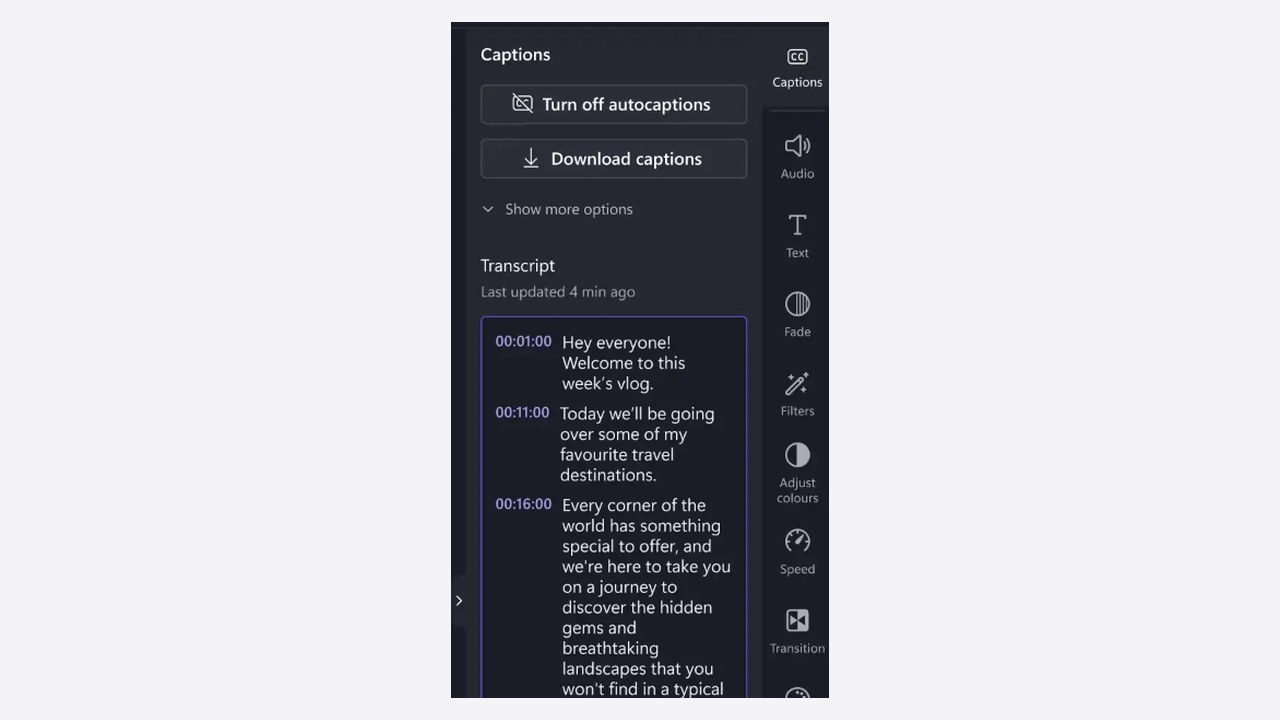
Clipchamp's captions panel on its subtitle generator page. Source: Clipchamp website

Clipchamp is Microsoft's video editor, which runs in a web browser and as a Windows app. Its pricing page lists on Free: AI video editing tools, AI audio editing tools, trim, crop, resize and rotate, a screen, camera and voice recorder, watermark-free video exports, up to 1080p HD export, free stock assets and content backup on OneDrive. Its home page describes an AI subtitle generator in over 80 languages and AI audio tools that remove pauses, silences and filler words, and says exports are unlimited in HD quality, without any watermarks.

Pricing: Clipchamp's pricing page says premium features are included with Microsoft 365 Personal and Family plans, listing 4K UHD exports, premium stock assets and a brand kit. It lists no separate Clipchamp price.

Considerations: Clipchamp is an editor, so the clip is cut by hand with the trim tool. We read nothing on its pages that picks moments from a long recording. Sign-in needs a personal Microsoft account.

  • Choose it if cutting clips by hand is fine and watermark-free 1080p exports with no allowance listed are the priority.
  • Skip it if the goal is having AI find the moments in a long video.

6. Flowjin: Best for a one-time test with no watermark

Flowjin's clip editor with a Captions panel, an Edit clip button and transcript text beside a dotted canvas

The clip editor shown on Flowjin's home page. Source: Flowjin website

Flowjin's home page says its AI finds the moments worth sharing in a media file and drafts 6 to 12 captioned clips automatically, then writes platform-specific posts. Its pricing page lists on Free: process 60 minutes of video or audio as a one-time credit that does not refill, access to the AI content repurposing tools, 720p render quality, auto reframe, 9:16, 1:1 audio-only and 16:9 ratios, up to 5 clip exports, an editor and a social media scheduler. Its comparison table lists No Watermark ("No watermarks on your videos") in the Free column.

Pricing: Flowjin's pricing page lists Starter at $12.50 a month billed yearly ($102 a year), with 150 minutes of video or audio a month, 720p and unlimited clip exports. Creator is $20.80 a month billed yearly ($174 a year), with 300 minutes a month and 1080p.

Considerations: The 60 minutes are a one-time credit, so the Free plan works as a single project, and it covers 5 clip exports at 720p. Starter stays at 720p as well, with 1080p starting on Creator.

  • Choose it if one project needs clean clips and a one-time 60 minutes is enough.
  • Skip it if clips are needed every month without paying, or exports must be above 720p.

7. OpenShorts: Best for free clips with no meter if Docker is no obstacle

OpenShorts' clip editor with a source timeline, mark in and out controls and a transcript to set a cut boundary on a word

OpenShorts' clip editor, from the project's GitHub README. Source: OpenShorts GitHub README

OpenShorts is an open-source clipper with two editions. Its README says to paste a YouTube link or upload a file, after which it finds the strongest moments of a podcast, webinar, stream or interview and returns finished 9:16 clips, and that every clip opens in an editor where a click on a word sets a cut. Its pricing page says the self-hosted edition is free and open source under MIT: run it with Docker, bring your own API keys, no watermark and no usage cap. OpenShorts Cloud is the hosted service: the first video is clipped free up to 60 minutes, then 20 minutes a month, with the 2 to 4 best clips of each video, a watermark and download only.

Pricing: OpenShorts' pricing page lists self-hosted at $0 and Cloud Starter at $12 a month ($10 a month billed yearly), with paid Cloud plans removing the watermark. The README says to bring your own Gemini, ElevenLabs and fal.ai keys when self-hosting.

Considerations: The README lists Docker, 8 GB or more of RAM and model downloads as the setup, and says self-hosting costs a machine, your own API keys and the time to keep it running. The hosted free plan keeps the watermark, so the no-watermark route is the self-hosted one.

  • Choose it if Docker is familiar, and no watermark and no meter matter more than setup time.
  • Skip it if a hosted app with no setup is needed, since the hosted free plan is watermarked.

How we compared these tools

This guide is organised around free AI video clippers and the watermark each free route prints. OpusClip is built for the job of turning a long video into captioned short clips, so it comes first, with its watermark stated plainly. Items 2 to 7 follow one yardstick: how repeatable the vendor's no-watermark free route is, with renewing hosted allowances first (in order of how plainly the page prints the limits), then a free editor with no allowance listed, then a one-time credit, then software you run yourself.

  • 2. Wisecut: a renewing monthly allowance with no watermark, with 480p, the 3-minute export cap and the 30-minute allowance printed on the Free card.
  • 3. Clipping AI: a renewing daily allowance with no watermark and no sign-up, with the limits printed on its pricing page, but a new site.
  • 4. 2short.ai: a renewing monthly allowance and a features list that says no watermarks, with the allowance printed two different ways.
  • 5. Clipchamp: a free editor with watermark-free exports and no allowance listed, where the clip is cut by hand.
  • 6. Flowjin: no watermark, but a one-time credit that does not refill.
  • 7. OpenShorts: no watermark and no cap, but only on the self-hosted edition.

All facts come from each vendor's own pricing page, product pages, docs and help center, and for OpenShorts its GitHub README, read on November 18, 2026. Where a page loads its figures with a script we read the rendered page. Where two parts of one vendor's pages disagree (2short.ai on free minutes), we say so. We did not run hands-on tests of any competitor, and documented limits say nothing about how well a tool works or how its exports look. We left out tools whose own pages print a watermark on the free route: Reap, Quso, Kapwing, Riverside, Gling, AI Video Cut, Vmaker and FlexClip. We also left out Choppity, whose pages disagree, Submagic and SendShort, whose pricing pages list paid plans only, and Munch, whose pages returned an error to our script. Prices change, so confirm on the vendor's page before relying on a free plan.

Red flags to watch for

  • Free plans that print a watermark. OpusClip's pricing page lists "Has watermark" on Free. Reap's pricing page lists Free exports in 720p as watermarked, Quso lists Free renders in 720p with a quso.ai watermark, Kapwing lists unlimited exports with a watermark on Free, Riverside lists a Riverside watermark on its free plan, Gling lists free exports with a watermark, and AI Video Cut lists its free 50 minutes as including a watermark. Vmaker's tool page says videos downloaded on the free plan include a watermark, and FlexClip's learn page says exports without a subscription carry one.
  • Headlines that disagree with the body. Choppity has a page whose headline promises a free AI clip maker with no watermark, while its body says paid plans remove the watermark.
  • No watermark, but other branding. FreeClip's page says "Free, no watermark" and also lists 1080p outro-free exports among what its Pro minute packs unlock. Check the end of a free export, not only the corners.
  • One-time credits. Flowjin's 60 free minutes are a one-time credit that does not refill, per its pricing page.
  • Allowances printed two ways. 2short.ai's Starter card says 30 minutes of analysis a month and a later line says 15.
  • Resolution and export caps. Wisecut's Free card lists 480p and exports up to 3 minutes, and Flowjin's lists 720p and up to 5 clip exports.
  • Free that costs setup. OpenShorts self-hosted needs Docker, a machine and your own API keys.
  • New sites. Clipping AI's pages are dated November 16 and 17, 2026, so its free terms have had little time to hold. Re-check before building a routine on them.
  • No manual override. A tool that picks and crops clips with no way to edit the result leaves no fix for a bad cut.
  • Clips from videos you do not own. Clip only videos that belong to you or that you have permission to use.

Frequently asked questions

What is the best free AI video clipper with no watermark?

It depends on which cap can be accepted. Wisecut, Clipping AI, 2short.ai, Clipchamp, Flowjin and OpenShorts' self-hosted edition each print a free route with no watermark on their own pages: Wisecut lists 480p and exports up to 3 minutes, Clipping AI lists 1080p and 3 long videos a day, Flowjin gives a one-time 60 minutes at 720p, Clipchamp is an editor with watermark-free exports up to 1080p, and 2short.ai's page contradicts itself on free minutes. OpusClip is first in this guide for the clipping job, but its Free plan adds a watermark.

Is OpusClip free with no watermark?

No. OpusClip has a Free plan, and its pricing page lists "Has watermark" on it. The help center says Free plan clips carry an OpusClip brand logo and that upgrading to a paid plan removes the watermarks from Free projects, and the pricing page lists Remove Watermark under Starter, at $15 a month with monthly billing only.

How can I turn a long video into short videos for free without a watermark?

Pick a route from this guide that fits the source and the cap: Wisecut or Clipping AI for a file, 2short.ai for a YouTube link with captions, Clipchamp to cut by hand, Flowjin for a one-time project, or OpenShorts self-hosted. OpusClip's own free route keeps the watermark; our long video to short video tool and YouTube Shorts maker walk through the steps, and for more free offers see our guide to free AI tools for long videos. Clip only videos you own or have permission to use.

Which free AI clipper exports the highest quality without a watermark?

By the resolution each page prints, Clipping AI lists a 1080p MP4 export and Clipchamp lists up to 1080p, 2short.ai's features list says 1080p, Flowjin's Free plan lists 720p and Wisecut's lists 480p with exports up to 3 minutes. These are vendor-printed limits. We did not run hands-on tests, so how the exports look is not compared.

Does no watermark mean no branding at all?

Not always. A watermark is one kind of mark, and a page can say "no watermark" while other branding stays: FreeClip's page says "Free, no watermark" and also lists 1080p outro-free exports among its paid benefits, and a Choppity page headlined as a no-watermark clip maker says its paid plans remove the watermark. Read the pricing page, then export one short clip and check the corners and the end.

What is the catch with a free AI clipper that has no watermark?

The catch is a cap somewhere else: a lower resolution (480p at Wisecut, 720p at Flowjin), a shorter export (3 minutes at Wisecut), a one-time credit (Flowjin), a daily limit (3 long videos a day at Clipping AI), an editor that does not pick moments (Clipchamp), or setup you do yourself (OpenShorts self-hosted). The table above lists each limit side by side.

Where does the video go when a free clipper processes it?

It depends on the tool, and we did not review any vendor's privacy terms. Clipping AI's page says the video stays on the device and only audio is transcribed, and OpenShorts' README lists "Your server" for the data of a self-hosted install. For the hosted tools, read the vendor's privacy policy before uploading footage that is unreleased or confidential.

On this page

Use our Free Forever Plan

Find the moment. Skip the scrubbing.

From script to polished video — in one click.

Create and post one short video every day for free, and grow faster.

OpusSearch uses AI to surface the exact clip you need from hours of footage — in seconds, not afternoons.

Agent Opus runs the entire video pipeline for you: research, scriptwriting, storyboarding, motion, voice, and edit. Upload the idea, post the result.

7 Best Free AI Video Clippers With No Watermark in 2026

OpusClip is the pick for AI-picked, captioned clips from a long video, but its Free plan adds a watermark: the pricing page lists "Has watermark" on Free, and the help center says upgrading to a paid plan removes it. For a free route with no watermark, Wisecut, Clipping AI, 2short.ai, Clipchamp, Flowjin and the self-hosted edition of OpenShorts each print one on their own pages, with caps that differ. We ordered items 2 to 7 by how repeatable that route is. Facts come from each vendor's own pages, read on November 18, 2026.

Key takeaways

  • Best for AI-picked, captioned clips when a paid plan can remove the watermark: OpusClip. Free lists up to 1080p rendered clips and "Has watermark"; Starter lists Remove Watermark.
  • Best for a monthly free plan that lists no watermark: Wisecut. Its Free card lists 30 minutes a month at 480p, exports up to 3 minutes and no watermark.
  • Best for a no-sign-up free clipper in the browser: Clipping AI. Its pages list 1080p MP4 exports with no watermark and 3 long videos a day; the site is new, with pages dated November 16 and 17, 2026.
  • Best for a YouTube-link-first free plan: 2short.ai. Its features list says goodbye to watermarks, but the page prints the free allowance as 30 minutes in one place and 15 in another.
  • Best for hand-cut clips from a free editor with no watermark: Clipchamp. Its Free plan lists watermark-free exports up to 1080p; the clip is cut by hand.
  • Best for a one-time test with no watermark: Flowjin. Its Free column lists no watermark, but the 60 minutes are a one-time credit at 720p with up to 5 clip exports.
  • Best for free clips with no meter if Docker is no obstacle: OpenShorts. The self-hosted edition lists no watermark and no usage cap; its hosted free plan is watermarked.

What counts as a free AI clipper with no watermark

Two kinds of tool appear here. Six are AI clippers that pick moments from a long video and return short clips (OpusClip, Wisecut, Clipping AI, 2short.ai, Flowjin and OpenShorts). One, Clipchamp, is a free editor where the clip is cut by hand with AI helpers for subtitles and audio. We say which is which in each entry.

"No watermark" also means different things. It can be a free plan that renews, a one-time credit, an editor with no export mark, or software you run yourself, and a vendor's headline and its pricing page do not always agree. Choppity, for example, has a page whose headline promises a free AI clip maker with no watermark, while its body says paid plans remove the watermark. We print what each vendor's pricing and product pages say about the free route, and for the other free allowances in this category, see our guide to free AI clipping tools.

How to choose

  • Clean exports every month, with caps accepted: Wisecut (480p, exports up to 3 minutes) or Clipping AI (1080p, 3 long videos a day).
  • The source is a YouTube link: 2short.ai starts from a pasted YouTube link, and OpenShorts' README says to paste a YouTube link or upload a file. Clipping AI takes an uploaded file today. For a wider list, see our guide to YouTube clip makers.
  • Cutting by hand is fine: Clipchamp, a free editor with watermark-free exports.
  • One project, once: Flowjin's one-time 60 minutes.
  • Software you control: OpenShorts self-hosted, which needs Docker and your own API keys.
  • AI-picked clips and a paid plan is acceptable: OpusClip, whose Free plan keeps the watermark.

At a glance

  • OpusClip: best for AI-picked, captioned clips from a long video when a paid plan can remove the watermark; Starter $15 a month (monthly billing only), Pro $29 a month or $14.50 a month billed annually; free plan yes, with a watermark.
  • Wisecut: best for a monthly free plan that lists no watermark at 480p; paid plans: see the pricing page (a Black Friday offer was showing when we read it); free plan yes.
  • Clipping AI: best for a no-sign-up free clipper that runs in the browser; Pro is listed as early access at $9.90 a month planned; free plan yes.
  • 2short.ai: best for a YouTube-link-first free plan; Lite $9.90 a month (the page lists no billing period); free plan yes.
  • Clipchamp: best for hand-cut clips from a free editor with no watermark; Premium features come with Microsoft 365 Personal and Family; free plan yes.
  • Flowjin: best for a one-time test with no watermark; Starter $12.50 a month billed yearly ($102 a year); free plan yes (one-time credit).
  • OpenShorts: best for free clips with no meter if Docker is no obstacle; Cloud Starter $12 a month ($10 a month billed yearly); self-hosted $0, hosted free plan yes (watermarked).

How each free route handles the watermark

The At a glance list covers best-for and the first paid price; this table compares each free route's watermark policy, export limits, allowance and sign-up, as listed on each vendor's own pages on November 18, 2026.

ToolWatermark on the free routeFree export limits as printedFree allowance as printedSign-up and where it runs
OpusClipFree adds a watermark; upgrading to a paid plan removes itUp to 1080p rendered clipsFree forever; credit amount is on the pricing pageAccount needed
WisecutFree card lists no watermark480p; exports and downloads up to 3 minutes30 minutes a month; the plan is labelled always freeWeb app per its llms.txt; the Free card says Start for free
Clipping AINone; free exports stay watermark-free1080p MP4; up to 15 AI-ranked clips per video3 long videos a day, each up to 120 minutesNo sign-up; processed on your device
2short.aiFeatures list says watermarks are gone1080p per the features list; Free can export generated clips30 minutes of AI analysis a month; a closing line says 15Free account; paste a YouTube link
ClipchampNone on exports, free or PremiumUp to 1080p HDHome page says unlimited exports in HDMicrosoft account; browser or Windows app
FlowjinFree column lists no watermark720p; up to 5 clip exports60 minutes of video or audio, once; it does not refillSign-up needed; web upload
OpenShortsSelf-hosted: none. Hosted free plan: watermarkedSelf-hosted: no usage cap. Hosted free: the 2 to 4 best clips of each videoSelf-hosted: no meter. Hosted: first video up to 60 minutes, then 20 minutes a monthDocker with your own API keys, or the hosted app

1. OpusClip: Best for AI-picked, captioned clips from a long video, with a watermark on Free

OpusClip's ClipAnything prompt field with the placeholder Example: Compile all the hilarious moments inside a red outline

The ClipAnything prompt field in OpusClip, where a typed request describes the moments to clip. Source: OpusClip help center

OpusClip takes a long video, such as a podcast, webinar or interview, finds the clips worth posting and returns them captioned and reframed. Its ClipAnything model also takes a typed prompt that describes the moments wanted, per the help center. The pricing page lists on Free: Free forever, up to 1080p rendered clips, auto reframe, AI captions with an emoji and keyword highlighter, and "Has watermark". The help center says Free plan clips carry an OpusClip brand logo watermark and that upgrading to a paid plan removes the watermarks from those Free projects. To try the clipping step, see our long video to short video tool, which says the Free plan comes with a watermark.

Pricing: OpusClip's pricing page lists Free at $0, Starter at $15 a month (monthly billing only, with Remove Watermark listed) and Pro at $29 a month, or $14.50 a month billed annually. See the pricing page for the credit amounts.

Considerations: For this guide, the watermark is the catch: it stays on Free clips, and the way to remove it is a paid plan. OpusClip clips footage that already exists and does not replace a timeline editor.

  • Choose it if the job is AI-picked, captioned clips from long recordings and a paid plan is acceptable once the clips are worth posting.
  • Skip it if the free clips themselves must be watermark-free, or the job is cutting on a timeline.

2. Wisecut: Best for a monthly free plan that lists no watermark

Wisecut's highlight card showing a 42 minute recording as a grid with three marked moments labelled laugh, insight and punchline

A highlight-detection card from Wisecut's features page. Source: Wisecut website

Wisecut is a web application, per its llms.txt, and its home page says to paste a video link or upload a file, after which Wisecut finds the best moments and prepares clips to watch and choose from. Its highlights page says suggested highlights can be edited, extended or replaced, and that the clip duration can be adjusted. The pricing page lists on Free: US$0, "Always free", "Wisecut Editor + WISH (limited)", 30 minutes a month at 480p, exports and downloads up to 3 minutes in 480p, a file size up to 4 GB and no watermark. The same card lists no Autopilot, no Social Hub and no MCP.

Pricing: Wisecut's pricing page lists Starter+ with 1080p exports up to 60 minutes and Professional+ with 4K up to 90 minutes, both with no watermark and with Autopilot. A Black Friday offer was showing when we read it, so see the pricing page for the price.

Considerations: The Free card says "Wisecut Editor + WISH (limited)" without itemising what is limited, and caps exports at 480p and 3 minutes. That is enough to judge the clip picks, but a finished 1080p clip needs a paid plan.

  • Choose it if a renewing monthly allowance with no watermark matters and 480p, 3-minute exports are enough for a test.
  • Skip it if the free clips must reach 1080p or run longer than 3 minutes.

3. Clipping AI: Best for a no-sign-up free clipper that runs in the browser

Clipping AI's upload box reading Drop a long video here, with a Choose video button and labels for no watermark and no sign-up

Clipping AI's upload box on its home page. Source: Clipping AI website

Clipping AI says it turns a long video into captioned vertical shorts in the browser, with the video staying on the device. Its pricing page lists on Free: $0, 3 long videos a day, up to 120 minutes per video, up to 15 AI-ranked clips per video, word-by-word captions in 5 styles, auto-reframe to 9:16, 1:1 and 16:9, a 1080p MP4 export with no watermark, SRT captions and video that stays on the device. Its FAQ says the free plan needs no sign-up, and its home page says only audio is transcribed.

Pricing: Clipping AI's pricing page lists Free at $0 and a Pro plan in early access at $9.90 a month planned, with 50 hours of video a month and videos up to 4 hours (Free: 2 hours). It also says free exports stay watermark-free.

Considerations: The site's pages are dated November 16 and 17, 2026, so the free terms are new and worth re-checking. Its FAQ says it works best on a computer with a recent Chrome, Edge or Safari because the video is processed on the device, and that pasting a YouTube link is not available yet, so the source has to be a file.

  • Choose it if the video is a file on a computer and the goal is clean 1080p clips with no account.
  • Skip it if the source is only a YouTube link, or a vendor with a longer history matters.

4. 2short.ai: Best for a YouTube-link-first free plan

2short.ai's subtitle settings panel with caption style presets, subtitle transition options and word highlight controls

2short.ai's subtitle settings. Source: 2short.ai website

2short.ai's pricing page says to copy a video link from YouTube and paste it into the app, after which its AI extracts the most engaging parts as short clips. The free Starter plan lists 30 minutes of AI video analyzing a month, viewing and exporting already generated short clips, and full access to all features. The features list describes center-stage facial tracking, one-click animated subtitles, and unlimited exports with "Say goodbye to watermarks and hello to 1080p quality."

Pricing: 2short.ai's pricing page lists Lite at $9.90 a month (no billing period is stated), Pro at $19.90 and Premium at $49.90. Lite adds 5 hours of AI video analysis a month, 60 minutes of fast server-side exports a month, Google Drive and public URL imports, and no ads.

Considerations: The page contradicts itself on the free allowance: the Starter card says 30 minutes of analysis a month, while a line near the bottom says 15 minutes. Its FAQ also says it can only process videos with captions, and that YouTube auto-generates captions for most videos.

  • Choose it if the source is a YouTube video with captions and the budget is as small as possible.
  • Skip it if the video has no captions, or a free allowance has to be printed in one place.

5. Clipchamp: Best for hand-cut clips from a free editor with no watermark

Clipchamp's Captions panel with Turn off autocaptions and Download captions buttons above a timestamped transcript

Clipchamp's captions panel on its subtitle generator page. Source: Clipchamp website

Clipchamp is Microsoft's video editor, which runs in a web browser and as a Windows app. Its pricing page lists on Free: AI video editing tools, AI audio editing tools, trim, crop, resize and rotate, a screen, camera and voice recorder, watermark-free video exports, up to 1080p HD export, free stock assets and content backup on OneDrive. Its home page describes an AI subtitle generator in over 80 languages and AI audio tools that remove pauses, silences and filler words, and says exports are unlimited in HD quality, without any watermarks.

Pricing: Clipchamp's pricing page says premium features are included with Microsoft 365 Personal and Family plans, listing 4K UHD exports, premium stock assets and a brand kit. It lists no separate Clipchamp price.

Considerations: Clipchamp is an editor, so the clip is cut by hand with the trim tool. We read nothing on its pages that picks moments from a long recording. Sign-in needs a personal Microsoft account.

  • Choose it if cutting clips by hand is fine and watermark-free 1080p exports with no allowance listed are the priority.
  • Skip it if the goal is having AI find the moments in a long video.

6. Flowjin: Best for a one-time test with no watermark

Flowjin's clip editor with a Captions panel, an Edit clip button and transcript text beside a dotted canvas

The clip editor shown on Flowjin's home page. Source: Flowjin website

Flowjin's home page says its AI finds the moments worth sharing in a media file and drafts 6 to 12 captioned clips automatically, then writes platform-specific posts. Its pricing page lists on Free: process 60 minutes of video or audio as a one-time credit that does not refill, access to the AI content repurposing tools, 720p render quality, auto reframe, 9:16, 1:1 audio-only and 16:9 ratios, up to 5 clip exports, an editor and a social media scheduler. Its comparison table lists No Watermark ("No watermarks on your videos") in the Free column.

Pricing: Flowjin's pricing page lists Starter at $12.50 a month billed yearly ($102 a year), with 150 minutes of video or audio a month, 720p and unlimited clip exports. Creator is $20.80 a month billed yearly ($174 a year), with 300 minutes a month and 1080p.

Considerations: The 60 minutes are a one-time credit, so the Free plan works as a single project, and it covers 5 clip exports at 720p. Starter stays at 720p as well, with 1080p starting on Creator.

  • Choose it if one project needs clean clips and a one-time 60 minutes is enough.
  • Skip it if clips are needed every month without paying, or exports must be above 720p.

7. OpenShorts: Best for free clips with no meter if Docker is no obstacle

OpenShorts' clip editor with a source timeline, mark in and out controls and a transcript to set a cut boundary on a word

OpenShorts' clip editor, from the project's GitHub README. Source: OpenShorts GitHub README

OpenShorts is an open-source clipper with two editions. Its README says to paste a YouTube link or upload a file, after which it finds the strongest moments of a podcast, webinar, stream or interview and returns finished 9:16 clips, and that every clip opens in an editor where a click on a word sets a cut. Its pricing page says the self-hosted edition is free and open source under MIT: run it with Docker, bring your own API keys, no watermark and no usage cap. OpenShorts Cloud is the hosted service: the first video is clipped free up to 60 minutes, then 20 minutes a month, with the 2 to 4 best clips of each video, a watermark and download only.

Pricing: OpenShorts' pricing page lists self-hosted at $0 and Cloud Starter at $12 a month ($10 a month billed yearly), with paid Cloud plans removing the watermark. The README says to bring your own Gemini, ElevenLabs and fal.ai keys when self-hosting.

Considerations: The README lists Docker, 8 GB or more of RAM and model downloads as the setup, and says self-hosting costs a machine, your own API keys and the time to keep it running. The hosted free plan keeps the watermark, so the no-watermark route is the self-hosted one.

  • Choose it if Docker is familiar, and no watermark and no meter matter more than setup time.
  • Skip it if a hosted app with no setup is needed, since the hosted free plan is watermarked.

How we compared these tools

This guide is organised around free AI video clippers and the watermark each free route prints. OpusClip is built for the job of turning a long video into captioned short clips, so it comes first, with its watermark stated plainly. Items 2 to 7 follow one yardstick: how repeatable the vendor's no-watermark free route is, with renewing hosted allowances first (in order of how plainly the page prints the limits), then a free editor with no allowance listed, then a one-time credit, then software you run yourself.

  • 2. Wisecut: a renewing monthly allowance with no watermark, with 480p, the 3-minute export cap and the 30-minute allowance printed on the Free card.
  • 3. Clipping AI: a renewing daily allowance with no watermark and no sign-up, with the limits printed on its pricing page, but a new site.
  • 4. 2short.ai: a renewing monthly allowance and a features list that says no watermarks, with the allowance printed two different ways.
  • 5. Clipchamp: a free editor with watermark-free exports and no allowance listed, where the clip is cut by hand.
  • 6. Flowjin: no watermark, but a one-time credit that does not refill.
  • 7. OpenShorts: no watermark and no cap, but only on the self-hosted edition.

All facts come from each vendor's own pricing page, product pages, docs and help center, and for OpenShorts its GitHub README, read on November 18, 2026. Where a page loads its figures with a script we read the rendered page. Where two parts of one vendor's pages disagree (2short.ai on free minutes), we say so. We did not run hands-on tests of any competitor, and documented limits say nothing about how well a tool works or how its exports look. We left out tools whose own pages print a watermark on the free route: Reap, Quso, Kapwing, Riverside, Gling, AI Video Cut, Vmaker and FlexClip. We also left out Choppity, whose pages disagree, Submagic and SendShort, whose pricing pages list paid plans only, and Munch, whose pages returned an error to our script. Prices change, so confirm on the vendor's page before relying on a free plan.

Red flags to watch for

  • Free plans that print a watermark. OpusClip's pricing page lists "Has watermark" on Free. Reap's pricing page lists Free exports in 720p as watermarked, Quso lists Free renders in 720p with a quso.ai watermark, Kapwing lists unlimited exports with a watermark on Free, Riverside lists a Riverside watermark on its free plan, Gling lists free exports with a watermark, and AI Video Cut lists its free 50 minutes as including a watermark. Vmaker's tool page says videos downloaded on the free plan include a watermark, and FlexClip's learn page says exports without a subscription carry one.
  • Headlines that disagree with the body. Choppity has a page whose headline promises a free AI clip maker with no watermark, while its body says paid plans remove the watermark.
  • No watermark, but other branding. FreeClip's page says "Free, no watermark" and also lists 1080p outro-free exports among what its Pro minute packs unlock. Check the end of a free export, not only the corners.
  • One-time credits. Flowjin's 60 free minutes are a one-time credit that does not refill, per its pricing page.
  • Allowances printed two ways. 2short.ai's Starter card says 30 minutes of analysis a month and a later line says 15.
  • Resolution and export caps. Wisecut's Free card lists 480p and exports up to 3 minutes, and Flowjin's lists 720p and up to 5 clip exports.
  • Free that costs setup. OpenShorts self-hosted needs Docker, a machine and your own API keys.
  • New sites. Clipping AI's pages are dated November 16 and 17, 2026, so its free terms have had little time to hold. Re-check before building a routine on them.
  • No manual override. A tool that picks and crops clips with no way to edit the result leaves no fix for a bad cut.
  • Clips from videos you do not own. Clip only videos that belong to you or that you have permission to use.

Frequently asked questions

What is the best free AI video clipper with no watermark?

It depends on which cap can be accepted. Wisecut, Clipping AI, 2short.ai, Clipchamp, Flowjin and OpenShorts' self-hosted edition each print a free route with no watermark on their own pages: Wisecut lists 480p and exports up to 3 minutes, Clipping AI lists 1080p and 3 long videos a day, Flowjin gives a one-time 60 minutes at 720p, Clipchamp is an editor with watermark-free exports up to 1080p, and 2short.ai's page contradicts itself on free minutes. OpusClip is first in this guide for the clipping job, but its Free plan adds a watermark.

Is OpusClip free with no watermark?

No. OpusClip has a Free plan, and its pricing page lists "Has watermark" on it. The help center says Free plan clips carry an OpusClip brand logo and that upgrading to a paid plan removes the watermarks from Free projects, and the pricing page lists Remove Watermark under Starter, at $15 a month with monthly billing only.

How can I turn a long video into short videos for free without a watermark?

Pick a route from this guide that fits the source and the cap: Wisecut or Clipping AI for a file, 2short.ai for a YouTube link with captions, Clipchamp to cut by hand, Flowjin for a one-time project, or OpenShorts self-hosted. OpusClip's own free route keeps the watermark; our long video to short video tool and YouTube Shorts maker walk through the steps, and for more free offers see our guide to free AI tools for long videos. Clip only videos you own or have permission to use.

Which free AI clipper exports the highest quality without a watermark?

By the resolution each page prints, Clipping AI lists a 1080p MP4 export and Clipchamp lists up to 1080p, 2short.ai's features list says 1080p, Flowjin's Free plan lists 720p and Wisecut's lists 480p with exports up to 3 minutes. These are vendor-printed limits. We did not run hands-on tests, so how the exports look is not compared.

Does no watermark mean no branding at all?

Not always. A watermark is one kind of mark, and a page can say "no watermark" while other branding stays: FreeClip's page says "Free, no watermark" and also lists 1080p outro-free exports among its paid benefits, and a Choppity page headlined as a no-watermark clip maker says its paid plans remove the watermark. Read the pricing page, then export one short clip and check the corners and the end.

What is the catch with a free AI clipper that has no watermark?

The catch is a cap somewhere else: a lower resolution (480p at Wisecut, 720p at Flowjin), a shorter export (3 minutes at Wisecut), a one-time credit (Flowjin), a daily limit (3 long videos a day at Clipping AI), an editor that does not pick moments (Clipchamp), or setup you do yourself (OpenShorts self-hosted). The table above lists each limit side by side.

Where does the video go when a free clipper processes it?

It depends on the tool, and we did not review any vendor's privacy terms. Clipping AI's page says the video stays on the device and only audio is transcribed, and OpenShorts' README lists "Your server" for the data of a self-hosted install. For the hosted tools, read the vendor's privacy policy before uploading footage that is unreleased or confidential.

Creator name

Creator type

Team size

Channels

linkYouTubefacebookXTikTok

Pain point

Time to see positive ROI

About the creator

Don't miss these

How Audacy Drove 1B+ Views by Taking a Tech-Forward Approach to Radio with OpusClip
No items found.

How Audacy Drove 1B+ Views by Taking a Tech-Forward Approach to Radio with OpusClip

How All the Smoke makes hit compilations faster with OpusSearch

How All the Smoke makes hit compilations faster with OpusSearch

Growing a new channel to 1.5M views in 90 days without creating new videos

Growing a new channel to 1.5M views in 90 days without creating new videos

OpusClip 4.0 is here. Become a content powerhouse.

7 Best Free AI Video Clippers With No Watermark in 2026

Creators at a podcast microphone, a phone and a laptop, with a Clip it button, a free tag, an aspect ratio tag and a views badge
No items found.
No items found.

Boost your social media growth with OpusClip

Create and post one short video every day for your social media and grow faster.

7 Best Free AI Video Clippers With No Watermark in 2026

Creators at a podcast microphone, a phone and a laptop, with a Clip it button, a free tag, an aspect ratio tag and a views badge

OpusClip is the pick for AI-picked, captioned clips from a long video, but its Free plan adds a watermark: the pricing page lists "Has watermark" on Free, and the help center says upgrading to a paid plan removes it. For a free route with no watermark, Wisecut, Clipping AI, 2short.ai, Clipchamp, Flowjin and the self-hosted edition of OpenShorts each print one on their own pages, with caps that differ. We ordered items 2 to 7 by how repeatable that route is. Facts come from each vendor's own pages, read on November 18, 2026.

Key takeaways

  • Best for AI-picked, captioned clips when a paid plan can remove the watermark: OpusClip. Free lists up to 1080p rendered clips and "Has watermark"; Starter lists Remove Watermark.
  • Best for a monthly free plan that lists no watermark: Wisecut. Its Free card lists 30 minutes a month at 480p, exports up to 3 minutes and no watermark.
  • Best for a no-sign-up free clipper in the browser: Clipping AI. Its pages list 1080p MP4 exports with no watermark and 3 long videos a day; the site is new, with pages dated November 16 and 17, 2026.
  • Best for a YouTube-link-first free plan: 2short.ai. Its features list says goodbye to watermarks, but the page prints the free allowance as 30 minutes in one place and 15 in another.
  • Best for hand-cut clips from a free editor with no watermark: Clipchamp. Its Free plan lists watermark-free exports up to 1080p; the clip is cut by hand.
  • Best for a one-time test with no watermark: Flowjin. Its Free column lists no watermark, but the 60 minutes are a one-time credit at 720p with up to 5 clip exports.
  • Best for free clips with no meter if Docker is no obstacle: OpenShorts. The self-hosted edition lists no watermark and no usage cap; its hosted free plan is watermarked.

What counts as a free AI clipper with no watermark

Two kinds of tool appear here. Six are AI clippers that pick moments from a long video and return short clips (OpusClip, Wisecut, Clipping AI, 2short.ai, Flowjin and OpenShorts). One, Clipchamp, is a free editor where the clip is cut by hand with AI helpers for subtitles and audio. We say which is which in each entry.

"No watermark" also means different things. It can be a free plan that renews, a one-time credit, an editor with no export mark, or software you run yourself, and a vendor's headline and its pricing page do not always agree. Choppity, for example, has a page whose headline promises a free AI clip maker with no watermark, while its body says paid plans remove the watermark. We print what each vendor's pricing and product pages say about the free route, and for the other free allowances in this category, see our guide to free AI clipping tools.

How to choose

  • Clean exports every month, with caps accepted: Wisecut (480p, exports up to 3 minutes) or Clipping AI (1080p, 3 long videos a day).
  • The source is a YouTube link: 2short.ai starts from a pasted YouTube link, and OpenShorts' README says to paste a YouTube link or upload a file. Clipping AI takes an uploaded file today. For a wider list, see our guide to YouTube clip makers.
  • Cutting by hand is fine: Clipchamp, a free editor with watermark-free exports.
  • One project, once: Flowjin's one-time 60 minutes.
  • Software you control: OpenShorts self-hosted, which needs Docker and your own API keys.
  • AI-picked clips and a paid plan is acceptable: OpusClip, whose Free plan keeps the watermark.

At a glance

  • OpusClip: best for AI-picked, captioned clips from a long video when a paid plan can remove the watermark; Starter $15 a month (monthly billing only), Pro $29 a month or $14.50 a month billed annually; free plan yes, with a watermark.
  • Wisecut: best for a monthly free plan that lists no watermark at 480p; paid plans: see the pricing page (a Black Friday offer was showing when we read it); free plan yes.
  • Clipping AI: best for a no-sign-up free clipper that runs in the browser; Pro is listed as early access at $9.90 a month planned; free plan yes.
  • 2short.ai: best for a YouTube-link-first free plan; Lite $9.90 a month (the page lists no billing period); free plan yes.
  • Clipchamp: best for hand-cut clips from a free editor with no watermark; Premium features come with Microsoft 365 Personal and Family; free plan yes.
  • Flowjin: best for a one-time test with no watermark; Starter $12.50 a month billed yearly ($102 a year); free plan yes (one-time credit).
  • OpenShorts: best for free clips with no meter if Docker is no obstacle; Cloud Starter $12 a month ($10 a month billed yearly); self-hosted $0, hosted free plan yes (watermarked).

How each free route handles the watermark

The At a glance list covers best-for and the first paid price; this table compares each free route's watermark policy, export limits, allowance and sign-up, as listed on each vendor's own pages on November 18, 2026.

ToolWatermark on the free routeFree export limits as printedFree allowance as printedSign-up and where it runs
OpusClipFree adds a watermark; upgrading to a paid plan removes itUp to 1080p rendered clipsFree forever; credit amount is on the pricing pageAccount needed
WisecutFree card lists no watermark480p; exports and downloads up to 3 minutes30 minutes a month; the plan is labelled always freeWeb app per its llms.txt; the Free card says Start for free
Clipping AINone; free exports stay watermark-free1080p MP4; up to 15 AI-ranked clips per video3 long videos a day, each up to 120 minutesNo sign-up; processed on your device
2short.aiFeatures list says watermarks are gone1080p per the features list; Free can export generated clips30 minutes of AI analysis a month; a closing line says 15Free account; paste a YouTube link
ClipchampNone on exports, free or PremiumUp to 1080p HDHome page says unlimited exports in HDMicrosoft account; browser or Windows app
FlowjinFree column lists no watermark720p; up to 5 clip exports60 minutes of video or audio, once; it does not refillSign-up needed; web upload
OpenShortsSelf-hosted: none. Hosted free plan: watermarkedSelf-hosted: no usage cap. Hosted free: the 2 to 4 best clips of each videoSelf-hosted: no meter. Hosted: first video up to 60 minutes, then 20 minutes a monthDocker with your own API keys, or the hosted app

1. OpusClip: Best for AI-picked, captioned clips from a long video, with a watermark on Free

OpusClip's ClipAnything prompt field with the placeholder Example: Compile all the hilarious moments inside a red outline

The ClipAnything prompt field in OpusClip, where a typed request describes the moments to clip. Source: OpusClip help center

OpusClip takes a long video, such as a podcast, webinar or interview, finds the clips worth posting and returns them captioned and reframed. Its ClipAnything model also takes a typed prompt that describes the moments wanted, per the help center. The pricing page lists on Free: Free forever, up to 1080p rendered clips, auto reframe, AI captions with an emoji and keyword highlighter, and "Has watermark". The help center says Free plan clips carry an OpusClip brand logo watermark and that upgrading to a paid plan removes the watermarks from those Free projects. To try the clipping step, see our long video to short video tool, which says the Free plan comes with a watermark.

Pricing: OpusClip's pricing page lists Free at $0, Starter at $15 a month (monthly billing only, with Remove Watermark listed) and Pro at $29 a month, or $14.50 a month billed annually. See the pricing page for the credit amounts.

Considerations: For this guide, the watermark is the catch: it stays on Free clips, and the way to remove it is a paid plan. OpusClip clips footage that already exists and does not replace a timeline editor.

  • Choose it if the job is AI-picked, captioned clips from long recordings and a paid plan is acceptable once the clips are worth posting.
  • Skip it if the free clips themselves must be watermark-free, or the job is cutting on a timeline.

2. Wisecut: Best for a monthly free plan that lists no watermark

Wisecut's highlight card showing a 42 minute recording as a grid with three marked moments labelled laugh, insight and punchline

A highlight-detection card from Wisecut's features page. Source: Wisecut website

Wisecut is a web application, per its llms.txt, and its home page says to paste a video link or upload a file, after which Wisecut finds the best moments and prepares clips to watch and choose from. Its highlights page says suggested highlights can be edited, extended or replaced, and that the clip duration can be adjusted. The pricing page lists on Free: US$0, "Always free", "Wisecut Editor + WISH (limited)", 30 minutes a month at 480p, exports and downloads up to 3 minutes in 480p, a file size up to 4 GB and no watermark. The same card lists no Autopilot, no Social Hub and no MCP.

Pricing: Wisecut's pricing page lists Starter+ with 1080p exports up to 60 minutes and Professional+ with 4K up to 90 minutes, both with no watermark and with Autopilot. A Black Friday offer was showing when we read it, so see the pricing page for the price.

Considerations: The Free card says "Wisecut Editor + WISH (limited)" without itemising what is limited, and caps exports at 480p and 3 minutes. That is enough to judge the clip picks, but a finished 1080p clip needs a paid plan.

  • Choose it if a renewing monthly allowance with no watermark matters and 480p, 3-minute exports are enough for a test.
  • Skip it if the free clips must reach 1080p or run longer than 3 minutes.

3. Clipping AI: Best for a no-sign-up free clipper that runs in the browser

Clipping AI's upload box reading Drop a long video here, with a Choose video button and labels for no watermark and no sign-up

Clipping AI's upload box on its home page. Source: Clipping AI website

Clipping AI says it turns a long video into captioned vertical shorts in the browser, with the video staying on the device. Its pricing page lists on Free: $0, 3 long videos a day, up to 120 minutes per video, up to 15 AI-ranked clips per video, word-by-word captions in 5 styles, auto-reframe to 9:16, 1:1 and 16:9, a 1080p MP4 export with no watermark, SRT captions and video that stays on the device. Its FAQ says the free plan needs no sign-up, and its home page says only audio is transcribed.

Pricing: Clipping AI's pricing page lists Free at $0 and a Pro plan in early access at $9.90 a month planned, with 50 hours of video a month and videos up to 4 hours (Free: 2 hours). It also says free exports stay watermark-free.

Considerations: The site's pages are dated November 16 and 17, 2026, so the free terms are new and worth re-checking. Its FAQ says it works best on a computer with a recent Chrome, Edge or Safari because the video is processed on the device, and that pasting a YouTube link is not available yet, so the source has to be a file.

  • Choose it if the video is a file on a computer and the goal is clean 1080p clips with no account.
  • Skip it if the source is only a YouTube link, or a vendor with a longer history matters.

4. 2short.ai: Best for a YouTube-link-first free plan

2short.ai's subtitle settings panel with caption style presets, subtitle transition options and word highlight controls

2short.ai's subtitle settings. Source: 2short.ai website

2short.ai's pricing page says to copy a video link from YouTube and paste it into the app, after which its AI extracts the most engaging parts as short clips. The free Starter plan lists 30 minutes of AI video analyzing a month, viewing and exporting already generated short clips, and full access to all features. The features list describes center-stage facial tracking, one-click animated subtitles, and unlimited exports with "Say goodbye to watermarks and hello to 1080p quality."

Pricing: 2short.ai's pricing page lists Lite at $9.90 a month (no billing period is stated), Pro at $19.90 and Premium at $49.90. Lite adds 5 hours of AI video analysis a month, 60 minutes of fast server-side exports a month, Google Drive and public URL imports, and no ads.

Considerations: The page contradicts itself on the free allowance: the Starter card says 30 minutes of analysis a month, while a line near the bottom says 15 minutes. Its FAQ also says it can only process videos with captions, and that YouTube auto-generates captions for most videos.

  • Choose it if the source is a YouTube video with captions and the budget is as small as possible.
  • Skip it if the video has no captions, or a free allowance has to be printed in one place.

5. Clipchamp: Best for hand-cut clips from a free editor with no watermark

Clipchamp's Captions panel with Turn off autocaptions and Download captions buttons above a timestamped transcript

Clipchamp's captions panel on its subtitle generator page. Source: Clipchamp website

Clipchamp is Microsoft's video editor, which runs in a web browser and as a Windows app. Its pricing page lists on Free: AI video editing tools, AI audio editing tools, trim, crop, resize and rotate, a screen, camera and voice recorder, watermark-free video exports, up to 1080p HD export, free stock assets and content backup on OneDrive. Its home page describes an AI subtitle generator in over 80 languages and AI audio tools that remove pauses, silences and filler words, and says exports are unlimited in HD quality, without any watermarks.

Pricing: Clipchamp's pricing page says premium features are included with Microsoft 365 Personal and Family plans, listing 4K UHD exports, premium stock assets and a brand kit. It lists no separate Clipchamp price.

Considerations: Clipchamp is an editor, so the clip is cut by hand with the trim tool. We read nothing on its pages that picks moments from a long recording. Sign-in needs a personal Microsoft account.

  • Choose it if cutting clips by hand is fine and watermark-free 1080p exports with no allowance listed are the priority.
  • Skip it if the goal is having AI find the moments in a long video.

6. Flowjin: Best for a one-time test with no watermark

Flowjin's clip editor with a Captions panel, an Edit clip button and transcript text beside a dotted canvas

The clip editor shown on Flowjin's home page. Source: Flowjin website

Flowjin's home page says its AI finds the moments worth sharing in a media file and drafts 6 to 12 captioned clips automatically, then writes platform-specific posts. Its pricing page lists on Free: process 60 minutes of video or audio as a one-time credit that does not refill, access to the AI content repurposing tools, 720p render quality, auto reframe, 9:16, 1:1 audio-only and 16:9 ratios, up to 5 clip exports, an editor and a social media scheduler. Its comparison table lists No Watermark ("No watermarks on your videos") in the Free column.

Pricing: Flowjin's pricing page lists Starter at $12.50 a month billed yearly ($102 a year), with 150 minutes of video or audio a month, 720p and unlimited clip exports. Creator is $20.80 a month billed yearly ($174 a year), with 300 minutes a month and 1080p.

Considerations: The 60 minutes are a one-time credit, so the Free plan works as a single project, and it covers 5 clip exports at 720p. Starter stays at 720p as well, with 1080p starting on Creator.

  • Choose it if one project needs clean clips and a one-time 60 minutes is enough.
  • Skip it if clips are needed every month without paying, or exports must be above 720p.

7. OpenShorts: Best for free clips with no meter if Docker is no obstacle

OpenShorts' clip editor with a source timeline, mark in and out controls and a transcript to set a cut boundary on a word

OpenShorts' clip editor, from the project's GitHub README. Source: OpenShorts GitHub README

OpenShorts is an open-source clipper with two editions. Its README says to paste a YouTube link or upload a file, after which it finds the strongest moments of a podcast, webinar, stream or interview and returns finished 9:16 clips, and that every clip opens in an editor where a click on a word sets a cut. Its pricing page says the self-hosted edition is free and open source under MIT: run it with Docker, bring your own API keys, no watermark and no usage cap. OpenShorts Cloud is the hosted service: the first video is clipped free up to 60 minutes, then 20 minutes a month, with the 2 to 4 best clips of each video, a watermark and download only.

Pricing: OpenShorts' pricing page lists self-hosted at $0 and Cloud Starter at $12 a month ($10 a month billed yearly), with paid Cloud plans removing the watermark. The README says to bring your own Gemini, ElevenLabs and fal.ai keys when self-hosting.

Considerations: The README lists Docker, 8 GB or more of RAM and model downloads as the setup, and says self-hosting costs a machine, your own API keys and the time to keep it running. The hosted free plan keeps the watermark, so the no-watermark route is the self-hosted one.

  • Choose it if Docker is familiar, and no watermark and no meter matter more than setup time.
  • Skip it if a hosted app with no setup is needed, since the hosted free plan is watermarked.

How we compared these tools

This guide is organised around free AI video clippers and the watermark each free route prints. OpusClip is built for the job of turning a long video into captioned short clips, so it comes first, with its watermark stated plainly. Items 2 to 7 follow one yardstick: how repeatable the vendor's no-watermark free route is, with renewing hosted allowances first (in order of how plainly the page prints the limits), then a free editor with no allowance listed, then a one-time credit, then software you run yourself.

  • 2. Wisecut: a renewing monthly allowance with no watermark, with 480p, the 3-minute export cap and the 30-minute allowance printed on the Free card.
  • 3. Clipping AI: a renewing daily allowance with no watermark and no sign-up, with the limits printed on its pricing page, but a new site.
  • 4. 2short.ai: a renewing monthly allowance and a features list that says no watermarks, with the allowance printed two different ways.
  • 5. Clipchamp: a free editor with watermark-free exports and no allowance listed, where the clip is cut by hand.
  • 6. Flowjin: no watermark, but a one-time credit that does not refill.
  • 7. OpenShorts: no watermark and no cap, but only on the self-hosted edition.

All facts come from each vendor's own pricing page, product pages, docs and help center, and for OpenShorts its GitHub README, read on November 18, 2026. Where a page loads its figures with a script we read the rendered page. Where two parts of one vendor's pages disagree (2short.ai on free minutes), we say so. We did not run hands-on tests of any competitor, and documented limits say nothing about how well a tool works or how its exports look. We left out tools whose own pages print a watermark on the free route: Reap, Quso, Kapwing, Riverside, Gling, AI Video Cut, Vmaker and FlexClip. We also left out Choppity, whose pages disagree, Submagic and SendShort, whose pricing pages list paid plans only, and Munch, whose pages returned an error to our script. Prices change, so confirm on the vendor's page before relying on a free plan.

Red flags to watch for

  • Free plans that print a watermark. OpusClip's pricing page lists "Has watermark" on Free. Reap's pricing page lists Free exports in 720p as watermarked, Quso lists Free renders in 720p with a quso.ai watermark, Kapwing lists unlimited exports with a watermark on Free, Riverside lists a Riverside watermark on its free plan, Gling lists free exports with a watermark, and AI Video Cut lists its free 50 minutes as including a watermark. Vmaker's tool page says videos downloaded on the free plan include a watermark, and FlexClip's learn page says exports without a subscription carry one.
  • Headlines that disagree with the body. Choppity has a page whose headline promises a free AI clip maker with no watermark, while its body says paid plans remove the watermark.
  • No watermark, but other branding. FreeClip's page says "Free, no watermark" and also lists 1080p outro-free exports among what its Pro minute packs unlock. Check the end of a free export, not only the corners.
  • One-time credits. Flowjin's 60 free minutes are a one-time credit that does not refill, per its pricing page.
  • Allowances printed two ways. 2short.ai's Starter card says 30 minutes of analysis a month and a later line says 15.
  • Resolution and export caps. Wisecut's Free card lists 480p and exports up to 3 minutes, and Flowjin's lists 720p and up to 5 clip exports.
  • Free that costs setup. OpenShorts self-hosted needs Docker, a machine and your own API keys.
  • New sites. Clipping AI's pages are dated November 16 and 17, 2026, so its free terms have had little time to hold. Re-check before building a routine on them.
  • No manual override. A tool that picks and crops clips with no way to edit the result leaves no fix for a bad cut.
  • Clips from videos you do not own. Clip only videos that belong to you or that you have permission to use.

Frequently asked questions

What is the best free AI video clipper with no watermark?

It depends on which cap can be accepted. Wisecut, Clipping AI, 2short.ai, Clipchamp, Flowjin and OpenShorts' self-hosted edition each print a free route with no watermark on their own pages: Wisecut lists 480p and exports up to 3 minutes, Clipping AI lists 1080p and 3 long videos a day, Flowjin gives a one-time 60 minutes at 720p, Clipchamp is an editor with watermark-free exports up to 1080p, and 2short.ai's page contradicts itself on free minutes. OpusClip is first in this guide for the clipping job, but its Free plan adds a watermark.

Is OpusClip free with no watermark?

No. OpusClip has a Free plan, and its pricing page lists "Has watermark" on it. The help center says Free plan clips carry an OpusClip brand logo and that upgrading to a paid plan removes the watermarks from Free projects, and the pricing page lists Remove Watermark under Starter, at $15 a month with monthly billing only.

How can I turn a long video into short videos for free without a watermark?

Pick a route from this guide that fits the source and the cap: Wisecut or Clipping AI for a file, 2short.ai for a YouTube link with captions, Clipchamp to cut by hand, Flowjin for a one-time project, or OpenShorts self-hosted. OpusClip's own free route keeps the watermark; our long video to short video tool and YouTube Shorts maker walk through the steps, and for more free offers see our guide to free AI tools for long videos. Clip only videos you own or have permission to use.

Which free AI clipper exports the highest quality without a watermark?

By the resolution each page prints, Clipping AI lists a 1080p MP4 export and Clipchamp lists up to 1080p, 2short.ai's features list says 1080p, Flowjin's Free plan lists 720p and Wisecut's lists 480p with exports up to 3 minutes. These are vendor-printed limits. We did not run hands-on tests, so how the exports look is not compared.

Does no watermark mean no branding at all?

Not always. A watermark is one kind of mark, and a page can say "no watermark" while other branding stays: FreeClip's page says "Free, no watermark" and also lists 1080p outro-free exports among its paid benefits, and a Choppity page headlined as a no-watermark clip maker says its paid plans remove the watermark. Read the pricing page, then export one short clip and check the corners and the end.

What is the catch with a free AI clipper that has no watermark?

The catch is a cap somewhere else: a lower resolution (480p at Wisecut, 720p at Flowjin), a shorter export (3 minutes at Wisecut), a one-time credit (Flowjin), a daily limit (3 long videos a day at Clipping AI), an editor that does not pick moments (Clipchamp), or setup you do yourself (OpenShorts self-hosted). The table above lists each limit side by side.

Where does the video go when a free clipper processes it?

It depends on the tool, and we did not review any vendor's privacy terms. Clipping AI's page says the video stays on the device and only audio is transcribed, and OpenShorts' README lists "Your server" for the data of a self-hosted install. For the hosted tools, read the vendor's privacy policy before uploading footage that is unreleased or confidential.

Ready to start streaming differently?

Opus is completely FREE for one year for all private beta users. You can get access to all our premium features during this period. We also offer free support for production, studio design, and content repurposing to help you grow.
Join the beta
Limited spots remaining

Try OPUS today

Try Opus Studio

Make your live stream your Magnum Opus