No items found.
7 Best Video Editing Software for Marketing in 2026

For marketing teams that start from recorded video, OpusClip is our first pick: its Brand Kit, animated captions, reframing to four aspect ratios and Pro scheduler cover most of what a marketing edit needs. Adobe Express is the pick for designed ads and scheduled social posts, Adobe Premiere Pro for finishing with client review in Frame.io, Canva for brand approvals, Kapwing and VEED for browser-based ads and review, and Camtasia for product demos. We ranked seven editors by the marketing features each vendor documents, using each vendor's own pages read on November 5, 2026.
What counts as marketing features in a video editor
A video editor earns the label "marketing" when it handles the steps between footage and a published post, not only the cut. In practice that means saving a brand (logo, fonts, colors, caption style), adding captions, resizing one video for each channel, getting review and approval, publishing or scheduling, building ad formats and measuring results. No editor on this list covers every step equally, so the ranking looks at which steps each vendor documents on its own pages.
This list is about editors, the tools where the video gets made. For campaign planning, social schedulers and video hosting, see our guide to video marketing software for campaigns, and for smaller budgets, video marketing software for small businesses. For saved brand looks in depth, see our roundup of video editors with brand templates.
Key takeaways
- Best for turning recordings into on-brand clips and posting them: OpusClip. A Brand Kit that holds four aspect ratios, animated captions and a Pro scheduler sit in one account.
- Best for designed ads and scheduled social posts: Adobe Express. Its pricing page lists Brand Kits, one-click Resize and a Content Scheduler, and Adobe's help center describes a free Metricool analytics add-on.
- Best for finishing with client review: Adobe Premiere Pro. Frame.io for Creative Cloud is included, and the Export panel can publish straight to social platforms.
- Best for brand approvals: Canva. Business lists approvals and 100 Brand Kits, and Pro and Business list social scheduling.
- Best for team review and video ads in a browser: Kapwing. Time-stamped review comments, a Brand Kit and a video ad maker with formats for Facebook, TikTok, YouTube and Pinterest.
- Best for AI-led ad variants and branded editing in a browser: VEED. Brand Kits, ad templates and AI UGC ads; Review Mode is listed under Enterprise.
- Best for product demos and screen-led marketing videos: Camtasia. Themes, captions and Screencast review comments.
How to choose
Start with the marketing step that costs the most time, then match it to the editors that document it.
- If every video has to look like the brand: compare what each editor saves. OpusClip's Brand Kit holds a logo, caption style, headline style, layout, intro, outro and music; Adobe Express, Canva, VEED and Kapwing save logos, colors and fonts; Camtasia saves themes and templates; Premiere draws on Creative Cloud Libraries. See our brand templates roundup for the detail.
- If one video has to run on every channel: look for resizing that keeps the subject in frame: Premiere's Auto Reframe, OpusClip's AI Reframe, and the resize tools in Adobe Express, Canva, Kapwing and VEED.
- If a manager or client signs off before anything goes live: look for documented review: Frame.io for Creative Cloud with Premiere, approvals on Canva Business, Kapwing's time-stamped comments, VEED's Review Mode on Enterprise and Camtasia's Screencast comments.
- If the editor should publish: OpusClip posts from Starter and schedules on Pro, Adobe Express has a Content Scheduler, Canva lists social scheduling, Premiere's Export panel posts directly, and Kapwing shares directly to social media. For a scheduling-first comparison, see our guide to tools that edit and schedule short-form video.
- If the job is paid ads: Kapwing's video ad maker lists formats for Facebook, TikTok, YouTube pre-roll, Reels and Pinterest, VEED lists ad templates and AI UGC ads, and Adobe Express lists publishing paid ads directly.
- If results need measuring: Adobe's help center describes a free Metricool add-on for Adobe Express social analytics, and Canva's Business page lists advanced insights. Neither replaces the video analytics of a hosting platform, which our campaigns guide covers.
- If seats matter: Canva Business, VEED and Premiere's Business plan price per person or license, so multiply by the team before comparing.
At a glance
- OpusClip: best for turning long recordings into on-brand, captioned clips and posting them; Starter $15 a month (monthly billing only), Pro $29 a month or $14.50 a month billed annually; free plan yes (watermark, no editing).
- Adobe Express: best for designed social video and ads with scheduling; Premium US$9.99 a month, billed monthly with a 30-day free trial; free plan yes.
- Adobe Premiere Pro: best for finishing with client review and direct publishing; US$22.99 a month on an annual plan billed monthly (per Adobe's page, first year only and new subscribers only); free trial, no free plan listed.
- Canva: best for brand kits with approvals and a social scheduler; Pro US$144 a year, Business US$250 a year per person; free plan yes.
- Kapwing: best for team review and video ads in a browser; Pro $16 a month on its annual view, Business $50; free plan yes (watermark, 4-minute exports, 720p).
- VEED: best for AI-led ad variants and branded browser editing; pricing page read November 5 lists Creator at $12 per user a month billed yearly; free to start (watermark, 720p per its editor page).
- Camtasia: best for product demos and screen-led marketing videos; Essentials $179.88 a year billed yearly; free download with a watermark on exports.
Brand assets, resizing, review and publishing compared
The At a glance list covers best-for, price and free plan; this table compares what each editor saves for a brand, how it resizes video for each channel, how review works and where finished video can go, for the six editors whose pages document all four, as listed on each vendor's own pages on November 5, 2026.
| Editor | Brand assets it saves | Resizing for channels | Review and feedback | Publishing |
|---|---|---|---|---|
| OpusClip | Brand Kit: logo, caption style, headline style, layout, intro, outro and music | Brand Kit and Editor cover 9:16, 16:9, 1:1 and 4:5 | Project share link; team workspace shares credits, videos and brand templates | Pro scheduler: YouTube, TikTok, Instagram, Facebook Page, LinkedIn, X, Pinterest, Threads, Bluesky |
| Adobe Express | Brand Kits: colors, fonts, logos and graphics in one kit | Resize Video presets for any destination; Resize for multiple formats in one file | Real-time co-editing and commenting | Content Scheduler: TikTok, Instagram, Facebook, X, Pinterest, LinkedIn |
| Adobe Premiere Pro | Creative Cloud Libraries: logos, graphics, colors; saved caption style presets | Auto Reframe adjusts aspect ratio and framing for different platforms | Frame.io for Creative Cloud included; centralized commenting | Export panel posts directly to Facebook, TikTok, YouTube and more |
| Canva | Brand Kit: logos, colors, fonts, imagery and guidelines | Resize a video to share everywhere for multi-channel campaigns | Approvers and approvals; approvals listed on Business | Social scheduling on Pro and Business; publish directly on Business |
| Kapwing | Brand Kit: logos, colors, fonts, templates and subtitle styles | Presets for TikTok, Instagram and YouTube; custom ratios saved to a workspace | Time-stamped comments to review, approve and share feedback | Share directly to social media from the browser |
| VEED | Brand Kit: logos, custom fonts, color palettes, media; multiple kits on Pro | Presets for YouTube, Instagram Story, TikTok, Facebook Cover, LinkedIn, square | Review Mode and Comments and Feedback; Review mode listed under Enterprise | Download, share a link or embed on a website |
1. OpusClip: Best for turning long recordings into on-brand clips and posting them
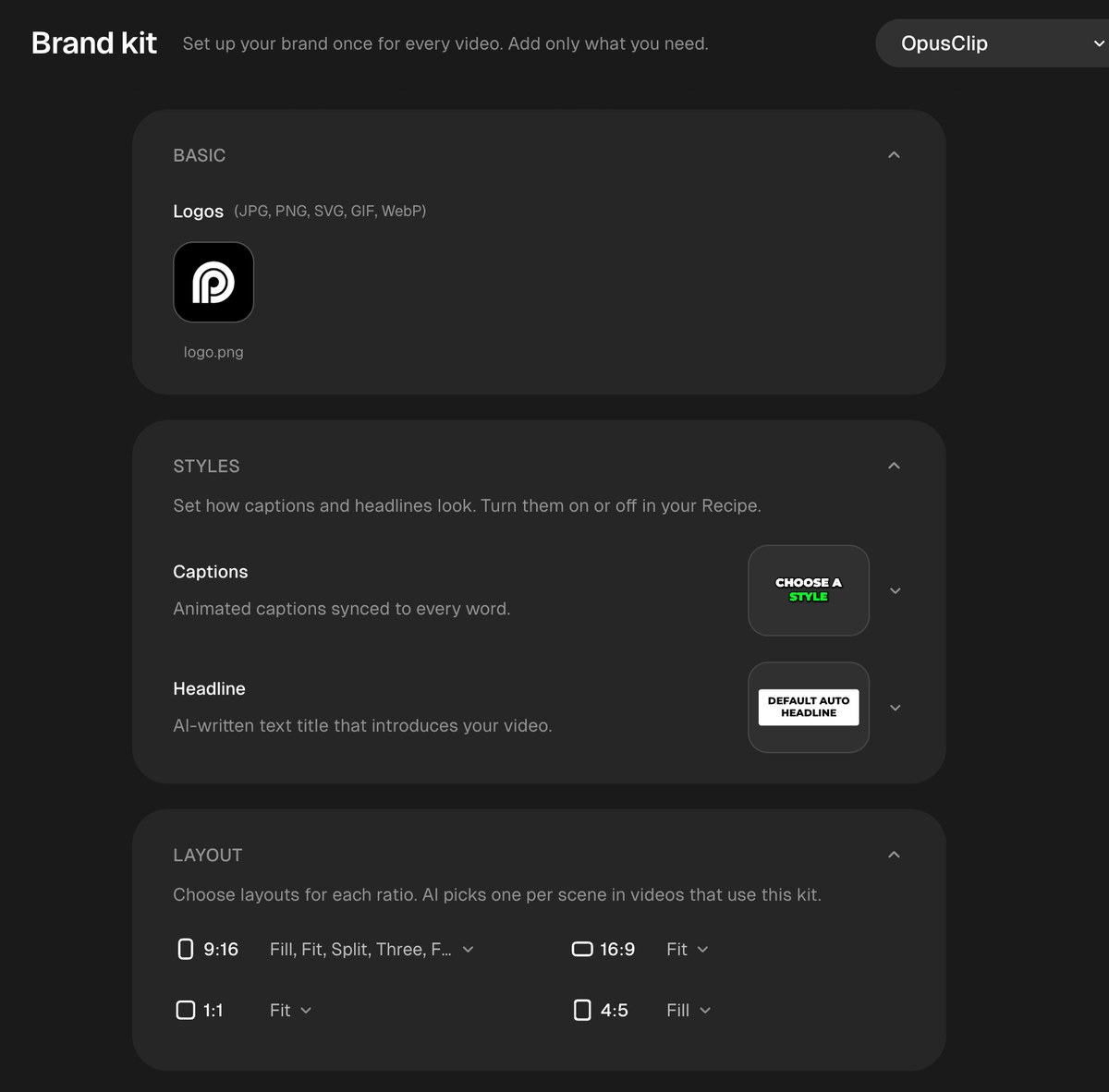
OpusClip's Brand kit settings. Source: OpusClip Help Center
OpusClip takes a long video, such as a webinar, podcast, customer interview or recorded demo, and returns short clips, each scored from 0 to 99 for hook, flow and trend. The marketing features sit around that clip. Per the help center, a Brand Kit saves a logo, caption style, headline style, layout, intro, outro and music, and one kit covers 9:16, 16:9, 1:1 and 4:5, with the size and position of elements adjustable for each ratio and a preview that can show safe zones. A kit can be applied when a project is submitted or from the Brand Kit section of the editor, and the pricing page lists animated captions in 20+ languages, AI reframe and a text and timeline editor on paid plans.
For publishing, the help center's social account FAQ says Starter posts in real time to YouTube, TikTok and Instagram, and Pro adds a scheduler for YouTube, TikTok Feed, Instagram Reels, Facebook Page, LinkedIn, X (beta), Pinterest, Threads and Bluesky, with up to 6 connected social accounts. A team workspace shares credits, videos and brand templates within a team, and Pro can export projects to Premiere Pro and DaVinci Resolve for further editing. To try the clipping step on its own, see our long video to short video tool.
Pricing: OpusClip's pricing page lists Free at $0 (a watermark, no editing, and clips stop being exportable after 3 days), Starter at $15 a month (monthly billing only; auto-post to YouTube Shorts, TikTok and Instagram Reels) and Pro at $29 a month, or $14.50 a month billed annually ($174 a year), with the social media scheduler, custom fonts and export to Premiere Pro and DaVinci Resolve. Business is custom.
Considerations: OpusClip starts from video that already exists: it is not built for designing static graphics or generating ads from a blank page, and it does not replace a full non-linear editor. The team workspace documentation says chat and notes are not supported, and a project is shared for review by switching it to Public and copying the link, so formal approvals happen outside the tool. Bulk scheduling is YouTube only, per the help center.
- Choose it if the raw material is recorded video and the job is a steady flow of branded, captioned, channel-sized clips with publishing built in.
- Skip it if a documented approval step, static graphics or ad-format templates are the main need.
2. Adobe Express: Best for designed ads and scheduled social posts
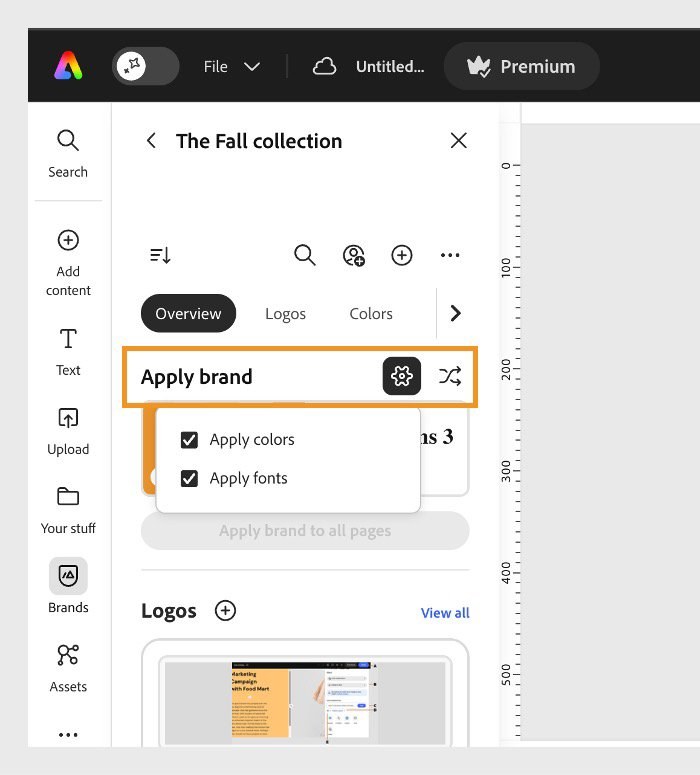
Applying a brand in Adobe Express. Source: Adobe Help Center
Adobe Express is Adobe's browser and mobile editor for social posts, ads and video. Its pricing page lists 100,000+ static and video templates on Free, a Content Scheduler, and, among the Premium features, one-click Resize that automatically resizes assets for multiple channels and Brand Kits that keep colors, fonts, logos and graphics in one kit. The comparison table on the same page also lists Safe Zones (format-aware guides that keep text, visuals and logos visible), Translate for text in 45+ languages, Caption Video, a Clip Maker that turns video podcasts, educational videos and product reviews into social clips with captions, real-time co-editing and commenting, and publishing paid ads directly.
The Content Scheduler page says Free can connect TikTok, Instagram, Facebook, X, Pinterest and LinkedIn, and the pricing page lists 1 account per social network on Free and 3 on Premium. Adobe's help center describes a free Metricool add-on for tracking impressions, interactions and top-performing content across connected accounts and for exporting branded reports as PDF or PowerPoint.
Pricing: Adobe Express's pricing page lists Free at US$0.00 (video up to 30 minutes, 5GB of storage) and Premium at US$9.99 a month, billed monthly with no annual commitment and a 30-day free trial (video up to 2 hours, 100GB of storage). Adobe Firefly Pro is US$19.99 a month.
Considerations: The comparison table's plan marks did not come through in the text we read, so which tier includes each row, such as publishing paid ads directly, is not confirmed here. The page's plan cards and comparison table also give different template counts, so confirm figures at checkout. Brand Kits and one-click Resize are listed among the Premium features.
- Choose it if the team designs social video and ads from templates and wants resizing, brand kits, scheduling and analytics in one editor.
- Skip it if sign-off must happen in a documented approval step, which the pages we read describe only as real-time co-editing and commenting.
3. Adobe Premiere Pro: Best for finishing with client review and direct publishing
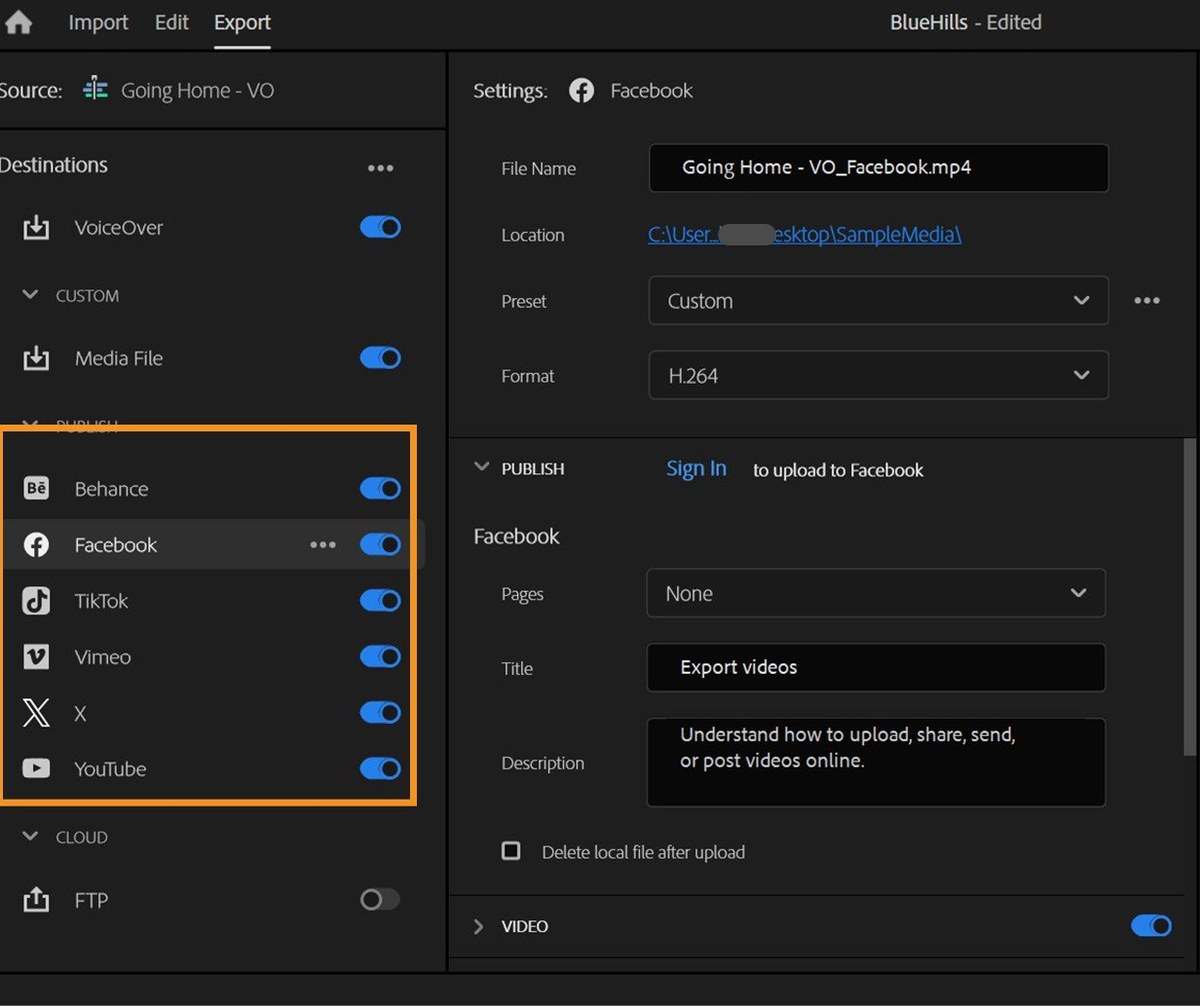
Premiere's Export panel with social publishing destinations. Source: Adobe Help Center
Premiere is Adobe's professional timeline editor, and its marketing features come from the Creative Cloud around it. The Premiere plan card lists Frame.io for Creative Cloud and 100GB of cloud storage, plus the Adobe Express Premium plan. Adobe's collaboration page says Frame.io for Creative Cloud is included with the subscription and offers centralized commenting and organized feedback, and that Creative Cloud Libraries let a team work with logos, graphics, colors and more across Creative Cloud apps. Adobe's help page says Auto Reframe automatically adjusts a video's aspect ratio and framing for different platforms, creating a duplicate sequence at the new ratio with Slower Motion, Default or Faster Motion tracking.
For titles and captions, Adobe lists Motion Graphics Templates, says graphics can be designed to adapt responsively to changes in the aspect ratio, and says captions can be generated in 18 languages with caption translation and saved as style presets. For publishing, Adobe's help page says the Export panel has a Publish section that posts directly to Facebook, TikTok, YouTube and more from one interface after signing in to each account.
Pricing: Adobe's Premiere page lists the Premiere single app plan at US$22.99 a month on an annual plan billed monthly, and says the price is for the first year only and for new subscribers only, with a free trial, and Creative Cloud Pro at US$69.99 a month (US$34.99 a month for the first three months for new subscribers). The collaboration page lists a Business plan at US$99.99 a month per license. No free plan is listed on the pages we read.
Considerations: Premiere is a full timeline editor, so every marketing step above is set up by an editor rather than automated from a recording. The pages we read list no scheduler: publishing is an export-and-post step from the Export panel.
- Choose it if finished brand films, client review rounds and Creative Cloud assets matter more than speed.
- Skip it if the goal is a high volume of short clips from recordings without working on a timeline.
4. Canva: Best for brand kits with approvals and a social scheduler
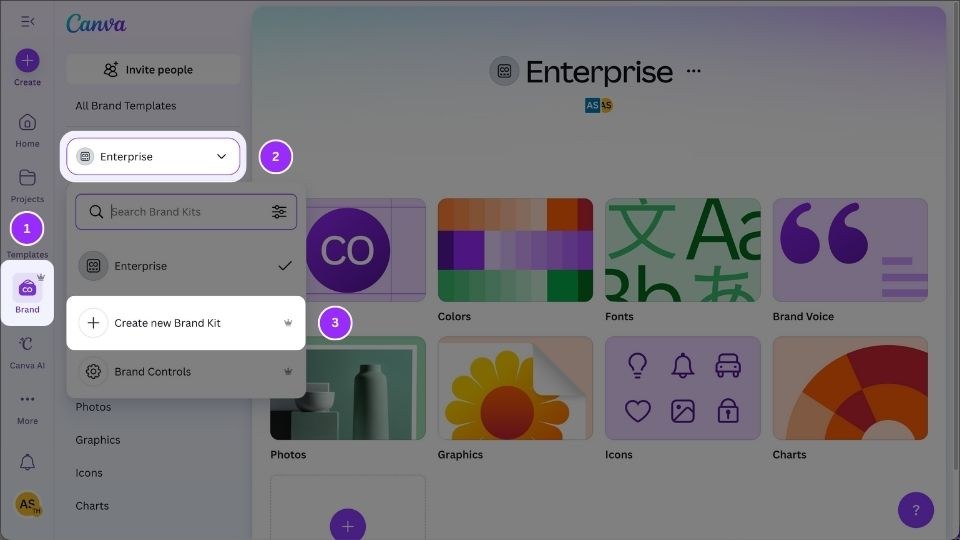
Canva's Brand Kit page with a menu to create a new Brand Kit. Source: Canva Help Center
Canva is a design suite with a video editor attached. Its video editor page lists a multi-layered timeline, trending Hook templates, one-click captions, a Highlights tool that surfaces the best bits of footage, and a resize option for sharing a video everywhere and building multi-channel campaigns. Canva's brand management page describes a Brand Kit as logos, colors, fonts, imagery and guidelines in one place, plus Brand Templates, and says admins can lock the elements that cannot change and assign Approvers.
The pricing page lists 1 Brand Kit (3 colors only) on Free, 5 Brand Kits on Pro and 100 Brand Kits with approvals on Business, and Pro and Business both list creating ads with AI and creative insights plus social scheduling. The Business page adds that teams can get approvals and publish directly from the platform, and lists a built-in content publishing workflow, a social media calendar and advanced insights.
Pricing: Canva's pricing page lists Free at US$0, Pro at US$144 a year for one person and Business at US$250 a year per person, with free trials of Pro and Business. Prices on the page are shown per year.
Considerations: Approvals and 100 Brand Kits start on Business, and the brand features on Free are limited to one kit with 3 colors. Pro and Business pricing is per person, so a larger team multiplies the yearly price.
- Choose it if one tool should cover graphics, templates, video and approvals, with a scheduler included.
- Skip it if the main job is cutting scored clips out of hours of recordings.
5. Kapwing: Best for team review and video ads in a browser
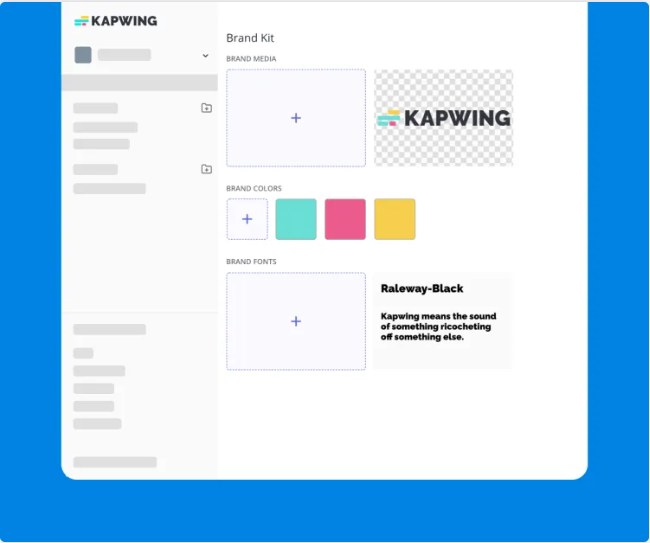
Kapwing's Brand Kit as shown on its teams page. Source: Kapwing website
Kapwing is a browser editor built for teams. Its teams page says feedback comes as time-stamped comments to review, approve and share, that its Brand Kit stores logos, colors, fonts, templates and subtitle styles, and that several people can edit the same project at once. Its marketing page lists video ads for Facebook, Instagram, TikTok, YouTube and Pinterest, podcast and webinar clips, and LinkedIn clips. The video ad maker page lists 1:1 and 16:9 ads for Facebook, 9:16 ads for TikTok with Safe Zones to preview how an ad will look in the app, 16:9 YouTube pre-roll, and export in 16:9, 1:1, 9:16 and more.
For resizing, Kapwing's resizer stores presets for TikTok, Instagram and YouTube, lets a team save custom ratios to a workspace, and can share directly to social media without leaving the browser. Its Clip Generator turns a pasted URL or an upload into short clips with 9:16 framing and animated subtitles.
Pricing: Kapwing's pricing page, on its default annual view, lists Free at $0, Pro at $16 a month (Brand Kit and custom fonts, a collaborative shared workspace, 4K export, no Kapwing watermark) and Business at $50 (custom voice clones and lip sync). Free exports carry a watermark, run up to 4 minutes and are 720p.
Considerations: Brand Kit and the shared workspace start on Pro, and the Free plan's watermark and 4-minute export cap make it a trial rather than a plan for client work. The prices shown are the annual view, which the page says saves 33%.
- Choose it if a team wants browser editing with time-stamped review, a Brand Kit and ad formats.
- Skip it if free, unwatermarked exports are required or the work happens offline.
6. VEED: Best for AI-led ad variants and branded browser editing
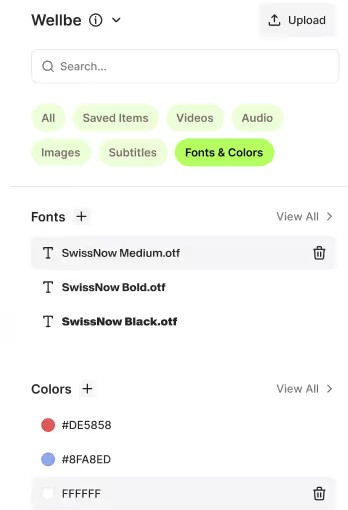
VEED's Brand Kit fonts and colors panel. Source: VEED website
VEED is a browser editor with AI generation. Its brand kit page describes applying a brand's logos, custom fonts and color palettes to every project, storing images, audio and video files, and managing multiple brands with dedicated kits. The pricing page lists Multiple Brand Kits on Pro, Custom Templates on Studio and Review mode for videos on Enterprise, and the Enterprise page lists Shared Workspaces, Review Mode and Comments and Feedback.
For ads, VEED's AI UGC page says it generates testimonials, product demos and social ads with AI avatars, and that the generated video opens in the editor to add a logo, text overlays, product footage and CTAs. The resizer lists preset sizes for YouTube (16:9), Instagram Story (9:16), TikTok (9:16), Facebook Cover, LinkedIn and square (1:1), and the editor page says finished video can be downloaded, shared by link or embedded on a website.
Pricing: VEED's pricing page, read November 5, lists Creator at $12, Pro at $22 and Studio at $39 per user a month billed yearly. Its editor page cites plans from $9 a month billed yearly and $19 a month billed monthly, and says free exports include a watermark and are 720p, so confirm the price at checkout.
Considerations: Review Mode is listed under Enterprise and Multiple Brand Kits under Pro, so a small team on a lower tier may not get the review step. VEED's own pages show different entry prices, and the pages we read describe downloading, sharing a link or embedding rather than scheduling posts.
- Choose it if the team wants browser editing, brand kits and AI-generated ad variants that open in an editor.
- Skip it if sign-off inside the editor is needed below the Enterprise tier, or posts must be scheduled from the editor.
7. Camtasia: Best for product demos and screen-led marketing videos
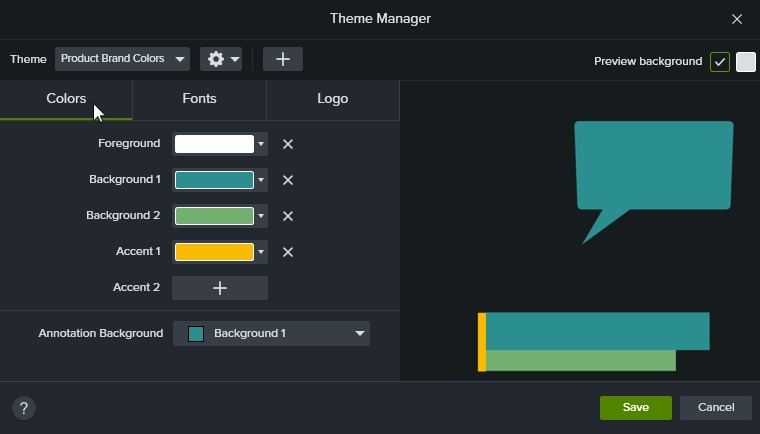
Camtasia's Theme Manager, Colors tab. Source: TechSmith Camtasia tutorials
Camtasia is TechSmith's desktop editor for screen recordings, and its software marketing page pitches it for feature overviews and in-depth product demos. Its features page lists customizable titles, templates and themes where a logo, text and colors can be added, shareable brand elements (custom themes, templates, favorites and presets), dynamic social-media-style captions in dozens of languages and dialects, and comments and reviews by uploading videos to Screencast. The pricing page says every plan includes up to 25 privately hosted videos on Screencast with timestamped comments and reactions.
On the plans, Essentials lists text-based video editing, automatic filler word removal and unlimited caption generation, Create adds AI voiceover generation, and Pro adds avatar generation, customizable brand assets and unlimited shared videos.
Pricing: TechSmith's pricing page lists Starter at $39 a year, Essentials at $179.88 a year, Create at $249 a year and Pro at $599 a year, all billed yearly. Camtasia's page says the full editor can be downloaded for free, with exported videos carrying a watermark until a paid plan or a business license is added.
Considerations: Camtasia is a desktop application aimed at screen-led video, and the pages we read list no scheduler, no direct publishing to social networks and no aspect-ratio resizing for channels, so those steps happen elsewhere. Customizable brand assets are listed on the Pro plan.
- Choose it if the marketing work is product demos, tutorials and explainers recorded from a screen, with themes and Screencast review.
- Skip it if the job is high-volume social clips, channel resizing or scheduling.
How we compared these tools
We compared each editor on the marketing steps listed above: saving a brand, captions, resizing for channels, review and approval, publishing or scheduling, ad formats and measurement. For each step we looked for what the vendor itself documents, then at price, free-plan limits and the main limitation. OpusClip ranks first because, for video that starts as a recording, its documented features cover the brand, captions, reframing and publishing steps in one account; the rest are ordered by how many marketing steps each vendor documents and how clearly it states the plan that includes them.
All facts come from each vendor's own pricing page, product pages and help center, read on November 5, 2026. Where a page loads its figures with a script we read the rendered page, and where two pages from the same vendor disagree (VEED's entry prices, Adobe Express's template counts) we say so. We did not run hands-on tests of any competitor, and documented features say nothing about how well a feature works. We left out CapCut, Clipchamp and Descript because our brand templates roundup already covers them. Prices change, so confirm on the vendor's page before buying.
Red flags to watch for
- Brand and approval features on higher tiers. Canva Free lists 1 Brand Kit with 3 colors and approvals on Business; VEED lists multiple Brand Kits on Pro, custom templates on Studio and Review mode on Enterprise; Kapwing lists Brand Kit on Pro; Camtasia lists customizable brand assets on Pro.
- Watermarks and caps on free plans. OpusClip Free adds a watermark and has no editing, Kapwing Free adds a watermark and caps exports at 4 minutes and 720p, VEED's editor page says free exports include a watermark, and Camtasia's free download watermarks exports.
- Scheduler caps. Adobe Express Free connects 1 account per social network and Premium 3, OpusClip Pro lists up to 6 connected social accounts, and OpusClip bulk scheduling is YouTube only.
- Review that happens outside the editor. OpusClip's team workspace has no chat or notes and shares projects by link, and the Adobe Express text we read lists co-editing and commenting without a documented approval step.
- Prices that differ by page or view. VEED's pricing and editor pages list different entry prices, Kapwing's page opens on an annual view, and Canva lists yearly prices.
- Per-person pricing. Canva Business, VEED and Premiere's Business plan multiply by seats or licenses.
- No manual override. A tool that picks clips, crops or avatars with no way to edit the result leaves no fix for a bad cut, a wrong caption or an off-brand frame.
Frequently asked questions
Which video editing software offers the best marketing features?
It depends on which marketing step comes first. For recorded video that has to become on-brand clips on a schedule, OpusClip fits best in our ranking: a Brand Kit, animated captions, reframing and a Pro scheduler. In our reading, Adobe Express lists the widest set for designed social video (Brand Kits, Resize, a Content Scheduler and a Metricool analytics add-on), Premiere adds Frame.io review, and Canva adds approvals on Business. See OpusClip pricing.
What is the best video editing software for marketing?
No single editor wins every step. OpusClip is first for video that starts as a recording, Adobe Express for design-led social video and ads, Premiere Pro for finishing with client review, Kapwing for team review and ad formats in a browser, and Camtasia for product demos. Match the editor to the step that costs the most time.
What is the best video editor for marketing teams?
Team features differ by tool. OpusClip's team workspace shares credits, videos and brand templates, and Pro lists 2 seats per pack, up to 4. Canva Business lists 100 Brand Kits and approvals, Kapwing lists a shared workspace with time-stamped comments, VEED lists Shared Workspaces and Review Mode on Enterprise, and Premiere includes Frame.io for Creative Cloud. See OpusClip's team workspace help.
Which video editor is best for making video ads?
Kapwing's video ad maker lists formats for Facebook, TikTok, YouTube pre-roll, Reels and Pinterest, and VEED lists ad templates and AI UGC ads with avatars. Canva lists creating ads with AI on its plans, and Adobe Express lists publishing paid ads directly. OpusClip's pages describe clips cut from existing video rather than ad formats.
Can a video editor post or schedule to social media?
Several can. OpusClip posts from Starter and schedules on Pro to nine networks, Adobe Express has a Content Scheduler, Canva lists social scheduling on Pro and Business, Premiere's Export panel posts directly to Facebook, TikTok, YouTube and more, and Kapwing can share directly to social media. See the OpusClip social account FAQ for the network list.
Which video editors have a review and approval workflow?
Premiere includes Frame.io for Creative Cloud for centralized commenting, Canva lists approvals on Business, Kapwing lists time-stamped comments, VEED lists Review Mode under Enterprise and Camtasia uploads to Screencast for comments. OpusClip shares a project by link, and its team workspace has no chat or notes.
How do I keep videos on brand across a team?
Save the brand once and apply it to every project. In OpusClip, a Brand Kit stores a logo, caption style, headline style, layout, intro, outro and music for four aspect ratios, as the help center explains. Adobe Express, Canva, VEED and Kapwing save logos, colors and fonts, and Camtasia saves themes and templates.
What is the best free video editing software for marketing?
Free offers differ. Adobe Express Free includes scheduling to 1 account per social network, Canva Free has 1 Brand Kit with 3 colors, Kapwing Free adds a watermark and caps exports at 4 minutes and 720p, VEED says free exports include a watermark, Camtasia's free download watermarks exports, and OpusClip Free adds a watermark and has no editing. Premiere lists a free trial rather than a free plan.