No items found.
9 Best Video Tools for B2B SaaS Marketers in 2026

OpusClip is the pick for a B2B SaaS marketing team that already has video, such as webinars, demo walkthroughs, customer calls and founder talks, and wants it cut into captioned vertical clips: its product demo and testimonial video maker pages describe the demo-recording and customer-call versions of that job. Generated explainer videos are a different job, handled by Agent Opus, a separate OpusClip product. Goldcast, Livestorm and Reap also clip recordings, Supademo, Arcade, Screen Studio and Loom make the demo, and Vidyard hosts it. Items 2 to 9 follow the order of that workflow. Facts are from vendor pages read on November 25, 2026.
Key takeaways
- Best for clips from the webinars, demo recordings and customer calls a SaaS team already has: OpusClip. Its product demo page puts the screen on top and the speaker below.
- Best for webinars and events with clips and posts made in the same B2B platform: Goldcast. Its Content Lab lists clips, social posts, blog posts and emails.
- Best for clipping webinar replays inside the webinar platform: Livestorm. Its AI Studio add-on makes auto-titled, captioned clips.
- Best for turning a webinar, demo or customer story into scheduled clips: Reap. Its marketers page maps each recording to the clips it yields.
- Best for click-through demos and polished recordings of the real interface: Supademo. One recording can become a video or a click-through demo.
- Best for launch and feature videos built from a capture of the product: Arcade. Its AI Video starts from the product and the brand kit.
- Best for polished product demo recordings on a Mac: Screen Studio. Its page lists automatic zooms and masks for private data.
- Best for quick screen and camera walkthroughs shared by link: Loom. Its Starter plan is $0 with 25 videos and 5 minute screen recordings.
- Best for hosting demos and customer stories with CTAs and viewer analytics: Vidyard. Its SaaS page lists demos, tours and customer stories hosted on every page.
What counts as a video tool for a B2B SaaS marketer
A B2B SaaS marketing team's video work splits three ways. Clips from video the team already has: webinars, demo walkthroughs, customer calls and founder talks, cut into short captioned posts for LinkedIn and YouTube. Demos: a recording of the real product, or a click-through version of it. Hosting and measuring: where the finished videos live and who watches them. Few tools do more than one.
Generated explainer videos are a different job from all three. Agent Opus, a separate OpusClip product, builds a video from a written description, and its SaaS product video maker and SaaS explainer video maker pages describe turning a product brief, script or feature list into a video with AI motion graphics, a voiceover and brand assets. Its help center FAQ says it builds a scene from a description rather than recording one, and that an uploaded image such as an app screenshot is redrawn in the chosen style, so text and fine details need a check. A demo of the real interface is a recording, which the tools below handle. For an avatar-led explainer, see our guide to AI spokesperson and avatar video tools; OpusClip's AI product video generator page describes editing product footage that already exists.
For the strategy, see short-form content strategy for B2B; for more clip tools, turning webinars into short clips; for more recorders, browser-based screen recorders.
How to choose
- The recordings already exist (webinars, demo walkthroughs, customer calls): OpusClip for captioned vertical clips from any of them, Reap for clips driven by a campaign brief, or Goldcast and Livestorm if the webinar platform should do the clipping.
- The product has to be shown: Screen Studio on a Mac or Loom on any computer to record it, Supademo to let visitors click through it, or Arcade to build a produced video from a capture.
- The finished videos need a home with CTAs and CRM data: Vidyard hosts them and syncs engagement data to the CRM.
- The video does not need to show the real product: a generated explainer from Agent Opus may fit.
- The clips are headed to LinkedIn: see our guide to LinkedIn video length and format.
- The budget is zero: compare the free entries in At a glance, because each vendor counts its free allowance in a different unit.
At a glance
- OpusClip: best for clips from webinars, demo recordings and customer calls; Starter $15 a month (monthly billing only), Pro $29 a month or $14.50 a month billed annually; free plan yes ($0 with a watermark).
- Goldcast: best for webinars and events with clips and posts made in the same B2B platform; the pricing page prints no prices; Content Lab pages say repurposing is free.
- Livestorm: best for clipping webinar replays inside the webinar platform; Pro is sold as attendee credits ($3.00 an attendee at 400 credits on the pricing page), AI Studio is an add-on at €2,000 a year billed annually; free trial yes.
- Reap: best for turning a webinar, demo or customer story into scheduled clips; Creator $9.99 a month billed annually ($16.99 billed monthly); free plan yes (1 hour of AI clipping a month, watermarked, 720p).
- Supademo: best for click-through demos and polished recordings of the real interface; Scale $38 a month per creator with the pricing page's Yearly billing option on; free plan yes (1 creator, 5 guided demos, 50 video recordings).
- Arcade: best for launch and feature videos built from a capture of the product; Pro $59 a month billed annually; free plan yes (250 credits one time, videos up to 30s, 1080p exports).
- Screen Studio: best for polished product demo recordings on a Mac; $9 a month billed yearly or $29 a month billed monthly; no free plan.
- Loom: best for quick screen and camera walkthroughs shared by link; Business $18 per user a month on the pricing page's default monthly view; free plan yes (Starter $0: 25 videos, 5 minute screen recordings).
- Vidyard: best for hosting demos and customer stories with CTAs and viewer analytics; Starter is priced per seat on annual billing (see the pricing page, which showed a discount); free plan yes ($0: 5 recordings a month and 15 AI videos, no hosting).
How each tool fits a SaaS marketer's video jobs
The At a glance list covers best-for and the first paid price; this table compares the job each tool does for a SaaS team, what goes in, what comes out, and the free access, as listed on each vendor's own pages on November 25, 2026.
| Tool | Job for a SaaS team | What goes in | What comes out | Free access as printed |
|---|---|---|---|---|
| OpusClip | Clips from webinars, demo recordings and customer calls | A Zoom or Zoom Clips link, a Loom walkthrough or an uploaded recording | Captioned vertical clips, screen on top and speaker below; export or schedule | Free: $0 with a watermark |
| Goldcast | B2B webinars and events, plus Content Lab clips and posts from the recordings | A long-form video: webinars, podcasts or interviews | Clips, social posts, blog posts and follow-up emails | Content Lab pages say repurposing is free; see the pricing page |
| Livestorm | Webinars for marketing teams, with an AI Studio add-on that clips replays | Webinars run in Livestorm, live or as a replay | Auto-titled, captioned clips you can restyle and share to your channels | A free trial; AI Studio is a paid add-on at EUR 2,000 a year |
| Reap | Clips from a webinar, demo, interview or customer story | An uploaded recording or a pasted YouTube, Vimeo or X link | Branded, captioned clips in set aspect ratios; export or schedule | Free: 1 hour a month of AI clipping, watermarked, 720p |
| Supademo | Interactive demos and polished screen recordings of your real interface | A tab, window or full-screen recording from the Chrome extension | A shareable or embedded video, or a click-through demo | Free for 1 creator: 5 guided demos and 50 video recordings |
| Arcade | Launch, how-to and product videos built from a capture of your product | A prompt, your captures and brand kit, or docs from connected apps | An editable video you can post to social channels | Free: 250 credits one time, videos up to 30s, 1080p |
| Screen Studio | Polished product demo recordings on a Mac, with automatic zooms | A Mac screen, camera and mic recording, or an iPhone or iPad over USB | A share link, an MP4 up to 4K or a GIF, in wide, square or vertical | No free plan; $9 a month billed yearly, $29 billed monthly |
| Loom | Quick screen and camera recordings for walkthroughs and feedback | A screen and camera recording from the Chrome extension or an app | A shareable or embeddable video with transcripts and captions | Starter $0: 25 videos, 5 minute screen recordings |
| Vidyard | Hosting demos, product tours and customer stories, with CTAs and analytics | Videos you upload, organize and publish | A hosted video with CTAs and engagement data synced to your CRM | Free $0: 5 videos a month, 15 AI videos, no hosting |
1. OpusClip: Best for clips from the webinars, demo recordings and customer calls a SaaS team already has
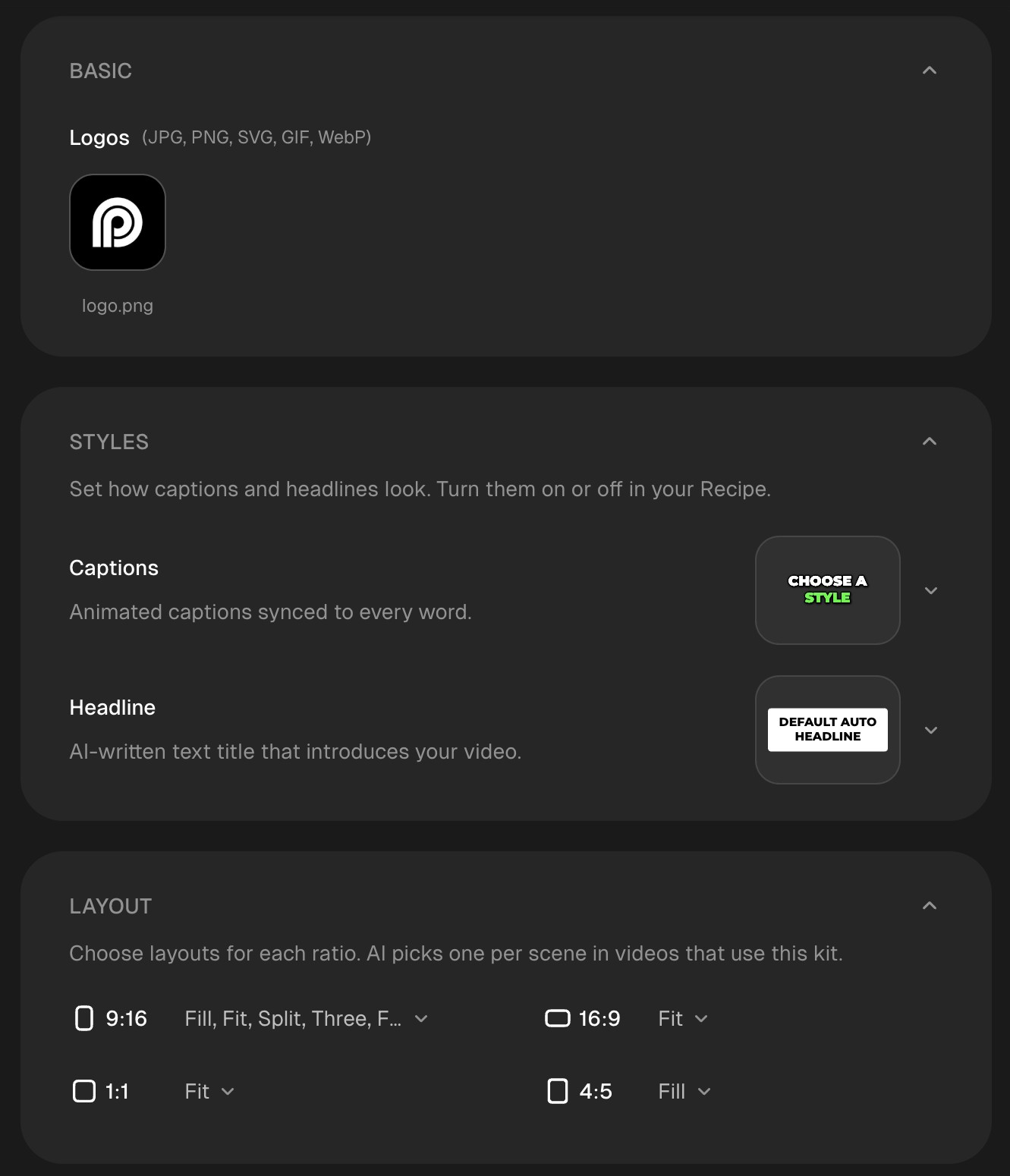
OpusClip's Brand kit page, cropped to the Logos, Styles and Layout panels. Source: OpusClip help center
OpusClip's product demo video maker page says it turns a walkthrough that is already recorded into a product demo video, with a Screenshare layout that places the screen on the top half of the frame and the speaker on the bottom half, so a Loom or Zoom recording becomes a vertical demo. The testimonial video maker page covers the customer call: import the recording, describe the moment, and ClipAnything returns it, identifying which speaker is talking so the clip carries the customer.
For webinars, the Zoom recording page says OpusClip transcribes the call, finds the moments and cuts them into vertical clips, and the highlight video maker page says ClipAnything takes a typed prompt such as "Give me the best Q&A moments". For product names in captions, the help center's Brand Vocabulary article describes correcting a term once so new clips transcribe it correctly.
The help center's Brand Kit article says a Brand Kit sets how captions and headlines look and which layouts are used, and its scheduling article says clips can be scheduled and posted from the results page. Chili Piper, which OpusClip's marketing page calls a lead conversion app, describes the job in its customer story: a library of product videos, customer case studies, video podcasts and interviews, and faster clip selection as the gain.
Pricing: OpusClip's pricing page lists Free at $0 (with a watermark), Starter at $15 a month (monthly billing only) and Pro at $29 a month, or $14.50 a month billed annually. Business is custom. Each plan lists its credits on the pricing page.
Considerations: OpusClip's product demo page starts from a walkthrough that is already recorded, so the recorders and demo tools below cover capturing the screen. The help center introduction describes the in-app editor as the place for minor tweaks to clips the AI has found, so a produced demo video built from scratch is a different job.
- Choose it if a webinar, demo walkthrough or customer call recording already exists and should become short captioned vertical clips.
- Skip it if the video has to be recorded or generated first, or a prospect should click through the product on a page, which the demo tools below cover.
2. Goldcast: Best for webinars and events with clips and posts made in the same B2B platform
Goldcast's home page says it empowers B2B marketing teams to produce, repurpose and distribute video content. It lists digital events and webinars, a Recording Studio for podcasts and customer testimonials, and a Content Lab that turns long-form video into branded clips and posts with AI agents.
Its content repurposing page lists automatic clip generation that detects webinar, event and podcast highlights, transcript-based editing for removing pauses and filler words, a subtitle generator and audiograms. The steps are to upload a long-form video, let the AI pick the most engaging moments or cut clips by hand from the full transcript, then generate content for the channels to grow: social clips, blog posts and follow-up emails.
Pricing: Goldcast's Content Lab pages say repurposing is free, and its pricing page lists Content Lab, HD recordings and digital events without prices, with a demo request for the recording studio and event products.
Considerations: Goldcast is an events and webinar platform for B2B marketing teams first. The pricing page prints no prices, and its repurposing page has an FAQ on processing hours whose answers did not show in the text read, so check the free limits.
- Choose it if the team runs webinars and events and wants clips, social posts and follow-up emails made from the recordings in one B2B platform.
- Skip it if a published price is needed before talking to sales about the event products.
3. Livestorm: Best for clipping webinar replays inside the webinar platform
Livestorm's home page describes webinar software for marketing teams, and its AI Studio page calls AI Studio webinar clipping built into the platform: it finds the moments worth sharing in replays and turns them into clips. Features are AI highlight detection (Q&A spikes, engagement jumps, speaker handoffs and topic shifts), auto-titled, captioned clips, and multi-channel publishing.
The FAQ says a clip can be edited before sharing: the aspect ratio can change for each channel, captions can be edited or restyled, and basic tweaks are available, with more editing options marked as coming soon.
Pricing: Livestorm's pricing page sells Pro as attendee credits (one credit per unique participant per session over 12 months; it showed $3.00 an attendee at 400 credits) with a free trial. The AI Studio FAQ says AI Studio is an add-on for Pro and Enterprise plans at €2,000 per year, billed annually, with unlimited use.
Considerations: AI Studio clips webinars run in Livestorm: its page says there are no exports and no re-uploading. The same FAQ also says a private beta starts in July with waitlist users and the most active accounts going first, so confirm access with Livestorm.
- Choose it if webinars already run in Livestorm and the replays should become captioned clips as soon as a session ends.
- Skip it if webinars run in another platform, or a yearly add-on fee is out of scale for a few webinars.
4. Reap: Best for turning a webinar, demo or customer story into scheduled clips
Reap's marketers page says to upload a webinar, demo, interview or customer story and it returns branded, captioned clips sized for each channel, ready to edit and schedule. A table on the page maps a webinar, a product demo and a customer interview to the clips each can yield, with consent to publish for customer stories.
The steps are to upload the recording or paste a YouTube, Vimeo or X link, prompt for the campaign brief (on paid plans), review the clips, trim from the transcript, then schedule or export. The page also says Reap does not decide what the campaign says and points to hosting platforms for video hosting, viewer analytics and CRM integration.
Pricing: Reap's pricing page lists a Free plan at $0 with up to 1 hour a month of AI clipping, 720p exports, both marked watermarked, and projects that expire in 7 days. Creator is $9.99 a month billed annually ($119.88 billed annually) or $16.99 billed monthly, with up to 10 hours a month of AI clipping and 1080p exports listed as watermark-free.
Considerations: Reap's marketers page says captions, translation and dubbing are paid-plan capabilities, while its pricing page lists AI captions with a watermark on Free, so check the plan card for the feature needed.
- Choose it if recorded webinars, demos and customer interviews should become channel-sized clips, with a prompt that describes the campaign.
- Skip it if watermark-free exports are needed on a free plan, or the video has to be hosted with analytics.
5. Supademo: Best for click-through demos and polished recordings of the real interface
Supademo's product marketers page says it captures the real interface and embeds it on the homepage, a launch post or a feature page, so visitors click through the product themselves, and that viewer data lands in HubSpot, Salesforce, Marketo and Google Analytics. Its home page lists guided interactive demos, sandbox demos and videos recorded in up to 4K.
The screen recorder page describes a free Chrome extension for Windows or Mac that records a tab, a window or the whole screen, after which AI Video Studio adds zooms on clicks, a transcript with suggested cuts for fillers, retakes and long pauses, and a branded background. The result can be shared as a link, embedded, downloaded as an MP4, or turned into a click-through demo by AI Command, which the page lists as included on Scale and above.
Pricing: Supademo's pricing page lists Free as $0 forever for 1 creator, with 5 guided interactive demos and 50 video recordings (4K). Scale is $38 a month per creator with the page's Yearly billing option on. The recorder page says recordings run up to 10 minutes on Free and 30 on paid plans.
Considerations: An interactive demo lets visitors explore the interface, a different deliverable from clips cut from a webinar. Pricing is per creator, and HTML and sandbox demos sit on higher plans.
- Choose it if buyers should click through the real interface on a page, and the same recording may also be shared as a polished video.
- Skip it if the main job is short social clips from long recordings.
6. Arcade: Best for launch and feature videos built from a capture of the product
Arcade's home page describes an AI video generator for marketing teams that starts with the actual product and brand. Its extension captures the product's context alongside the screen and camera, and the page says Arcade turns that into a video with smart zooms and cursor movements, with any scene, line or sound editable by asking AI or by hand.
Arcade's knowledge base says AI Video turns a prompt, the team's Arcade demos and a brand kit into an on-brand teaser, sizzle reel or product overview, and the home page adds that connected apps such as Notion, Figma and Linear can feed it docs, designs and tickets. Interactive demos are a separate product with their own plans.
Pricing: Arcade's pricing page lists Free at $0 a month with 250 credits one time, videos up to 30s, 1080p exports, 1 Brand Kit and 1 seat. Pro is $59 a month billed annually with 1,000 credits a month, videos up to 5min, 4K exports with no watermark and 10 seats. Its FAQ says credits are used whenever the AI works on a video.
Considerations: Arcade builds the video with AI from a capture, so each scene needs checking against the real product before it ships. Free lists credits given once, so check them against the videos planned.
- Choose it if a launch or feature video should be built from a capture of the product and the brand kit, then refined by chat or on the timeline.
- Skip it if the need is a plain recording of a screen, or a free plan that renews each month.
7. Screen Studio: Best for polished product demo recordings on a Mac
Screen Studio's home page calls it the screen recorder for Mac that handles zooms, motion, sound and framing, and says people use it for product demos, courses, tutorials and walkthroughs. It lists automatic zooms based on where clicks happen, screen and camera layouts that change within one recording, and a switch between wide, square and vertical output from the same take.
Editing works from the transcript: delete a sentence to cut it, and filler words and long pauses can be cleared in one pass. The page lists noise reduction run locally on the Mac, captions in a range of styles, brand backgrounds saved as presets a team can share, and masks that cover an API key or an email address after recording. An iPhone or iPad can be recorded over USB. Sharing is a link, an MP4 up to 4K, a GIF or the whole project.
Pricing: Screen Studio's pricing page says personal plans are $9 a month billed yearly or $29 a month billed monthly, with every feature in every plan, and its FAQ answers that it is not free.
Considerations: Screen Studio is a Mac application (the home page recommends macOS 13.1 or later), so a team on Windows needs another recorder. It records and polishes a demo rather than finding clips in a long webinar.
- Choose it if product demos are recorded on a Mac and should look polished, with automatic zoom, captions and a shareable link or a 4K export.
- Skip it if the team records on Windows, or a free plan is required.
8. Loom: Best for quick screen and camera walkthroughs shared by link
Loom's home page describes recording the screen and camera with its Chrome extension, desktop app or mobile app, an editor that trims and stitches clips, and sharing or embedding the video, with transcripts and captions in 50+ languages. Its marketing page is written for campaign teams: share creative as a walk-through, collect time-stamped comments and use the videos in paid-ad campaigns, emails and social channels.
The marketing page also lists AI features such as edit by transcript, filler word removal and AI recaps of campaign syncs.
Pricing: Loom's pricing page lists Starter at $0 with 25 videos and 5 minute screen recordings. Business is $18 per user a month in the page's default monthly view (its annual view prices by team-size tier), and Business + AI is $24.
Considerations: Loom's pages describe recording, sharing and collaboration more than finding clips in a long recording or building an interactive demo. Starter caps screen recordings at 5 minutes and 25 videos per person, so a team recording many demos needs a paid plan.
- Choose it if quick walkthroughs, feedback and customer messages should be recorded on any computer or phone and shared by link.
- Skip it if the video should be cut into clips from a long recording.
9. Vidyard: Best for hosting demos and customer stories with CTAs and viewer analytics
Vidyard's SaaS page is written for revenue teams: host demos, product tours and customer stories on every page, and add a CTA so buyers book time while they are still watching. Its hosting page lists folders and permissions, password protection, custom thumbnails, chapters, in-video CTAs and an ad-free player.
The analytics side is the point for marketing: individual and aggregate video analytics, and engagement data synced to a CRM and marketing automation platform so teams can trigger follow-up. Vidyard also lists video messages, AI avatars and a Video Agent add-on for personalized outreach, which are sales jobs.
Pricing: Vidyard's pricing page lists a Free plan at $0 that includes 15 AI videos. Its comparison table lists recording of 5 videos a month up to 30 minutes on Free and marks Video Hosting as Not Included there. Starter is priced per seat on annual billing, and the page was showing a discount, so see the pricing page for the figure. Teams and Enterprise are custom.
Considerations: Vidyard hosts and measures video more than it edits it, and its pages are aimed at sales and revenue teams. Hosting, the job this entry is for, is marked Not Included on the Free plan, so the free plan is for recording and trying the AI videos.
- Choose it if finished demos, product tours and customer stories should live on a hosted, branded page with CTAs and engagement data in the CRM.
- Skip it if the need is cutting clips from a recording or recording a demo, which the tools above cover, or a free plan must include hosting.
How we compared these tools
We compared each tool on four criteria: which of the three jobs its pages describe, what goes in, what comes out, and the free access the vendor prints. This guide is organised around the job in the title, the video a B2B SaaS marketing team already has or needs to record. OpusClip comes first because clips from webinars, demo recordings and customer calls are on its own product demo, testimonial and Zoom recording pages; its limits are in its entry. Items 2 to 9 follow one yardstick: the order of a SaaS team's video work, from clipping recordings already made (Goldcast, Livestorm, Reap), to making the demo (Supademo, Arcade, Screen Studio, Loom), to hosting it (Vidyard).
All facts come from each vendor's own pricing page, product pages and help center, read on November 25, 2026. Where a page loads its figures with a script we read the rendered page, and where a plan grid used icons, as Vidyard's does, we confirmed the cell in a screenshot or left the claim out. We did not run hands-on tests of any competitor, and this guide prints no accuracy or time-saving figure. We also read Storylane, Navattic, Guidde, Vizard and ON24 and left them out: Storylane and Navattic are interactive demo platforms and we kept one such entry, Guidde describes video documentation for onboarding and support, Vizard's pricing page was showing a sale banner and it already appears in our founder and content creator guides, and the ON24 home page text we read printed no clip or demo video function. Prices change, so confirm on the vendor's page before buying.
Red flags to watch for
- Free allowances in different units. Reap counts 1 hour of AI clipping a month, Supademo 5 guided demos, Arcade 250 credits one time and Loom 25 videos. OpusClip's Free plan is $0 with a watermark, and the pricing page lists its credits.
- Watermarks. OpusClip's Free plan and Reap's Free plan print a watermark on output. Arcade's pricing page lists 4K exports with no watermark on Pro.
- Customers and colleagues on camera. Reap's marketers page lists customer stories with consent to publish, and OpusClip's help center says uploads must be content the uploader has the right to use. Get a customer's written agreement before posting a clip of them.
- Private data in a demo. Screen Studio's page describes masking an API key or an email address after recording; every frame of a demo is worth checking for customer data before posting.
- A generated video is not a recording. Agent Opus's help center says it builds a scene from a description rather than recording one, so a demo that has to show the exact interface should be a recording.
- A clip without context. Reap's marketers page says it does not decide what the campaign says. Review every AI-picked clip so a claim is not cut from the sentence that qualifies it.
- Platform-bound clipping and pricing units. Livestorm's AI Studio clips webinars run in Livestorm, and its FAQ describes a private beta. Supademo bills per creator, Livestorm per attendee credit and Vidyard per seat, so the same team can price very differently across them.
Frequently asked questions
What are the best video tools for B2B SaaS marketers?
It depends on the job. For clips from webinars, demo recordings and customer calls, OpusClip is the pick in this guide, and Reap, Goldcast and Livestorm also clip recordings. For demos, Supademo, Screen Studio, Loom and Arcade each describe a way to show the product, and Vidyard hosts the finished videos. Generated explainers are a different job, covered by Agent Opus.
How do I turn a webinar into short clips for LinkedIn and YouTube?
Upload the recording or paste its link, let the tool find the moments, fix product names in the captions, reframe for vertical and schedule the clips. OpusClip's Zoom recording page and highlight video maker page describe that flow, and Goldcast and Livestorm clip webinars inside their own platforms. Our guides to turning webinars into short clips and LinkedIn video go deeper.
What is the best way to record a SaaS product demo video?
Record the real interface, then polish it: Screen Studio does this on a Mac, Loom records on any computer or phone, and Supademo's free Chrome extension records before its AI Video Studio adds zooms and transcript cuts. A recorded walkthrough can then become vertical clips, as OpusClip's product demo video maker page describes.
What is the difference between an interactive demo and a demo video?
A demo video is a recording that viewers watch. An interactive demo lets a visitor click through the interface at their own pace. Supademo's recorder page says the same recording can be shared as a polished video or turned into a demo viewers click through.
Can AI make a SaaS explainer video?
Yes, with a generator. Agent Opus, a separate OpusClip product, describes turning a product brief, script or feature list into a video on its SaaS explainer video maker page and SaaS product video maker page. Its help center says it builds scenes from a description rather than recording them, so check text and fine details against the real product.
How do I use customer calls as testimonial clips?
Import the recording, describe the moment and review what comes back. OpusClip's testimonial video maker page describes ClipAnything finding a described moment and identifying which speaker is talking, and Reap lists customer interviews as a source for testimonial moments with consent to publish. Get the customer's written agreement before posting.
Is there a free video tool for a SaaS team?
Several list free access, each in a different unit: OpusClip's Free plan is $0 with a watermark, Reap lists 1 hour of AI clipping a month, Supademo a free plan for 1 creator, Arcade 250 credits one time, Loom a $0 Starter plan and Vidyard a $0 Free plan without hosting. Goldcast's Content Lab pages say repurposing is free, Livestorm lists a free trial, and Screen Studio lists no free plan.