OpusClip 4.0 is here. Become a content powerhouse.

9 Best AI Video Tools for Creators With Under 10K Followers (Free Plans Compared) in 2026

November 25, 2026
Three creators filming on phones and editing on a laptop, with Free, 9:16 and Clip it badges

OpusClip is the pick for a creator with under 10K followers who wants the first job of a free-plan routine done, turning one long video into short captioned clips: its long-video page says it picks the most shareable moments, trims them, reframes them to vertical 9:16 and adds captions, and its Free plan is $0 with a watermark. Gling and Descript clean up the recording, Zubtitle and Captions caption it, InShot, CapCut and Canva finish it, and Quso clips and publishes. Items 2 to 9 follow that routine order. Facts are from vendor pages read on November 25, 2026.

Key takeaways

  • Best for turning one long video into short captioned clips: OpusClip. Its long-video page says it picks the most shareable moments, trims them, reframes them to vertical 9:16 and adds captions.
  • Best for cutting bad takes, silences and filler words from a raw recording: Gling. Its Free plan lists 1 hour of AI edited media a month, with a watermark on exports.
  • Best for editing a recording by editing its transcript: Descript. Its Free plan lists 60 minutes a month and 100 AI credits, one time.
  • Best for captions and headlines on a talking video from a free plan that prints its limits: Zubtitle. Its Bootstrapper plan lists 2 videos a month.
  • Best for prompt-led edits and auto-captions in an app for phone or computer: Captions. Its free version lists basic tools such as trimming and transitions.
  • Best for AI Cut and Auto Captions in a phone editor: InShot. The App Store lists it as free with in-app purchases.
  • Best for free templates and auto captions across devices: CapCut. Its Free card lists free templates and basic editing tools.
  • Best for template-led video with Highlights and Magic Video in a design tool: Canva. A free account exports without a watermark when only free elements are used.
  • Best for clips that publish to TikTok from a free plan: Quso. Its Free plan lists 75 credits a month, 720p and a quso.ai watermark.

What counts as an AI video tool for a creator with under 10K followers

A creator working alone does the same few jobs for each long video, so this guide reads every tool against that routine rather than against a feature list. Clip: turn one long video into short vertical clips. Clean up: cut the retakes, silences and filler words from the raw recording. Caption: add subtitles and a headline. Finish: trim, template and export in an editor. Post: send the clips to a platform. The word free is read literally: each entry gives the free access the vendor prints, in the vendor's own unit, because one tool counts hours, another credits, another videos.

Audience size is a framing here, not a finding. None of the vendor pages we read says what works at a given follower count, and this guide makes no claim about growth, reach or earnings. It stays with AI video tools: schedulers, thumbnail testers and script writers are different jobs. For one job on free plans, see our guides to free AI clipping tools, free AI video editors for Reels, free AI video clippers with no watermark and free caption apps for YouTube videos. This guide covers the whole routine instead. For a stack that also covers planning, scripting and publishing, see our guide to AI tools for video creators.

How to choose

  • One long video should become short clips: OpusClip or Quso. OpusClip's long-video page describes the steps, and Quso lists TikTok publishing on its Free plan.
  • The raw recording is full of retakes, silences and filler words: Gling cuts them from a recording, Descript edits by transcript, InShot lists AI Cut, and OpusClip's help center describes a Speech Cleanup panel in its clip editor.
  • The video needs captions and a headline: Zubtitle adds both to a talking video, and Captions, InShot, CapCut and Canva list auto-captions.
  • The editing happens on a phone: InShot and Captions list iOS and Android apps, and CapCut lists a mobile product.
  • The clips should go straight to a platform: Quso lists TikTok publishing on Free and scheduling to 7 platforms on its Essential plan.
  • The budget is zero: compare the free entries in At a glance, because each vendor counts its free allowance in a different unit and most print a watermark.

At a glance

  • OpusClip: best for turning one long video into short captioned clips; Starter $15 a month (monthly billing only), Pro $29 a month or $14.50 a month billed annually; free plan yes ($0 with a watermark).
  • Gling: best for cutting bad takes, silences and filler words from a raw recording; Plus $20 a month on the monthly toggle; free plan yes (1 hour of AI edited media a month, exports carry a watermark).
  • Descript: best for editing a recording by editing its transcript; Hobbyist $16 a month billed annually ($24 billed monthly), per person; free plan yes (60 minutes a month, 100 AI credits one time, 720p export with a watermark).
  • Zubtitle: best for captions and headlines on a talking video from a free plan that prints its limits; Guru $19 a month on the monthly toggle; free plan yes (Bootstrapper, $0, 2 videos a month, Zubtitle watermark, up to 720p).
  • Captions: best for prompt-led edits and auto-captions in an app for phone or computer; Max $24.99 a month (the page says prices reflect iOS plans only); free version yes (basic tools such as trimming and transitions).
  • InShot: best for AI Cut and Auto Captions in a phone editor; InShot Pro $4.99 a month or $19.99 a year in the US App Store listing; free app yes (in-app purchases, and Google Play lists ads).
  • CapCut: best for free templates and auto captions across devices; Pro USD 19.99 a month on the monthly toggle; free plan yes (free templates and basic editing tools).
  • Canva: best for template-led video with Highlights and Magic Video in a design tool; Pro US$18 a month on the monthly toggle, with a promotional discount showing, so see the pricing page; free plan yes ($0, limited access to AI).
  • Quso: best for clips that publish to TikTok from a free plan; Lite $29 a month billed monthly or $174 a year; free plan yes (75 credits a month, 720p, quso.ai watermark).

How each tool fits the early-creator routine

The At a glance list covers best-for and the first paid price; this table compares the routine job each tool's pages describe, the AI each page prints, what goes in, and the free access each vendor prints, as listed on each vendor's own pages on November 25, 2026.

ToolRoutine job it takesAI it printsWhat goes inFree access as printed
OpusClipClips a long video into short captioned vertical clipsPicks the most shareable moments; ClipAnything finds a moment from a typed promptA pasted video link or an uploaded fileFree: $0 with a watermark
GlingCuts bad takes, silences and filler words from a raw recordingTranscribes the recording, finds bad takes and silences, and cuts themA raw video or audio recording1 hour of AI edited media a month; exports carry a watermark
DescriptEdits a recording by editing its transcriptUnderlord AI editor; filler words and retakes cut in a clickFootage you shot, a script or a Zoom call dropped in60 minutes a month, 100 AI credits one time, 720p; watermark on export
ZubtitleAdds captions and headlines to a talking video and resizes itAutomatic subtitles, editable in a simple editor.mp4, .mov or .m4v files of 20 minutes or lessFree forever: 2 videos a month, Zubtitle watermark, 720p
CaptionsEdits footage from prompts and AI Edit styles, with auto-captionsChat-based editor; trims pauses and filler words; stylized auto-captionsExisting footage uploaded on a phone or a computerFree version: basic tools such as trimming and transitions; paid plans recommended for AI
InShotEdits on a phone, with AI Cut and auto-captionsAuto Captions, AI Cut, AI Speech, Voice Enhance, AI EffectsVideo and photos, on iPhone, iPad or AndroidFree app with in-app purchases; Google Play lists ads
CapCutEdits from free templates, with auto captionsAuto captions; the Pro card lists 1200 monthly AI credits and AI featuresFiles from a computer, Google Drive or Dropbox, or CapCut stock footageFree card: free templates and basic editing tools
CanvaBuilds social video from templates, with captions and HighlightsHighlights finds the best bits; Magic Video styles and cuts dropped-in clipsClips uploaded from a device or dropped into the editorFree: $0; a watermark only if paid elements are added
QusoClips a long video and can publish to TikTokProposes clips cut at natural starts and ends, reframed to 9:16 and captionedLinks from YouTube, Zoom, Google Drive and more, or a file75 credits a month, 720p with a quso.ai watermark, TikTok publishing

1. OpusClip: Best for turning one long video into short captioned clips
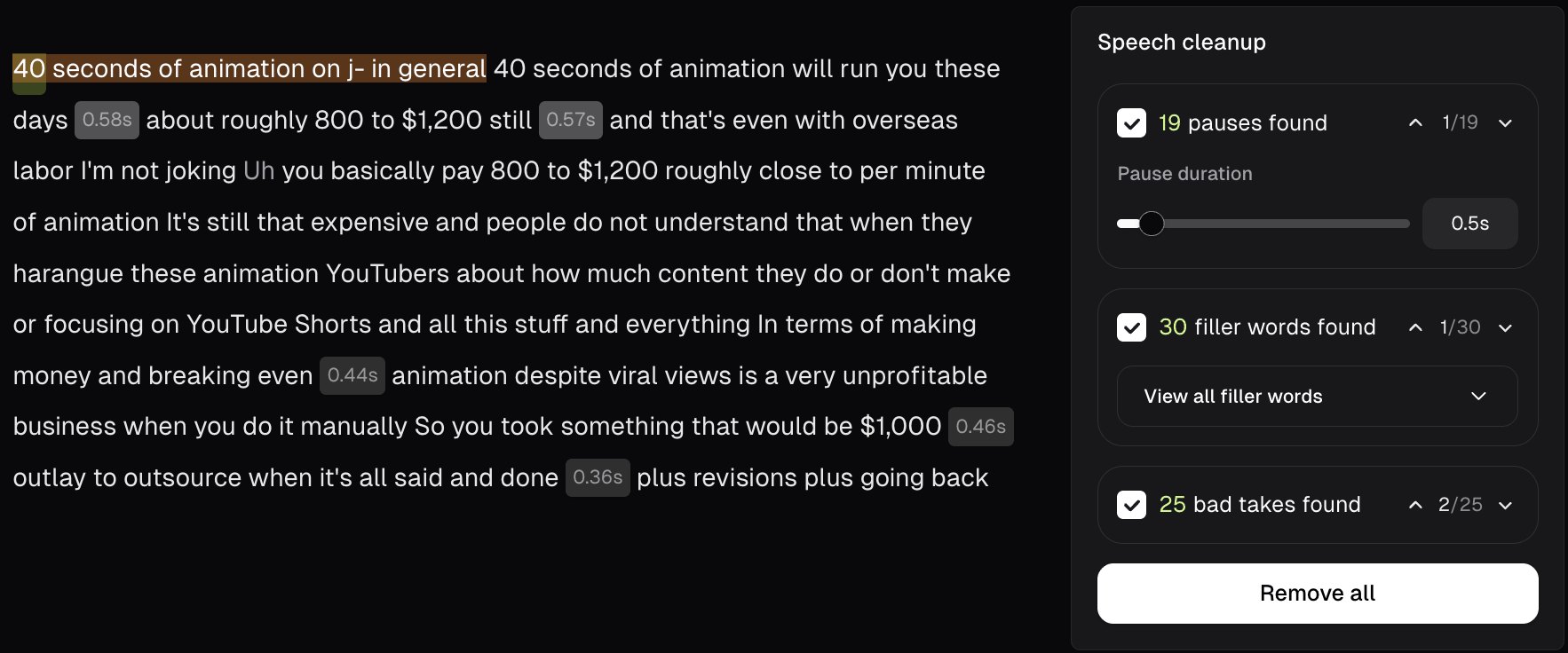
OpusClip's transcript view with highlighted words and gray pause chips beside a Speech cleanup panel listing pauses, filler words and bad takes found

OpusClip's Speech cleanup panel, with the video preview cropped out. Source: OpusClip help center

OpusClip's long video to short video page says it turns long videos into short clips for TikTok, YouTube Shorts and Instagram Reels, and that it picks the most shareable moments, trims them, reframes them to vertical 9:16 and adds captions. The input is a pasted video link or an uploaded file, and the same page says ClipAnything can find moments from a prompt describing the moment wanted. That is the first job of the routine: one long recording in, a set of captioned vertical clips out.

Clean-up happens in the clip editor. The help center's Speech Cleanup article says filler words, pauses and bad takes such as retakes and restarts are highlighted in the transcript, and that nothing is cut without approval. The cost of the free route is a watermark: the help center's watermark article says clips on the Free plan carry an OpusClip brand logo watermark, and that upgrading to a paid plan removes it from Free-plan projects.

Pricing: OpusClip's pricing page lists Free at $0 (with a watermark), Starter at $15 a month (monthly billing only) and Pro at $29 a month, or $14.50 a month billed annually. Business is custom. Each plan lists its credits on the pricing page.

Considerations: OpusClip is a clipping tool first. Its help center introduction describes the in-app editor as the place for minor tweaks to clips the AI has found, so a raw recording that needs a full timeline edit is better cleaned up in one of the tools below before it goes in. A clip posted from the Free plan carries the watermark.

  • Choose it if one long recording should become a set of short captioned vertical clips, and a watermark on Free output is acceptable.
  • Skip it if the video is a single take that only needs its retakes, silences and filler words cut, which Gling and Descript do directly on the recording.

2. Gling: Best for cutting bad takes, silences and filler words from a raw recording

Gling's home page says to upload raw footage and get back a clean cut with no silences, no bad takes and no filler words. In its three steps, Gling transcribes the recording, finds the bad takes and silences and cuts them automatically, and it works with video and audio files. The result can be refined by adjusting the text or removing clips from the timeline, then exported to Final Cut, DaVinci or Premiere, or downloaded as MP4 or MP3 with captions in SRT.

The same page lists AI captions, automated zoom in and out, noise removal and a YouTube title generator. It is the clean-up step: the recording goes in as shot and a tighter one comes back, which can then go into a clip tool.

Pricing: Gling's pricing page lists Free at $0 with 1 hour of AI edited media a month and unlimited video export with a watermark. Its FAQ says that in the free version exported videos include a watermark and cannot be exported to Premiere, Final Cut or Resolve. Plus is $20 a month on the page's Monthly toggle, with 10 hours of AI edited media a month and export without a watermark. An Annual toggle is labelled Save 50%.

Considerations: Free counts 1 hour of media a month, so it fits one recording rather than a backlog. The pages we read describe cutting one recording into a clean cut, so finding short clips inside a long video is a different job.

  • Choose it if a raw talking recording needs its retakes, silences and filler words cut before anything else.
  • Skip it if the job is finding short clips in a long video, or Premiere, Final Cut or Resolve export is needed on a free plan.

3. Descript: Best for editing a recording by editing its transcript
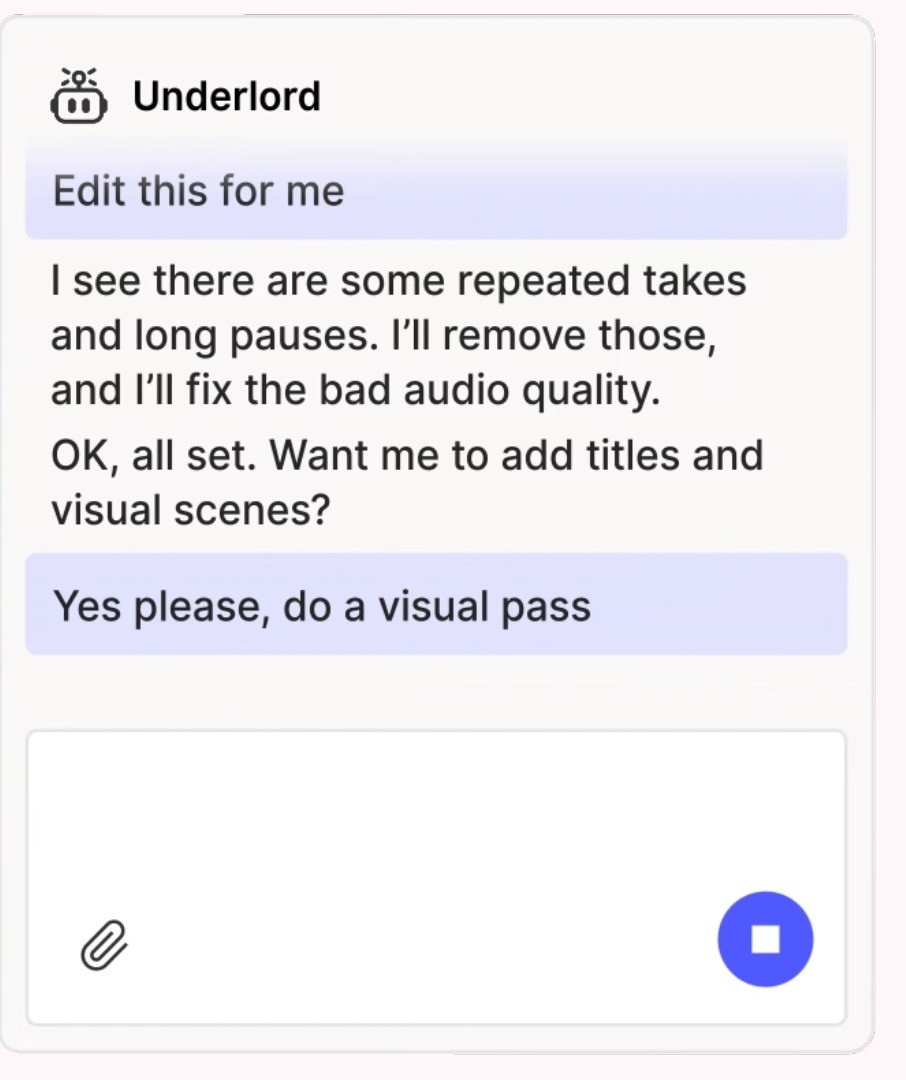
Descript's Underlord chat panel with the request Edit this for me and a reply about removing repeated takes and long pauses

Descript's Underlord chat panel. Source: Descript website

Descript's home page says to drop in footage you shot, a script or a Zoom call, edit the words to edit the video, and cut filler words and retakes in a click. It describes Underlord as its AI video editor and says it can turn a raw recording into a tight cut. Its video editor page lists Remove Filler Words and Edit for Clarity, captions and subtitles added automatically with animations and highlighted words, and an export to a local file, a shareable link or direct publishing to common platforms, including YouTube and TikTok.

Pricing: Descript's pricing page lists a Free plan with 60 minutes (1 hr) of media a month and 100 AI credits, one time. In its plan grid the AI tools are listed as Limited on Free, local export is 720p, and watermark-free video export is crossed out, so Free exports carry a watermark. Hobbyist is $16 a month billed annually ($24 billed monthly), per person, with 10 media hours and 400 AI credits a month and 1080p watermark-free export.

Considerations: Free's 60 minutes cap what can be processed each month, and its 100 AI credits are listed as one time, so they do not come back the next month.

  • Choose it if a long talking recording should be edited like a document, with filler words and retakes cut in the transcript.
  • Skip it if more than an hour of media a month is needed on a free plan, or exports must be free of a watermark.

4. Zubtitle: Best for captions and headlines on a talking video from a free plan that prints its limits

Zubtitle's home page says to upload a talking video, clean up the transcript, add a headline and make it ready for each feed. It lists automatic subtitles that can be fine-tuned in a simple editor, headlines, crop, resize and reframe for each platform, trim, and a logo, colors, fonts and saved templates. Its FAQ says a .txt or .srt file can be downloaded for each processed video.

The upload rules are printed: .mp4, .mov or .m4v files under 1.0 GB, with a duration of 20 minutes or less.

Pricing: Zubtitle's pricing card lists Bootstrapper at $0, free forever, with all video editor features, 2 videos a month, a Zubtitle watermark and resolutions up to 720p, and its plan grid shows Watermark Removed only for Guru and Agency. An FAQ on the same page describes a Free Trial plan that uploads 1 video, so confirm at sign-up which one is offered. Guru is $19 a month on the page's monthly toggle, with 10 videos a month, the watermark removed and resolutions up to 4K; the page also lists a yearly price.

Considerations: Zubtitle's own pages disagree on the free plan, and the 20-minute upload rule applies to every plan. It trims and captions a video already in hand.

  • Choose it if a short talking video needs captions, a headline and a vertical or square crop from a free plan.
  • Skip it if the source is over Zubtitle's 20-minute upload rule, or a watermark-free export is needed without paying.

5. Captions: Best for prompt-led edits and auto-captions in an app for phone or computer

Captions' home page describes an AI video editor that produces fully edited videos, with a chat-based editor for edits from simple prompts, AI Edit styles that cut scenes and overlay B-roll, automatic captions with stylized fonts, translation, and trimming of pauses, filler words and other interruptions. Its FAQ says Captions works on a phone or a computer, and that existing footage can be uploaded and finished with the AI editing tools.

The pricing page also lists, on its paid Max plan, turning a long video into a batch of post-ready clips.

Pricing: Captions' pricing page FAQ says there is a free version with a more limited feature set, that the free plan includes basic tools such as trimming, transitions and some media library assets, and that subscribing is recommended to use generative AI features and more advanced editing tools. The home page says signing up is free. Max is $24.99 a month on the pricing page, which notes that its features and prices reflect iOS plans only, and lists a chat-based editor and 500 credits a month.

Considerations: The FAQ points to a paid plan for the AI features this entry describes, and the plan grid shows its feature rows as icons, so this guide prints only the sentences.

  • Choose it if the footage lives on a phone and the free version's trimming and transitions are enough to start.
  • Skip it if AI edits are needed on a free plan, since the FAQ recommends a paid plan for them.

6. InShot: Best for AI Cut and Auto Captions in a phone editor

InShot's App Store listing lists AI tools: Auto Captions (speech to text), bilingual subtitles, AI Speech (text to speech), AI Cut, which automatically removes silence, filler words and breath sounds, Voice Enhance, and AI Effects. Its video editing list includes trim, split and merge, speed control, keyframe animation and text and stickers.

It handles video and photos on iPhone, iPad and Android, so the clean-up and caption steps can happen on the phone.

Pricing: The App Store listing labels InShot as free with in-app purchases, and the Google Play listing says it contains ads and in-app purchases. The US App Store listing prices InShot Pro at $4.99 monthly, $19.99 yearly and $49.99 lifetime, and a Remove ads purchase at $3.99, with the Yearly Pro described as access to all pro content and tools.

Considerations: The listings we read print no watermark rule and no export cap for the free app, so check the export screen before relying on it. InShot edits a video already on the device, and the listings describe no clip finder.

  • Choose it if the video is cut on a phone and AI Cut and Auto Captions are wanted from a free app with in-app purchases.
  • Skip it if the free app's limits must be known before starting, since the listings print none.

7. CapCut: Best for free templates and auto captions across devices

CapCut's pricing page lists a Free plan with free templates to start fast and basic editing tools. Its auto caption page says to add captions from the Text panel with Auto captions and Generate, and says speech can be converted to text free of charge and translated into other languages. The same page says a video can be uploaded from a computer, Google Drive or Dropbox, or a project can start from CapCut's stock footage, and the pricing page's product list names CapCut Desktop, CapCut Online, CapCut Pad and CapCut Mobile.

The Pro card lists 1200 monthly AI credits and access to AI features.

Pricing: CapCut's pricing page lists Pro at USD 19.99 a month on its Monthly toggle. The page says displayed pricing is for reference only and to sign in for final pricing, and its FAQ says Pro offers a 7-day free trial that varies by region and platform.

Considerations: The Free card lists two items and prints no watermark rule or export cap, so check the export screen before posting from a free project. CapCut is an editor to cut in, and the pages we read describe no clip finder.

  • Choose it if free templates and auto captions across phone, browser and desktop are the starting point.
  • Skip it if AI features beyond captions are needed, since the Pro card lists them.

8. Canva: Best for template-led video with Highlights and Magic Video in a design tool

Canva's video editor page lists a multi-layered timeline, trending Hook templates made for social media, captions generated and styled in one click, Highlights that surface the best bits of footage, and Magic Video, where dropped-in clips and a prompt are styled, cut and sequenced by AI.

The page also says a free account can export videos without a watermark as long as only free elements, images, footage and music are used, and that watermarks appear only if Pro or paid elements are added on a Free account.

Pricing: Canva's pricing page lists Free at US$0 a month for one person, with limited access to Standard and Premium AI. Pro is US$18 a month for one person on the page's Monthly toggle. A promotional discount banner was showing on the read date, so see the pricing page for the current price.

Considerations: Free access to AI is described as limited, and the watermark rule depends on which elements a project uses, so a template that contains a paid element needs a swap or a paid plan. Canva is a design suite with a video editor, so a long recording is cut on its timeline.

  • Choose it if the video is built from templates, with captions, in a design tool that has a free plan.
  • Skip it if a printed free AI allowance is needed, since the pricing page says only limited access.

9. Quso: Best for clips that publish to TikTok from a free plan

Quso's AI clips page says the app transcribes the recording and proposes candidate clips, each cut at a natural start and end, reframed to 9:16 and captioned, next to an editable word-level transcript where timing and caption style can be changed. It lists imports from YouTube, Vimeo, X, Facebook, Twitch, Rumble, Loom, LinkedIn and Zoom, plus Google Drive, Dropbox or a local file, and says every source is available on the free plan. Nothing is exported or published until the creator chooses it.

Pricing: Quso's pricing page lists Free at $0 with 75 credits a month, 720p with a quso.ai watermark, 16:9, 9:16 and 1:1 clips, TikTok publishing, CutMagic on the first 3 videos and 7 days of data retention. Its AI clips page adds uploads up to 5 GB and downloads up to 5 minutes per clip on the free plan. Lite is $29 a month billed monthly or $174 a year, with unlimited 1080p clips, and the AI clips page says paid plans start at $29 a month with 1080p renders and no watermark.

Considerations: Free renders at 720p with a watermark and keeps uploads for 7 days. Posting beyond TikTok sits on plans that list scheduling: the Essential plan lists scheduling to 7 platforms.

  • Choose it if clips should go to TikTok from a free plan, with the limits printed up front.
  • Skip it if 1080p or a watermark-free export is needed without paying.

How we compared these tools

We compared each tool on four criteria: which jobs of the early-creator routine its pages describe, the AI the page prints, what goes in, and the free access the vendor prints. This guide is organised around that routine for a creator working alone on free plans. OpusClip comes first because the routine starts with one long video, and turning one long video into short clips is the job OpusClip is built for. Its limits are in its entry: the Free plan carries a watermark, and the help center calls the in-app editor a place for minor tweaks. Items 2 to 9 follow one yardstick: the order of the rest of the routine, from cleaning up the recording to captions, finishing and posting.

  • 2. Gling: the clean-up step on a raw recording.
  • 3. Descript: the clean-up step by transcript.
  • 4. Zubtitle: the caption and headline step on a talking video.
  • 5. Captions: prompt-led edits and auto-captions.
  • 6. InShot: finishing on a phone.
  • 7. CapCut: finishing from free templates.
  • 8. Canva: finishing in a design tool.
  • 9. Quso: clips that publish to TikTok.

All facts come from each vendor's own pricing page, product pages and, for InShot, its App Store and Google Play listings, read on November 25, 2026. Where a page loads its figures with a script we read the rendered page, where a plan grid showed only icons we read the icons in a screenshot or left the claim out, and where a page disagrees with itself (Zubtitle) we say so. We did not run hands-on tests of any competitor, and this guide prints no accuracy figure. We also read pages for VEED, Wave.video and Riverside and left them out: VEED's pricing page lists Creator, Pro and Enterprise cards and no free plan card, Wave.video's describes a 14-day free period, and Riverside's lists a 14-day free trial. Prices change, so confirm on the vendor's page before buying.

Red flags to watch for

  • Free allowances in different units. Hours of media, credits and videos are not comparable, and Captions, CapCut and InShot print feature lists rather than a number. OpusClip's Free plan is $0 with a watermark, and the pricing page lists its credits.
  • Watermarks. OpusClip's Free plan, Gling's free exports, Quso's 720p Free renders and Zubtitle's Bootstrapper plan all print a watermark, and Descript's plan grid crosses out watermark-free export on Free. Canva's pages say a watermark appears only when a free account uses paid elements.
  • Credits that do not renew. Descript lists its 100 free AI credits as one time, so a free account can run out of AI long before it runs out of months.
  • Pages that disagree with themselves. Zubtitle's pricing card lists a free plan with 2 videos a month, while an FAQ on the same page describes a free trial of 1 video. Confirm what the sign-up screen offers.
  • Prices read from an app listing. InShot's prices here come from the US App Store listing, and Captions says its prices reflect iOS plans only, so check the price on the platform you will use.
  • Follower-count promises. No vendor page we read ties a feature to a follower count, and this guide makes no claim about growth.
  • Clips of other people's videos. OpusClip's help center says uploads must be content the uploader has the right to use. Clip only videos you own or have permission to use, and check each tool's own terms.

Frequently asked questions

What are the best AI video tools for creators with under 10K followers?

It depends on the job. For turning one long video into short captioned clips, OpusClip is the pick in this guide: its long-video page says it picks the most shareable moments, trims them, reframes them to vertical 9:16 and adds captions. Gling and Descript clean up the recording, Zubtitle and Captions caption it, InShot, CapCut and Canva finish it, and Quso clips and publishes. Audience size is a framing in this guide, not a finding.

Which AI video tools have a free plan?

All nine list free access, each in a different unit, and the At a glance list has the numbers. OpusClip's Free plan is $0 with a watermark. Our guides to free AI clipping tools and free AI video clippers with no watermark compare more clip tools.

How do I turn one long video into short clips for free?

Paste the video link or upload the file, let the tool find the moments, then trim, fix the captions and download. OpusClip's long-video page describes that flow, and Quso lists the same steps on its AI clips page, with TikTok publishing on its Free plan. Our how-to on batching a month of clips in one afternoon goes deeper.

Do free AI video tools add a watermark?

Several do: the Red flags list names them. OpusClip's watermark article says upgrading to a paid plan removes it from Free-plan projects.

What should a creator automate first?

This guide does not say what works at any follower count, so it offers an order rather than advice: clip one long video, clean up the recording, caption it, finish it, then post. That order is the one items 2 to 9 follow, and each entry says which step the vendor's pages describe.

When is a paid plan worth it?

This guide cannot say for a given creator. It can say what each vendor prints for its first paid plan: OpusClip's Starter is $15 a month (monthly billing only), Gling's Plus and Descript's Hobbyist list export without a watermark, Zubtitle's Guru lists the watermark removed, and Quso's paid plans list 1080p renders with no watermark.

Do I need permission to clip someone else's video?

Only videos the creator owns or has the right to use should be uploaded and posted, as OpusClip's copyright policy article says. We did not review the other vendors' terms.
On this page

Use our Free Forever Plan

Find the moment. Skip the scrubbing.

From script to polished video — in one click.

Create and post one short video every day for free, and grow faster.

OpusSearch uses AI to surface the exact clip you need from hours of footage — in seconds, not afternoons.

Agent Opus runs the entire video pipeline for you: research, scriptwriting, storyboarding, motion, voice, and edit. Upload the idea, post the result.

9 Best AI Video Tools for Creators With Under 10K Followers (Free Plans Compared) in 2026

OpusClip is the pick for a creator with under 10K followers who wants the first job of a free-plan routine done, turning one long video into short captioned clips: its long-video page says it picks the most shareable moments, trims them, reframes them to vertical 9:16 and adds captions, and its Free plan is $0 with a watermark. Gling and Descript clean up the recording, Zubtitle and Captions caption it, InShot, CapCut and Canva finish it, and Quso clips and publishes. Items 2 to 9 follow that routine order. Facts are from vendor pages read on November 25, 2026.

Key takeaways

  • Best for turning one long video into short captioned clips: OpusClip. Its long-video page says it picks the most shareable moments, trims them, reframes them to vertical 9:16 and adds captions.
  • Best for cutting bad takes, silences and filler words from a raw recording: Gling. Its Free plan lists 1 hour of AI edited media a month, with a watermark on exports.
  • Best for editing a recording by editing its transcript: Descript. Its Free plan lists 60 minutes a month and 100 AI credits, one time.
  • Best for captions and headlines on a talking video from a free plan that prints its limits: Zubtitle. Its Bootstrapper plan lists 2 videos a month.
  • Best for prompt-led edits and auto-captions in an app for phone or computer: Captions. Its free version lists basic tools such as trimming and transitions.
  • Best for AI Cut and Auto Captions in a phone editor: InShot. The App Store lists it as free with in-app purchases.
  • Best for free templates and auto captions across devices: CapCut. Its Free card lists free templates and basic editing tools.
  • Best for template-led video with Highlights and Magic Video in a design tool: Canva. A free account exports without a watermark when only free elements are used.
  • Best for clips that publish to TikTok from a free plan: Quso. Its Free plan lists 75 credits a month, 720p and a quso.ai watermark.

What counts as an AI video tool for a creator with under 10K followers

A creator working alone does the same few jobs for each long video, so this guide reads every tool against that routine rather than against a feature list. Clip: turn one long video into short vertical clips. Clean up: cut the retakes, silences and filler words from the raw recording. Caption: add subtitles and a headline. Finish: trim, template and export in an editor. Post: send the clips to a platform. The word free is read literally: each entry gives the free access the vendor prints, in the vendor's own unit, because one tool counts hours, another credits, another videos.

Audience size is a framing here, not a finding. None of the vendor pages we read says what works at a given follower count, and this guide makes no claim about growth, reach or earnings. It stays with AI video tools: schedulers, thumbnail testers and script writers are different jobs. For one job on free plans, see our guides to free AI clipping tools, free AI video editors for Reels, free AI video clippers with no watermark and free caption apps for YouTube videos. This guide covers the whole routine instead. For a stack that also covers planning, scripting and publishing, see our guide to AI tools for video creators.

How to choose

  • One long video should become short clips: OpusClip or Quso. OpusClip's long-video page describes the steps, and Quso lists TikTok publishing on its Free plan.
  • The raw recording is full of retakes, silences and filler words: Gling cuts them from a recording, Descript edits by transcript, InShot lists AI Cut, and OpusClip's help center describes a Speech Cleanup panel in its clip editor.
  • The video needs captions and a headline: Zubtitle adds both to a talking video, and Captions, InShot, CapCut and Canva list auto-captions.
  • The editing happens on a phone: InShot and Captions list iOS and Android apps, and CapCut lists a mobile product.
  • The clips should go straight to a platform: Quso lists TikTok publishing on Free and scheduling to 7 platforms on its Essential plan.
  • The budget is zero: compare the free entries in At a glance, because each vendor counts its free allowance in a different unit and most print a watermark.

At a glance

  • OpusClip: best for turning one long video into short captioned clips; Starter $15 a month (monthly billing only), Pro $29 a month or $14.50 a month billed annually; free plan yes ($0 with a watermark).
  • Gling: best for cutting bad takes, silences and filler words from a raw recording; Plus $20 a month on the monthly toggle; free plan yes (1 hour of AI edited media a month, exports carry a watermark).
  • Descript: best for editing a recording by editing its transcript; Hobbyist $16 a month billed annually ($24 billed monthly), per person; free plan yes (60 minutes a month, 100 AI credits one time, 720p export with a watermark).
  • Zubtitle: best for captions and headlines on a talking video from a free plan that prints its limits; Guru $19 a month on the monthly toggle; free plan yes (Bootstrapper, $0, 2 videos a month, Zubtitle watermark, up to 720p).
  • Captions: best for prompt-led edits and auto-captions in an app for phone or computer; Max $24.99 a month (the page says prices reflect iOS plans only); free version yes (basic tools such as trimming and transitions).
  • InShot: best for AI Cut and Auto Captions in a phone editor; InShot Pro $4.99 a month or $19.99 a year in the US App Store listing; free app yes (in-app purchases, and Google Play lists ads).
  • CapCut: best for free templates and auto captions across devices; Pro USD 19.99 a month on the monthly toggle; free plan yes (free templates and basic editing tools).
  • Canva: best for template-led video with Highlights and Magic Video in a design tool; Pro US$18 a month on the monthly toggle, with a promotional discount showing, so see the pricing page; free plan yes ($0, limited access to AI).
  • Quso: best for clips that publish to TikTok from a free plan; Lite $29 a month billed monthly or $174 a year; free plan yes (75 credits a month, 720p, quso.ai watermark).

How each tool fits the early-creator routine

The At a glance list covers best-for and the first paid price; this table compares the routine job each tool's pages describe, the AI each page prints, what goes in, and the free access each vendor prints, as listed on each vendor's own pages on November 25, 2026.

ToolRoutine job it takesAI it printsWhat goes inFree access as printed
OpusClipClips a long video into short captioned vertical clipsPicks the most shareable moments; ClipAnything finds a moment from a typed promptA pasted video link or an uploaded fileFree: $0 with a watermark
GlingCuts bad takes, silences and filler words from a raw recordingTranscribes the recording, finds bad takes and silences, and cuts themA raw video or audio recording1 hour of AI edited media a month; exports carry a watermark
DescriptEdits a recording by editing its transcriptUnderlord AI editor; filler words and retakes cut in a clickFootage you shot, a script or a Zoom call dropped in60 minutes a month, 100 AI credits one time, 720p; watermark on export
ZubtitleAdds captions and headlines to a talking video and resizes itAutomatic subtitles, editable in a simple editor.mp4, .mov or .m4v files of 20 minutes or lessFree forever: 2 videos a month, Zubtitle watermark, 720p
CaptionsEdits footage from prompts and AI Edit styles, with auto-captionsChat-based editor; trims pauses and filler words; stylized auto-captionsExisting footage uploaded on a phone or a computerFree version: basic tools such as trimming and transitions; paid plans recommended for AI
InShotEdits on a phone, with AI Cut and auto-captionsAuto Captions, AI Cut, AI Speech, Voice Enhance, AI EffectsVideo and photos, on iPhone, iPad or AndroidFree app with in-app purchases; Google Play lists ads
CapCutEdits from free templates, with auto captionsAuto captions; the Pro card lists 1200 monthly AI credits and AI featuresFiles from a computer, Google Drive or Dropbox, or CapCut stock footageFree card: free templates and basic editing tools
CanvaBuilds social video from templates, with captions and HighlightsHighlights finds the best bits; Magic Video styles and cuts dropped-in clipsClips uploaded from a device or dropped into the editorFree: $0; a watermark only if paid elements are added
QusoClips a long video and can publish to TikTokProposes clips cut at natural starts and ends, reframed to 9:16 and captionedLinks from YouTube, Zoom, Google Drive and more, or a file75 credits a month, 720p with a quso.ai watermark, TikTok publishing

1. OpusClip: Best for turning one long video into short captioned clips

OpusClip's transcript view with highlighted words and gray pause chips beside a Speech cleanup panel listing pauses, filler words and bad takes found

OpusClip's Speech cleanup panel, with the video preview cropped out. Source: OpusClip help center

OpusClip's long video to short video page says it turns long videos into short clips for TikTok, YouTube Shorts and Instagram Reels, and that it picks the most shareable moments, trims them, reframes them to vertical 9:16 and adds captions. The input is a pasted video link or an uploaded file, and the same page says ClipAnything can find moments from a prompt describing the moment wanted. That is the first job of the routine: one long recording in, a set of captioned vertical clips out.

Clean-up happens in the clip editor. The help center's Speech Cleanup article says filler words, pauses and bad takes such as retakes and restarts are highlighted in the transcript, and that nothing is cut without approval. The cost of the free route is a watermark: the help center's watermark article says clips on the Free plan carry an OpusClip brand logo watermark, and that upgrading to a paid plan removes it from Free-plan projects.

Pricing: OpusClip's pricing page lists Free at $0 (with a watermark), Starter at $15 a month (monthly billing only) and Pro at $29 a month, or $14.50 a month billed annually. Business is custom. Each plan lists its credits on the pricing page.

Considerations: OpusClip is a clipping tool first. Its help center introduction describes the in-app editor as the place for minor tweaks to clips the AI has found, so a raw recording that needs a full timeline edit is better cleaned up in one of the tools below before it goes in. A clip posted from the Free plan carries the watermark.

  • Choose it if one long recording should become a set of short captioned vertical clips, and a watermark on Free output is acceptable.
  • Skip it if the video is a single take that only needs its retakes, silences and filler words cut, which Gling and Descript do directly on the recording.

2. Gling: Best for cutting bad takes, silences and filler words from a raw recording

Gling's home page says to upload raw footage and get back a clean cut with no silences, no bad takes and no filler words. In its three steps, Gling transcribes the recording, finds the bad takes and silences and cuts them automatically, and it works with video and audio files. The result can be refined by adjusting the text or removing clips from the timeline, then exported to Final Cut, DaVinci or Premiere, or downloaded as MP4 or MP3 with captions in SRT.

The same page lists AI captions, automated zoom in and out, noise removal and a YouTube title generator. It is the clean-up step: the recording goes in as shot and a tighter one comes back, which can then go into a clip tool.

Pricing: Gling's pricing page lists Free at $0 with 1 hour of AI edited media a month and unlimited video export with a watermark. Its FAQ says that in the free version exported videos include a watermark and cannot be exported to Premiere, Final Cut or Resolve. Plus is $20 a month on the page's Monthly toggle, with 10 hours of AI edited media a month and export without a watermark. An Annual toggle is labelled Save 50%.

Considerations: Free counts 1 hour of media a month, so it fits one recording rather than a backlog. The pages we read describe cutting one recording into a clean cut, so finding short clips inside a long video is a different job.

  • Choose it if a raw talking recording needs its retakes, silences and filler words cut before anything else.
  • Skip it if the job is finding short clips in a long video, or Premiere, Final Cut or Resolve export is needed on a free plan.

3. Descript: Best for editing a recording by editing its transcript

Descript's Underlord chat panel with the request Edit this for me and a reply about removing repeated takes and long pauses

Descript's Underlord chat panel. Source: Descript website

Descript's home page says to drop in footage you shot, a script or a Zoom call, edit the words to edit the video, and cut filler words and retakes in a click. It describes Underlord as its AI video editor and says it can turn a raw recording into a tight cut. Its video editor page lists Remove Filler Words and Edit for Clarity, captions and subtitles added automatically with animations and highlighted words, and an export to a local file, a shareable link or direct publishing to common platforms, including YouTube and TikTok.

Pricing: Descript's pricing page lists a Free plan with 60 minutes (1 hr) of media a month and 100 AI credits, one time. In its plan grid the AI tools are listed as Limited on Free, local export is 720p, and watermark-free video export is crossed out, so Free exports carry a watermark. Hobbyist is $16 a month billed annually ($24 billed monthly), per person, with 10 media hours and 400 AI credits a month and 1080p watermark-free export.

Considerations: Free's 60 minutes cap what can be processed each month, and its 100 AI credits are listed as one time, so they do not come back the next month.

  • Choose it if a long talking recording should be edited like a document, with filler words and retakes cut in the transcript.
  • Skip it if more than an hour of media a month is needed on a free plan, or exports must be free of a watermark.

4. Zubtitle: Best for captions and headlines on a talking video from a free plan that prints its limits

Zubtitle's home page says to upload a talking video, clean up the transcript, add a headline and make it ready for each feed. It lists automatic subtitles that can be fine-tuned in a simple editor, headlines, crop, resize and reframe for each platform, trim, and a logo, colors, fonts and saved templates. Its FAQ says a .txt or .srt file can be downloaded for each processed video.

The upload rules are printed: .mp4, .mov or .m4v files under 1.0 GB, with a duration of 20 minutes or less.

Pricing: Zubtitle's pricing card lists Bootstrapper at $0, free forever, with all video editor features, 2 videos a month, a Zubtitle watermark and resolutions up to 720p, and its plan grid shows Watermark Removed only for Guru and Agency. An FAQ on the same page describes a Free Trial plan that uploads 1 video, so confirm at sign-up which one is offered. Guru is $19 a month on the page's monthly toggle, with 10 videos a month, the watermark removed and resolutions up to 4K; the page also lists a yearly price.

Considerations: Zubtitle's own pages disagree on the free plan, and the 20-minute upload rule applies to every plan. It trims and captions a video already in hand.

  • Choose it if a short talking video needs captions, a headline and a vertical or square crop from a free plan.
  • Skip it if the source is over Zubtitle's 20-minute upload rule, or a watermark-free export is needed without paying.

5. Captions: Best for prompt-led edits and auto-captions in an app for phone or computer

Captions' home page describes an AI video editor that produces fully edited videos, with a chat-based editor for edits from simple prompts, AI Edit styles that cut scenes and overlay B-roll, automatic captions with stylized fonts, translation, and trimming of pauses, filler words and other interruptions. Its FAQ says Captions works on a phone or a computer, and that existing footage can be uploaded and finished with the AI editing tools.

The pricing page also lists, on its paid Max plan, turning a long video into a batch of post-ready clips.

Pricing: Captions' pricing page FAQ says there is a free version with a more limited feature set, that the free plan includes basic tools such as trimming, transitions and some media library assets, and that subscribing is recommended to use generative AI features and more advanced editing tools. The home page says signing up is free. Max is $24.99 a month on the pricing page, which notes that its features and prices reflect iOS plans only, and lists a chat-based editor and 500 credits a month.

Considerations: The FAQ points to a paid plan for the AI features this entry describes, and the plan grid shows its feature rows as icons, so this guide prints only the sentences.

  • Choose it if the footage lives on a phone and the free version's trimming and transitions are enough to start.
  • Skip it if AI edits are needed on a free plan, since the FAQ recommends a paid plan for them.

6. InShot: Best for AI Cut and Auto Captions in a phone editor

InShot's App Store listing lists AI tools: Auto Captions (speech to text), bilingual subtitles, AI Speech (text to speech), AI Cut, which automatically removes silence, filler words and breath sounds, Voice Enhance, and AI Effects. Its video editing list includes trim, split and merge, speed control, keyframe animation and text and stickers.

It handles video and photos on iPhone, iPad and Android, so the clean-up and caption steps can happen on the phone.

Pricing: The App Store listing labels InShot as free with in-app purchases, and the Google Play listing says it contains ads and in-app purchases. The US App Store listing prices InShot Pro at $4.99 monthly, $19.99 yearly and $49.99 lifetime, and a Remove ads purchase at $3.99, with the Yearly Pro described as access to all pro content and tools.

Considerations: The listings we read print no watermark rule and no export cap for the free app, so check the export screen before relying on it. InShot edits a video already on the device, and the listings describe no clip finder.

  • Choose it if the video is cut on a phone and AI Cut and Auto Captions are wanted from a free app with in-app purchases.
  • Skip it if the free app's limits must be known before starting, since the listings print none.

7. CapCut: Best for free templates and auto captions across devices

CapCut's pricing page lists a Free plan with free templates to start fast and basic editing tools. Its auto caption page says to add captions from the Text panel with Auto captions and Generate, and says speech can be converted to text free of charge and translated into other languages. The same page says a video can be uploaded from a computer, Google Drive or Dropbox, or a project can start from CapCut's stock footage, and the pricing page's product list names CapCut Desktop, CapCut Online, CapCut Pad and CapCut Mobile.

The Pro card lists 1200 monthly AI credits and access to AI features.

Pricing: CapCut's pricing page lists Pro at USD 19.99 a month on its Monthly toggle. The page says displayed pricing is for reference only and to sign in for final pricing, and its FAQ says Pro offers a 7-day free trial that varies by region and platform.

Considerations: The Free card lists two items and prints no watermark rule or export cap, so check the export screen before posting from a free project. CapCut is an editor to cut in, and the pages we read describe no clip finder.

  • Choose it if free templates and auto captions across phone, browser and desktop are the starting point.
  • Skip it if AI features beyond captions are needed, since the Pro card lists them.

8. Canva: Best for template-led video with Highlights and Magic Video in a design tool

Canva's video editor page lists a multi-layered timeline, trending Hook templates made for social media, captions generated and styled in one click, Highlights that surface the best bits of footage, and Magic Video, where dropped-in clips and a prompt are styled, cut and sequenced by AI.

The page also says a free account can export videos without a watermark as long as only free elements, images, footage and music are used, and that watermarks appear only if Pro or paid elements are added on a Free account.

Pricing: Canva's pricing page lists Free at US$0 a month for one person, with limited access to Standard and Premium AI. Pro is US$18 a month for one person on the page's Monthly toggle. A promotional discount banner was showing on the read date, so see the pricing page for the current price.

Considerations: Free access to AI is described as limited, and the watermark rule depends on which elements a project uses, so a template that contains a paid element needs a swap or a paid plan. Canva is a design suite with a video editor, so a long recording is cut on its timeline.

  • Choose it if the video is built from templates, with captions, in a design tool that has a free plan.
  • Skip it if a printed free AI allowance is needed, since the pricing page says only limited access.

9. Quso: Best for clips that publish to TikTok from a free plan

Quso's AI clips page says the app transcribes the recording and proposes candidate clips, each cut at a natural start and end, reframed to 9:16 and captioned, next to an editable word-level transcript where timing and caption style can be changed. It lists imports from YouTube, Vimeo, X, Facebook, Twitch, Rumble, Loom, LinkedIn and Zoom, plus Google Drive, Dropbox or a local file, and says every source is available on the free plan. Nothing is exported or published until the creator chooses it.

Pricing: Quso's pricing page lists Free at $0 with 75 credits a month, 720p with a quso.ai watermark, 16:9, 9:16 and 1:1 clips, TikTok publishing, CutMagic on the first 3 videos and 7 days of data retention. Its AI clips page adds uploads up to 5 GB and downloads up to 5 minutes per clip on the free plan. Lite is $29 a month billed monthly or $174 a year, with unlimited 1080p clips, and the AI clips page says paid plans start at $29 a month with 1080p renders and no watermark.

Considerations: Free renders at 720p with a watermark and keeps uploads for 7 days. Posting beyond TikTok sits on plans that list scheduling: the Essential plan lists scheduling to 7 platforms.

  • Choose it if clips should go to TikTok from a free plan, with the limits printed up front.
  • Skip it if 1080p or a watermark-free export is needed without paying.

How we compared these tools

We compared each tool on four criteria: which jobs of the early-creator routine its pages describe, the AI the page prints, what goes in, and the free access the vendor prints. This guide is organised around that routine for a creator working alone on free plans. OpusClip comes first because the routine starts with one long video, and turning one long video into short clips is the job OpusClip is built for. Its limits are in its entry: the Free plan carries a watermark, and the help center calls the in-app editor a place for minor tweaks. Items 2 to 9 follow one yardstick: the order of the rest of the routine, from cleaning up the recording to captions, finishing and posting.

  • 2. Gling: the clean-up step on a raw recording.
  • 3. Descript: the clean-up step by transcript.
  • 4. Zubtitle: the caption and headline step on a talking video.
  • 5. Captions: prompt-led edits and auto-captions.
  • 6. InShot: finishing on a phone.
  • 7. CapCut: finishing from free templates.
  • 8. Canva: finishing in a design tool.
  • 9. Quso: clips that publish to TikTok.

All facts come from each vendor's own pricing page, product pages and, for InShot, its App Store and Google Play listings, read on November 25, 2026. Where a page loads its figures with a script we read the rendered page, where a plan grid showed only icons we read the icons in a screenshot or left the claim out, and where a page disagrees with itself (Zubtitle) we say so. We did not run hands-on tests of any competitor, and this guide prints no accuracy figure. We also read pages for VEED, Wave.video and Riverside and left them out: VEED's pricing page lists Creator, Pro and Enterprise cards and no free plan card, Wave.video's describes a 14-day free period, and Riverside's lists a 14-day free trial. Prices change, so confirm on the vendor's page before buying.

Red flags to watch for

  • Free allowances in different units. Hours of media, credits and videos are not comparable, and Captions, CapCut and InShot print feature lists rather than a number. OpusClip's Free plan is $0 with a watermark, and the pricing page lists its credits.
  • Watermarks. OpusClip's Free plan, Gling's free exports, Quso's 720p Free renders and Zubtitle's Bootstrapper plan all print a watermark, and Descript's plan grid crosses out watermark-free export on Free. Canva's pages say a watermark appears only when a free account uses paid elements.
  • Credits that do not renew. Descript lists its 100 free AI credits as one time, so a free account can run out of AI long before it runs out of months.
  • Pages that disagree with themselves. Zubtitle's pricing card lists a free plan with 2 videos a month, while an FAQ on the same page describes a free trial of 1 video. Confirm what the sign-up screen offers.
  • Prices read from an app listing. InShot's prices here come from the US App Store listing, and Captions says its prices reflect iOS plans only, so check the price on the platform you will use.
  • Follower-count promises. No vendor page we read ties a feature to a follower count, and this guide makes no claim about growth.
  • Clips of other people's videos. OpusClip's help center says uploads must be content the uploader has the right to use. Clip only videos you own or have permission to use, and check each tool's own terms.

Frequently asked questions

What are the best AI video tools for creators with under 10K followers?

It depends on the job. For turning one long video into short captioned clips, OpusClip is the pick in this guide: its long-video page says it picks the most shareable moments, trims them, reframes them to vertical 9:16 and adds captions. Gling and Descript clean up the recording, Zubtitle and Captions caption it, InShot, CapCut and Canva finish it, and Quso clips and publishes. Audience size is a framing in this guide, not a finding.

Which AI video tools have a free plan?

All nine list free access, each in a different unit, and the At a glance list has the numbers. OpusClip's Free plan is $0 with a watermark. Our guides to free AI clipping tools and free AI video clippers with no watermark compare more clip tools.

How do I turn one long video into short clips for free?

Paste the video link or upload the file, let the tool find the moments, then trim, fix the captions and download. OpusClip's long-video page describes that flow, and Quso lists the same steps on its AI clips page, with TikTok publishing on its Free plan. Our how-to on batching a month of clips in one afternoon goes deeper.

Do free AI video tools add a watermark?

Several do: the Red flags list names them. OpusClip's watermark article says upgrading to a paid plan removes it from Free-plan projects.

What should a creator automate first?

This guide does not say what works at any follower count, so it offers an order rather than advice: clip one long video, clean up the recording, caption it, finish it, then post. That order is the one items 2 to 9 follow, and each entry says which step the vendor's pages describe.

When is a paid plan worth it?

This guide cannot say for a given creator. It can say what each vendor prints for its first paid plan: OpusClip's Starter is $15 a month (monthly billing only), Gling's Plus and Descript's Hobbyist list export without a watermark, Zubtitle's Guru lists the watermark removed, and Quso's paid plans list 1080p renders with no watermark.

Do I need permission to clip someone else's video?

Only videos the creator owns or has the right to use should be uploaded and posted, as OpusClip's copyright policy article says. We did not review the other vendors' terms.

Creator name

Creator type

Team size

Channels

linkYouTubefacebookXTikTok

Pain point

Time to see positive ROI

About the creator

Don't miss these

How Audacy Drove 1B+ Views by Taking a Tech-Forward Approach to Radio with OpusClip
No items found.

How Audacy Drove 1B+ Views by Taking a Tech-Forward Approach to Radio with OpusClip

How All the Smoke makes hit compilations faster with OpusSearch

How All the Smoke makes hit compilations faster with OpusSearch

Growing a new channel to 1.5M views in 90 days without creating new videos

Growing a new channel to 1.5M views in 90 days without creating new videos

OpusClip 4.0 is here. Become a content powerhouse.

9 Best AI Video Tools for Creators With Under 10K Followers (Free Plans Compared) in 2026

Three creators filming on phones and editing on a laptop, with Free, 9:16 and Clip it badges
No items found.
No items found.

Boost your social media growth with OpusClip

Create and post one short video every day for your social media and grow faster.

9 Best AI Video Tools for Creators With Under 10K Followers (Free Plans Compared) in 2026

Three creators filming on phones and editing on a laptop, with Free, 9:16 and Clip it badges

OpusClip is the pick for a creator with under 10K followers who wants the first job of a free-plan routine done, turning one long video into short captioned clips: its long-video page says it picks the most shareable moments, trims them, reframes them to vertical 9:16 and adds captions, and its Free plan is $0 with a watermark. Gling and Descript clean up the recording, Zubtitle and Captions caption it, InShot, CapCut and Canva finish it, and Quso clips and publishes. Items 2 to 9 follow that routine order. Facts are from vendor pages read on November 25, 2026.

Key takeaways

  • Best for turning one long video into short captioned clips: OpusClip. Its long-video page says it picks the most shareable moments, trims them, reframes them to vertical 9:16 and adds captions.
  • Best for cutting bad takes, silences and filler words from a raw recording: Gling. Its Free plan lists 1 hour of AI edited media a month, with a watermark on exports.
  • Best for editing a recording by editing its transcript: Descript. Its Free plan lists 60 minutes a month and 100 AI credits, one time.
  • Best for captions and headlines on a talking video from a free plan that prints its limits: Zubtitle. Its Bootstrapper plan lists 2 videos a month.
  • Best for prompt-led edits and auto-captions in an app for phone or computer: Captions. Its free version lists basic tools such as trimming and transitions.
  • Best for AI Cut and Auto Captions in a phone editor: InShot. The App Store lists it as free with in-app purchases.
  • Best for free templates and auto captions across devices: CapCut. Its Free card lists free templates and basic editing tools.
  • Best for template-led video with Highlights and Magic Video in a design tool: Canva. A free account exports without a watermark when only free elements are used.
  • Best for clips that publish to TikTok from a free plan: Quso. Its Free plan lists 75 credits a month, 720p and a quso.ai watermark.

What counts as an AI video tool for a creator with under 10K followers

A creator working alone does the same few jobs for each long video, so this guide reads every tool against that routine rather than against a feature list. Clip: turn one long video into short vertical clips. Clean up: cut the retakes, silences and filler words from the raw recording. Caption: add subtitles and a headline. Finish: trim, template and export in an editor. Post: send the clips to a platform. The word free is read literally: each entry gives the free access the vendor prints, in the vendor's own unit, because one tool counts hours, another credits, another videos.

Audience size is a framing here, not a finding. None of the vendor pages we read says what works at a given follower count, and this guide makes no claim about growth, reach or earnings. It stays with AI video tools: schedulers, thumbnail testers and script writers are different jobs. For one job on free plans, see our guides to free AI clipping tools, free AI video editors for Reels, free AI video clippers with no watermark and free caption apps for YouTube videos. This guide covers the whole routine instead. For a stack that also covers planning, scripting and publishing, see our guide to AI tools for video creators.

How to choose

  • One long video should become short clips: OpusClip or Quso. OpusClip's long-video page describes the steps, and Quso lists TikTok publishing on its Free plan.
  • The raw recording is full of retakes, silences and filler words: Gling cuts them from a recording, Descript edits by transcript, InShot lists AI Cut, and OpusClip's help center describes a Speech Cleanup panel in its clip editor.
  • The video needs captions and a headline: Zubtitle adds both to a talking video, and Captions, InShot, CapCut and Canva list auto-captions.
  • The editing happens on a phone: InShot and Captions list iOS and Android apps, and CapCut lists a mobile product.
  • The clips should go straight to a platform: Quso lists TikTok publishing on Free and scheduling to 7 platforms on its Essential plan.
  • The budget is zero: compare the free entries in At a glance, because each vendor counts its free allowance in a different unit and most print a watermark.

At a glance

  • OpusClip: best for turning one long video into short captioned clips; Starter $15 a month (monthly billing only), Pro $29 a month or $14.50 a month billed annually; free plan yes ($0 with a watermark).
  • Gling: best for cutting bad takes, silences and filler words from a raw recording; Plus $20 a month on the monthly toggle; free plan yes (1 hour of AI edited media a month, exports carry a watermark).
  • Descript: best for editing a recording by editing its transcript; Hobbyist $16 a month billed annually ($24 billed monthly), per person; free plan yes (60 minutes a month, 100 AI credits one time, 720p export with a watermark).
  • Zubtitle: best for captions and headlines on a talking video from a free plan that prints its limits; Guru $19 a month on the monthly toggle; free plan yes (Bootstrapper, $0, 2 videos a month, Zubtitle watermark, up to 720p).
  • Captions: best for prompt-led edits and auto-captions in an app for phone or computer; Max $24.99 a month (the page says prices reflect iOS plans only); free version yes (basic tools such as trimming and transitions).
  • InShot: best for AI Cut and Auto Captions in a phone editor; InShot Pro $4.99 a month or $19.99 a year in the US App Store listing; free app yes (in-app purchases, and Google Play lists ads).
  • CapCut: best for free templates and auto captions across devices; Pro USD 19.99 a month on the monthly toggle; free plan yes (free templates and basic editing tools).
  • Canva: best for template-led video with Highlights and Magic Video in a design tool; Pro US$18 a month on the monthly toggle, with a promotional discount showing, so see the pricing page; free plan yes ($0, limited access to AI).
  • Quso: best for clips that publish to TikTok from a free plan; Lite $29 a month billed monthly or $174 a year; free plan yes (75 credits a month, 720p, quso.ai watermark).

How each tool fits the early-creator routine

The At a glance list covers best-for and the first paid price; this table compares the routine job each tool's pages describe, the AI each page prints, what goes in, and the free access each vendor prints, as listed on each vendor's own pages on November 25, 2026.

ToolRoutine job it takesAI it printsWhat goes inFree access as printed
OpusClipClips a long video into short captioned vertical clipsPicks the most shareable moments; ClipAnything finds a moment from a typed promptA pasted video link or an uploaded fileFree: $0 with a watermark
GlingCuts bad takes, silences and filler words from a raw recordingTranscribes the recording, finds bad takes and silences, and cuts themA raw video or audio recording1 hour of AI edited media a month; exports carry a watermark
DescriptEdits a recording by editing its transcriptUnderlord AI editor; filler words and retakes cut in a clickFootage you shot, a script or a Zoom call dropped in60 minutes a month, 100 AI credits one time, 720p; watermark on export
ZubtitleAdds captions and headlines to a talking video and resizes itAutomatic subtitles, editable in a simple editor.mp4, .mov or .m4v files of 20 minutes or lessFree forever: 2 videos a month, Zubtitle watermark, 720p
CaptionsEdits footage from prompts and AI Edit styles, with auto-captionsChat-based editor; trims pauses and filler words; stylized auto-captionsExisting footage uploaded on a phone or a computerFree version: basic tools such as trimming and transitions; paid plans recommended for AI
InShotEdits on a phone, with AI Cut and auto-captionsAuto Captions, AI Cut, AI Speech, Voice Enhance, AI EffectsVideo and photos, on iPhone, iPad or AndroidFree app with in-app purchases; Google Play lists ads
CapCutEdits from free templates, with auto captionsAuto captions; the Pro card lists 1200 monthly AI credits and AI featuresFiles from a computer, Google Drive or Dropbox, or CapCut stock footageFree card: free templates and basic editing tools
CanvaBuilds social video from templates, with captions and HighlightsHighlights finds the best bits; Magic Video styles and cuts dropped-in clipsClips uploaded from a device or dropped into the editorFree: $0; a watermark only if paid elements are added
QusoClips a long video and can publish to TikTokProposes clips cut at natural starts and ends, reframed to 9:16 and captionedLinks from YouTube, Zoom, Google Drive and more, or a file75 credits a month, 720p with a quso.ai watermark, TikTok publishing

1. OpusClip: Best for turning one long video into short captioned clips

OpusClip's transcript view with highlighted words and gray pause chips beside a Speech cleanup panel listing pauses, filler words and bad takes found

OpusClip's Speech cleanup panel, with the video preview cropped out. Source: OpusClip help center

OpusClip's long video to short video page says it turns long videos into short clips for TikTok, YouTube Shorts and Instagram Reels, and that it picks the most shareable moments, trims them, reframes them to vertical 9:16 and adds captions. The input is a pasted video link or an uploaded file, and the same page says ClipAnything can find moments from a prompt describing the moment wanted. That is the first job of the routine: one long recording in, a set of captioned vertical clips out.

Clean-up happens in the clip editor. The help center's Speech Cleanup article says filler words, pauses and bad takes such as retakes and restarts are highlighted in the transcript, and that nothing is cut without approval. The cost of the free route is a watermark: the help center's watermark article says clips on the Free plan carry an OpusClip brand logo watermark, and that upgrading to a paid plan removes it from Free-plan projects.

Pricing: OpusClip's pricing page lists Free at $0 (with a watermark), Starter at $15 a month (monthly billing only) and Pro at $29 a month, or $14.50 a month billed annually. Business is custom. Each plan lists its credits on the pricing page.

Considerations: OpusClip is a clipping tool first. Its help center introduction describes the in-app editor as the place for minor tweaks to clips the AI has found, so a raw recording that needs a full timeline edit is better cleaned up in one of the tools below before it goes in. A clip posted from the Free plan carries the watermark.

  • Choose it if one long recording should become a set of short captioned vertical clips, and a watermark on Free output is acceptable.
  • Skip it if the video is a single take that only needs its retakes, silences and filler words cut, which Gling and Descript do directly on the recording.

2. Gling: Best for cutting bad takes, silences and filler words from a raw recording

Gling's home page says to upload raw footage and get back a clean cut with no silences, no bad takes and no filler words. In its three steps, Gling transcribes the recording, finds the bad takes and silences and cuts them automatically, and it works with video and audio files. The result can be refined by adjusting the text or removing clips from the timeline, then exported to Final Cut, DaVinci or Premiere, or downloaded as MP4 or MP3 with captions in SRT.

The same page lists AI captions, automated zoom in and out, noise removal and a YouTube title generator. It is the clean-up step: the recording goes in as shot and a tighter one comes back, which can then go into a clip tool.

Pricing: Gling's pricing page lists Free at $0 with 1 hour of AI edited media a month and unlimited video export with a watermark. Its FAQ says that in the free version exported videos include a watermark and cannot be exported to Premiere, Final Cut or Resolve. Plus is $20 a month on the page's Monthly toggle, with 10 hours of AI edited media a month and export without a watermark. An Annual toggle is labelled Save 50%.

Considerations: Free counts 1 hour of media a month, so it fits one recording rather than a backlog. The pages we read describe cutting one recording into a clean cut, so finding short clips inside a long video is a different job.

  • Choose it if a raw talking recording needs its retakes, silences and filler words cut before anything else.
  • Skip it if the job is finding short clips in a long video, or Premiere, Final Cut or Resolve export is needed on a free plan.

3. Descript: Best for editing a recording by editing its transcript

Descript's Underlord chat panel with the request Edit this for me and a reply about removing repeated takes and long pauses

Descript's Underlord chat panel. Source: Descript website

Descript's home page says to drop in footage you shot, a script or a Zoom call, edit the words to edit the video, and cut filler words and retakes in a click. It describes Underlord as its AI video editor and says it can turn a raw recording into a tight cut. Its video editor page lists Remove Filler Words and Edit for Clarity, captions and subtitles added automatically with animations and highlighted words, and an export to a local file, a shareable link or direct publishing to common platforms, including YouTube and TikTok.

Pricing: Descript's pricing page lists a Free plan with 60 minutes (1 hr) of media a month and 100 AI credits, one time. In its plan grid the AI tools are listed as Limited on Free, local export is 720p, and watermark-free video export is crossed out, so Free exports carry a watermark. Hobbyist is $16 a month billed annually ($24 billed monthly), per person, with 10 media hours and 400 AI credits a month and 1080p watermark-free export.

Considerations: Free's 60 minutes cap what can be processed each month, and its 100 AI credits are listed as one time, so they do not come back the next month.

  • Choose it if a long talking recording should be edited like a document, with filler words and retakes cut in the transcript.
  • Skip it if more than an hour of media a month is needed on a free plan, or exports must be free of a watermark.

4. Zubtitle: Best for captions and headlines on a talking video from a free plan that prints its limits

Zubtitle's home page says to upload a talking video, clean up the transcript, add a headline and make it ready for each feed. It lists automatic subtitles that can be fine-tuned in a simple editor, headlines, crop, resize and reframe for each platform, trim, and a logo, colors, fonts and saved templates. Its FAQ says a .txt or .srt file can be downloaded for each processed video.

The upload rules are printed: .mp4, .mov or .m4v files under 1.0 GB, with a duration of 20 minutes or less.

Pricing: Zubtitle's pricing card lists Bootstrapper at $0, free forever, with all video editor features, 2 videos a month, a Zubtitle watermark and resolutions up to 720p, and its plan grid shows Watermark Removed only for Guru and Agency. An FAQ on the same page describes a Free Trial plan that uploads 1 video, so confirm at sign-up which one is offered. Guru is $19 a month on the page's monthly toggle, with 10 videos a month, the watermark removed and resolutions up to 4K; the page also lists a yearly price.

Considerations: Zubtitle's own pages disagree on the free plan, and the 20-minute upload rule applies to every plan. It trims and captions a video already in hand.

  • Choose it if a short talking video needs captions, a headline and a vertical or square crop from a free plan.
  • Skip it if the source is over Zubtitle's 20-minute upload rule, or a watermark-free export is needed without paying.

5. Captions: Best for prompt-led edits and auto-captions in an app for phone or computer

Captions' home page describes an AI video editor that produces fully edited videos, with a chat-based editor for edits from simple prompts, AI Edit styles that cut scenes and overlay B-roll, automatic captions with stylized fonts, translation, and trimming of pauses, filler words and other interruptions. Its FAQ says Captions works on a phone or a computer, and that existing footage can be uploaded and finished with the AI editing tools.

The pricing page also lists, on its paid Max plan, turning a long video into a batch of post-ready clips.

Pricing: Captions' pricing page FAQ says there is a free version with a more limited feature set, that the free plan includes basic tools such as trimming, transitions and some media library assets, and that subscribing is recommended to use generative AI features and more advanced editing tools. The home page says signing up is free. Max is $24.99 a month on the pricing page, which notes that its features and prices reflect iOS plans only, and lists a chat-based editor and 500 credits a month.

Considerations: The FAQ points to a paid plan for the AI features this entry describes, and the plan grid shows its feature rows as icons, so this guide prints only the sentences.

  • Choose it if the footage lives on a phone and the free version's trimming and transitions are enough to start.
  • Skip it if AI edits are needed on a free plan, since the FAQ recommends a paid plan for them.

6. InShot: Best for AI Cut and Auto Captions in a phone editor

InShot's App Store listing lists AI tools: Auto Captions (speech to text), bilingual subtitles, AI Speech (text to speech), AI Cut, which automatically removes silence, filler words and breath sounds, Voice Enhance, and AI Effects. Its video editing list includes trim, split and merge, speed control, keyframe animation and text and stickers.

It handles video and photos on iPhone, iPad and Android, so the clean-up and caption steps can happen on the phone.

Pricing: The App Store listing labels InShot as free with in-app purchases, and the Google Play listing says it contains ads and in-app purchases. The US App Store listing prices InShot Pro at $4.99 monthly, $19.99 yearly and $49.99 lifetime, and a Remove ads purchase at $3.99, with the Yearly Pro described as access to all pro content and tools.

Considerations: The listings we read print no watermark rule and no export cap for the free app, so check the export screen before relying on it. InShot edits a video already on the device, and the listings describe no clip finder.

  • Choose it if the video is cut on a phone and AI Cut and Auto Captions are wanted from a free app with in-app purchases.
  • Skip it if the free app's limits must be known before starting, since the listings print none.

7. CapCut: Best for free templates and auto captions across devices

CapCut's pricing page lists a Free plan with free templates to start fast and basic editing tools. Its auto caption page says to add captions from the Text panel with Auto captions and Generate, and says speech can be converted to text free of charge and translated into other languages. The same page says a video can be uploaded from a computer, Google Drive or Dropbox, or a project can start from CapCut's stock footage, and the pricing page's product list names CapCut Desktop, CapCut Online, CapCut Pad and CapCut Mobile.

The Pro card lists 1200 monthly AI credits and access to AI features.

Pricing: CapCut's pricing page lists Pro at USD 19.99 a month on its Monthly toggle. The page says displayed pricing is for reference only and to sign in for final pricing, and its FAQ says Pro offers a 7-day free trial that varies by region and platform.

Considerations: The Free card lists two items and prints no watermark rule or export cap, so check the export screen before posting from a free project. CapCut is an editor to cut in, and the pages we read describe no clip finder.

  • Choose it if free templates and auto captions across phone, browser and desktop are the starting point.
  • Skip it if AI features beyond captions are needed, since the Pro card lists them.

8. Canva: Best for template-led video with Highlights and Magic Video in a design tool

Canva's video editor page lists a multi-layered timeline, trending Hook templates made for social media, captions generated and styled in one click, Highlights that surface the best bits of footage, and Magic Video, where dropped-in clips and a prompt are styled, cut and sequenced by AI.

The page also says a free account can export videos without a watermark as long as only free elements, images, footage and music are used, and that watermarks appear only if Pro or paid elements are added on a Free account.

Pricing: Canva's pricing page lists Free at US$0 a month for one person, with limited access to Standard and Premium AI. Pro is US$18 a month for one person on the page's Monthly toggle. A promotional discount banner was showing on the read date, so see the pricing page for the current price.

Considerations: Free access to AI is described as limited, and the watermark rule depends on which elements a project uses, so a template that contains a paid element needs a swap or a paid plan. Canva is a design suite with a video editor, so a long recording is cut on its timeline.

  • Choose it if the video is built from templates, with captions, in a design tool that has a free plan.
  • Skip it if a printed free AI allowance is needed, since the pricing page says only limited access.

9. Quso: Best for clips that publish to TikTok from a free plan

Quso's AI clips page says the app transcribes the recording and proposes candidate clips, each cut at a natural start and end, reframed to 9:16 and captioned, next to an editable word-level transcript where timing and caption style can be changed. It lists imports from YouTube, Vimeo, X, Facebook, Twitch, Rumble, Loom, LinkedIn and Zoom, plus Google Drive, Dropbox or a local file, and says every source is available on the free plan. Nothing is exported or published until the creator chooses it.

Pricing: Quso's pricing page lists Free at $0 with 75 credits a month, 720p with a quso.ai watermark, 16:9, 9:16 and 1:1 clips, TikTok publishing, CutMagic on the first 3 videos and 7 days of data retention. Its AI clips page adds uploads up to 5 GB and downloads up to 5 minutes per clip on the free plan. Lite is $29 a month billed monthly or $174 a year, with unlimited 1080p clips, and the AI clips page says paid plans start at $29 a month with 1080p renders and no watermark.

Considerations: Free renders at 720p with a watermark and keeps uploads for 7 days. Posting beyond TikTok sits on plans that list scheduling: the Essential plan lists scheduling to 7 platforms.

  • Choose it if clips should go to TikTok from a free plan, with the limits printed up front.
  • Skip it if 1080p or a watermark-free export is needed without paying.

How we compared these tools

We compared each tool on four criteria: which jobs of the early-creator routine its pages describe, the AI the page prints, what goes in, and the free access the vendor prints. This guide is organised around that routine for a creator working alone on free plans. OpusClip comes first because the routine starts with one long video, and turning one long video into short clips is the job OpusClip is built for. Its limits are in its entry: the Free plan carries a watermark, and the help center calls the in-app editor a place for minor tweaks. Items 2 to 9 follow one yardstick: the order of the rest of the routine, from cleaning up the recording to captions, finishing and posting.

  • 2. Gling: the clean-up step on a raw recording.
  • 3. Descript: the clean-up step by transcript.
  • 4. Zubtitle: the caption and headline step on a talking video.
  • 5. Captions: prompt-led edits and auto-captions.
  • 6. InShot: finishing on a phone.
  • 7. CapCut: finishing from free templates.
  • 8. Canva: finishing in a design tool.
  • 9. Quso: clips that publish to TikTok.

All facts come from each vendor's own pricing page, product pages and, for InShot, its App Store and Google Play listings, read on November 25, 2026. Where a page loads its figures with a script we read the rendered page, where a plan grid showed only icons we read the icons in a screenshot or left the claim out, and where a page disagrees with itself (Zubtitle) we say so. We did not run hands-on tests of any competitor, and this guide prints no accuracy figure. We also read pages for VEED, Wave.video and Riverside and left them out: VEED's pricing page lists Creator, Pro and Enterprise cards and no free plan card, Wave.video's describes a 14-day free period, and Riverside's lists a 14-day free trial. Prices change, so confirm on the vendor's page before buying.

Red flags to watch for

  • Free allowances in different units. Hours of media, credits and videos are not comparable, and Captions, CapCut and InShot print feature lists rather than a number. OpusClip's Free plan is $0 with a watermark, and the pricing page lists its credits.
  • Watermarks. OpusClip's Free plan, Gling's free exports, Quso's 720p Free renders and Zubtitle's Bootstrapper plan all print a watermark, and Descript's plan grid crosses out watermark-free export on Free. Canva's pages say a watermark appears only when a free account uses paid elements.
  • Credits that do not renew. Descript lists its 100 free AI credits as one time, so a free account can run out of AI long before it runs out of months.
  • Pages that disagree with themselves. Zubtitle's pricing card lists a free plan with 2 videos a month, while an FAQ on the same page describes a free trial of 1 video. Confirm what the sign-up screen offers.
  • Prices read from an app listing. InShot's prices here come from the US App Store listing, and Captions says its prices reflect iOS plans only, so check the price on the platform you will use.
  • Follower-count promises. No vendor page we read ties a feature to a follower count, and this guide makes no claim about growth.
  • Clips of other people's videos. OpusClip's help center says uploads must be content the uploader has the right to use. Clip only videos you own or have permission to use, and check each tool's own terms.

Frequently asked questions

What are the best AI video tools for creators with under 10K followers?

It depends on the job. For turning one long video into short captioned clips, OpusClip is the pick in this guide: its long-video page says it picks the most shareable moments, trims them, reframes them to vertical 9:16 and adds captions. Gling and Descript clean up the recording, Zubtitle and Captions caption it, InShot, CapCut and Canva finish it, and Quso clips and publishes. Audience size is a framing in this guide, not a finding.

Which AI video tools have a free plan?

All nine list free access, each in a different unit, and the At a glance list has the numbers. OpusClip's Free plan is $0 with a watermark. Our guides to free AI clipping tools and free AI video clippers with no watermark compare more clip tools.

How do I turn one long video into short clips for free?

Paste the video link or upload the file, let the tool find the moments, then trim, fix the captions and download. OpusClip's long-video page describes that flow, and Quso lists the same steps on its AI clips page, with TikTok publishing on its Free plan. Our how-to on batching a month of clips in one afternoon goes deeper.

Do free AI video tools add a watermark?

Several do: the Red flags list names them. OpusClip's watermark article says upgrading to a paid plan removes it from Free-plan projects.

What should a creator automate first?

This guide does not say what works at any follower count, so it offers an order rather than advice: clip one long video, clean up the recording, caption it, finish it, then post. That order is the one items 2 to 9 follow, and each entry says which step the vendor's pages describe.

When is a paid plan worth it?

This guide cannot say for a given creator. It can say what each vendor prints for its first paid plan: OpusClip's Starter is $15 a month (monthly billing only), Gling's Plus and Descript's Hobbyist list export without a watermark, Zubtitle's Guru lists the watermark removed, and Quso's paid plans list 1080p renders with no watermark.

Do I need permission to clip someone else's video?

Only videos the creator owns or has the right to use should be uploaded and posted, as OpusClip's copyright policy article says. We did not review the other vendors' terms.

Ready to start streaming differently?

Opus is completely FREE for one year for all private beta users. You can get access to all our premium features during this period. We also offer free support for production, studio design, and content repurposing to help you grow.
Join the beta
Limited spots remaining

Try OPUS today

Try Opus Studio

Make your live stream your Magnum Opus