No items found.
8 Best Video Editing Software for YouTube Automation in 2026
OpusClip is the pick for the repeating part of YouTube editing: turning each new long video into captioned short clips, with Auto Import, saved Recipes and a Bulk Scheduler carrying the repeat work. The other seven are editing software that repeats work in other ways: Creatomate and Canva render templates from data, VEED adds APIs, CapCut connects to ChatGPT, and Final Cut Pro, DaVinci Resolve and Filmora queue exports from a timeline. Items 2 to 8 follow one yardstick: how much of a repeat edit each vendor's own pages say can run without opening a timeline, read November 13, 2026.
Key takeaways
- Best for turning each new long video into clips on repeat: OpusClip. Its help center describes Auto Import for new public YouTube videos, Recipes that save an editing setup and a Bulk Scheduler.
- Best for videos rendered from a template and a spreadsheet: Creatomate. Its pages list an API, Zapier, Make, n8n, spreadsheet feeds and shareable forms.
- Best for branded variants made from spreadsheet rows: Canva. Its help center says each row in Bulk create makes one version of a design.
- Best for a browser editor with APIs for captions and audio jobs: VEED. Its API docs list Python, Node and Go SDK guides, and its plan comparison lists custom templates from Pro.
- Best for template-led edits that an AI assistant can drive: CapCut. Its ChatGPT page describes a CapCut MCP connection and its auto video editor page lists a Long video to shorts tool.
- Best for batch export from a Mac timeline: Final Cut Pro. Apple's page describes exporting several projects, clips or ranges at once for different destinations.
- Best for a free desktop editor with a render queue: DaVinci Resolve. Blackmagic's page lists a render queue for exporting multiple jobs and upload to YouTube from the export tool.
- Best for one project exported in several versions: Filmora. Its page says one project can export different versions to multiple destinations at once.
What counts as editing software for YouTube automation
Here, editing software for automation is a tool where a finished edit can run again on the next video without being rebuilt by hand: through a saved setup, a template filled with data, a batch or queue, an API or an AI assistant. The eight fall into three patterns. OpusClip and CapCut's Long video to shorts tool cut long recordings into short clips. Creatomate, Canva and VEED's APIs fill templates or run single jobs from data. Final Cut Pro, DaVinci Resolve and Filmora repeat output steps inside a timeline editor. Research, title, thumbnail and connector tools are left out; our guide to AI tools for YouTube automation covers them. For a longer look at OpusClip's own workflow, see YouTube automation video editing, and for the editors YouTubers use in general, see what editing software YouTubers use.
How to choose
- A new long video every week that should become clips: OpusClip, or CapCut's Long video to shorts tool when the rest of the edit lives in CapCut.
- Many near-identical videos built from rows of data: Creatomate for videos, or Canva's Bulk create for designs.
- Captions, audio cleanup or dubbing as steps in a script: VEED's API jobs.
- Edits requested from an AI assistant: CapCut through its ChatGPT connection.
- A hands-on edit sent out in several versions: Final Cut Pro on a Mac, DaVinci Resolve for a free start, or Filmora on Windows, Mac or mobile.
At a glance
- OpusClip: best for turning each new long video into clips on repeat; Starter $15 a month (monthly billing only), Pro $29 a month or $14.50 a month billed annually; free plan yes ($0, with a watermark).
- Creatomate: best for templated videos rendered from a spreadsheet, a form or an API; Essential $45 a month on annual billing ($540 billed once a year); free: 50 credits with no time limit, rendered as previews up to 480 pixels.
- Canva: best for branded video variants made in bulk from spreadsheet rows; Pro US$144 a year for one person (the pricing page's yearly view); free plan yes ($0); Bulk create is listed for Pro, Teams, Business, Enterprise, Education and Nonprofit plans.
- VEED: best for a browser editor with APIs for captions, audio cleanup and dubbing; Creator $12.25 a month billed once a year ($147) or $25 billed monthly, per editor seat; free plan yes ($0, watermarked).
- CapCut: best for template-led edits that an AI assistant can drive; Pro USD 19.99 a month as displayed (final pricing shows after sign-in); free plan yes ($0).
- Final Cut Pro: best for batch export from a Mac timeline; $299.99 one-time, or Apple Creator Studio at $12.99 a month or $129 a year for new subscribers; free: a 30-day trial of the subscription.
- DaVinci Resolve: best for a free desktop editor with a render queue; Studio $236 one-time (shown as discounted from $295); the free version is $0.
- Filmora: best for one project exported in several versions; Basic US$4.17 a month billed yearly as US$49.99; free to download, with a watermark on exports.
How each tool repeats an edit and what it hooks into
The At a glance list carries best-for, price and free plan; this table compares how a finished edit repeats, the automation hooks each vendor lists, what goes in, what comes back and the free plan limit, as listed on each vendor's own pages on November 13, 2026.
| Tool | How a finished edit repeats | Hooks the vendor lists | What goes in | What comes back | Free plan limit |
|---|---|---|---|---|---|
| OpusClip | Saved Recipes reuse an editing setup; Auto Import applies saved clip settings to new videos | Auto Import from a YouTube channel, a Zapier integration and a Bulk Scheduler | The channel's own new public YouTube videos; Drive files through Zapier | Short clips with an in-app editor for minor tweaks; Zapier can send clips to Google Drive | Free is $0 with a watermark |
| Creatomate | A template with dynamic fields is rendered again for every new row, event or entry | API, Zapier, Make, n8n, spreadsheet feeds and shareable forms | Values from a spreadsheet row, a form, an app event or an API call | Finished videos and images, kept available for 30 days | 50 credits with no time limit; free renders are previews up to 480 pixels |
| Canva | Bulk create makes one version of a design for each row of data | Canva Sheets, CSV or XLSX files, connected data apps or a typed table feed Bulk create | Rows of text and image data linked to placeholder elements; up to 150 data fields | One design per row or one multi-page design, saved to Projects | Bulk create is listed for Pro, Teams, Business, Enterprise, Education and Nonprofit plans |
| VEED | Custom templates and multiple Brand Kits from Pro; stock templates from Creator | REST API with Python, Node and Go SDK guides; integrations listed only on Enterprise | A media or video URL submitted as a job, such as subtitles, clean audio or dubbing | A processed video, such as an MP4 with subtitles burned in | Free is $0 with watermarked videos and 10 minutes of subtitles a month |
| CapCut | Reusable templates; Long video to shorts applies a chosen length and caption template | A CapCut MCP connection passes supported ChatGPT requests into an editable project | Long videos, also from Google Drive or Dropbox; prompts and footage in ChatGPT | Short vertical clips to edit or export; the page lists sharing to YouTube and TikTok | Free is $0 with free templates and basic editing tools; premium templates need a paid plan |
| Final Cut Pro | Batch export sends projects, clips or ranges out together; Compressor builds custom export settings | Batch export and Compressor, plus automatic reframing and captions inside the timeline | Footage edited on a Magnetic Timeline on Mac or iPad | Exports for devices or social media, in formats such as HDR, HEVC and MXF through Compressor | A 30-day free trial of Apple Creator Studio for new subscribers |
| DaVinci Resolve | A render queue exports multiple jobs; third-party title and motion graphics templates | Workflow integration and encoding APIs for developers; upload to YouTube from the export tool | Footage prepared on the Media page and edited on the Cut and Edit pages | Rendered files; Resolve 21 can upload to YouTube, TikTok, Vimeo and X as it exports | The free version edits up to Ultra HD at 60 fps; the Neural Engine is in Studio |
| Filmora | One project exports as several versions; video templates | YouTube Upload mode, a Social Video Planner and Final Cut Pro 7 XML export | A desktop timeline on Windows or Mac; mobile apps on Android, iOS and iPadOS | MP4, MOV, AVI, MKV and other formats, plus versions for several destinations | Free exports include a Filmora watermark; a paid plan removes it |
1. OpusClip: Best for turning each new long video into clips on repeat

OpusClip's Auto Import settings. Source: OpusClip help center
OpusClip's help center introduction calls it a video clipping tool that turns long videos into shorts, with an in-app editor for minor tweaks. For repeat work it lists three hooks. Auto Import connects a YouTube channel, checks for new public videos every hour and either emails a notice or creates a project automatically with the saved clip settings, which include a preferred clip length and a preset. It can be limited to specific playlists. Recipes save an editing setup, meaning which edits run, their settings and which brand setup to use, so the same setup applies to every new video, and the help center says custom Recipes are shared within a workspace.
Zapier covers the file route: per the help center, a Zap can start a clipping project when a video lands in a Google Drive folder and send the finished clips back to Drive, for mp4, mkv or webm files. After processing, the Bulk Scheduler on the results page sets a posting order, start time and frequency for the clips selected. OpusClip's help center also publishes an API reference, which our guide to video clipping APIs covers.
Pricing: OpusClip's pricing page lists Free at $0 (clips carry a watermark), Starter at $15 a month (monthly billing only) and Pro at $29 a month, or $14.50 a month billed annually. Business is custom.
Considerations: OpusClip is a clipping tool, not a timeline editor: its help center describes the in-app editor as meant for minor tweaks, and its repeat routes, Auto Import and Zapier, start from a recorded video. Auto Import only detects the connected channel's own public videos that were uploaded after setup; Shorts, livestreams, private and unlisted videos are not imported. Auto Import also stops if credits run out or YouTube authorization lapses.
- Choose it if the channel publishes long videos on a schedule and the repeat job is captioned clips that get a quick review.
- Skip it if the repeat job is a video built from data or a hands-on edit that needs a multi-track timeline.
2. Creatomate: Best for templated videos rendered from a spreadsheet, a form or an API
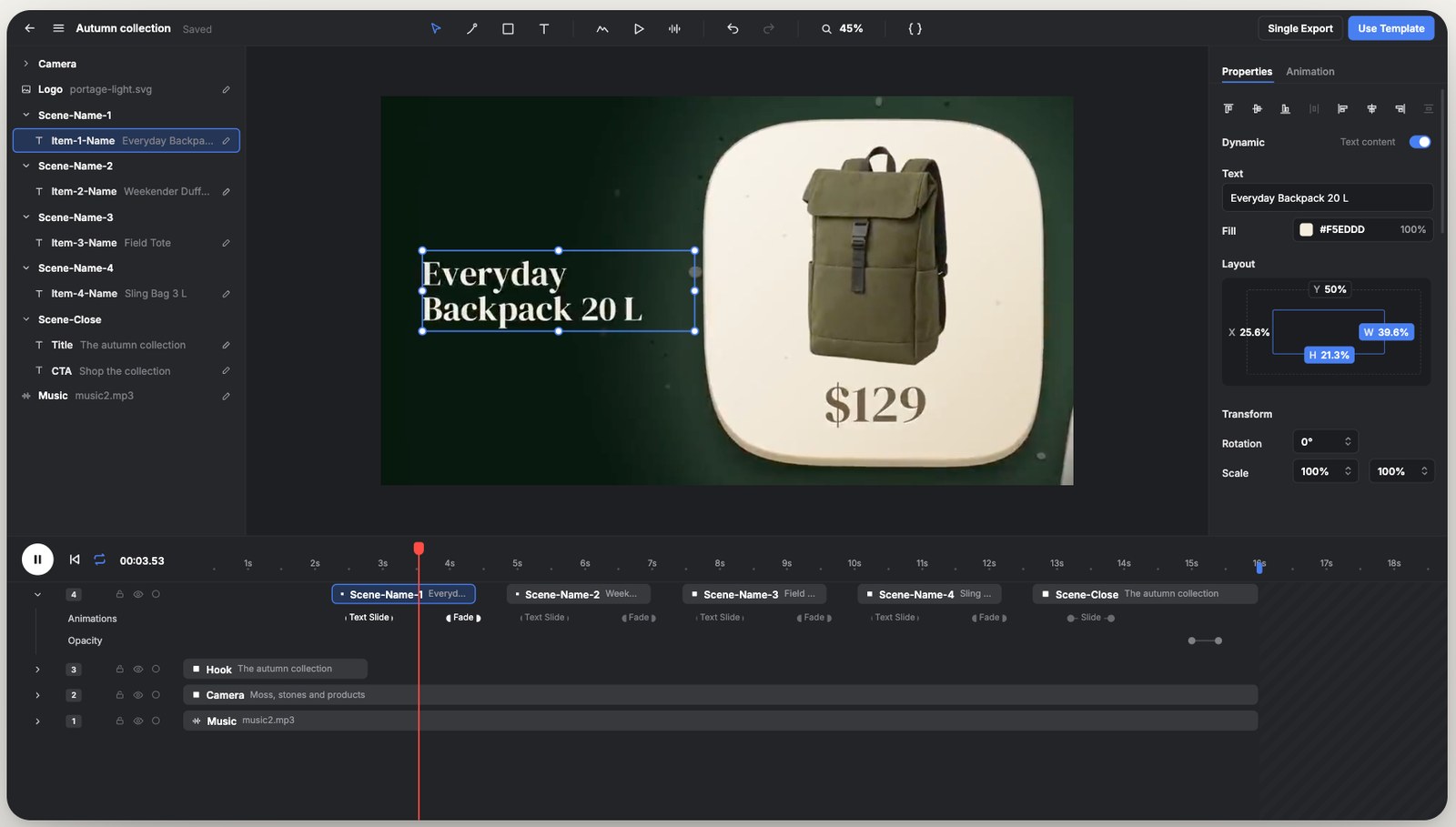
Creatomate's template editor, from its home page. Source: Creatomate website
Creatomate describes itself as a media-automation platform. A video or image template is designed in a visual editor, the parts that should change are marked dynamic, and the template is then rendered at scale through an API, Zapier, Make, n8n, spreadsheet feeds or shareable forms. Its home page says every new event, row or entry becomes a finished video or image, and its tutorial list includes how to create and post YouTube Shorts with Zapier and how to create many videos in bulk from a spreadsheet.
Its reference files list template jobs such as a faceless short and edits such as trimming, resizing, joining clips, adding music and subtitles. The template is the unit of work: the edit is designed once and each run supplies new text, media or audio.
Pricing: Creatomate's pricing page lists Essential at $45 a month on its annual view ($540 billed once a year, 2,000 credits a month and 1,000 rows in Bulk Generation) and Growth at $108 a month on its annual view ($1,290 billed once a year), with every automation feature, API included, from the first plan. The page says an annual plan is 17% cheaper than a monthly one. Its free plan gives 50 credits with no time limit, and free videos and images render as previews of up to 480 pixels.
Considerations: Creatomate renders from templates; it is not built to cut a long recording. Its feeds page says nothing renders on its own, because rows are selected and Create Renders is clicked, and that there is no live Google Sheets sync and no scheduler or social posting, so recurring flows run through Zapier, Make or n8n. Its reference says Zapier and Make use a fixed-scene template, and finished videos and images stay available for 30 days, so an automation should download them.
- Choose it if many near-identical videos come from rows of data and the pipeline already runs in Zapier, Make, n8n or code.
- Skip it if the source is a long recording to be cut, or a person edits each video by hand.
3. Canva: Best for branded video variants made in bulk from spreadsheet rows
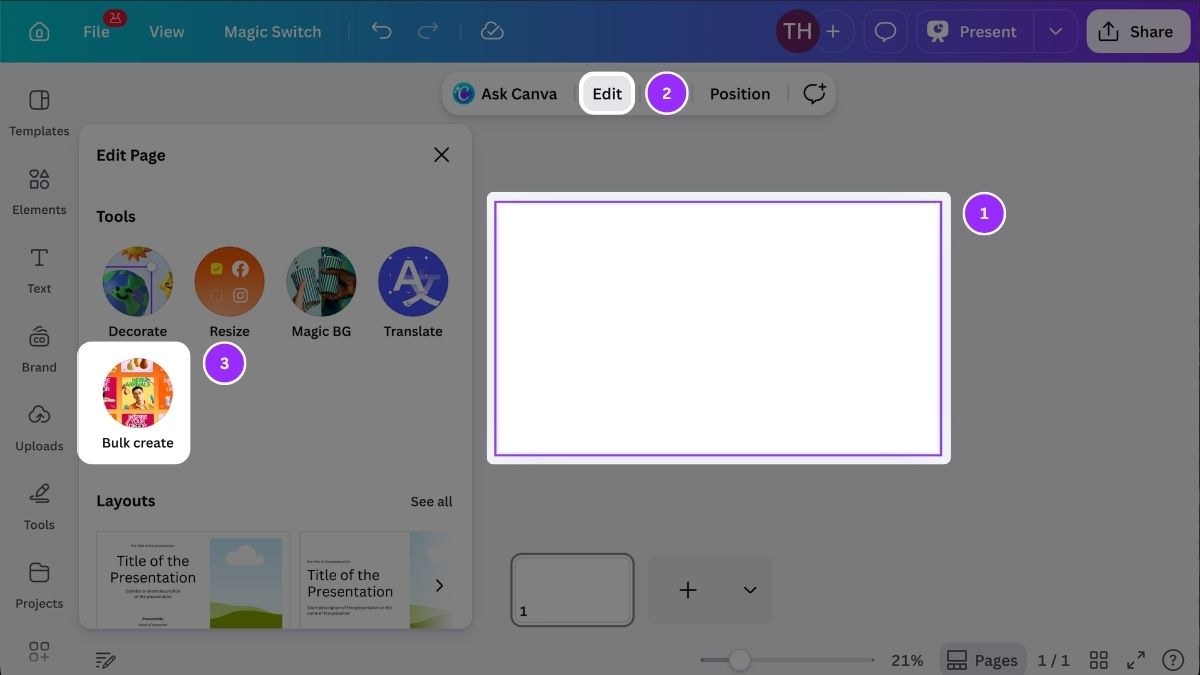
Canva's Edit Page panel with Bulk create, from its help center. Source: Canva Help Center
Canva's Bulk create links a spreadsheet to placeholder elements in a design: each column is a data field and each row creates one version of the design. Its help article lists Canva Sheets, a CSV or XLSX file, connected data apps and a manually entered table as sources, allows up to 150 data fields and says the final designs include fully playable videos, while the preview shows only a still first frame of any video.
Canva's video editor page describes a multi-layered drag-and-drop timeline, Trending Hook templates, one-click captions, resizing a video for every feed and Highlights, which surfaces the best bits of footage. For a channel that repeats one designed format with new text and images, such as an intro, a quote card or a stat slide, the template plus a data sheet is the repeatable part.
Pricing: Canva's pricing page, on its yearly view, lists Free at $0 with 1 Brand Kit (3 colors only), Pro at US$144 a year for one person with 5 Brand Kits and social content scheduling, and Business at US$250 a year per person with 100 Brand Kits and approvals. The Bulk create help article lists it for Pro, Teams, Business, Enterprise, Education and Nonprofit plans, on desktop web and the Canva desktop app.
Considerations: Bulk create fills text and image placeholders, so it suits fixed layouts, not edits that change clip by clip. The help article describes the result as designs saved to Projects, one per row or one design with a page per row, and says image URLs in the data are not supported: images must be embedded in the sheet or uploaded. Its video timeline is built for designed social videos, not for cutting long recordings.
- Choose it if a channel repeats one designed format with different text and images and already works in Canva.
- Skip it if the repeat job is cutting long recordings, or the pipeline must run without opening Canva.
4. VEED: Best for a browser editor with APIs for captions, audio cleanup and dubbing
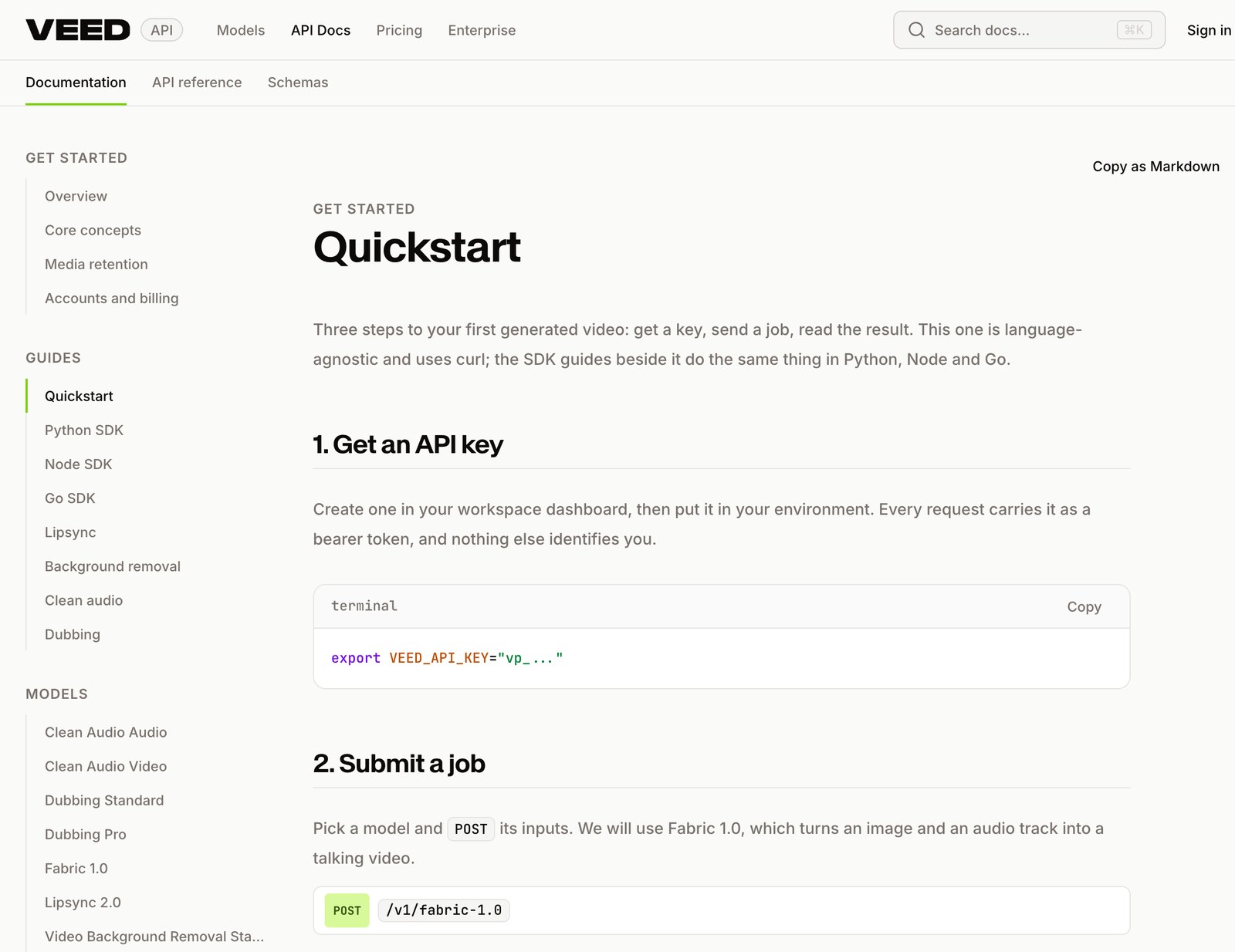
VEED's API quickstart documentation. Source: VEED website
VEED describes itself as an AI video platform for generating videos and for editing, subtitling, translating and dubbing video in the browser. Its plan comparison lists stock templates from Creator, custom templates and multiple Brand Kits from Pro, Remove Silences, Remove Filler Words and Clips from Creator, and unlimited auto subtitles on paid plans, subject to fair use. Integrations are listed only on Enterprise.
For repeat work the hook is the VEED API, a REST interface with Python, Node and Go SDK guides. A POST returns a job ID and the job is polled until it finishes. The models listed cover clean audio, dubbing, lip sync, background removal and a talking-video model. A Subtitles API takes a video URL, transcribes it, applies a style preset and returns a video with subtitles burned in, and VEED's page says it suits batch-styled YouTube uploads; the page says access is through fal.ai. VEED's API page says it is billed by usage with no subscriptions and no minimums.
Pricing: VEED's pricing documents list Free at $0 (watermarked videos, 10 minutes of subtitles a month), Creator at $12.25 a month billed once a year ($147) or $25 billed monthly, and Pro at $22.08 a month billed once a year ($265) or $45 billed monthly, all per editor seat. API usage is priced separately by model.
Considerations: The API docs list single AI jobs such as clean audio, dubbing and background removal, so a pipeline built on them still needs its own step to assemble a finished video. Built-in integrations are listed only on Enterprise in the plan comparison, and every plan includes a set allowance of AI credits.
- Choose it if the channel edits in a browser and wants captions, audio cleanup or dubbing as API steps in a script.
- Skip it if the repeat job is a full timeline edit rebuilt from a template through an API, or built-in integrations are needed below Enterprise.
5. CapCut: Best for template-led edits that an AI assistant can drive
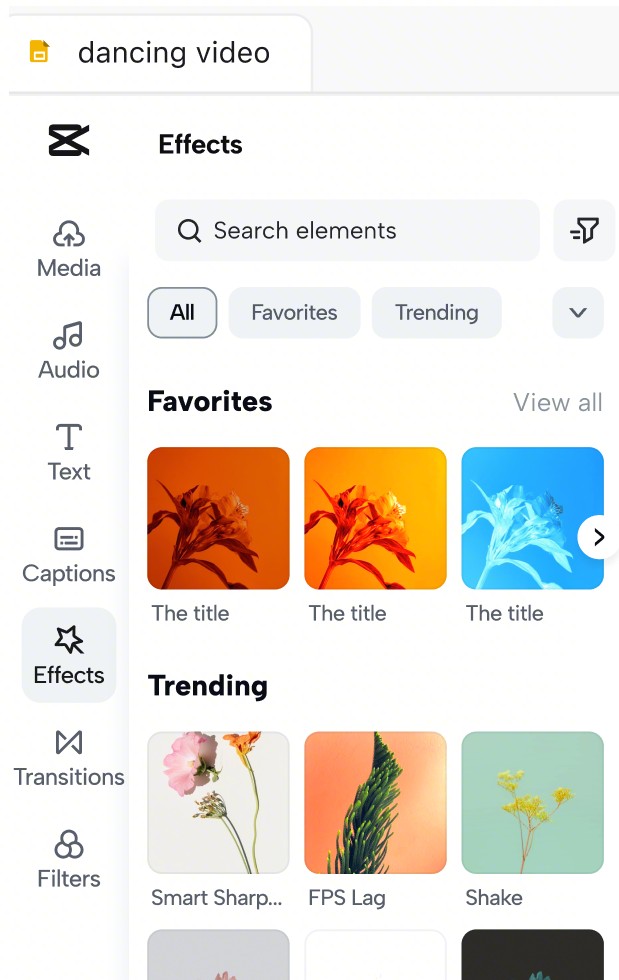
CapCut's editor Effects panel, cropped from its ChatGPT page. Source: CapCut website
CapCut has desktop, browser, iPad and mobile editors. Its auto video editor page describes a Long video to shorts tool: upload a long video (also from Google Drive or Dropbox), choose a clip length and a caption template, click Convert, then review, edit and export or share the clips to platforms such as YouTube and TikTok. Its template library lists reusable templates for social media and marketing.
The automation hook is CapCut × Codex, which its page calls the official connected workflow. With the CapCut plugin in the ChatGPT desktop app, supported requests such as shortening scenes, reordering clips or adding captions pass through what the page calls a CapCut MCP connection into an editable project that can be opened in the CapCut editor. The page says high-volume creators can organize batches of assets and prepare multiple cuts and aspect ratios this way, and CapCut's llms file says availability can vary by app version, account and region.
Pricing: CapCut's pricing page lists Free at $0 (free templates and basic editing tools), Pro at USD 19.99 a month as displayed, Ultra at USD 79 a month and Teams at USD 12.49 a month per seat, with a Brand kit on Teams. The page says displayed pricing is for reference and that final pricing, taxes and offers show after sign-in.
Considerations: CapCut's own pages say feature availability, pricing and credit rules vary by region, device and account. Its llms file also warns that templates, music, effects and generated outputs are not automatically cleared for every commercial use, which matters for a monetized channel.
- Choose it if edits are template-led and the channel already works in ChatGPT or CapCut.
- Skip it if the connection must work on every account and region without checking availability, or the plan is to run unattended.
6. Final Cut Pro: Best for batch export from a Mac timeline
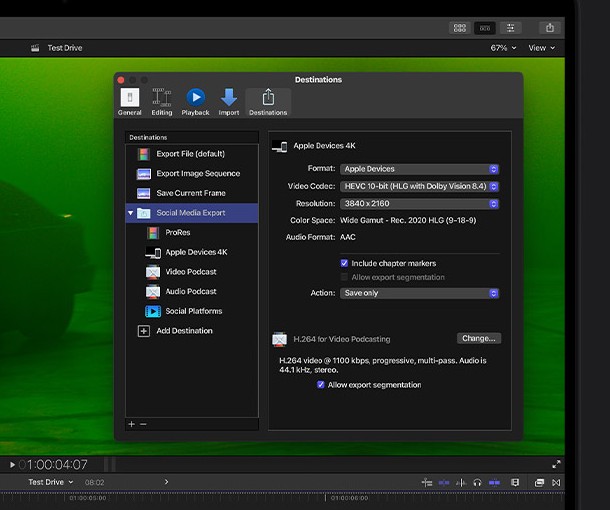
Final Cut Pro's Destinations window, cropped from Apple's product page. Source: Apple website
Final Cut Pro is Apple's timeline editor for Mac and iPad. Its product page lists a Magnetic Timeline, automatic captions made from spoken audio, automatic reframing of a clip to every aspect ratio, and Visual Search and Transcript Search (the page says these need an Apple silicon Mac or recent iPad and are available only in U.S. English).
For repeat output the page describes Batch export, which exports multiple projects, clips or clip ranges at the same time for different destinations such as mobile devices or social media. Compressor, sold alongside it, adds custom export settings and filters and support for formats such as HDR, HEVC and MXF.
Pricing: Apple's page lists Final Cut Pro as a one-time purchase of $299.99 for Mac, and as part of Apple Creator Studio, which new subscribers pay $12.99 a month or $129 a year after a 30-day free trial; the page's footnote says the plan renews at those prices.
Considerations: Final Cut Pro runs on Mac and iPad only, and the Mac app requires macOS 15.6 or later. The repeat features on its product page are Batch export and Compressor, and the page lists no API or scripting hook.
- Choose it if edits are hands-on on a Mac and the same project must go out in several formats at once.
- Skip it if editors use Windows, or the pipeline must run without a person opening the timeline.
7. DaVinci Resolve: Best for a free desktop editor with a render queue
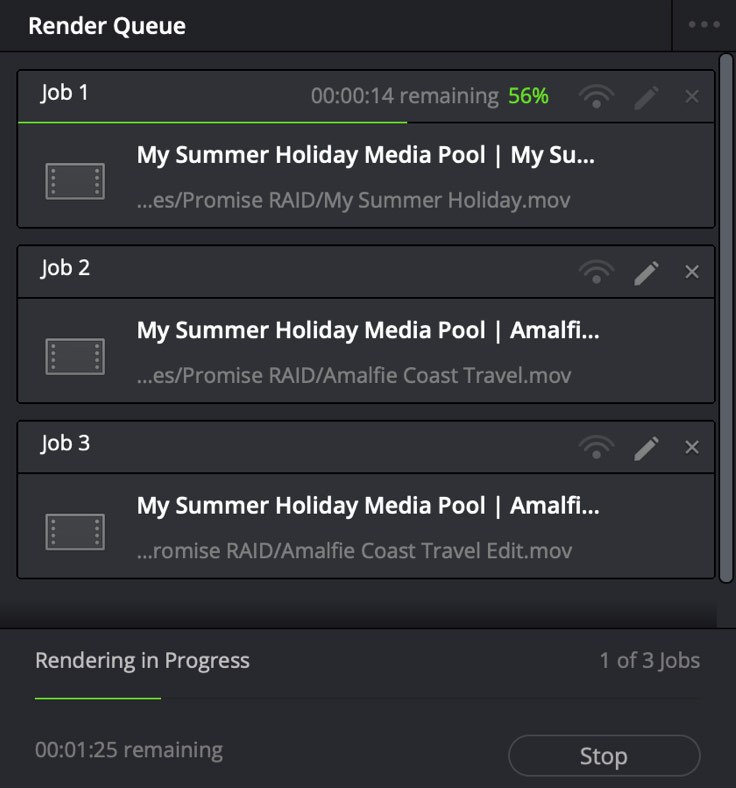
DaVinci Resolve's Render Queue, cropped from Blackmagic's page. Source: Blackmagic Design website
Blackmagic describes DaVinci Resolve as one application for editing, color, visual effects, motion graphics and audio on Mac, Windows and Linux. For repeat output, its page says the deliver page gives control over encoding options and formats along with a render queue for exporting multiple jobs, and that the quick export tool uploads files to YouTube, Vimeo and X. Its Resolve 21 page adds that linked social media accounts can receive uploads to YouTube, TikTok, Vimeo and X as a video exports, and that square and vertical timeline resolutions are available for TikTok, Instagram, X, YouTube Shorts and Snapchat.
The page also lists third-party title and motion graphics templates, an updated Fusion macro editor for custom tools and templates, and workflow integration and encoding APIs for developers.
Pricing: Blackmagic's page lists a free version of Resolve and Resolve Studio at $236 as a one-time price, shown as discounted from $295. The free version works with virtually all 8-bit video formats at up to 60 fps in resolutions as high as Ultra HD. Studio adds the DaVinci Neural Engine, text-based editing and other tools.
Considerations: Resolve is a full post-production suite with editing, color, effects and audio in one app, so a repeatable edit means building the project, templates and render settings inside the app, and its AI Neural Engine tools are in the paid Studio version rather than the free one.
- Choose it if a free desktop editor with a render queue and direct upload is enough and a person edits each video.
- Skip it if the volume needs edits that run without anyone opening the app.
8. Filmora: Best for one project exported in several versions
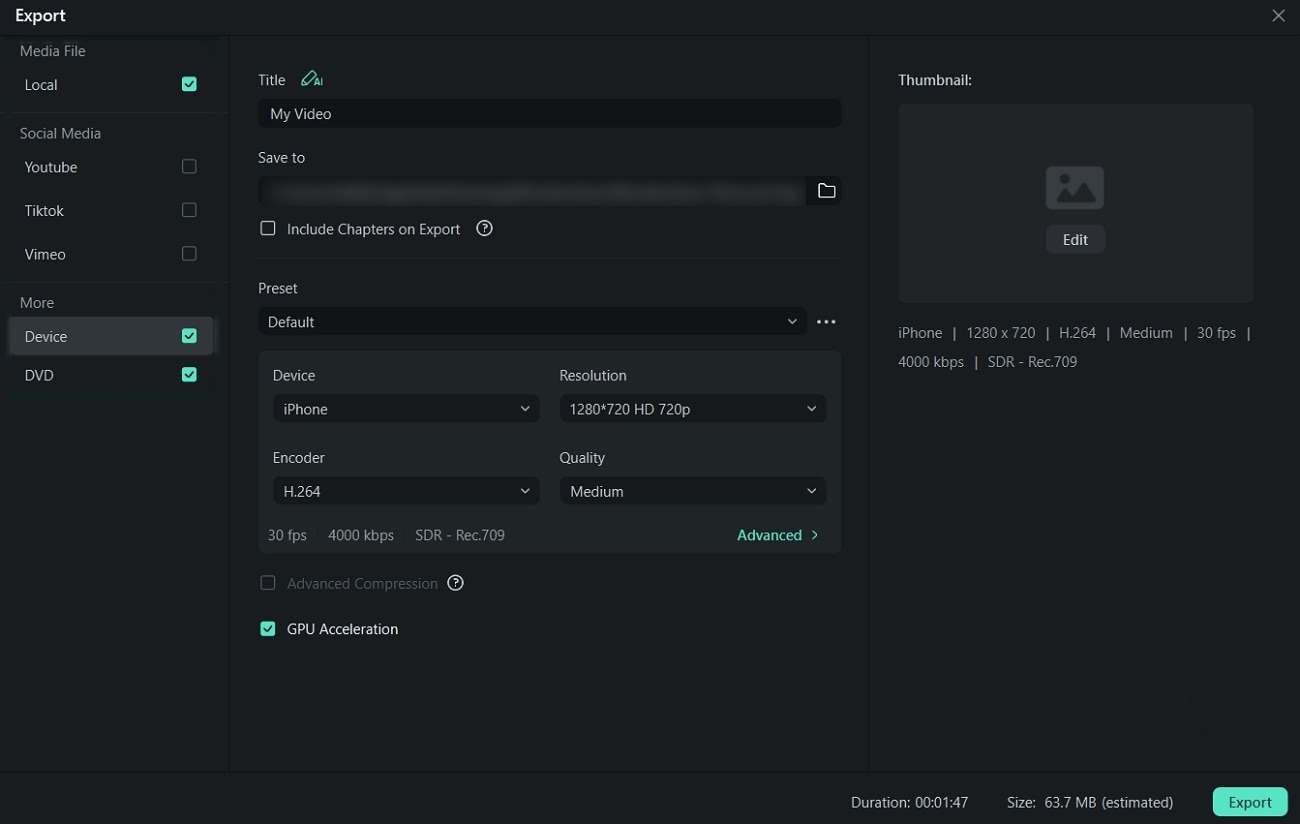
Filmora's Export dialog, with the save path blurred. Source: Filmora website
Filmora is Wondershare's video editor for Windows, macOS, Android, iOS and iPadOS. Its Filmora 16 page describes a multi-version delivery step: reframe for different aspect ratios, translate for new audiences and export different versions to multiple destinations at once from the same project. Its FAQ says an integrated YouTube Upload mode compresses videos to YouTube's recommended settings and that a Social Video Planner schedules a video in advance. The page also lists video templates and XML timeline import, with export as Final Cut Pro 7 XML.
Pricing: Filmora's pricing page lists Basic at US$4.17 a month billed yearly as US$49.99, Advanced at US$5.00 a month billed yearly as US$59.99 with 1,000 Filmora AI Credits a month, and Premium at US$8.33 a month billed yearly as US$99.99 with 2,000 AI credits a month. The FAQ says videos exported from the free version include a Filmora watermark.
Considerations: Filmora's FAQ says AI-generated resources such as AI images, stickers, text to video and AI sound effects are for non-commercial use, while resources labeled commercially available, such as AI music, are suitable for commercial use. That split matters for a monetized channel.
- Choose it if a hands-on editor with templates, multi-version export and a built-in YouTube upload is wanted on Windows, Mac or mobile.
- Skip it if AI-generated assets will ship in monetized videos without a license check, or the edit must run without opening the app.
How we compared these tools
We compared each tool on six points: how a finished edit repeats (a saved setup, a template, a batch or a queue), the automation hooks the vendor lists, what goes in, what comes back, what the free plan limits, and how clearly the vendor's pages document it. The guide is organized around the job in the title, and OpusClip comes first because turning long recordings into short clips on repeat is the job its help center describes. Its limits are in its entry: its help center calls it a clipping tool whose editor is for minor tweaks.
Items 2 to 8 follow one yardstick: how much of a repeat edit each vendor's own pages say can run without opening a timeline. Creatomate and Canva describe data-driven renders, VEED describes API jobs, CapCut describes requests passed in from ChatGPT, and Final Cut Pro, DaVinci Resolve and Filmora describe export steps inside a timeline editor.
All facts come from each vendor's own pricing pages, product pages, help centers and documentation, read on November 13, 2026, with every price printed with its billing basis. We did not run hands-on tests of any tool here, and this is a comparison of published features, hooks and prices, not a lab review. We left out Adobe Premiere because adobe.com returned a 403 error to our scripts, so we printed no Adobe facts. Descript, Vizard, Submagic, Zapier and Make are covered in our guide to AI tools for YouTube automation. Policy statements about YouTube come from YouTube's own help pages.
Red flags to watch for
- Mass-produced output. YouTube's monetization policies page says monetized content should be original and authentic and should not be mass-produced, generic, repetitive or manipulative. Template and bulk tools make near-identical videos easy, so vary the source material and review each output before it goes live.
- Free plans that mark or limit exports. OpusClip Free carries a watermark. Filmora's free exports carry its watermark, VEED Free is watermarked, and Creatomate's free plan renders previews up to 480 pixels.
- Metering. Creatomate, VEED and CapCut all draw on monthly credits for AI or render work. OpusClip's help center says Auto Import deducts credits based on the full video length, so an automatic setup can spend credits on videos that never needed clips.
- Not every hook runs unattended. Creatomate feeds need a click on Create Renders, Canva's Bulk create saves designs to Projects, the CapCut connection runs from a ChatGPT desktop task and Resolve's render queue runs the jobs a person adds.
- Availability and price conditions. CapCut says features, pricing and credits vary by region, device and account. Apple's $12.99 a month is for new subscribers, and Canva lists Bulk create on desktop web and the desktop app only, and not for the Free plan.
- Rights to templates and AI-generated assets. CapCut warns that templates, music and generated outputs are not automatically cleared for every commercial use, and Filmora says some AI-generated resources are non-commercial only. Check the license before monetizing.
Frequently asked questions
What is the best video editing software for YouTube automation?
It depends on what repeats. OpusClip comes first here for turning each new long video into clips on repeat. Creatomate is the pick for template renders from data, Canva for bulk variants of a designed format, VEED for API steps such as captions, CapCut for edits an AI assistant can drive, Final Cut Pro for batch export on a Mac, DaVinci Resolve for a free editor with a render queue and Filmora for multi-version export. See OpusClip's pricing page for plan details.
Which video editor can automate repetitive YouTube edits?
The editors here automate different things. OpusClip's help center lists Auto Import, saved Recipes and a Zapier integration. Creatomate renders templates from an API, Zapier, Make, n8n, feeds or forms. Final Cut Pro and Filmora export several versions at once, DaVinci Resolve queues export jobs, and CapCut accepts supported requests from ChatGPT.
Can video editing software make YouTube videos from a spreadsheet?
Two of the eight describe it. Creatomate's feeds turn each row into a rendered video or image, and Canva's Bulk create makes one version of a design per row. Creatomate's feeds render when rows are selected and Create Renders is clicked, and Canva's results are designs saved to Projects. For turning one long video into clips rather than filling a template, see OpusClip's clip from YouTube video tool.
Is there free video editing software for YouTube automation?
Several have free starting points with limits. OpusClip's Free plan is $0 with a watermark, and DaVinci Resolve's free version edits up to Ultra HD at 60 fps without the Neural Engine. CapCut's Free plan lists free templates and basic editing tools, VEED Free and Filmora's free exports are watermarked, Canva's Free plan is $0 but Bulk create is not listed for it, and Creatomate gives 50 credits with previews up to 480 pixels. Final Cut Pro offers a 30-day trial of its subscription.
Does YouTube allow automated or templated videos?
YouTube's monetization policies page says monetized content should be original and should not be mass-produced, generic, repetitive or manipulative. The page sets a standard for the content, not for the editing tool used, so near-identical videos published at volume are the risk the wording points to. Policies change, so check YouTube's help pages before relying on this.
Which of these editors connect to AI assistants or APIs?
CapCut describes a CapCut MCP connection through its ChatGPT plugin. Creatomate and VEED publish REST APIs, with Creatomate's API on every plan and VEED's billed by usage. DaVinci Resolve's page mentions workflow integration and encoding APIs for developers. OpusClip's help center publishes an API reference; our guide to video editing APIs for developers compares the API route.
Does OpusClip replace a timeline editor?
No. OpusClip's help center calls it a video clipping tool that turns long videos into shorts, with an in-app editor for minor tweaks. It handles the repeating clip step, and a hands-on edit still belongs in an editor such as Final Cut Pro or DaVinci Resolve.
How is this different from the guide to AI tools for YouTube automation?
That guide maps the whole channel workflow, from ideas and titles to testing and connectors. This one compares editors by how an edit repeats and what each hooks into. Only OpusClip appears in both. For OpusClip's own editing workflow, see YouTube automation video editing.